PMS Integration - Mews
Connect Streamliner to Mews to sync reservations and guest details.
Where to find it
Settings -> Essentials -> PMS Integration
Connect Mews
- Select Mews as your PMS provider.
- Enter the Access Token from Mews.
- Click Save at the bottom of the page.
- Confirm the integration status shows "Mews Integration Configured".
How to find your Access Token
You can find the Access Token in the Mews Marketplace:
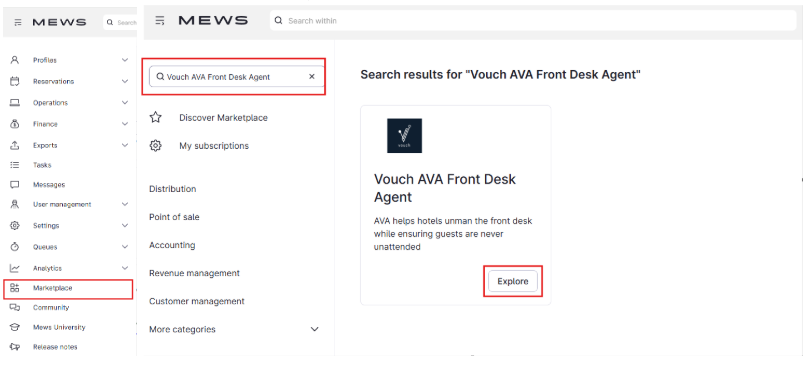
Step 1: Search in Marketplace
- Log in to Mews PMS.
- From the sidebar, click Marketplace.
- Search for Vouch AVA Front Desk Agent and click Explore.
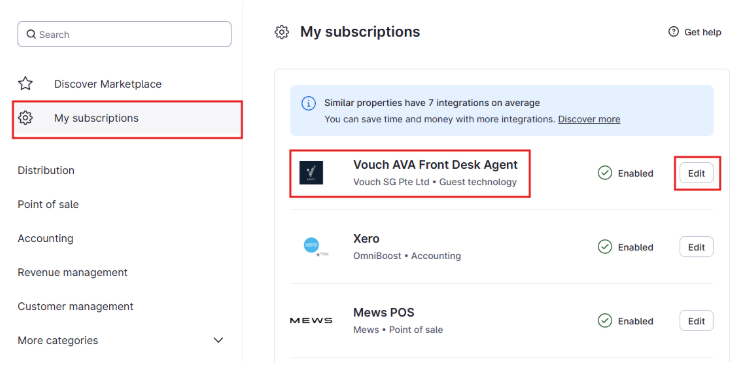
Step 2: Open My Subscriptions
- In the Marketplace sidebar, click My Subscriptions.
- Find Vouch AVA Front Desk Agent in your list.
- Click Edit.
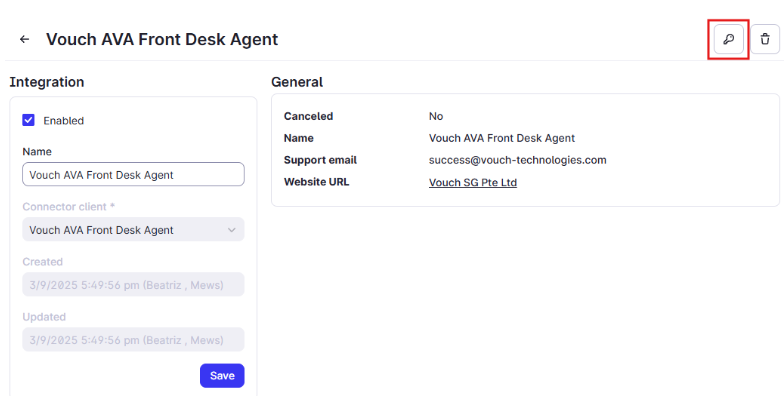
Step 3: Copy the Access Token
- On the integration page, click the key icon (🔑) in the top-right corner.
- Copy the Token ID and paste it into Streamliner.
tip
Click the info icon (ℹ️) next to the Access Token field in Streamliner for the same step-by-step instructions.
If sync is not working
- No data appears after saving: Wait 10-15 minutes for the first sync, then refresh.
- "Access Token is required" error: Make sure the Access Token field is filled in and click Save again.
- Token saved but reservations don't sync: Ask your Mews admin to confirm the AVA subscription is active in Marketplace.
- You see "DEV MODE" or extra fields: You are in a test environment. Do not edit those fields unless support asks you to.