Set Up Your Streamliner Account
New properties complete the Get Started form. Then finish the guided checklist (90-second demo + 5 settings steps + 4 post-setup checks).
This guide helps you create your first admin account or access an existing hotel, then finish onboarding.
Quick Reference
| Step | What it does | Where it happens |
|---|---|---|
| Select onboarding plan | Chooses the check-in experience and pricing tier | Get Started form |
| Verify work email | Confirms your email before account creation | Get Started form |
| Submit onboarding form | Creates your hotel profile or sends a quote request | Get Started form |
| Watch demo | 90-second overview of the platform | Welcome video after login |
| Hotel basics | Name, country, timezone | Settings → Essentials |
| PMS integration | Connect and verify reservation sync | Settings → Essentials |
| Room access | Choose smart locks or keycards | Settings → Room Access |
| Registration fields | Decide what guest details to collect | Settings → Check-In |
| Registration card disclaimer | Set signature text and rules | Settings → Check-In |
| Reservations overview | Review arrivals, stay-overs, departures | Operations View |
| Check-in landing | Download the QR and test check-in | Settings → Check-In |
| Billing | Add a payment method | Settings → Billing |
| Help assistant | Open support chat when enabled | Help menu or chat bubble |
| Invite staff access | Invite an existing user by email or username to your hotel or organization | Account Management |
| Create staff without email | Manually provision staff who cannot receive email | Account Management |
| Delete a HOME employee | Remove a HOME employee from your merchant | Account Management |
| Accept an invitation | Approve or reject an access invite you received | Sidebar profile menu → Pending Invitations |
| Login methods | Password, passkey, and email link tabs, plus separate SSO buttons | Login page |
| Password MFA | Shows a 2FA prompt on the same login screen | Login page |
| Passkey sign-in and management | Signs you in without a username and lets you manage saved devices | Login page and Profile page |
| Catalogue landing | Sends Catalogue roles to Catalogue V3 after sign-in | Catalogue V3 |
| HOME landing | Sends HOME SSO roles to their configured HOME page after sign-in | HOME |
Step 1: Create your account or request a quote (new properties)
- Open the Get Started link from your Vouch representative.
- Select a Plan and review the summary.
- Select Compare plans if you want the full feature list.
- Select Continue to account setup.
- Enter Hotel Name, Country, First Name, Last Name, Work Email, and Phone Number.
- Select Purpose of signing up and Feature you're most interested in.
- If you choose Other, fill Please specify your reason or Please specify the feature.
- Scroll inside long dropdown lists to see all options.
- If you chose Starter, Assist Pro, or Full, select Send code in Email verification.
- Enter the 6-digit code from your email, then select Verify code.
- (Optional) Select Continue with Google or Continue with LINE, then finish the provider sign-in.
- If you chose Starter, Assist Pro, or Full, enter Username, Password, and Confirm Password. Select Create account and continue.
Your username can be a conventional username or a valid email address. If the password is invalid, AVA rejects it before consuming your email verification. Correct the password and reuse the same verification flow. 13. If you chose Ultra, select Request quote.
✓ For Starter, Assist Pro, or Full, you should see "Account created" and auto sign-in starts. ✓ You should be redirected to Onboarding → Assisted Check-In Setup. ✓ For Ultra, you should see a confirmation message and a sales contact notice. ✓ For social sign-up, you should see a social account connected message on the form. ✓ After successful verification, Work Email is locked for this signup.
Accounts created with Google or LINE use social sign-in. Use the same provider to log in.
Sign in with your new Username and Password, or use Passkey or Email link if enabled. You should return to Onboarding → Assisted Check-In Setup.
Select Change plan to return to plan selection without clearing your entries.
Your plan sets the check-in experience automatically:
- Starter, Full, and Ultra use Full check-in + Assisted check-in.
- Assist Pro uses Assisted check-in only.
You can update the landing mode later in Settings → Check-In.
Account creation, invitations, password resets, and password changes use one Core standard. Use at least 12 characters and any three of uppercase, lowercase, numbers, or symbols. Your password must differ from your username and must not be a common password. Follow the checklist shown beside the password field. On public signup, Confirm Password must match before you can continue.
Enter your phone number with a country code, like +6581234567.
When you type, the shared checklist updates immediately. It shows length, username difference, character types, and confirmation status separately. Common-password rejection remains a server-side submission check.
See the right password rules
AVA shows the fixed Core requirements for every password flow.
| Password flow | Requirements shown |
|---|---|
| Account Management → Add Account or admin reset | 12 characters, any three character classes, username difference, and common-password protection |
| Superadmin creation or reset | The same fixed Core requirements |
| Profile → Change password | The same fixed Core requirements |
| Forgot password? reset | The same fixed Core requirements |
| Invitation or first sign-in setup | The fixed requirements card before you submit |
All password forms use the same checklist when requirements are available. Interactive forms show feedback as you type. Public signup keeps the checklist visible before typing. When all password requirements pass, the checklist can collapse into a fulfilled pill. The confirmation result stays outside the requirements card. AVA blocks password submission until it loads valid requirements.
The character section lists Lowercase letter, Uppercase letter, Number, and Symbol. You need any three of these four types, not all four. After three types pass, the remaining type is marked Optional. The checklist also shows how many types are present and how many remain needed.
Password confirmation is separate from the character-type count. Enter the same password in Confirm Password when the form provides that field. Public email-and-password signup requires a matching confirmation. Social signup and quote requests keep their existing fields.
Password requirements do not load
What you see: The password form is still loading, or AVA will not let you submit.
Fix:
-
Wait briefly for the requirements to load.
-
Refresh the page once.
-
Reopen Account Management, Profile, or the reset link.
-
Retry after the requirements appear.
✓ The form should show the fixed Core requirements before submission.
Use valid account details
AVA checks account details during onboarding, direct account creation, and invitation setup.
| Field | Accepted values |
|---|---|
| Username | 3–60 characters using letters, numbers, dots, hyphens, or underscores; valid email addresses are also accepted. Usernames must be unique without regard to letter case. |
| First name | Required, with up to 80 characters. Existing name characters, including non-Latin scripts, are accepted. |
| Last name | Required, with up to 80 characters. Existing name characters, including non-Latin scripts, are accepted. |
| Gender | Required when creating an account through Account Management or a new-account invitation. |
Avoid arbitrary punctuation in usernames. An email-shaped username must be a valid email address.
AVA treats uppercase and lowercase letters as equivalent when checking usernames.
For example, GMSRJMALLARI and gmsrjmallari cannot belong to different accounts.
Account details are rejected
What you see: AVA marks a username, name, or gender field as invalid.
Fix:
-
Use a username between 3 and 60 characters.
-
Use only letters, numbers, dots, hyphens, or underscores.
-
If the username contains
@, enter a valid email address. -
Enter both names, each within the 80-character limit.
-
Select a Gender option when the field appears.
✓ The form should allow you to continue after all validation messages clear.
The username is unavailable
What you see: AVA rejects a username that looks different from an existing username.
Fix:
-
Try a different username.
-
Do not change only uppercase or lowercase letters.
-
If you are editing an existing account, keep its current username or choose another unique one.
✓ The account form should continue after you enter an unused username.
You must verify your email before Create account and continue becomes available. The verification code uses six digits.
If your account has a passkey, open the Passkey tab on the Login page. You do not need to enter a username before the device prompt.
If your hotel enables email link login, select Email link and use the link sent to your account email.
After sign-in, AVA sends you to the page for your role. Password, passkey, and email link all follow the same landing path. Catalogue roles go through the Catalogue V3 SSO hand-off. HOME SSO roles go through the HOME SSO hand-off and open their configured HOME page. This includes HOME Admin, Operation Manager, and supported HOME employee roles, including maintenance roles. After the hand-off, you should remain signed in to HOME. Other roles keep their normal portal landing.
Step 2: Sign in and watch the demo
-
If you see the Login page, choose Password, Passkey, or Email link.
-
Enter your Username and Password on Password.
-
Or select Sign in with passkey on Passkey.
-
Or select Email link, then request a link with your Username.
-
Or use the buttons under Or continue with SSO if your hotel uses SSO.
-
Select Sign In if you used a password.
-
When the demo appears, choose Continue to finish it or Skip to exit onboarding.
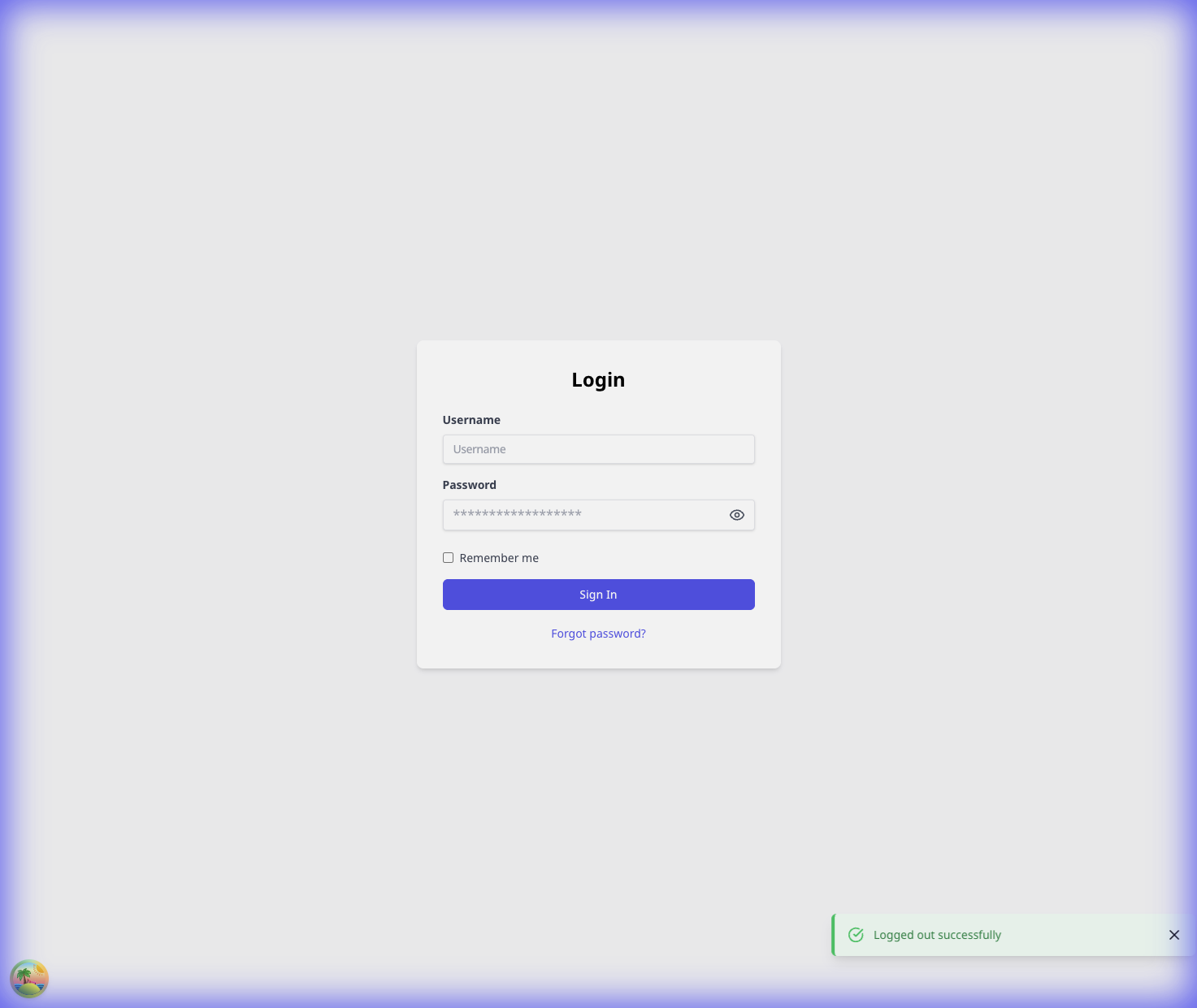
✓ After the demo, the onboarding checklist opens on Settings → Essentials.
If password sign-in asks for MFA, stay on the same screen. Enter the 2FA code when it appears.
Selecting Skip ends the guided checklist. If you see Onboarding in the sidebar, you can restart it later.
Step 3: Complete the guided onboarding checklist
-
Use the onboarding card in the bottom-right corner.
-
Complete the step on the page, then select Mark as done.
-
Work through the steps in order:
-
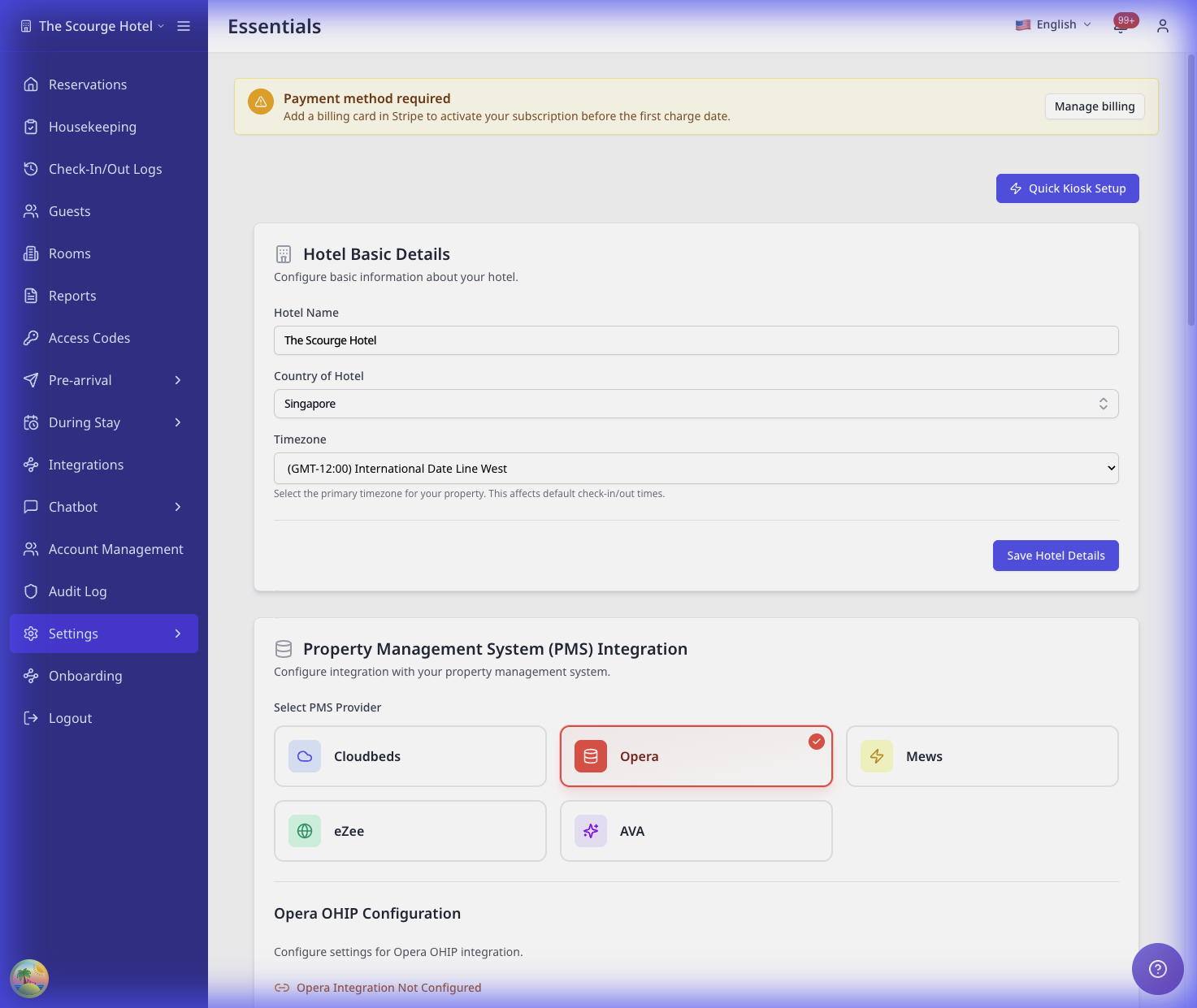
Hotel basics → Fill Hotel Name, Country, and Timezone in Settings → Essentials.
-
PMS integration → Connect your PMS in Settings → Essentials and confirm the sync.
-
Room access → Choose Smart Locks or Keycards in Settings → Room Access, then save.
-
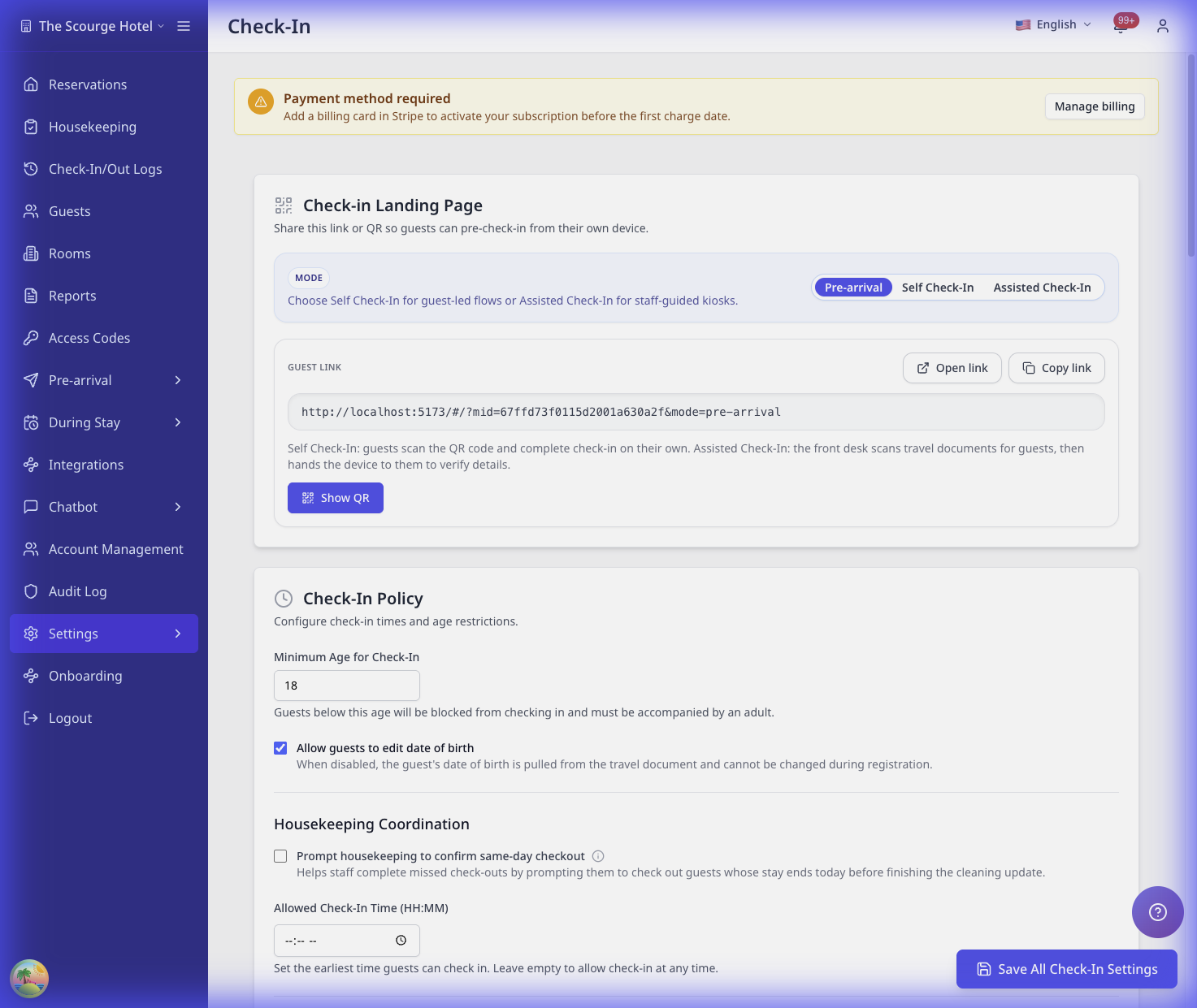
Registration fields → Select the guest details you require in Settings → Check-In.
-
Registration card disclaimer → Update the disclaimer text and signature rules in Settings → Check-In.
-
Reservations overview → Review arrivals, stay-overs, and departures in Operations View.
-
Check-in landing → Download the QR code and scan it to test in Settings → Check-In.
-
Billing → Add a payment method in Settings → Billing.
-
Need help? Open the assistant → If enabled, open the chat bubble.
-
The onboarding help action appears only when your environment enables Help Assistant. If it is unavailable, continue with the remaining onboarding steps.
While onboarding is active, navigation is locked to the current step. If you try to leave, you will see "Complete the current step to unlock navigation." Select Skip Onboarding to exit.
If your account already exists (staff)
- Ask your admin for your Username and temporary Password.
- Or select Sign in with passkey on Passkey if you already set one up.
- Or use Email link if your hotel enabled it.
- Go to Login and sign in.
- If AVA asks you to set a password, enter a new password and confirm it.
- Use the hotel switcher in the top-left to select the correct property.
Your admin may require a personal password before you can access AVA. The setup screen shows the fixed Core password requirements. Your new password must meet them and differ from your username.
Add staff accounts (admins only)
Admins with account-management permission can create accounts directly in Account Management. You can also use email or username invitations for existing staff accounts.
See Invite a user by email for the required steps.
Create a staff account without email (admins only)
Use direct account creation for staff who cannot receive an email invitation.
- Go to Account Management.
- Select Add Account. This is separate from Invite User.
- Enter the staff member's required account details.
- Leave Email blank when the staff member has no email address.
- Choose the access scope and role.
- Save the account, then share the username and temporary password securely.
✓ AVA allows multiple manually created staff accounts without email addresses.
Superadmins can use the same Add Account flow from Superadmin → Accounts.
Require a password change at first sign-in (admins only)
Use this option when staff should choose their own password before accessing AVA. For manual account creation, this option is selected by default.
- Go to Account Management and select Add Account.
- Enter the staff member's account details.
- Keep the first-sign-in password-change option selected. Clear it if the staff member should keep the temporary password.
- Choose the access scope and role.
- Save the account, then share the username and temporary password securely.
Superadmins can use the same default-on option in Superadmin → Accounts. Clear it there to opt out for that account. The option also works when Email is blank.
When the staff member signs in, AVA opens a restricted password-setup step. The form shows the fixed Core password requirements. After a successful change, AVA signs the staff member in automatically.
This setting applies when you create the account. Accounts created before this behavior was deployed keep their stored setting. Ask your Vouch representative about separate remediation for an existing account.
Give the temporary password only to the intended staff member. Ask them to replace it during their first sign-in.
Email invitations, email-link sign-in, and email-based password resets require an email address. Use Invite a user by email when the staff member can receive email.
You can leave Email blank when creating or editing an employee. Password changes for accounts without email do not send an email notification.
If you manage several hotels, select the hotel before choosing its role. Each hotel shows only roles available for that hotel and your permitted scope. Changing the hotel clears the previous role choice.
Invite a user by email (admins only)
Use this to invite an existing AVA employee or someone who does not have an AVA account.
-
Go to Account Management.
-
Select Invite User.
-
Enter the recipient Email.
-
(Optional) Enter a Note.
-
Choose the access scope:
- Hotel access → Select one or more Hotels and a Role for each hotel.
- Organization access → Select an organization Role.
-
Select Send Invite.
✓ You see a success message. ✓ The invitation appears in User Invitations on the same page.
For hotel access, choose a role separately for each selected hotel. AVA does not show roles owned by sibling hotels.
The recipient receives a one-time setup link by email. New recipients choose their first name, last name, gender, username, and password from that link. Their username follows the same rules in Use valid account details. Existing recipients can accept while signed in, or verify their password from the link. The invitation remains pending until setup or acceptance finishes.
If setup created the account before the invitation finished, reopen the same link. Verify the existing account when prompted instead of creating a case-variant username.
The setup link opens a public invitation page, even when AVA is already open. After an existing-account acceptance, AVA reloads before showing the new permissions.
The email invitation form checks the recipient before sending:
- If AVA finds a known Home account, select Use username instead and continue with that account.
- If no account matches, select Invite as a new user to send a setup email.
The new-user email creates the account during the one-time setup flow. It does not grant access until the recipient completes the invitation.
Older username-only invitations are read-only. You cannot resend or accept them. Create a new email invitation instead.
If you are an organization-level Owner, switch to the selected hotel to view its invitations. Your inherited organization access lets you list invitations for that hotel. The list stays limited to the selected hotel.
If invitations cannot load, AVA shows an error instead of an empty list. Retry after confirming your hotel or organization context.
In Account Management, use User Invitations to Resend or Cancel a pending invite.
Invite an email-less Home user by username (admins only)
Use a username invitation when an existing Home account has no email address. The account receives hotel or organization access only after accepting.
-
Go to Account Management.
-
Open the username invitation flow.
-
Enter the Home account's exact Username, then search.
-
Confirm the matched person's name before continuing.
-
Choose the access scope and role.
-
Create the invitation.
✓ The invitation appears as Pending in User Invitations. ✓ The selected account receives no new access before acceptance.
The invitation uses the selected employee account, not a newly created account. The account must not already have an email address. If the username has case-variant duplicates, AVA rejects the lookup.
Accept a username invitation without hotel access
-
Open the Login page.
-
Select Password.
-
Enter the exact Username and Password for the Home account.
-
Sign in without selecting a hotel first.
-
Open Pending Invitations from your profile menu.
-
Review the requested scope and role, then select Accept invitation.
✓ AVA activates the requested access after acceptance. ✓ The invited hotel appears in the hotel switcher when applicable.
Do not use another Home account's credentials. AVA checks the exact username and password before completing the invitation.
A username invitation cannot be created
What you see: AVA finds no account, shows multiple matches, or rejects the invitation.
Fix:
- Enter the Home account's exact Username.
- Confirm the displayed name belongs to the intended employee.
- If the account has an email, send an email invitation instead.
- If case-variant duplicates appear, ask an administrator to resolve them.
- Retry after the account has one unambiguous username.
A Home user cannot see the username invitation
What you see: The Home user signs in, but Pending Invitations is empty.
Fix:
-
Sign out of any other AVA account.
-
Sign in with the invited Home account's exact username and password.
-
Open Pending Invitations from the profile menu.
-
Ask the administrator to confirm the invitation is still Pending.
-
Refresh the page, then open Pending Invitations again.
✓ The invitation should appear before the Home user accepts it.
Complete an email invitation
What you see: The recipient has an email invitation but no active AVA access.
Fix:
-
Ask the recipient to check the inbox for the invited email address.
-
Ask them to open the latest one-time setup link.
-
If they are new to AVA, have them enter their account details and choose Gender when shown.
-
Have new recipients create their password, then submit the setup form.
-
If they already have an account, have them sign in and approve the pending invitation.
-
If their previous access was removed, have them verify their password on the setup page.
-
Select Resend if the link expired or the email was missed.
✓ The invitation should finalize after account setup and approval. ✓ The selected Gender is saved to the new employee profile.
The Gender field may not appear while older Streamliner versions are still active. Invitations remain usable when the field is unavailable.
The invitation opens for the wrong account
What you see: The setup page says you are signed in as another account.
Fix:
-
Sign out of AVA.
-
Reopen the invitation link from the invited email address.
-
Sign in with the invited account, if it already exists.
-
Use a private browser window if another AVA session keeps reopening.
✓ The page should show the invitation for the invited email address.
The new-account password is rejected
What you see: The setup page marks password requirements as incomplete, or shows a mismatch.
Fix:
-
Use the requirements shown beside the password fields.
-
Meet the length requirement shown as you type.
-
Include any three of the four listed character types.
-
Use a password different from your username.
-
Enter the same password again in Confirm Password.
-
Avoid common passwords, then submit again.
✓ The setup page should allow Create account.
Change a staff member's role
Managers with user:permissions access can update permitted role assignments. The available roles depend on the selected organization or hotel context.
-
Open Account Management.
-
Find the staff member and select Permissions.
-
Choose Organization access or a specific Hotel access entry.
-
Select a role from the available catalog.
-
Select Update Role, then review the confirmation if shown.
✓ The selected assignment updates without changing assignments outside your context.
To remove an assignment, select it, choose Remove Role, and confirm. You cannot change your own current role from this screen.
Switching an employee between organization and hotel access can remove the previous access type. Review the confirmation before saving.
A role change is unavailable or rejected
What you see: The role action is hidden, or AVA rejects the update.
Fix: Confirm you have user:permissions access. Switch to the organization or hotel that owns the assignment. Choose a role shown in the available catalog. Ask a higher-level administrator if you need broader access.
Delete a HOME employee (HOME Admins)
HOME Admins can delete HOME employees belonging to the same merchant. Use Remove Access when you only need to revoke access.
The HOME Staff list includes active employees with the Home_Admin role. Employees changed from Home_DutyManager to Home_Admin remain visible after the update.
-
Switch to the correct merchant or hotel context.
-
Open Account Management.
-
Find the HOME employee.
-
Select the delete action and confirm the deletion.
✓ The HOME employee is removed from the merchant.
HOME Admins cannot delete non-HOME employees or employees from another merchant. Use Remove Access for supported access changes, or ask a higher-level administrator.
HOME employee deletion is rejected
What you see: The delete action is unavailable, or AVA rejects the deletion.
Fix:
- Confirm the target employee has a HOME role.
- Confirm the employee belongs to your current merchant.
- Switch to the correct merchant context and retry.
- Use Remove Access if you only need to revoke access.
Remove staff access
Use Remove Access to revoke a staff member's access from the current hotel or organization.
-
Switch to the Organization context using the Hotel Switcher.
-
Open Account Management.
-
Find the staff member and select the Remove Access (trash) action.
-
In Access to remove, keep the organization and hotel assignments you want to revoke.
-
Uncheck any assignment you want to preserve.
-
Select Remove Access to confirm.
✓ AVA revokes the selected organization and hotel assignments. ✓ Assignments in other organizations remain unchanged. ✓ AVA reports how many assignments were removed.
Only assignments in the current organization and its hotels can be removed. AVA rejects selections from another organization before changing access.
Removal is unavailable or rejected
What you see: Remove Access is disabled, or AVA shows a removal error.
Fix:
- Keep at least one assignment selected in the removal dialog.
- Confirm you are in the correct Organization context.
- Reopen Account Management and select the staff member again.
- Retry with the current assignments.
If the selection became outdated, AVA rejects it without widening the removal scope.
Accept an invitation (staff)
-
In the sidebar, click your name or avatar.
-
Select Pending Invitations.
-
Review the scope (hotel or organization).
-
Select Approve or Reject.
✓ If you approve, AVA switches you to the invited hotel when applicable. ✓ The new hotel or organization appears in the hotel switcher.
If you do not have active access, open the one-time setup link from your invitation email. If the invited email already has an account, enter that account's password when AVA asks you to verify it. If you received a username invitation, sign in with the exact username and password first. If you are signed in as the invited account, select Accept invitation directly. AVA grants only the access included in that invitation.
You can view and respond to your own received invitations from any signed-in hotel. This includes free-tier hotels or hotels without the Account Management entitlement. Sending invitations, and managing invitations for other employees, still requires that entitlement.
If invitations cannot load, AVA shows an error and marks the invitation count as unavailable. Retry later, then approve or reject the invitation after it appears.
Reset a password
Staff reset (self-serve)
- On the Login page, select Forgot password?
- Enter your Username.
- Select Send reset link and follow the email instructions.
The reset page shows the fixed Core password requirements. Follow every requirement shown before submitting the new password.
Accounts without email cannot receive a reset link. Ask an administrator to set a new password from Account Management.
Admin reset
- Go to Account Management.
- Find the account and select Edit.
- In Password Reset (Optional), enter a new password and Confirm New Password.
- Select Save Changes.
AVA validates the new password against the fixed Core requirements. That standard requires 12 characters and any three of uppercase, lowercase, numbers, or symbols. It also rejects passwords matching the username or common-password lists.
For a password reset, Require password change is selected by default. Keep it selected so the employee chooses a personal password at the next sign-in. Clear it to let the employee keep the password you set. Profile-only edits preserve the existing setting and do not send a reset choice. The option is hidden for actual Superadmin targets.
Admin reset is rejected
What you see: Save Changes fails because the new password does not meet the policy.
Fix:
- Review the password requirements shown beside the password field.
- Use at least 12 characters.
- Include any three of uppercase, lowercase, numbers, or symbols.
- Use a password different from the account username.
- Avoid common passwords, then save the account again.
Existing passwords and sign-in behavior do not change.
Change your password after sign in
This takes under 2 minutes. You need your current password and a new password matching the fixed Core standard.
Use this when you are signed in and want to update your own password. The same Core standard applies regardless of the hotel selected in your current session.
You can change your own password on the free tier. You do not need Account Management access or a paid plan. Admin password resets and employee management still require the appropriate plan access.
-
Click your name or avatar in the bottom-left corner.
-
Select Profile.
-
Find the Change password section.
-
Enter your Current password.
-
Enter your New password.
-
Enter the same password again in Confirm password.
-
Click Update password.
✓ You stay signed in and see "Password updated successfully".
Update password stays disabled until all password fields are filled and the new passwords match.
What you see → Fix
| What you see | Fix |
|---|---|
| "Current password is incorrect" | Re-enter the password you use to sign in. |
| "Passwords do not match" | Type the same new password in both fields. |
| "This password was used before" | Choose a different password. |
| "Password does not meet..." | Use 12 characters, any three character classes, and a password unlike your username. |
Manage your passkeys after sign in
This takes under 2 minutes. Use it when you want to add a new device or remove an old one.
Use this when you want to add a device, review saved passkeys, or remove an old one.
-
Click your name or avatar in the bottom-left corner.
-
Select Profile.
-
Open Passkeys.
-
Enter a descriptive Passkey name.
-
Select Add passkey, then follow the browser prompt.
-
Select a confirmation method when AVA asks.
-
Select Delete next to a saved passkey to remove it.
✓ You should see the saved passkey list update right away.
Each saved passkey shows its device type, creation date, sync status, and last-used date. You can confirm changes with your password, an existing passkey, a verification code, or linked social sign-in.
The Passkeys section appears only when your browser supports passkeys. Use a supported browser or device before adding a passkey.
Keep another sign-in method available when possible. AVA blocks removal of your final login method.
The final passkey cannot be deleted
What you see: AVA prevents you from deleting a saved passkey.
Fix:
-
Register another passkey on a trusted device.
-
Complete the confirmation prompt.
-
Return to Profile → Passkeys.
-
Delete the old passkey.
✓ Your account keeps at least one login method.
Passkey confirmation does not work
What you see: You cannot add or delete a passkey after selecting Add passkey or Delete.
Fix:
-
Choose another confirmation method, if available.
-
For a verification code, request a new code and enter it before it expires.
-
For social sign-in, complete the provider flow and return to Profile.
-
If you use an existing passkey, retry on the enrolled device.
-
Refresh Profile and check that the passkey list is current.
✓ A successful change shows "Passkey updated successfully."
Troubleshooting
Phone number is rejected
What you see: A warning under Phone Number or you cannot submit the form.
Fix:
- Start with
+and include your country code. - Remove letters and extra symbols.
- Use a format like
+6581234567.
Verification code does not arrive
What you see: You selected Send code but no email appears.
Fix:
- Check Spam and Promotions folders.
- Confirm the Work Email spelling.
- Wait for the cooldown, then select Resend code.
- If your email already has an account, sign in instead.
Create account button stays disabled
What you see: Create account and continue is disabled.
Fix:
- Confirm all required fields are complete.
- Select Send code and enter the 6-digit code.
- Select Verify code and wait for the success message.
- Confirm Work Email is now locked.
"Email already exists" appears
What you see: The onboarding form shows "Email already exists".
Fix:
- Use Login with that email account.
- Or select Forgot password? to reset access.
- If this should be a new account, use a different Work Email.
I do not see the onboarding checklist
What you see: No onboarding card after login.
Fix:
- Confirm you are using the admin account created during onboarding.
- If you see Onboarding in the sidebar, select it to restart.
- Ask your admin to restart onboarding if you do not see the option.
Navigation is locked
What you see: "Complete the current step to unlock navigation."
Fix:
- Finish the current step and select Mark as done.
- Or select Skip Onboarding in the toast to exit onboarding.
I cannot sign in
What you see: "Login failed", the passkey prompt does not finish, or the email link does not arrive.
Fix:
- Try the Passkey tab again on the same device, without entering a username.
- Try Email link again and check your inbox.
- Select Forgot password? if your account has a password.
- Ask your admin to reset your password in Account Management → Edit.
AVA asks me to change my password before sign-in
What you see: You enter the temporary password, then AVA opens password setup.
Fix:
-
Enter a new password in New password.
-
Enter it again in Confirm password.
-
Follow every password rule shown on the page.
-
Select Change password.
✓ AVA should continue to your normal role-based landing page.
This prompt is expected when an admin required a first-sign-in password change. It can appear for accounts created with or without an email address.
Auto sign-in does not finish
What you see: You return to Login after creating your account.
Fix:
-
Wait 10 seconds and keep the tab open.
-
Enter your new Username and Password and select Sign In.
-
Refresh once and sign in again if the page does not move.
✓ You should land on Onboarding → Assisted Check-In Setup.
Pending invitation is missing
What you see: You sent an invitation, but it is missing from User Invitations. You may see "Failed to load invitations" instead of an empty list.
Fix:
-
Confirm you are in the correct hotel or organization context.
-
Open Account Management.
-
Retry after a short wait if User Invitations shows an error.
-
Find the existing pending email invitation before sending another one.
-
Select Resend or Cancel for that invitation.
✓ A pending invitation should remain available without creating a duplicate.
Search using the same email address you invited. Do not send another invite while the first one remains pending.
If the old invitation used a username, create a new email invitation. Legacy username invitations cannot be resent or accepted.
Sign out and sign in again before opening Pending Invitations. Then review the invitation and select Approve or Reject.
Pending invitations fail to load
What you see: Pending Invitations shows an error, or its count shows —.
Fix:
-
Wait briefly, then open Pending Invitations again.
-
Confirm you are signed in to the intended AVA account.
-
Refresh the page and retry the invitation list.
-
Contact your administrator if the error continues.
✓ A successful reload clears the error and shows the current invitations.
Still Stuck?
Contact success@vouch-technologies.com if:
- ❌ You cannot access the onboarding form or the login page
- ❌ Password reset emails never arrive
- ❌ Onboarding steps fail to save after multiple tries
Helpful to include:
- Screenshot of the error
- Username or hotel name
- Time the issue started