How to Complete a Check-In
Most check-ins take 3-5 minutes when documents are ready. This guide describes the guest check-in experience on AVA's self-service kiosk or assisted check-in device.
This guide helps you understand and support the guest check-in process from reservation lookup to room access. Guests complete check-ins using AVA's check-in kiosk (accessed via QR code or URL) in three modes: self-service (CCI), staff-assisted (ACI), or pre-arrival.
How guests access check-in:
- Scan the QR code displayed at your property
- Visit the check-in URL you provide
- Staff can assist using the assisted check-in (ACI) interface
To manage reservations and room assignments from your staff dashboard, go to the Reservations page (home screen). This guide focuses on the guest-facing check-in experience.
This short video shows the full multi-room check-in journey from the guest perspective.
Quick Reference
| Step | Who completes it | Where it appears |
|---|---|---|
| Reservation Lookup | Guest or staff | Check In, Reservation Lookup, or Staff Access |
| Document Upload | Guest or staff | Guest Verification on each room card |
| Bulk Upload | Staff (for groups) | Upload All Documents button above room cards |
| Guest Information | Guest or staff | Guest Information → Fill or Edit |
| Signature | Guest (sometimes all guests) | Signature → Sign |
| Facial Verification | Guest (CCI or ACI, when enabled) | Facial Verification → Verify or the paired guest tablet |
| Group Facial Verification | Staff (when enabled) | Room List → Verify group photo |
| Deposit / Payment | Guest (self check-in only, when enabled) | Reservation Requirements |
| Check-In / Pre-Arrival | Guest or staff | Proceed to Check-In or Complete Pre-Arrival |
| Room Access | Required when AVA-managed delivery is configured | Room Information |
Check-In Modes
| Mode | Best for | What changes |
|---|---|---|
| Pre-Arrival | Guests before arrival | Group facial verification may appear when enabled. Use Complete Pre-Arrival after required guests are verified. AVA sends the first guest's estimated arrival time to supported PMSs. Room access is issued on arrival. |
| Self Check-In (CCI) | Guests on kiosk | Facial verification may appear. Deposit or payment can block Proceed to Check-In. |
| Assisted Check-In (ACI) | Staff-led check-in | One-device ACI runs on the staff device. Two-device ACI sends guest steps to a paired tablet. Both show staff-device readiness. |
This short video shows the full assisted check-in (ACI) flow from the staff perspective.
Work on one reservation from multiple desks
Several verified Check-in Connect desks can open the same reservation together. This helps staff split a multi-room group and check in rooms in parallel.
Open the same booking on each verified staff desk, then agree who handles each room. AVA keeps each desk's room changes live for the other desks.
See who is working on the booking
AVA shows the other desks viewing the booking near the room list. Room cards show the desk holding or completing each room. You may see labels such as Front Desk 2 · at the desk or Checked in by Front Desk 2.
Changes from another desk appear automatically, usually within about one second. AVA briefly highlights the changed room and shows a notice. You do not need to reload the reservation after every change.
| What you see | Meaning | What to do |
|---|---|---|
| Desk · at the desk | That desk is working on the room | Coordinate before starting work on that room |
| Checked in by desk | That desk completed the room's check-in | Continue with another room, if needed |
| A change notice | Another desk changed the booking | Review the updated room card |
Work on a room safely
Looking up or viewing a booking does not claim its rooms. An acting action claims the room before making an irreversible change. This includes guest steps, check-in, room operations, documents, payments, overrides, and keycards.
If another present desk holds the room, AVA stops the action before changing data. The message names the desk and room.
- Confirm the other desk is still working on the room.
- Select Leave it with the named desk to stop your action.
- Select Take over room only after coordinating with that desk.
- Continue when AVA retries the action after the takeover.
Taking over a room stops the other desk's guest tablet for that room. The saved progress remains, so you can continue from this desk.
If the holding desk is no longer present, AVA adopts the room for you automatically. One-device and two-device assisted check-in desks follow the same room rules.
Split a multi-room group between desks
- Have each verified desk open the same reservation.
- Agree which rooms each desk will handle.
- Let each desk act only on its assigned rooms.
- Watch the room cards for live updates from the other desks.
- Coordinate before taking over a room another desk holds.
✓ Each desk can complete its assigned rooms without overwriting another desk's work.
Before You Start
Confirm these items:
- The reservation is active (not cancelled or no-show)
- The guest has a passport or ID ready
- The room is ready or can be assigned
- Your keycard encoder or smart lock system is online
If ACI shows Staff verification recommended, select Verify Device and scan the latest one-time kiosk QR. Staff search and the active reservation list remain unavailable until verification finishes. State-changing ACI actions, including check-in, require the verified staff device. Demo mode remains available without device verification.
Step-by-Step Check-In
If Guest Step Auto-Advance is on, AVA opens the next required guest step after you save. If it is off, you must select the next step manually.
When AVA-managed delivery is configured, Room Access is required for check-in completion. This includes smart locks, lockers, and configured non-manual keycard delivery. A Pending or Failed result keeps the check-in incomplete until access succeeds. Manual or unavailable room-access configurations do not add this required step. If AVA cannot load the room-access configuration, existing access evidence stays visible for reference. That evidence does not become a required completion step until configuration is available.
AVA keeps the check-in completed when a later PMS occupancy read fails. The saved occupancy remains unchanged until AVA receives a new confirmed value. AVA does not issue room access until it can confirm the room's occupancy. Refresh the reservation, confirm the arrival and room in your PMS, then retry room access.
1. Find the reservation
-
On the Check In screen, scan the guest's passport or ID
-
If scanning is not available, select Use Confirmation Number Instead
-
Enter the confirmation number and select Continue
✓ You should see the reservation's room cards
If you repeat a lookup, AVA refreshes the current one-device ACI session. It keeps the existing lookup history and lets you continue on the same staff device.
Verify the staff device before loading or refreshing the active reservation list. After verification, AVA loads a fresh list for the current browser and hotel. If the credential is revoked or becomes unavailable, AVA clears the list and asks you to verify again.
If the guest's value is an OTA or external booking reference, enter it in the same field. AVA checks the confirmation number first, then uses the external reference as a fallback. For Opera reservations, AVA verifies the full record before selecting a result. If an exact reference lookup returns no result, AVA retries once with the reference in uppercase. AVA compares the reference without case differences on the full reservation record. Confirmation-number lookup behavior is unchanged. It checks the external reference and arrival date, so stale summary data does not select the wrong booking. If the details do not match or Opera returns ambiguous results, AVA does not select a booking.
Scan lookup only matches arrivals from yesterday and today. Use confirmation number for early or future arrivals.
If you use Cloudbeds, reservation lookup waits up to 20 seconds. If Cloudbeds stalls, AVA shows a service-unavailable error instead of hanging. Try the lookup again after a short wait.
If a scan lands on a cancelled or checked-out booking, AVA refreshes the name lookup and tries active matches again. If the refreshed result is still ambiguous, AVA shows the normal Multiple reservations found flow.
You may also see Verify Your Booking after scan lookup, confirmation-number lookup, or Room List document upload retries. This uses the same booking-name verification flow. If the booking was already verified, AVA keeps that result when you retry. In ACI, staff can confirm the override instead of sending guest OTP when the property enables it. See ACI Staff Override for Name Mismatch.
If lookup succeeds but journey verification fails, AVA keeps the returned reservation available. The failed credential does not become trusted registration proof. Remaining registration and device policies still apply before you continue. If AVA asks for device verification, verify the current device before retrying the blocked action.
Verified Mews rate-included products can follow a matching room-package waiver. Room-relative service charges also follow that waiver, even when Mews reports Once but posts them nightly. If AVA cannot prove the classification, it withholds the amount for staff review. When room payment collection is enabled, AVA blocks reservation lookup and routes the guest to the front desk. It does not use a stored balance or collect an unverified amount. Compare any unexpected amount with the live Mews bill before collecting payment. See Billing Review Required Before Check-In.
If you are using Assisted Check-In (ACI)
Manual grouping works in ACI when the kiosk has a verified staff credential. One-device ACI uses its existing credential without starting the two-device runtime. CCI and ordinary AVA sessions cannot authorize manual grouping.
- On the welcome screen, select Check In
- Open Staff Access
- Search by guest name, reservation ID, external booking ID, or any room's confirmation number
- Select the correct reservation
✓ You will see the room list
AVA keeps grouped rooms in one reservation result.
You can search using the confirmation number for any room in that result.
When a room uses a different confirmation number, its chip shows Res#: <confirmation>.
Use that label to confirm you selected the intended room before continuing.
When you search with that room confirmation number, AVA looks up the searched room.
This prevents another room in the same grouped result from opening by mistake.
Rooms that only share an external booking reference remain separate.
AVA keeps linked Opera rooms together even when Opera returns the family across different arrival-list pages.
If you use OPERA, AVA checks active reservations using the guest's complete name. This helps staff find matching reservations when multiple guests share a name. It also supports multi-part given names and compound surnames. After selecting one reservation, review Other reservations with the same guest name. Select only reservations that belong to the same arrival.
If the selected reservation already belongs to a PMS reservation group, AVA reuses that group. It does not create a second manual group for the same reservations. AVA opens the group under its main confirmation number and keeps related check-ins and facial scopes. Already-grouped sibling reservations stay hidden from the optional same-name list. If you searched with a room-level confirmation number, AVA uses that room for the lookup. The grouped result still keeps the PMS group's shared room context.
When an Opera arrival includes selected reservations, AVA checks in only those reservations. It does not add absent sharer reservations automatically. If a sharer arrives first, AVA keeps the due-in main reservation available for the arrival. An empty selection never expands into an automatic reservation check-in.
Review arrival scope before check-in
When your active PMS supports explicit arrival decisions, AVA derives the arrival scope from verified guests. This happens before room assignment or guest synchronization. It separates physical arrival from PMS reservation check-in.
No hotel activation list is required. Your PMS capability, Streamliner permissions, and saved CCI arrival policy control availability. Unsupported PMS adapters continue using their existing arrival flow.
In ACI, this preview does not assign a room, synchronize guests, or check in the reservation. You can review the derived scope before continuing.
For Self Check-In, AVA follows the saved Self Check-In arrival reservation policy. It automatically includes verified, not-yet-arrived guests. The policy checks in their reservations or includes the main booking. CCI does not show an arrival-selection dialog.
For Assisted Check-In, AVA uses the same verified guest scope. It asks about the main guest when the alert is enabled and the primary booking remains due in. This includes accompanying and mixed arrivals. Unverified guests stay pending. Room capacity does not create guests or expand the arrival scope.
For the main guest, choose Yes, arriving later or No, not staying when ACI asks. The question appears when the arriving guest is not the main guest and the live PMS status is not checked in. If the main reservation is INHOUSE, CHECKED_IN, or DUE_OUT, AVA skips this question. CCI does not show this question during automatic arrival selection.
If your hotel enabled the Opera arriving-later alert, selecting Yes, arriving later adds the configured alert to the main reservation. Self Check-In applies the alert automatically when an additional guest checks in first. The alert uses the hotel's saved code, area, and text choice. Alert delivery is best-effort, so check-in can finish if Opera rejects the alert.
When the alert is disabled, AVA does not show this intent question. For Self Check-In, AVA treats an absent main guest as arriving later by default. An explicit saved staff choice of No, not staying overrides that default.
| Arrival situation | CCI behavior | ACI behavior |
|---|---|---|
| A separate-booked sharer arrives first | Applies the saved policy automatically | Asks main-guest intent when the main guest is absent |
| The booker is not staying | Includes the main booking when the saved policy requires it | Select No, not staying when asked |
| An accompanying guest arrives first | Includes the shared main booking | Includes the shared main booking and asks main intent when the alert is enabled |
| The main reservation is INHOUSE, CHECKED_IN, or DUE_OUT | Applies the saved policy automatically | Skips the main-guest question |
| The main guest arrives later | Review the current PMS status | Review the current PMS status |
For Self Check-In, a separately booked sharer follows the saved reservation policy. An accompanying guest shares the main booking, so that booking is included when the accompanying guest arrives first. AVA treats the absent main guest as arriving later unless staff saved No, not staying.
If ACI shows the main-guest question:
- Review the verified guests and reservations shown in the arrival preview.
- Answer Yes, arriving later or No, not staying.
- Check the consequence shown before continuing.
- Select Continue.
If reservation membership, readiness, policy, or reservation data changes before check-in, AVA recalculates the arrival scope. It asks you to confirm the main-guest choice again when needed. New guests can appear before their relationship is fully resolved. AVA stops before check-in if it cannot safely target that guest in the final reservation.
AVA checks the live main-reservation status again before executing the final decision. If a PMS check-in was reversed after the preview, AVA asks for the main-guest decision again.
When Mandatory Guest Registration is on, every expected guest must be ready. Pre-arrival document completion does not authorize a partial arrival. This setting also overrides the Self Check-In arrival reservation policy.
In ACI, AVA saves the reviewed main-guest decision separately from the room display. If you retry, AVA keeps that decision while the reservation scope and check-in conditions remain unchanged. CCI derives the scope again from the current verified guest roster when you retry. If the arrival selection changes between review and confirmation, AVA performs one automatic arrival review. It reuses the same staff answer when the reservation scope is unchanged. If the scope changed, AVA asks you to review the updated arrival selection. If the second review still conflicts, or another error occurs, AVA shows the error.
Complete a later main-guest arrival
When the main guest arrives later, do not rely on the earlier arrival history alone.
-
Look up the reservation again and read its current PMS status.
-
If it is Due In, complete the main guest's check-in.
-
If it is already In House, open the companion flow.
-
Complete the main guest's personal registration and required verification.
-
Refresh room access before issuing or recovering credentials.
✓ AVA uses current occupancy before restoring room access.
Historical arrival records do not authorize new room-access credentials.
The arriving-later alert is a reminder for front-desk staff. It does not replace the main guest's check-in. It does not issue room access or change the reservation's guest status.
When guests share an Opera room, AVA syncs each confirmed arrival to the other guest records in that room share. This keeps the shared room from showing one guest as pending after another guest arrives. AVA does not treat room shares as multi-room families. They do not change multi-room check-in, payment, reset, registration-card, or room-access rules.
Some Mews bookings share the same external booking ID. Even when Mews reuses a family ID, AVA keeps each stay separate. Guest, room, dates, status, and totals stay on that reservation.
Group separately booked same-name reservations in ACI
Use this option when one guest has separate OPERA reservations for the same stay. It combines rooms for this ACI journey without changing the reservation family in OPERA. You do not need to enter another confirmation number manually.
Use this flow only for separately booked reservations. If AVA already identifies the reservation as part of a PMS group, continue with that recovered group. Do not select its grouped siblings again.
Manual grouping requires a verified kiosk staff credential. This action works in one-device and two-device ACI. One-device ACI uses its existing credential without starting the two-device runtime. If needed, select Verify Device on the ACI readiness panel. Use Settings → Kiosk → Re-verify staff device when the scanner is unavailable. If verification fails during grouping, AVA shows the staff-device guidance inline. It does not treat the failure as a missing reservation or use an unverified credential.
-
Select the primary reservation in Staff Access.
-
Review Other reservations with the same guest name (optional).
-
Select each additional reservation that belongs to the same arrival.
-
Check each selected reservation's number and stay dates.
-
Select Proceed.
✓ AVA opens the combined rooms in one assisted check-in flow.
Use only reservations with the same main guest and overlapping stay dates. Do not select cancelled, no-show, checked-out, or already checked-in reservations.
| Reservation | What AVA does |
|---|---|
| Primary | Keeps its main guest as the primary guest for the check-in |
| Additional | Waives only that reservation's main guest registration |
| Additional guest updates | Adds the staying guest without overwriting the primary guest |
When the additional room's booker is waived, a signed replacement guest can represent that room. This applies even when additional-first registration is off for the ACI mode. AVA asks replacement guests to sign until one can represent the room. The waived booker stays marked as not staying, while other guests still need registration.
Registration cards in manual ACI groups
When Upload main guest's registration card to all rooms is on, AVA also copies the card across manual ACI groups. The primary booking determines the main guest and signer. This works even when separate PMS bookings use different profile IDs.
Each copy uses its destination room's confirmation number and reservation details. An additional-room representative keeps their own signed card. That card does not suppress the primary guest's copied card.
AVA reconciles delivery when you create the group and during later guest-sync, check-in, or regeneration actions. If delivery fails, the group and room-access flow can still continue. Retry from the available attachment status, or repeat the idempotent grouping action after fixing the PMS issue.
How AVA counts guests in grouped rooms
In each additional room, AVA hides the copied main guest from the additional reservation. That copied profile does not use a guest slot or increase PMS occupancy. You can register the actual guests booked for that room.
For example, a room booked for two guests accepts two registrations. The PMS occupancy remains two after the grouped ACI check-in.
This behavior applies only to reservations selected for manual ACI grouping. Ordinary ACI groups and unrelated duplicate identities keep their existing behavior.
Select reservations only when they belong to the same guest and arrival. The manual grouping link applies only to the current ACI journey.
Staff Access only shows arrivals from yesterday and today. To find any other date, search by confirmation number.
If Opera or another PMS sends a historical business date, ACI can still complete the check-in. AVA keeps the calculated dates for diagnostics and shows manual room-access instructions. This exception does not apply to Smart Locks, Keycards, or Lockers.
If the guest completed pre-arrival
Find the reservation by confirmation number, then continue with Proceed to Check-In on arrival.
2. Review rooms and guests
Confirm each room has the correct guests. The ★ marks the main guest.
For multi-room reservations, AVA asks which room you are checking in to first. This appears on phones and small tablets in portrait mode when two or more rooms remain open.
- Review each room tile.
- Check the room number, type, confirmation number, and booked guest names.
- Select the room tile you need.
✓ AVA opens that room in the Room List.
The chooser appears before guest registration starts. After registration begins, use the room context or Change Room to correct a guest's room.
If the reservation has multiple rooms
- Select Set Your Rooms
- Move guests into the correct rooms
- Use Change Room to move a guest later
- Select I'm Done when all guests are assigned
The add-guest area shows the room that will receive the guest. For example, you may see Adding to Room 2 of 2 · Twin Deluxe.
- Confirm the room number and room type before selecting Add Guest.
- Select Wrong room? if the displayed room is incorrect.
- Choose the correct room from the room chooser.
When a room finishes, AVA announces the next room instead of changing silently. Check the Room 1 is complete or Now showing Room 2 of 2 message before continuing.
Change Room now keeps the guest you selected, even when that guest has no document uploaded yet. This prevents AVA from moving the wrong person in multi-room reservations.
Once a guest is Verified, AVA hides Change Room. Move the guest before the final verification step.
If you reopen Change Room before check-in finishes, AVA shows Room 1, Room 2, and so on. You will still see the room type below each label.
If you use Opera OHIP, AVA keeps the room you searched as the main room card after lookup.
This stays true even when Opera normalizes the family to the main confirmation.
If Opera repeats the same nameId in another room, AVA leaves that later room's guest slot empty for staff input.
This helps even when OPERA stores guest records with different internal IDs.
For explicit SiteMinder multi-room families, AVA also reconciles the repeated accompanying profile shape.
It shows only the guest slots supported by the declared adult occupancy across the family.
If AVA cannot prove the family or occupancy is safe, it keeps the original guest list.
If you use Cloudbeds, AVA keeps the main reservation synced after room assignment. This keeps the room card accurate when Cloudbeds splits one booking into sub-reservations. When you check in a selected room, AVA checks in that room only. This also applies to the first room addressed by the booking's main confirmation number. AVA does not use a sibling room's status to skip the selected room.
Furama iPMS v2 keeps each room in a multi-room stay as its own room entry. Select the room card before assigning the room, checking in, or adding guests. AVA sends the action to that room instead of the first room in the stay. Process the remaining rooms separately.
When check-in starts, AVA rechecks every assigned room. If one room is not ready, the whole family stays blocked. For Opera, AVA only accepts the room already assigned to that reservation. If Opera returns a different available room for a Dirty preassigned room, AVA keeps the original room blocked. If Opera represents a suite with component rooms, AVA also checks every linked member. An occupied member keeps the occupied reason as the priority status. If an automatically selected component suite cannot be verified, AVA blocks the assignment.
Continue a later room after the main guest checks in
For a multi-room booking, you can continue a later room after the booker checks in elsewhere. This works when Allow empty subsequent room check-in is enabled.
-
Complete the main guest's registration and signature in the first room.
-
Finish that room's check-in.
-
Open the later room and verify its arriving guests.
-
Select Proceed to Check-In.
✓ AVA uses the checked-in booker as the later room's representative.
The later room does not need another main-guest registration. The arriving guest still needs verification, and the room must pass readiness checks. If the later room names a different main guest, that guest must register there.
Opera may return a later room without its own reservation main guest. AVA uses the main guest from the booking's primary room when the booking matches. It does not apply this representative rule to an unrelated booking.
If one room in a multi-room booking is cancelled or checked out, AVA skips that room. You only see active room cards after lookup.
You can move the reservation's main guest to another room during check-in. After the move, the guest can represent the room they left. The guest must register and sign in the destination room first. AVA then uses that guest for the moved-out room, including the primary room. If all rooms check in together, AVA applies the representation during the same check-in.
If the guest has not registered and signed in the destination room, AVA holds the room they left. This prevents a companion room from checking in without its required representative.
If staff updates the room in your PMS, AVA refreshes the current room before room assignment opens. You see the latest room number and room ID, not the older check-in record. If the PMS now shows no room, AVA clears the stale local room and retries with roomless auto-assign when that setting is on.
If the PMS moves a guest after a keycard was issued, refresh the reservation before encoding again. AVA checks the current PMS assignment before contacting the encoder. The first card for the new room uses NEW encoding. Use DUPLICATE for additional cards for that same room. AVA keeps guest verification and earlier keycard history, but does not reuse completion from the old room.
If you use Opera OHIP, AVA keeps the charged room type unchanged when it assigns a new physical room. That keeps the folio room type stable during room changes.
Review an existing guest profile in two-device ACI
If your property enables Match and merge guest profiles, AVA checks returning guests after identity confirmation. This option applies to Opera properties and reduces duplicate guest profiles.
AVA saves the matching decision before registration starts. Registration then uses that decision without repeating the paid profile search.
| Guest result | Staff action | Default outcome |
|---|---|---|
| One verified match | Optional: select Review profile | Reuse the profile |
| Several candidates | Select Review N profiles | Wait for your choice |
| No eligible match | No review action appears | Create a new profile |
| Search failed | Select Retry | Registration stays blocked until success |
Choose a profile or create a new one
-
Open the active guest journey on the staff device.
-
Find the guest row with Review profile or Review N profiles.
-
Select the action to open the comparison window.
-
Compare the confirmed identity with each candidate's birth year, nationality, masked contact hint, and profile ID.
-
Select the existing profile, or explicitly select Create new.
-
Confirm your choice.
✓ The guest row shows your choice and a Change action.
AVA never preselects a candidate for you. A green check only recommends a unique candidate with matching name and birth information. Missing data stays neutral, and ties receive no recommendation. You can change or reverse your choice until registration starts.
Closing a unique-match review keeps automatic reuse. Closing an ambiguous review leaves it pending. Other guest rows keep their own decisions.
Profile matching does not finish registration
What you see: Registration is blocked, or the guest row shows a failed profile search.
Fix:
- Confirm Match and merge guest profiles is enabled in Settings → Check-In → Check-In Policy → Guest registration.
- Select Retry on the affected guest row.
- Wait for a new result, then review or confirm the saved choice.
- Start registration again.
If the search fails, AVA keeps the uploaded document and local guest record. It does not send a registration outcome email for this incomplete state.
After registration starts, staff cannot change the profile decision. Registration retries keep the frozen choice and do not select another profile automatically.
Merge selected duplicate Opera profiles
When Match and merge guest profiles is enabled, staff can merge two to five verified duplicate profiles during ACI review. This applies to eligible main, accompanying, and sharer guests.
This setting is the single control for Opera profile matching and merging. There is no separate merge setting.
-
Open the guest's profile review on the staff device.
-
Select Merge selected profiles.
-
Select two to five verified duplicate profiles.
-
Choose the profile to keep as the Survivor.
-
Review Opera's masked preview.
-
Acknowledge the permanent merge, then select Submit.
✓ The guest row shows Profiles merged successfully after Opera confirms the merge. ✓ Absorbed profile IDs become unavailable for later selection.
Merging changes the guest's linked stays and history in Opera. The merge cannot be undone from AVA.
The merge option is missing
What you see: You cannot find Merge selected profiles during profile review.
Fix:
-
Confirm Match and merge guest profiles is enabled in Settings → Check-In → Check-In Policy → Guest registration.
-
Confirm the active PMS is Opera.
-
Save the policy, then start or refresh the ACI profile review.
✓ Merge selected profiles appears when AVA finds eligible verified duplicates.
An older stored merge value does not enable this option by itself.
AVA blocks candidates when identity details differ or the preview is incomplete. It also checks the booking family and the latest profile revision before submission.
The merge is blocked or uncertain
What you see: AVA blocks the merge or shows an uncertain result after submission.
Fix:
-
Do not submit the merge again.
-
Check which profile remains active in Opera.
-
Record the survivor, absorbed profile IDs, reservation numbers, and AVA message.
-
Contact Vouch support for reconciliation.
✓ Support can verify the durable operation before registration continues.
Review and update ACI room status
In verified Assisted Check-In (ACI), each room card shows PMS room information after reservation lookup. Verified One Device and Two Device ACI support these room details and room actions. The actions appear only before check-in and room-access issuance complete.
| Field | What it means | What you should do |
|---|---|---|
| Assigned room | The room currently assigned in your PMS | Confirm it matches the reservation |
| Room status | PMS condition and status code | Update the condition when needed |
| Occupancy | Whether the PMS reports the room as Vacant or Occupied | Confirm the room is vacant before check-in |
Room conditions include Clean, Dirty, Inspected, and Out of service. The short code beside the condition comes from your PMS. If your PMS has not assigned a room, Assigned room shows Unassigned. If housekeeping data is missing, Room status and Occupancy show Unavailable.
If a room is Dirty, Out of service, or Occupied, AVA shows a readiness warning.
Change a room condition in ACI
You can update supported PMS conditions from the room card before check-in. The available conditions are Clean, Dirty, and Inspected.
-
Select Change room status on the assigned room card.
-
Select Clean, Dirty, or Inspected.
-
Select Confirm.
✓ AVA updates the PMS and refreshes the room condition and occupancy.
AVA confirms the change with the PMS before showing success. If the PMS does not confirm the change, AVA keeps the previous room state. Use Refresh beside Assigned room before trying again.
Change the room condition before check-in or room access issuance completes. After either event, update the room in your PMS.
Find a ready room in ACI
- Select Find ready rooms.
- Review the ready rooms shown as selectable tiles.
- On larger screens, rooms appear in multiple columns.
- On phones, rooms appear in a two-column layout.
- Use the search field to match a room number, type, status code, condition, or occupancy.
- Select a room tile, then select Confirm.
✓ AVA updates the PMS assignment and refreshes the room information.
AVA matches ready rooms using the PMS room-type identity. For Opera, Cloudbeds, and AVA PMS, AVA checks that each room is free for the whole remaining stay. It checks from the later of arrival, the PMS business date, or the hotel's local date. The selected room must remain free through the departure date. This prevents a room from being offered when another booking uses it mid-stay. The PMS capability controls this check, not the vendor name. Other PMS connections keep their existing room-availability behavior.
AVA orders supported results as Inspected, then Clean. Before check-in only, it also shows free Dirty rooms under Needs cleaning. Use a dirty room only when your team can clean it before the guest enters. In-house room moves never show the Needs cleaning group.
This keeps valid rooms available when the PMS code differs from the displayed room-type name. For Mews properties, AVA checks the full property inventory before applying the room-type filter. This includes matching rooms beyond the first 100 spaces. The lookup fills the inline ready-room grid. The selected tile stays highlighted until you confirm the assignment. Select the highlighted tile again to clear your selection. You must select a room and confirm before AVA changes the assignment.
Rooms in Needs cleaning show a cleaning hint. When you confirm one, AVA sends the room condition as Clean, Inspected, and Dirty. The PMS must confirm the assignment before AVA reports success.
Some tiles show Awaiting PMS confirmation. This means AVA is waiting for the PMS to confirm that room's readiness. Review the status before confirming the reassignment.
If no matching vacant and ready room is available, AVA shows an informational message. The Find ready rooms action does not reassign the reservation automatically. Check housekeeping and your PMS, then try again when a matching room becomes ready.
If your verified ACI staff credential is missing, AVA shows the standard staff-device verification guidance. Select Verify Device, scan the latest kiosk QR, and retry Find ready rooms.
AVA checks the selected room again before reassignment. If the room is no longer ready, refresh the ready-room list and choose another room.
Swap into a room held by another booking
Verified ACI can offer a clean room assigned to another booking. This option appears only when your hotel enables ACI room swaps and your PMS supports planning them. Opera currently supports this flow.
- Select Find ready rooms on the guest's room card.
- Open Assigned to another booking.
- Review the holder's name, stay dates, and floor.
- Select the clean room you want to use.
- Review Recommended and any Alternative plans.
- Select Swap rooms to confirm the plan.
The recommended plan moves the other booking to another eligible room. It may move the booking into the guest's released room. A booking with another room stays on its existing floor when possible. The plan can move up to two other bookings. AVA rechecks the plan before writing changes to the PMS.
Wait for AVA to confirm every affected room. Then issue access only for the final PMS-confirmed room assignments.
AVA does not offer a booking with active or recent room access for movement. This includes PINs, locker codes, door keys, and encoded keycards. It also blocks bookings with active check-in work, room queues, pending room changes, or registration cards. If the guest's current room still has usable access, AVA does not offer a swap.
Swap results and recovery
| What you see | What it means | What to do |
|---|---|---|
| Rooms swapped | PMS confirmed the guest and other booking moves | Refresh each affected booking, then issue final access |
| Bookings changed since this swap was planned | The plan is stale | Select the held room again and review a new plan |
| No rooms changed | PMS refused part of the plan, and AVA restored the original rooms | Confirm the rooms in the PMS, then retry later |
| The swap stopped part-way | PMS could not complete or undo every move | Check the named bookings in the PMS before issuing access |
| Refresh the rooms before handing over keys | PMS moved a booking, but AVA could not read its new room | Refresh the named booking and verify its PMS room |
If a request times out or the connection drops, wait for AVA to refresh the guest's room. Do not start another room operation while AVA says one is still running.
ACI room reassignment protects locked bookings
If a PMS marks the booking Do Not Move, AVA refuses a required reassignment. For Cloudbeds and AVA PMS, AVA returns a locked-assignment message instead of choosing a substitute room. Remove Do Not Move in the PMS before choosing another room. AVA does not report success unless the PMS confirms the selected room.
Ready-room lookup fails
What you see: AVA shows an error after you select Find ready rooms.
Why this happens: AVA could not complete the full-stay availability check. The check fails closed to prevent a room from being offered from an incomplete result.
Fix:
-
Check the reservation dates and room type in your PMS.
-
Confirm the PMS is available.
-
Refresh the ACI reservation.
-
Select Find ready rooms again.
✓ AVA shows rooms only after the PMS confirms the complete stay window.
Do not use a room from an earlier list after this error.
Select the refresh icon beside Assigned room after a PMS room change. AVA saves a new assignment only when the PMS returns one matching room. If the PMS returns no room or an ambiguous multi-room result, AVA keeps the stored assignment. The status fields show Unavailable until the PMS returns a clear match. For Opera, a valid empty out-of-service response means no rooms are blocked for that condition. A missing or malformed response remains Unavailable and needs PMS review.
Reassign a room before check-in and before room access is issued. After either event, ask staff to update the assignment in your PMS.
Read the Arrival brief
In two-device Assisted Check-In (ACI), the staff sidebar can show an Arrival brief. It appears after AVA retrieves one or more eligible reservations successfully. When one reservation is eligible, AVA keeps the original direct Arrival brief view. You may briefly see a loading skeleton while the brief's code and reservation data load. The skeleton keeps the reservation-details layout in place while AVA prepares the brief. Passport upload is not required. Staff can reopen the reservation in a fresh Check-in Connect browser session. The read-only brief does not require a paired guest tablet or take ownership of its journey. Before tablet assignment, it follows the visible booking's main guest. If no main guest is marked, it uses the first guest. After assignment, it stays with the assigned guest and hides if that target becomes stale. Guest-tablet actions still require the active journey and its paired tablet. The guest tablet never shows this brief.
On desktop and landscape iPad screens, a sticky sidebar keeps the Arrival brief and tablet tools beside the registration form. On phones and portrait tablets, they remain stacked so the registration form stays readable.
Review briefs for multiple reservations
When ACI returns multiple eligible reservations, the staff rail labels each reservation. AVA keeps the guest assigned to the tablet while you review the reservation briefs. The reservation selector stays docked at the top of the staff panel. Its active reservation uses a high-contrast state and larger touch target. Each multi-reservation room card and selector entry shows the same Room · confirmation identifier. Use this identifier to match the brief with the correct registration card.
When a sibling reservation reuses the active arrival step, AVA keeps the multi-room journey authorized. You can continue switching reservations and refresh the selected brief.
The rail shows compact reservation entries instead of stacked briefs. AVA keeps each reservation's PMS guest association for this selector. This includes reservations sharing one PMS guest in a multi-room booking. The room-card workflow may hide a duplicate guest, but the valid reservation remains selectable. Reservations without an assigned guest remain visible but disabled. They show No guests assigned and cannot start an Arrival brief request.
- Review the reservation entries in the staff rail.
- Select an enabled reservation to open its Arrival brief.
- Select another enabled reservation when you need its brief.
- Use the reservation label to confirm the brief matches the guest you assist.
AVA loads a brief only after you select its reservation. This keeps the PMS read activity steady during multi-reservation arrivals. After you close a brief, select the same reservation to reopen it. AVA keeps the opened brief mounted, so reopening it does not make another Arrival brief request. Multi-reservation lookup makes no Arrival brief PMS request until you select a reservation.
After a keycard succeeds, AVA refreshes only the brief for the reservation whose keycard changed. Other reservation briefs remain unchanged.
After successful keycard encoding, AVA keeps the brief in the same staff session. AVA refreshes it after the keycard response updates the room state. Review the refreshed brief for the latest reservation details.
If a document step marks the journey as failed, you can still open the Arrival brief from the reservation's staff session. AVA keeps the journey's failure history and does not change its status. Start a new session only when the current journey is no longer available.
Your administrator must enable Show reservation details for assisted check-in. Find it under Settings → Check-In → Check-In Policy → Kiosk & payments. The control is at the end of the card, after Long Stay Restrictions. The booking must be retrieved successfully before it appears.
Arrival brief suggestions help you prepare for the conversation. They do not change the reservation or block the guest tablet. Verify important details in your PMS before acting on a suggestion.
| Reservation detail | What you can review |
|---|---|
| VIP level | The guest's VIP designation |
| Membership type | The guest's membership category |
| Rate code | The rate code on the reservation |
| Alerts | Reservation alerts from the PMS |
| Notes | Reservation notes from the PMS |
| Deposit paid | The deposit amount already paid |
| Balance | The current reservation balance |
| Total stay cost | The total cost for the stay |
| Preferences | Recorded guest preferences |
| Packages | Packages attached to the reservation |
Populated Alerts, Notes, Preferences, and Packages open by default. Missing values remain visible as Not provided. AVA can show up to six evidence-backed suggestions for staff review. When you open a booking or change its scope, AVA may reuse recently loaded brief data. Use an explicit refresh when you need AVA to request fresh data. Normal renders, remounts, and keycard-triggered reloads reuse a valid brief without another PMS request. While an explicit refresh runs, AVA keeps the current brief visible. If that refresh fails, AVA keeps the last usable brief after checking your access again. If the refresh finds changed reservation facts, AVA shows those fresh facts even when suggestions cannot regenerate. If the evidence is unchanged, AVA keeps the completed brief and its reviewed suggestions.
For OPERA, the basic brief uses two upstream reads for an assigned room. The Rate section loads only when you open it. Its projected outstanding stay cost comes from OPERA rate information. It is separate from the basic current guest-window Balance. Do not substitute one value for the other. Profile, Rate, and Folio reads are cached independently after you open them. Reopening a mounted section does not make another PMS request.
Print a pro-forma invoice at arrival
Opera hotels can print a pro-forma invoice from the two-device ACI staff screen. The invoice uses your property's Opera folio template. It projects the remaining nights and shows deposits as credits.
-
Open the active guest journey in two-device Assisted Check-In (ACI).
-
Confirm the intended reservation is selected in the staff rail.
-
Select Print pro-forma in the Arrival brief.
-
Wait for the PDF to open or download.
-
Print the PDF using your browser or device's PDF controls.
✓ The PDF shows the guest's projected folio for window 1. ✓ Printing does not post charges or change the live folio.
| Device or browser | What happens |
|---|---|
| Chrome, Edge, or Firefox on Windows or macOS | AVA opens the browser print dialog. |
| Safari or iPadOS | AVA opens the PDF in a new tab. |
| Android | AVA downloads the PDF for your PDF viewer. |
If the browser cannot open the print dialog, AVA downloads the PDF instead.
The print action appears only when your connected Opera integration supports pro-forma invoices. Other PMS providers may not show this action.
Opera prepares the pro-forma projection for one report read. Wait for the PDF before starting another print for the same reservation.
To review staff suggestions:
- Open the active guest journey in two-device ACI.
- Read each evidence-backed suggestion in the staff sidebar.
- Select Done when you have handled a suggestion.
- Select Dismiss when it does not apply.
- Open Reviewed and select Reopen if you need to revisit it.
✓ Reviewed suggestions move out of the active list without changing PMS data.
Review the staff folio and show it to the guest
Use View Folio when you need to explain room charges during two-device ACI. Viewing the folio does not collect payment or complete registration. It works independently of the hotel's payment collection setting.
Review charges by night
The staff folio shows one row for each stay night when the data supports it.
| Column | What it shows |
|---|---|
| Date | The stay night, shown in the hotel's staff language |
| Room | The room charge for that night |
| Tax | Room taxes assigned to that night |
| Night total | Room charge plus that night's room taxes |
| Cumulative | The running total through that night |
On narrow screens, rows become stacked cards with labelled values. This keeps the complete breakdown visible without sideways scrolling.
For Opera, future nights can appear as Estimated before Opera posts them. Estimated nights help explain the expected stay cost. For projected Opera room nights, AVA assigns accommodation tax to that night's Tax column. It includes that tax in Night total and Cumulative. They never increase Payment Due or any payable amount. Taxes outside the room scope remain itemised under Taxes.
Explain hidden amounts and Payment Due
Staff can see real amounts that hotel rate rules hide from the guest.
These rows show a Hidden from guest badge.
The guest tablet continues showing ✅ instead of the hidden amount.
When the hotel's payable evaluation excludes those hidden amounts, AVA shows this note above Payment Due:
These amounts are hidden from the guest's folio by the hotel's rate rules and are not included in Payment Due.
Use Payment Due for the amount the guest currently needs to pay. Use the nightly rows and Cumulative total to explain the full stay value.
If AVA cannot calculate a nightly breakdown, the hidden-amount note does not claim anything about Payment Due.
For pre-arrival projected nights, AVA may show a Booked rate badge. These nights come from the booked rate because nothing is posted to the folio yet. The Booked rate note does not confirm whether those nights are included in Payment Due.
If a nightly breakdown cannot be calculated, AVA shows the available folio line list instead.
The per-night breakdown applies to the staff View Folio modal.
For hidden-rate bookings, staff see the real room, tax, and remaining line amounts.
The guest tablet still masks hidden amounts as ✅ and does not show this table.
The guest tablet keeps its existing grouped folio view.
The merchant's billingSummaryView setting still controls that guest view.
Show the folio on the guest tablet
Use the guest-tablet folio action when the guest needs to review charges.
-
Open the active two-device Assisted Check-In (ACI) journey.
-
On the verified TWO_DEVICE room card, select the room's folio action.
-
For a room already shown in Billing Summary, use that room's folio action.
✓ The paired guest tablet shows grouped charges, extras, taxes, deposits, payments, and remaining balance.
-
Ask the guest to review the folio.
-
Ask the guest to select Done when finished.
-
Select Return tablet to idle when the guest tablet is ready for another guest.
AVA uses live billing data when available. If live billing is unavailable, AVA can use the room's stored invoice snapshot. The guest view hides information that is not safe to share. For Opera, the staff folio can show future stay nights that Opera has not posted yet. These Estimated lines are display-only. They do not change the balance, totals, or payable amount. AVA shows them from the hotel's business date onward when Opera rate information is available. Routed reservations, completed or cancelled stays, and stays with no readable business date do not show these lines.
Future Opera nights are missing from the staff folio
What you see: The Opera staff folio shows posted charges, but not future unposted stay nights.
Fix:
-
Confirm the reservation is not Checked Out, Cancelled, or No Show.
-
Confirm the reservation is not routed to another Opera folio window or reservation.
-
Refresh the staff folio after Opera rate information is available.
-
Review the guest's current balance in Opera before collecting payment.
✓ Projected nights are only a display aid. They do not mean Opera has posted those charges.
Folio handoff is unavailable
What you see: View Folio is missing, or the guest tablet cannot open the folio.
Fix:
- Confirm the journey uses two-device ACI.
- Confirm the staff device is verified.
- Confirm the intended guest is actively assigned to the room.
- Confirm the paired guest tablet is online and shows the current journey.
- Refresh the room list, then select View Folio again.
If the guest tablet is showing the folio, finish with Done before returning it to idle. Do not use the folio handoff as a payment confirmation or registration completion step.
Arrival brief stays loading
What you see: The staff sidebar shows grey placeholder rows for the Arrival brief.
Fix:
- Wait a few seconds for the reservation details to load.
- Avoid repeated refreshes while the loading skeleton is visible.
- Refresh the active journey once if the skeleton does not finish.
- Continue the guest check-in if the brief becomes unavailable.
Arrival brief is unavailable
What you see: The staff sidebar shows no Arrival brief.
Fix:
- Confirm you are using two-device ACI.
- Confirm the staff device is verified.
- Confirm a booking was retrieved successfully.
- Ask your AVA administrator whether Show reservation details for assisted check-in is enabled.
- Reopen the reservation in Check-in Connect.
- Refresh the booking and check the staff sidebar again.
If the guest is unavailable, AVA hides the brief rather than showing another guest's data. If the staff credential is missing, expired, or belongs to another hotel, AVA clears the brief. Verify the staff device again before reopening the reservation. You do not need to pair a guest tablet to read the staff-only brief.
Virtual staff kiosk rejects the active journey
What you see: A virtual staff kiosk shows "Request does not match the active assisted check-in journey." This can happen while approving a facial mismatch or using a guest-tablet action.
Fix:
-
Start a new reservation lookup from the same virtual staff kiosk.
-
Confirm the staff device shows the intended guest and hotel.
-
Confirm the guest tablet remains paired if you are using a guest-tablet action.
-
Retry the approval or guest-tablet action.
✓ The new lookup should use the active virtual-kiosk ACI journey.
Contact support if a new lookup still returns this message.
Arrival brief generation fails
What you see: The brief shows an error or remains unavailable after loading.
Fix:
- Continue the guest check-in on the paired tablet, if one is active.
- Select Refresh only when you need current PMS details.
- Keep the current brief visible while the refresh runs.
- Review the reservation details shown by your PMS if the refresh fails.
- Contact support if the error repeats for multiple arrivals.
Arrival brief generation failures do not stop the guest journey. When a usable brief already exists, a failed refresh keeps that brief visible. After a refresh finds changed PMS facts, the updated reservation details replace older facts. AVA does not restore older facts merely because suggestion generation fails.
Pro-forma invoice print is unavailable
What you see: Print pro-forma is missing from the Arrival brief.
Fix:
- Confirm the active PMS is Opera.
- Confirm your hotel uses two-device ACI.
- Confirm the Arrival brief is enabled under Settings → Check-In → Check-In Policy.
- Refresh the reservation and reopen the Arrival brief.
- Contact support if the action remains missing.
Pro-forma invoice print fails
What you see: The PDF does not open, or AVA says it is still being prepared.
Fix:
- Wait several minutes if another staff member started a print.
- Do not start repeated print requests during that wait.
- Refresh the Arrival brief.
- Select Print pro-forma once.
- Open the folio directly in Opera if you need an immediate copy.
- Contact support if the PDF still does not open.
A document failure hides the Arrival brief
What you see: A document step fails, and the Arrival brief returns an access error.
Fix:
- Keep the same staff browser session open.
- Reopen the Arrival brief for the bound guest journey.
- Use the brief to review reservation details while staff resolve the document issue.
- Start a new journey only if the current session or guest binding is gone.
✓ The Arrival brief remains available for the already-bound failed journey. ✓ The failed status and failure history remain unchanged.
The Arrival brief disappears after keycard encoding
What you see: The Arrival brief does not return after a keycard finishes encoding.
Fix:
- Wait for the room card to show the successful keycard result.
- Keep the same staff browser session open.
- Refresh the active ACI journey once.
- Confirm the brief shows the updated reservation details.
If the brief remains unavailable, continue the guest journey and review the reservation in your PMS.
An additional guest signature fails on the Worker
What you see: An additional guest signs on the Worker, but AVA rejects the signature.
The staff workstation and Worker tablet use different browser sessions. AVA authorizes the Worker through the active staff-owned journey.
Fix:
- Confirm the Worker is paired to the intended staff workstation.
- Confirm the Worker still shows the current guest journey.
- Keep the staff and guest devices connected while the guest signs again.
- Ask staff to use the staff workstation only when a staff signature is required.
✓ The additional guest signature should save on the assigned Worker.
If you need to add missing guests
- Select Add Guest for that room
- Upload the guest's document
- Complete their guest information
If the new guest would exceed the reported room capacity, AVA shows the current capacity and proposed total. Review your property's occupancy policy before continuing. Select Continue to send the registration attempt to the PMS. Select Cancel or close the warning to leave the registration unchanged. The PMS can still reject the additional guest.
For Furama, you can add several room sharers in one save. Enter each guest's details instead of selecting an existing guest profile. Furama has no guest-profile directory, so adding a guest by ID is unavailable.
If you use Opera OHIP, AVA also updates the room guest list in Opera when you save. That keeps the added guest attached to the room after check-in.
When Opera uses an accompanying guest profile, AVA keeps the existing main guest as the reservation's primary profile. AVA refreshes the authoritative Opera reservation before attaching the accompanying profile. If the main guest is still missing, or more than one main guest appears, correct the reservation in Opera. Then refresh the reservation and retry the guest assignment once. Do not create a replacement profile manually in Opera.
If a guest is not present
- Select Check In Later under that guest
- When they arrive, select Check In Now to resume their steps
✓ The guest is skipped and does not block the main guest
3. Upload documents
-
In the guest's Guest Verification section, select Document Upload → Upload
-
Scan the guest's passport or ID
✓ The document status switches to complete and the document number appears
In ACI, saving a document does not change PMS occupancy. AVA checks occupancy when it creates or syncs a pending companion during Registration. AVA checks occupancy again before final Proceed to Check-In. If Cloudbeds rejects capacity or rate, the uploaded document remains saved. Fix the guest count or rate in Cloudbeds, then retry the blocked step.
When AVA sends a verified guest to your PMS, it confirms the guest belongs to the active reservation. AVA also confirms the reservation scope and confirmation number before clearing the pending registration. If the PMS cannot confirm that match, AVA keeps registration pending. This prevents guest details from attaching to another reservation. Retry after the PMS finishes updating, or ask reception to review the reservation.
Tip: If multiple guests are checking in, use Upload All Documents at the top of the page. See the section below for details.
If the guest switches between front and back camera, AVA updates the scan guidance automatically. This keeps the on-screen instruction matched to the active camera.
Need to confirm which IDs are allowed? See Accepted Travel Documents.
Staff approval after a document verification failure
In two-device ACI, AVA can offer staff approval for some document-verification hard failures. The failure remains visible before approval, so you can retry the scan first.
-
Review the failure on the staff device.
-
Select Retry upload when the guest can provide a clearer document.
-
If the failure remains, verify the guest and document in person.
-
Select the staff approval action and enter the required reason.
-
Confirm the approval.
✓ The guest shows Staff approved, and the check-in can continue.
The approval provenance stays local to the ACI journey and is not sent to the PMS. After approval, Re-upload remains available when you need to replace the document.
If the original staff browser session is gone, open the failed review from the affected guest in Room List. AVA shows the failed uploaded document beside the review error. Recovery works only when the paired guest tablet is idle. AVA verifies the same kiosk, flow, guest, credential, and previous session before restoring the review.
If the paired tablet is busy, finish or close its active journey first. Then reopen the failed document review and retry the recovery.
This action appears only for eligible failures in two-device ACI. Use Retry upload for unclear or incomplete documents whenever possible.
If you see a duplicate document warning
You may see "Passport Already Uploaded" or "This passport is already registered to...".
- Select Scan Another Guest's Passport to continue scanning
- Select Go to Existing Guest to review the original guest
If the guest recently changed rooms, wait until the move finishes, then retry the scan. AVA keeps claims aligned during moves within the same reservation family. An old claim that no longer matches a live guest can clear automatically after 15 minutes. Fresh or unverifiable claims remain blocked for safety.
Using Upload All Documents for multiple guests
When checking in a group, Upload All Documents lets you scan all passports in one session before saving them.
Scan beyond booked guests in ACI
In Assisted Check-In (ACI), bulk upload can use the room's capacity, including Mews extra beds. This lets you scan extra guests who are not on the original booking.
AVA shows booked guests first as required slots. Empty spare-capacity slots stay optional and do not block completion. They also stay out of the review list and Scanned count until you use them.
After all booked documents are scanned, select Add extra guest. You can also select Add an extra guest's passport or ID in the review step. The scanner labels this slot Extra guest. Select Proceed to skip it when you do not need the spare slot.
The room capacity must be greater than the current guest count. CCI and pre-arrival keep their existing booked-guest limit.
When ACI warns about room capacity
Some PMS connections let staff attempt registration above the reported room capacity. AVA shows a warning instead of blocking the attempt at the reported limit.
Review your property's occupancy policy before continuing. If you continue, AVA sends the guest-registration attempt to your PMS. The PMS still decides whether the guest registration succeeds.
This capability is available for AVA PMS, Mews v2, OPERA/OHIP v1, and Furama iPMS v2. Cloudbeds v3 and eZee v1 keep the reported-capacity limit.
The capability may be unavailable when AVA cannot confirm PMS support. In that case, AVA keeps the reported-capacity limit.
For Mews, AVA keeps the accepted extra guest in local occupancy. Mews does not support editing its guest count. AVA reads the room category's maximum occupancy from the Mews lookup and room data. This maximum includes the standard capacity plus configured extra beds. It can increase the guest limit and the optional spare slots shown during ACI bulk upload. If Mews reports an unknown category or zero capacity, AVA leaves the capacity unset. After a Mews room move, refresh the reservation before adding guests. This loads the limit for the new room category. For Opera, AVA creates the extra guest through an accompanying profile. For Furama, AVA creates the extra guest and updates occupancy in Furama iPMS.
For eZee rooms, AVA treats adult and child maxima as limits on the same beds. AVA uses the larger category maximum, while keeping the configured base occupancy. It does not add the adult and child maxima together.
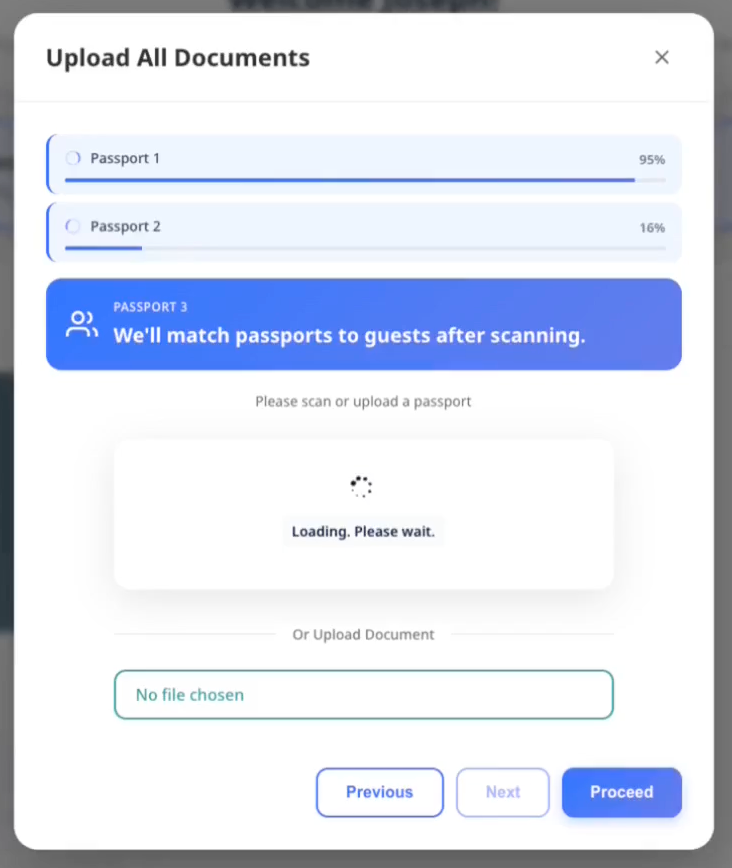
Step 1: Scan all passports
- Select Upload All Documents at the top of the room list
- Scan each guest's passport one at a time
- A progress tracker shows each passport's upload status
- If a scan fails, select Rescan passport to try again
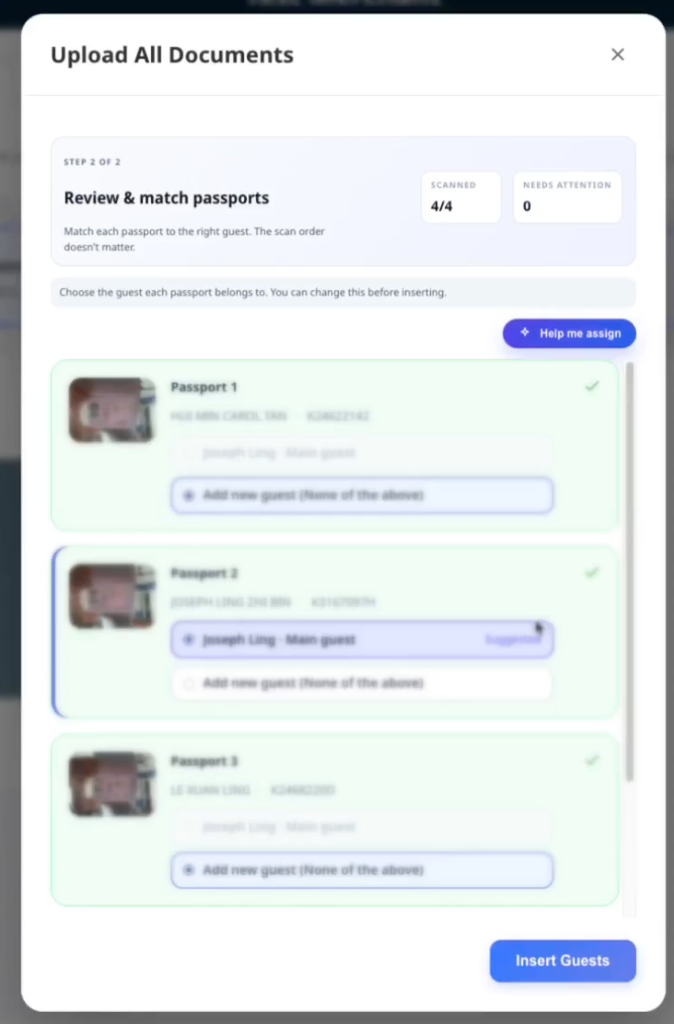
Step 2: Review and assign
After scanning, you see a list of all passports ready to assign.
- The system suggests which guest each passport belongs to based on matching names
- If the suggestion is correct, no action is needed
- To assign a different guest, select them from the list
- To add someone new, select Create new guest
Assignment display:
- 3 or fewer guests: card-style selection buttons
- More than 3 guests: dropdown menu for compactness
Step 3: Save assignments
- Review all passport-to-guest assignments
- Select Insert Guests to save
- Any errors appear next to the affected passport
- Fix issues individually and retry if needed
If the batch adds a guest beyond the reported capacity, AVA asks you to confirm each affected room before committing. Select Cancel to keep the staged documents available without submitting the batch. After cancelling, you can remove a document, adjust an assignment, or submit the batch later.
The optional extra slot applies once per room during one bulk-upload session. Start another bulk-upload session when you need to register another extra guest.
Common errors:
- "Document number not detected" → rescan with better lighting
- "Already uploaded for [guest]" → assign to a different guest
- "Guest limit reached" → assign to an existing guest instead of creating new
- "Payment method is not enabled for reservations" → enable the payment method for reservation use in Opera, then retry
When Opera rejects an additional guest because of a disabled payment method, AVA shows a localized guest-safe message. Staff can still see Opera's payment-method detail in the error information. See Opera Additional Guest Payment Rejected.
Step 4: Verify the booking (only if a name differs)
If a scanned document's name does not match the reservation, AVA pauses on Insert Guests and shows a Verify Your Booking panel.
-
Read the prompt: "The document name differs from this reservation."
-
Open the guest's booking confirmation.
-
Enter the booking name, not the passport name, and select Verify.
-
If the answer fails, keep every booking name part, including titles or suffixes.
✓ After the answer is accepted, AVA saves the assignments automatically. You do not select Insert Guests again.
The Verify Your Booking panel appears when AVA needs extra booking confirmation. AVA does not send the booking name in the challenge response. See Booking Name Verification for Partial Matches and Name Mismatch OTP Fallback. If OTP fallback appears after booking-name verification fails, use the latest code from the booking email. In ACI, the staff override can replace guest verification when your property enables it. See ACI Staff Override for Name Mismatch.
4. Complete guest information
-
Select Guest Information → Fill
-
Confirm all fields. Required fields show a
* -
Update the Document Number if needed
-
Select Save
✓ The Guest Information step shows as complete
If Company is enabled for the current flow, enter it in Guest Information. AVA trims the value and accepts up to 80 characters. The value can appear on the guest profile and registration card. Blank or hidden Company input does not remove an existing saved value.
For additional guests, the Guest Information card shows Same contact details as [main guest name] at the top. Turn it on to copy shared values that are visible in the current guest form. For child guests, AVA copies only visible fields, such as shared address or travel details. Hidden Email and Phone fields remain untouched for child guests. When address or travel information is available, AVA explains that it will copy those fields. Copied fields stay visible and editable. Turn the option off to restore the child's values from before the copy. If a child has no address or travel information to copy, AVA disables the toggle and shows a manual-entry hint. For other additional guests, AVA disables the toggle when the main guest has no visible shared values.
For a manually grouped ACI reservation, AVA keeps the primary reservation's main guest unchanged. For each selected additional reservation, AVA skips only that reservation's main guest registration. Add the staying guest's document and information to that room. If you update the skipped guest's name, AVA creates an additional guest instead. Email, phone, or address-only updates remain on that guest record. This prevents the update from overwriting the primary guest.
If the guest has no phone number, AVA uses the passport nationality for the default country code. Existing phone numbers keep their saved country code.
When guests type address or travel fields, AVA biases Google Places toward the guest's nationality. If nationality is blank, AVA falls back to the hotel country.
If you see a warning under Document Number, double-check the ID. Warnings do not block check-in.
If guest information save fails
What you see: The Guest Information card shows an error state after you select Save.
Fix:
-
Check the required fields and correct any invalid values.
-
Open Guest Information → Fill again.
-
Select Save.
-
If the error returns, refresh the page and try once more.
✓ The card should return to the saved state after a successful retry.
In two-device ACI, AVA saves guest edits as drafts after a field loses focus. The paired staff device automatically refreshes the open Guest Information form after a matching update. AVA refreshes only the active reservation and guest, so other open forms stay unchanged. Your unfinished local edits remain in the form during the refresh. Draft saving does not replace final Save or mark the step complete. On an installed iPad guest app, the form recovers after the software keyboard closes. The Save button shows Saving immediately while a draft request is still running.
Guest information changes do not appear on the staff device
What you see: A guest edits information, but the staff device still shows older values.
Fix:
-
Ask the guest to finish editing the current field.
-
Ask the guest to tap outside the field.
-
Wait briefly for the draft update.
-
Keep the matching Guest Information form open on the staff device.
-
Confirm the refreshed values, then select Save.
✓ The staff device should show the latest saved guest information.
If the form does not refresh, reopen Guest Information → Fill and try again.
Edit completed guest information
Use Edit to correct saved guest details after the Guest Information step is complete.
You can edit completed Guest Information in CCI, pre-arrival, and ACI. The document gate does not prevent you from reopening a completed form. Existing guest-assignment rules still apply in ACI.
When the sequential verification panel is expanded, the completed step shows Edit. This action is available even when the room is still unassigned. The compact card-level Edit action remains when the card collapses to Verified or Checked-in. An incomplete earlier document step does not hide this completed Guest Information edit. In ACI, the tablet Send action hides after Guest Information is complete.
-
Open the completed guest's room card.
-
Select Guest Information → Edit.
-
Correct the guest details.
-
Select Save.
✓ AVA syncs the changed guest details to the PMS, even after an earlier sync.
AVA replaces an existing registration card only when the completed guest information changes. If you save without meaningful changes, AVA does not create an extra card. AVA also does not create a registration card early while the form is still incomplete. After a changed edit saves, AVA regenerates and delivers the replacement card in the background. You can continue once the guest update succeeds; do not submit the same edit again while it processes.
Completed guest information does not save
What you see: The Edit form shows an error after you select Save.
Fix:
- Check required fields and correct invalid values.
- Refresh the reservation once.
- Open Guest Information → Edit again.
- Save the correction once more.
Check the PMS before repeating the save if the guest details already changed.
Guest information is already being updated
What you see: AVA says "Guest information is already being updated."
Fix:
- Wait for the earlier update to finish.
- Refresh the reservation.
- Confirm whether the guest details already changed.
- Retry only if the saved details are still incorrect.
The replacement registration card can continue processing after the guest update succeeds.
Guest tablet controls do not respond after the keyboard closes
What you see: The paired iPad shows the modal correctly, but lower controls do not respond after keyboard dismissal.
Fix:
- Ask the guest to tap outside the current field.
- Wait for Saving to appear and finish.
- Select Save again without zooming the page.
✓ The paired guest tablet should accept the tap after the keyboard closes.
If controls remain unresponsive, reopen Guest Information → Fill and contact support.
5. Capture the signature (if required)
-
Select Signature → Sign
-
Capture the guest's signature
✓ The Signature step shows as complete
In two-device ACI, an additional guest can submit a signature on the assigned Worker. Keep the Worker paired to the staff workstation and the guest journey active. Signatures captured on the staff workstation still require the staff device session.
Note: By default, the main guest must sign. Some properties require all guests to sign.
When an Additional Guest Registers First
Your property may allow an additional guest to register before the main guest. This option affects the initial room check-in in Self and Assisted Check-In.
When enabled, the first eligible additional guest who signs becomes the registration representative. AVA does not show a separate representative selector. The representative completes registration and verification before the initial room check-in continues.
The PMS main guest identity stays unchanged. In Assisted Check-In, staff see a notice that the main guest is still pending. The main guest can complete registration later through the companion flow.
When Mandatory Guest Registration is off, each check-in mode has one additional-first setting:
| Setting | Eligible representative |
|---|---|
| Off | No additional guest can complete room check-in first |
| On | Any PMS-listed or locally added additional guest can represent the room first |
Guests created from a document upload or without an ID scan remain local guests. PMS synchronization does not make those guests predefined.
When Mandatory Guest Registration is on, every PMS guest must complete registration before initial room check-in finishes. Turn it off to keep the main guest as the required representative.
Passports and guest registration can be completed in any order. The retired main-guest document-order setting no longer blocks guest creation or uploads. Use the additional-first setting to control representative eligibility and room check-in completion.
When additional-first is enabled, Add guest scans target the new additional guest. AVA does not treat the main guest as the target just because their document is still missing. To check a main guest's document, start the upload from the main guest row. Name matching still applies when you select a specific guest row.
If the additional-first setting is off, initial room check-in waits until the main guest registers.
Require predefined additional guests before check-in is independent. It controls completion timing for PMS-listed additional guests during initial room check-in. It does not expand representative eligibility or make local guests predefined.
Finish registration after the room is in-house
A guest can finish registration after AVA marks the room in-house.
-
Open the reservation's companion flow.
-
Select the pending guest.
-
Complete Guest Information, Document, and any required verification steps.
-
Save the guest registration.
✓ The guest is registered without checking in the primary reservation again.
Passport upload remains available after room check-in. Mandatory and predefined-guest requirements apply only to the initial room check-in.
The main guest is still pending
What you see: An additional guest registered, but the main guest has not finished.
Fix:
-
In Assisted Check-In, tell the main guest to return when they arrive.
-
Open the reservation's companion flow.
-
Have the main guest complete registration and verification.
-
Continue the check-in after the main guest finishes.
✓ The PMS keeps the original main guest identity.
If the PMS already shows the guest as checked in, refresh the reservation before retrying. AVA can reconcile the confirmed arrival without sending another PMS check-in. Use the current verified staff device or reservation session when retrying.
Optional privacy-consent syncing does not block signature submission. If the PMS is slow or unavailable, AVA continues the check-in and retries the consent sync. AVA saves the signature first, then completes downstream syncing in the background.
6. Run facial verification in CCI or ACI
If Facial Verification is visible:
-
Select Facial Verification → Verify
-
Follow the on-screen camera prompts
✓ The Facial Verification step shows as complete
Tip: Facial verification appears in Self Check-In (CCI) or Assisted Check-In (ACI) when enabled for that mode.
Note: AVA compares the clearest face on the document first. This helps faint passport watermarks stay out of the way.
AVA saves a successful facial-verification result before completing downstream syncing. If a connected service is slow, continue the check-in while AVA finishes that sync.
When group-photo follow-up is delayed
AVA saves each Verified group-photo match before follow-up updates begin. Those updates continue in the background after the facial step returns.
If AVA restarts, it recovers safe unfinished follow-up work automatically. If a downstream result cannot be confirmed, AVA retains it for operational review.
Do not retake a match that already shows Verified. Check the guest record and your PMS before contacting support.
If you are using two-device ACI
-
Staff send Facial Verification to the paired guest tablet.
-
Ask the guest to follow the camera prompts.
-
If the match fails, re-send the same facial step from the staff panel.
✓ The guest tablet reopens the camera and clears the previous mismatch state.
You can also select Verify in person after the guest's document uploads. The guest does not need a failed facial attempt first. Check the guest's identity in person, then enter the required reason.
✓ After the next refresh, the guest shows Staff approved.
If facial verification already failed, use Staff override instead. The verified staff device must remain linked to the current ACI journey. See Set Up Facial Verification.
After one guest completes a step, continue the next guest from the same staff device. The staff device keeps control of the active two-device ACI journey.
If facial verification fails
- Select Take another selfie for a clearer photo
- If it still fails, select Re-upload document and scan again
7. Review group facial verification
Group verification appears in the Room List when enabled and at least one eligible guest has a committed document. It does not open automatically after document upload.
-
Select Verify group photo.
-
Ask guests to stand together with every face clearly visible.
-
On the camera device, select Take group photo.
-
Review each proposed match in Review group matches.
-
Select Reject match when a proposed match is incorrect.
-
Select Retake missing guests for missing or unclear faces.
-
Select Save matched guests after reviewing the results.
✓ Saved guests show Verified. Unresolved required guests remain incomplete.
If AVA cannot safely use a proposal, it keeps that guest unresolved. The proposal does not verify the guest or move forward as a saved match. Ask the affected guest to join the next photo, then select Retake missing guests.
Children covered by the facial exemption show Not required. They are excluded from matching and do not receive saved facial crops.
If the document portrait is unusable, AVA shows Document needed instead. That guest does not appear in Retake missing guests. Upload and commit a clearer document, then run group verification again.
AVA also keeps a match unresolved when a document contains multiple distinct clear faces. It rejects duplicate portrait proposals unless identity checks confirm the portraits belong to one person. Reject unclear proposals and never assign them manually.
If you are using two-device ACI
- Staff select Verify group photo from the Room List.
- Ask guests to take the photo on the paired guest tablet.
- Review and save the matches on the staff device.
- Use Retake missing guests when only some guests need another photo.
✓ The guest tablet captures the photo, but staff control review and saving.
8. Collect deposit or payment
If Reservation Requirements shows Deposit or Payment, the payment flow depends on the journey.
For Self Check-In, select Pay from the reservation requirements. For Pre-arrival, AVA shows enabled room or deposit payments using live billing amounts. Pre-arrival payments use an online gateway and do not use cash, terminals, or consolidated flows.
-
Select Pay
✓ Pay changes to Processing with a spinner and becomes unavailable while AVA prepares the payment step.
-
Complete the payment steps
✓ The payment requirement shows as complete
AVA checks the room quote and eligible packages before opening the next payment step. Wait for that step to appear. Do not select Pay again while it shows Processing.
For a single-room check-in, AVA uses the latest payable room quote before payment. The amount can refresh after you add a guest or edit the reservation. Payment Due can be lower than total charges when the PMS already records a deposit. Review the refreshed amount before the guest pays.
If the terminal payment already completed, AVA keeps the requirement complete on retry. Do not start a second payment unless the receipt shows a failed charge.
Note: The journey cannot complete until all shown payments are successful.
AVA requests a deposit pre-authorization only when it remains valid through checkout. It skips a request at the exact expiry boundary. Direct-sale room charges follow the hotel's room collection setting.
9. Finalize the check-in
-
Select Proceed to Check-In
-
Wait for the progress screen to finish
✓ The room card shows the check-in completed state. ✓ With AVA-managed delivery, Room Access must show Success before completion. ✓ With manual or unavailable delivery, the check-in can complete while Room Access remains separate.
AVA can issue a PIN, QR key, or locker credential during room assignment. After final check-in succeeds, AVA keeps that successful access result on the confirmed arrived guest. You do not need to issue the same credential again. If the result still shows Pending or Partial success, refresh and follow the room-access status.
Authenticated Assisted Check-In uses the staff choice before deposit rules when two-device ACI supports it. The saved Tick No Post by default on Assisted Check-In setting preselects the staff choice. The Set No Post in the PMS box appears above Proceed to Check-In on the connected staff device. Staff can select or clear it. Deposit settings do not override the ACI staff choice. One-device ACI and the guest tablet use the saved setting and do not show the box. For kiosk and eligible pre-arrival journeys, payments set to Do not collect, or a zero deposit, force No Post. Kiosk journeys with a required deposit use Set No Post after Payment for the remaining cases. When that toggle is off, only a kiosk guest without the required deposit receives No Post. With payments off, the payment toggle alone decides the kiosk outcome. The decision applies to every reservation checked in during that action. For atomic multi-room ACI, all room cards share one staff choice. For a later kiosk companion, only the companion's new reservation receives No Post. The room booking is not re-restricted. An authenticated ACI decision cannot be replaced by a forged request header. The check-in remains successful if this follow-up update fails. Verify the reservation in OPERA and apply No Post manually when needed. If OPERA does not report No Post support, AVA skips the request.
Tip: During check-in, the system runs Checking Availability → Assigning Room → Generating Keys → Finalizing.
If this is a pre-arrival registration
- Complete all required steps above
- Select Complete Pre-Arrival instead of Proceed to Check-In
✓ The room is marked as pre-arrival completed. Room access is issued when the guest arrives.
If your PMS supports ETA updates, AVA sends the first guest's estimated arrival time back after pre-arrival. If your PMS does not support it, the check-in still completes normally. Opera/OHIP reservations now support this update path.
If the room is already checked in
Select Proceed to Check-In to complete remaining guests. This does not reassign the room. You can also use the companion flow to register a pending guest after the room is in-house.
If the PMS result is unclear
What you see: A first check-in attempt appears stuck. Room assignment may be blocked after the PMS may have completed check-in.
Fix:
- Confirm the reservation status in your PMS.
- Refresh the reservation in AVA.
- Review the saved arrival decision and selected room.
- Select Proceed to Check-In again.
AVA reconciles an existing PMS check-in before continuing. It skips duplicate room assignment for the selected room. It still validates the arrival review, credentials, and final check-in.
If the PMS still shows the guest as not checked in, AVA uses normal room assignment. If the PMS is unavailable, wait for recovery before retrying.
For Opera, AVA confirms the selected guest from that guest's latest live reservation state. This includes a sharer when Opera's primary reservation no longer lists the share link. AVA also checks the guest's live room before marking check-in complete.
If Opera shows Checked In but AVA still shows an unclear result, refresh the reservation. Then review the saved arrival decision and select Proceed to Check-In again. Do not check the guest in manually a second time in Opera.
10. Provide room access
After check-in, open Room Information on the room card. Room access remains available for follow-up after completion when delivery is not required:
- Room Number is shown at the top
- Room Access depends on your configured delivery method
For QRLOCK, eligible room assignments issue one digital key before email delivery. The room card shows delivery status, and email retries reuse that same key. Use Email room information to resend details without issuing another key.
If you use Keycards:
If you use Opera with a PMS-integrated encoder, AVA waits for the confirmed key status first. Older Opera responses can omit that status. AVA then checks the saved room, key count, and validity window for up to 30 seconds. If the request still times out, retry the card from the same room.
Before the first ACI keycard, AVA also checks for linked Opera guests already in-house. Opera can briefly omit a share link immediately after a reservation update. AVA searches the linked reservation when this happens, so an existing guest's card stays active. If the sharer still does not appear, refresh the reservation before encoding.
AVA decides NEW or DUPLICATE on the server for every keycard request. If another party is already in-house, AVA uses DUPLICATE to protect that guest's card. After a room move, AVA uses NEW for the new room. If the PMS cannot confirm shared occupancy, AVA keeps the normal NEW fallback.
Before encoding, AVA confirms the room through your PMS when the reservation card lacks a usable room value. Valid PMS room identities remain valid, including long AVA PMS identifiers. You do not need to edit or shorten the room identity.
-
If you are in ACI, confirm the handover first.
-
Select Create Keycard to encode the card now.
-
If the keycard was encoded in advance, select Already Encoded.
-
Encode each card when prompted.
-
If you need fewer cards, select Complete Check-In in the keycard modal
✓ If one encoder is online, AVA briefly shows Preparing keycard encoding... before encoding starts.
Additional guest keycards in CCI and ACI
When an additional guest checks into an occupied keycard room, AVA can offer one card. This offer now appears in both Self Check-In (CCI) and Assisted Check-In (ACI).
-
Complete the additional guest's check-in.
-
Select the offered keycard action.
-
Choose an online encoder when AVA asks.
-
Place one blank card on the encoder.
✓ AVA uses DUPLICATE and keeps the room's existing cards active.
The offer appears only when the room already has completed keycard collection. If the offer is missing, refresh the room card and confirm keycard access is configured.
Set the ACI keycard validity date and time
In Assisted Check-In (ACI), you can set both parts of Key valid until. Use this when a guest has late checkout or back-to-back reservations.
- Review the Key valid until date and time.
- Select a later date when the guest's stay continues after departure.
- Select the time when the guest should lose access.
- Select Reset to hotel default to restore both values.
- Continue encoding each card.
The date starts at the reservation departure date. If a previous encode date is still in the future, AVA reuses that date. The time follows the previous encode or the hotel default. Past dates are rejected. If you leave the departure date unchanged, AVA uses the normal expiry behavior.
When you encode multiple cards, AVA locks the same date and time for every card. Changing the date affects the keycard only, not the PMS reservation.
AVA stays on the current room until the keycard finishes encoding successfully. The next room opens after the final successful encode response marks the card as retrieved.
If the Win A Complimentary 1-Night Stay modal appears, close it first. Then select Complete Check-In.
If you use Smart Locks:
-
Select Show PIN
-
Share the PIN with the guest
✓ If the room access card still shows Pending or Partial success, wait for a ready status first.
If you use Lockers:
- Share the Locker Number
- Select Show Code and share the locker code
If you see a room access message instead of a code, follow the on-screen instructions.
Manage Locker Code and locker codes appear only when Settings → Room Access is set to Locker Systems. If AVA is still loading room access mode, wait and retry from the room card.
Tip: If WiFi is configured, the WiFi section shows the name and password. Room notes appear under General Information.
Room-card messages follow the guest language, even with regional codes like ko-KR.
If you are using Assisted Check-In (ACI)
After check-in, the screen shows Check-In Complete and asks the guest to return the device. If the room uses keycards, the next action depends on your ACI setup:
- Two-device ACI: Keycard actions appear after successful check-in.
- One-device ACI: Confirm the guest handover before keycard actions appear.
Use Create Keycard for new cards or Already Encoded for prepared cards. In multi-room stays, AVA waits for keycard success before opening the next room.
Troubleshooting
Staff device verification is required for ACI operations
What you see: Staff search, reservations, checkout, or a check-in action is unavailable. ACI shows Staff verification recommended.
Why this happens: The exact browser's STAFF credential is missing, stale, revoked, or belongs to another device or hotel.
Fix:
- Confirm you are using the intended staff browser or kiosk device.
- Ask an admin to display the latest ACI verification QR from Settings → Kiosk.
- Select Verify Device in the ACI readiness panel.
- Allow camera access, then scan the QR.
- Wait for the current ACI page to reload and retry the specific flow.
The scanner keeps verification inside the current browser context. This helps preserve storage in a Web Clip, PWA, or browser wrapper. The QR is one-time use, so generate a replacement if it was already scanned.
During verification, AVA keeps all five numbered instructions visible. The responsive preview and status strip show camera progress, the scan hint, or a camera error. On landscape screens, the preview sits beside the instructions. See Verify the ACI staff device.
If the scanner cannot open, use Settings → Kiosk and select Re-verify staff device. Complete the latest one-time link on the same physical device.
AVA may recover a stale credential automatically when the exact verified browser still has its reset authorization. After recovery, AVA performs a fresh reservation-list load before showing staff operations. If readiness is lost, AVA clears stale reservations and checkout selections. Kiosk verification and demo mode continue to use their existing paths.
One-device ACI stops after a repeated lookup
What you see: After searching again, one-device ACI does not continue. You may see "Unable to bind the assisted check-in journey to this staff device."
Fix:
- Search for the reservation again from the same Staff Access screen.
- Wait for the reservation's room cards to appear.
- Continue check-in on the same staff device.
- If AVA asks for staff verification, follow Staff device verification is required for specific flows.
If the journey remains blocked after one retry, refresh AVA and contact support.
Cloudbeds reservation lookup times out
What you see: The lookup keeps spinning, then shows a timeout or service-unavailable error.
Why this happens: AVA stops waiting after 20 seconds if Cloudbeds does not answer.
Fix:
- Wait a few seconds.
- Try the lookup again.
- Confirm Cloudbeds is reachable and the reservation exists.
- Contact support if the timeout keeps happening.
Property is not configured for check-in
What you see: A guest sees "Self check-in is not available at this property right now." Staff sees "This property is not configured for check-in yet."
Why this happens: The property is missing its merchant record or PMS integration. The reservation may be valid, but AVA cannot look it up at this property.
Fix:
-
Confirm the correct hotel is selected in AVA.
-
Open Settings → Essentials → PMS Integration.
-
Connect the PMS, or complete the AVA PMS setup.
-
Retry the lookup after setup saves successfully.
✓ The normal reservation lookup should return after the property is configured.
PMS is temporarily unavailable during room assignment
What you see: Room assignment shows a temporary PMS-unavailable message.
Why this happens: The PMS did not answer the assignment request in time. This does not mean the room is not ready.
Fix:
-
Check the reservation and room status in your PMS.
-
Refresh the reservation in AVA.
-
Retry room assignment once.
✓ AVA should assign the room or show a genuine room-readiness issue.
AVA does not send a room-not-ready email for a temporary PMS outage.
Reservation not found after scan
What you see: "Reservation not found" or you are sent to the confirmation screen.
If the first match is inactive, AVA refreshes the name lookup and tries active bookings again. You may see the replacement booking without searching again.
AVA retries an Opera OTA or external reference once in uppercase when the exact lookup returns no result. If the reservation still does not appear, search with its confirmation number.
Fix:
- Enter the confirmation number instead of scanning
- Confirm the arrival date is today or yesterday
- Check the reservation is not cancelled or no-show
A grouped room is missing from Staff Access
What you see: Staff Access does not find a reservation using a room's confirmation number.
Why this happens: A multi-room booking can appear as one grouped result. The room's confirmation number may differ from the main reservation number.
Fix:
-
Open Staff Access in Assisted Check-In (ACI).
-
Search the room's confirmation number again.
-
Search the main guest's full name if the number still does not appear.
-
Select the grouped result and review each room's
Res#: <confirmation>label. -
Confirm the room number and confirmation number before continuing.
✓ A room-specific confirmation should open the grouped reservation result.
If no search returns the booking, confirm that the reservation is active and arriving yesterday or today. Contact support with the room confirmation number and arrival date if it remains missing.
Multiple reservations found
What you see: "Multiple reservations found."
Fix:
-
Search by confirmation number
-
In Staff Access, search by reservation ID or external booking ID
-
For ACI with OPERA, search the guest's full name in Staff Access.
-
Select the primary reservation, then review Other reservations with the same guest name.
-
Select additional reservations only when they belong to the same arrival.
✓ Each selected reservation appears as a separate option before you continue.
Same-name reservation grouping is unavailable
What you see: You cannot select same-name reservations, or AVA rejects the grouping. If authorization fails after you select the reservations, AVA shows staff-device verification guidance inline. It does not open the reservation-not-found modal.
Fix:
- Confirm you are using Assisted Check-In (ACI).
- Confirm the kiosk staff device is verified for manual grouping.
- Search the guest's full name in Staff Access.
- Select the primary reservation first.
- Select only active reservations for the same guest and overlapping dates.
- Remove reservations already checked in, due out, cancelled, or part of another group.
If the kiosk credential is unavailable, AVA stops the grouping action locally. It does not send the grouping request to the API. Verify the kiosk device, then retry the grouping action.
If AVA rejects the request after it reaches the server, re-verify the intended staff device. This protects grouping from missing, invalid, wrong-role, or wrong-merchant credentials.
Manual grouping requires a PMS connection that supports atomic multi-room check-in. Contact support if eligible OPERA reservations still cannot be grouped.
An additional room shows an extra guest
What you see: An additional room shows the copied main profile. You cannot register the final booked guest.
Fix:
-
Confirm you selected the reservation in Other reservations with the same guest name.
-
Confirm the reservation belongs to the same guest and arrival.
-
Leave the grouping flow, then start it again from Staff Access.
-
Check that the copied profile is hidden before registering the room's actual guests.
✓ The additional room accepts its booked guests without increasing PMS occupancy.
Contact support if the copied profile still appears after restarting the grouped ACI flow.
Check-in button is disabled
What you see: Proceed to Check-In shows "Complete all steps."
Check:
- All guests have Document Upload complete
- Guest Information is saved for each guest
- Signature is complete for required guests
- Facial Verification is complete when required for CCI or ACI
- Deposit and Payment are complete if shown
- Missing guests are marked Check In Later or added
Payment step does not open
What you see: Pay stays disabled and shows Processing.
Fix:
- Wait while AVA prepares the room quote and checks eligible packages.
- Do not select Pay again. AVA blocks duplicate payment starts.
- Contact support if the next payment step does not open.
For Pre-arrival, confirm that the live room or deposit balance is available. AVA blocks payment generation when the current amount cannot be evaluated safely.
Payment amount looks different after a reservation change
What you see: The payment amount changes after you add a guest or edit the reservation.
Why this happens: AVA refreshes the payable room quote before payment. Posted deposits can also reduce Payment Due below the total charges.
Fix:
- Wait for the refreshed payment step to finish loading.
- Compare Payment Due with the current PMS balance.
- Do not collect payment if the amounts do not match.
- Contact support with the confirmation number and a screenshot.
Room not ready or too early
What you see: "Room not ready", "No rooms available", or check-in fails after Proceed to Check-In.
Fix:
- Check room status in your PMS or Room Status
- Assign a different room if allowed
- Select Continue registration if the guest still needs to finish other rooms
- Select End session if you want to stop the current check-in
- Follow your early check-in policy
For two-device ACI, check the room card first. If it shows Dirty, Out of service, or Occupied, select Find ready rooms. If the status shows Unavailable, select the refresh icon and check your PMS connection. If the lookup finds no matching ready room, follow the informational message and resolve the room status in housekeeping or your PMS. If AVA asks you to verify the staff device, complete verification before retrying the lookup.
For Cloudbeds, AVA reads the latest reservation, unassigned-room, and housekeeping data before automatic assignment. It requests vacant housekeeping rooms explicitly, then confirms the selected room again. AVA stops the assignment when these reads are too far apart or the check takes too long. This prevents a room from being assigned after its PMS status changes.
When you select Continue registration, AVA keeps multi-room guests in the current Room List flow. You can finish the remaining rooms without sending everyone back to the home screen.
End session uses the same kiosk exit behavior as the top bar. It closes the current session and returns the guest to the kiosk start screen. Browser Back returns to that same screen and keeps the managed kiosk assignment.
If you use Opera, disallowed room conditions now use the same room-not-ready flow. For component suites, check every linked member room before retrying.
When the main guest is already in-house, AVA keeps that room for a linked sharer who arrives later. This prevents unnecessary room moves when reassignment is enabled or the hotel has no vacant rooms. AVA still checks readiness before completing check-in. For this occupied-room case, Pickup is accepted with Clean, Inspected, and Dirty. Out of Order and Out of Service remain blocked.
If one room in a multi-room reservation is still not ready, AVA blocks the whole family. Check every assigned room in Housekeeping or your PMS before retrying.
If no room is available after check-in time, AVA queues the reservation and sends the room-not-ready emails. The room-ready email still sends later.
For Furama, AVA checks a preassigned room before writing an assignment. The room must be verifiably vacant and free from occupancy, lock, out-of-service, or maintenance blocks. An approved Dirty room remains eligible when Allow Vacant Dirty Rooms is enabled. If the room fails these checks, AVA does not write the assignment and uses the Room Not Ready flow.
ACI room assignment does not refresh
What you see: The room status shows Unavailable, or the room number stays unchanged after a PMS update.
Why this happens: The PMS has not returned one clear room assignment for the reservation.
Fix:
-
Confirm the room assignment in your PMS.
-
In verified ACI, select the refresh icon beside Assigned room.
-
Wait for the room status and occupancy to update.
-
If multiple rooms appear, keep the intended assignment in your PMS.
-
Refresh AVA again after the PMS update finishes.
✓ AVA updates the room when the PMS returns one matching assignment.
ACI room status update fails
What you see: The room condition does not change, or AVA reports that the update failed.
Why this happens: The PMS did not confirm the requested condition, or the room changed first.
Fix:
- Confirm the assigned room in your PMS.
- Select the refresh icon beside Assigned room in the verified ACI staff view.
- Confirm the room still has the expected assignment.
- Select Change room status and retry once.
- Update the condition directly in your PMS if the action remains unavailable.
AVA does not report success when the PMS cannot confirm the change. It also stops the update when check-in, room access, or another room operation has taken control.
Cloudbeds room assignment needs a fresh status
What you see: Cloudbeds room assignment stops with a stale-availability or assignment-timeout message.
Why this happens: Cloudbeds room, reservation, and housekeeping results did not describe one current state. AVA stops before writing an assignment when the results are stale or the shared time limit expires.
Fix:
-
Open the reservation in Cloudbeds.
-
Confirm the reservation dates and room type.
-
Check that a matching room is Vacant and ready in Cloudbeds housekeeping.
-
Resolve any room change or housekeeping update still in progress.
-
Refresh the reservation in AVA.
-
Retry room assignment once.
✓ AVA should assign the room after Cloudbeds returns matching current statuses.
AVA does not automatically replay the final room-assignment write after a timeout. Confirm the room assignment in Cloudbeds first, then retry only when no assignment occurred.
Optional offer modal blocks completion
What you see: The Win A Complimentary 1-Night Stay modal appears before Complete Check-In.
Fix:
- Close the modal
- Select Complete Check-In again
Document upload failed
What you see: "Document upload failed" or the upload stops.
Fix:
- Try scanning again with better lighting
- Select Upload Document and choose a clear photo instead
- If the issue persists, use Use Confirmation Number Instead
When facial verification is required, AVA checks the document portrait during upload. If the portrait cannot produce a usable face, AVA rejects the upload and asks for a rescan.
Document scans do not trigger a PMS occupancy update in ACI. If the document already saved, do not scan it again after a capacity or rate error. Retry Registration or final Proceed to Check-In after fixing the PMS reservation.
ACI document approval is unavailable
What you see: A document verification failure appears, but no staff approval action is available.
Fix:
- Confirm the flow uses two-device ACI.
- Confirm the staff device is verified for the current hotel.
- Confirm the guest tablet is paired to the current reservation.
- Select Retry upload and capture the full document clearly.
- Continue with your property's manual review policy if the failure remains.
✓ Eligible failures show the staff approval action after the current failure is visible.
If the original staff session is gone, reopen the failed review from Room List. The paired guest tablet must be idle, and AVA must verify the same kiosk, flow, guest, credential, and prior session. Review the failed uploaded document shown beside the error before choosing Retry upload or staff approval.
For name mismatches, use ACI Staff Override for Name Mismatch.
Document shows only a birth year
What you see: The passport or ID prints a birth year, but no full birth date.
Some identity documents officially publish only the birth year. AVA leaves the birth date empty and never adds an assumed day or month.
For passports, a trusted machine-readable zone must confirm the partial date. Non-passport documents with only a partial birth date cannot pass verification.
Fix:
-
Do not enter January 1 as a replacement birth date.
-
For a passport, rescan the full document, including its machine-readable zone.
-
For a non-passport document, ask the guest for an accepted document with a complete birth date.
-
Use even lighting and capture the full document page.
✓ AVA can continue when a passport's trusted machine-readable zone confirms the partial date.
Blur, glare, cropping, or missing fields require a clearer scan. Only trusted passport MRZ data can verify an officially partial birth date.
Cloudbeds occupancy is not bookable
What you see: Check-in stops with PMS_OCCUPANCY_NOT_BOOKABLE.
The staff error details show the attempted adult and child split.
Why this happens: Cloudbeds has no rate for that occupancy, room type, or stay. An incorrect date-of-birth classification can also create the rejected split.
In ACI, this check happens after document saving during Registration or before final check-in. If the document already saved, you do not need to upload it again.
Fix:
-
Check the attempted Adults and Children counts.
-
Verify guest dates of birth and Child Maximum Age in AVA.
-
Check the room type, dates, and occupancy rules in Cloudbeds.
-
Correct the reservation or rate plan in Cloudbeds if needed.
-
Refresh AVA and retry check-in once.
✓ Continue check-in after Cloudbeds accepts the corrected occupancy.
Retrying an unavailable occupancy does not create a Cloudbeds rate. Contact support if the corrected split still fails.
ACI capacity warning does not complete registration
What you see: You continue after a capacity warning, but the PMS rejects registration.
Why this happens: A capacity override permits an attempt, not a successful PMS update. The PMS can still reject occupancy, availability, pricing, or guest creation.
Fix:
-
Check the guest count and adult or child split in AVA.
-
Check the room type, dates, and occupancy rules in your PMS.
-
Correct the reservation in your PMS when required.
-
Refresh AVA and retry registration once.
-
Follow the displayed PMS error if the retry fails.
✓ Registration completes only after the PMS accepts the guest creation.
An accepted warning does not confirm that the PMS stored every guest. Verify the guest list in your PMS after registration completes.
Cloudbeds has no availability for these dates
What you see: Check-in stops with PMS_OCCUPANCY_UNAVAILABLE_FOR_DATES.
The message asks you to change dates or choose fewer rooms.
Why this happens: Cloudbeds cannot accommodate the requested dates or room availability. This is different from an incorrect adult or child split.
The occupancy update does not complete. Do not repeat the same request while availability remains unchanged.
Fix:
-
Check the reservation dates, room type, and available rooms in Cloudbeds.
-
Choose an available room or date, or follow your hotel's front-desk process.
-
Refresh AVA after Cloudbeds shows the accepted availability.
-
Retry check-in once.
✓ Continue check-in after Cloudbeds accepts the requested availability.
Cloudbeds source tax setup needs review
What you see: Check-in stops with PMS_RATE_PRESERVATION_SOURCE_TAX_UNSUPPORTED.
You may also see that Cloudbeds occupancy was not changed.
Why this happens: AVA could not safely model the reservation source's tax or fee rules.
AVA treats this as a terminal error for the current guest-count change. It stores the source-tax marker and preserves the same guidance on later retries. Later retries do not send the same occupancy request to Cloudbeds again.
Fix:
-
Do not retry the same guest-count change before reviewing the source settings.
-
Open the reservation in Cloudbeds.
-
Check the booking source, room type, and source tax or fee rules.
-
Ask your Cloudbeds administrator to correct the unsupported source rule. This may involve mixed, non-percentage, unreadable, or multiple exclusive charges.
-
Refresh AVA and retry Registration or final check-in once.
✓ Continue check-in after Cloudbeds exposes a supported source policy.
AVA stops before the Cloudbeds occupancy write. This prevents repricing when AVA cannot safely restore the booked total. Later retries preserve this instruction without sending another occupancy request.
Cloudbeds may move a few cents between room revenue and tax while keeping the guest total unchanged. AVA accepts equal, opposite differences up to 10 cents. Source-aware updates can accept a coherent total difference up to 5 cents after final verification retries. Cloudbeds adds a note explaining the settled amount when the total differs. Do not post a manual correction for either rounding note. Larger or incoherent differences still require manual review.
If the reservation changes while AVA saves the guest count, the PMS can return PMS_RESERVATION_CONCURRENT_MODIFICATION.
AVA keeps the change pending and retries it automatically.
A plain 409 without this code remains permanent and uses the manual-review path below.
Guest-count reconciliation required
What you see: AVA shows guest-count reconciliation guidance during guest-information save or final check-in.
The error code is PMS_GUEST_COUNT_RECONCILIATION_REQUIRED.
Why this happens: The PMS quarantined the guest-count change for manual review. Retrying the same change cannot resolve the reservation.
Fix:
- Select End session.
- Open the reservation in your PMS.
- Reconcile the guest counts and reservation totals.
- Confirm the PMS reservation is correct.
- Start a new registration in AVA.
End session is the only recovery action for this message. Do not select Continue registration or retry the quarantined change.
Guest-count sync retry limit reached
What you see: The guest sees staff-assistance guidance after repeated guest-count sync failures.
Staff may see PMS_GUEST_COUNT_RETRY_EXHAUSTED.
Why this happens: Temporary PMS or network failures continued after four guest-facing attempts. AVA stops the guest retry loop, but keeps the guest-count change pending.
Fix:
-
Stop asking the guest to retry the same step.
-
Continue with your staff-assisted or manual check-in process.
-
Compare the registered guest count with the reservation in your PMS.
-
Correct the PMS reservation if the counts do not match.
-
Resume the pending guest-count change when the staff flow allows it.
✓ The guest can continue through staff support without repeating a blocked retry.
Contact support if the staff flow cannot resume after the PMS is available.
PMS guest registration is not confirmed
What you see: Registration remains pending after guest verification. AVA asks you to retry or ask reception to review before continuing.
Why this happens: The PMS did not confirm the guest for this reservation. The PMS response may be delayed, incomplete, or linked to another reservation.
Fix:
-
Check the reservation and guest profile in your PMS.
-
Confirm the guest is attached to the active reservation.
-
Confirm the reservation's confirmation number and room are correct.
-
Refresh AVA and retry the pending Registration step once.
-
Ask reception to complete the check-in if registration remains pending.
✓ AVA continues only after the PMS confirms the matching reservation guest.
Do not assume the guest was added because the document or guest information saved in AVA. AVA keeps later PMS uploads and check-in actions protected until registration is confirmed.
Bulk upload errors
What you see: Errors appear next to specific passports in Upload All Documents mode, such as:
- "Document number not detected"
- "Already uploaded for [guest name]"
- "Guest limit reached"
- "Payment method is not enabled for reservations"
Fix:
- For detection errors, select Rescan passport and scan in better lighting
- For duplicates, assign the passport to a different guest
- For guest limits, select an existing guest instead of creating a new one
- For Opera payment-method errors, enable the payment method for reservation use in Opera
- If errors persist, close the modal and use individual upload for problem passports
Scanner actions are below the screen
What you see: The scanner opens, but Proceed, Next, or the upload link is not visible.
Fix:
-
Scroll within the scanner modal until the action bar appears.
-
Keep the browser window at its full height during scanning.
-
Select Proceed or Next from the bottom action bar.
-
If the controls remain hidden, close the modal and open Upload All Documents again.
✓ The scanner keeps the action bar reachable while you review or capture a document.
Verification code requested during bulk upload
What you see: Selecting Insert Guests opens a Verify Your Booking panel instead of saving. This happens when AVA finds a borderline name mismatch.
Fix:
-
Open the guest's booking confirmation.
-
Enter the booking name, not the passport name.
-
Select Verify.
-
Keep every booking name part, including titles or suffixes.
-
If the answer still fails, ask reception to update the reservation name.
✓ AVA saves the assignments on its own once the answer is accepted.
If document names differ but no verification panel shows, the name match may be too weak for this fallback. OTP Fallback for Name Mismatch or booking name verification for partial matches may also be off. See Document Checks. In ACI, check whether the staff override is enabled for your property. The override prompt replaces guest verification when it is turned on.
Facial verification keeps failing
What you see: "Facial Verification Failed," a mismatch screen, or an unusable document portrait message.
Fix:
- Retake the selfie in brighter lighting when AVA asks for another selfie.
- Scan the full document again when AVA asks for a document replacement.
- Keep the printed portrait clear, centered, and free from glare.
- Continue with the same guest after the replacement document saves.
- If no selfie is saved, select Retake selfie and capture a new one.
- If the guest still cannot pass, follow your manual review policy.
✓ AVA keeps the recovery attached to the original guest and rechecks the saved selfie when possible.
Group facial verification cannot start
What you see: Verify group photo is missing from the Room List.
Fix:
- Confirm Enable Group Facial Verification is on.
- Confirm facial verification and ID Scan are on for this mode.
- Confirm Require smile liveness is off.
- Confirm at least one guest has a committed document.
- Refresh the Room List after changing settings.
✓ The group action appears when an eligible guest is ready.
Group facial verification leaves guests unresolved
What you see: Some guests show Missing, Needs retake, or Document needed.
Fix:
- Upload and commit documents for guests showing Document needed.
- Ask only guests showing Missing or Needs retake to join the next photo.
- Reject any proposed match that does not clearly belong to the guest.
- Select Save matched guests again.
✓ Successful matches stay saved while unresolved guests remain available for review.
What you see: A guest changes to Document needed after a document upload.
Fix:
- Scan the complete document inside the camera frame.
- Keep the printed portrait fully visible and free from glare.
- Remove other people's faces from the document image.
- Commit the new document.
- Start group verification again.
Do not select Retake missing guests for a guest showing Document needed. AVA requires a new usable document before that guest can rejoin matching.
If a proposal is rejected during processing, AVA keeps it staged for review. Retake the affected guests instead of assigning the rejected proposal manually.
Signature or facial verification takes too long
What you see: The signature or facial step takes longer than expected.
Fix:
- Wait briefly for AVA to finish saving the result.
- Continue the check-in if the step shows as complete.
- Refresh the guest or reservation record later to confirm downstream details.
- Contact support if the saved result or guest status is missing after you refresh.
AVA keeps a saved signature or facial-verification result when connected services respond slowly. The remaining sync can finish after the guest-facing step returns.
For group-photo verification, AVA also recovers safe unfinished EVA or PMS follow-up after a restart. An unconfirmed downstream result stays available for operational review. Successful PMS guest updates can reach confirmation when AVA loaded the reservation from your PMS. Manual review remains necessary when the delivery destination or verification receipt actually changes. Do not repeat a saved Verified match unless support instructs you.
ACI staff override is unavailable
What you see: Verify in person or Staff override is unavailable during two-device ACI.
Fix:
- Confirm the staff device is verified for the current hotel.
- Confirm the guest tablet remains paired to the current reservation.
- Confirm the guest's document upload is complete if you want Verify in person.
- If using Staff override, re-send Facial Verification from the staff panel.
- Ask the guest to complete the facial step again.
- Keep the active facial failure visible, then select Staff override.
- Enter a reason after checking the guest's identity in person.
✓ Verify in person should work after document upload, or Staff override should work for the active failure.
If it remains unavailable, follow your manual review policy and contact support.
Staff control stops after the first guest
What you see: The first guest completes facial verification, but later guest actions fail. You may see "Request does not match the active assisted check-in journey."
Fix:
- Stay on the same verified staff device and active reservation.
- Confirm the guest tablet remains paired and shows the current guest step.
- Refresh the staff page once.
- Re-send the affected guest step, then retry the action.
- If the error continues, end the ACI session and start a fresh session.
✓ The staff device should control later guests without pairing the tablet again.
Contact support if a fresh session shows the same error. Include the hotel, reservation number, affected guest, and time of the failure.
Staff state may be out of date during two-device ACI
What you see: A stale-state message appears, or the staff screen does not show the guest's latest completed step.
Why this happens: The guest tablet completed a step before the staff device received the update. The staff device can also lose a response during a brief connection problem.
Fix:
-
Keep the same reservation open on the verified staff device.
-
Wait while AVA refreshes the guest's saved progress.
-
Confirm the guest tablet remains paired and connected.
-
Do not resend a completed step while the stale-state message remains.
-
Refresh the staff page once if the message does not clear.
-
End the session and start again if the saved progress remains unchanged.
✓ AVA should show the latest saved guest progress after recovery. ✓ Billing, room access, and other reservations remain unchanged during this refresh.
AVA retries failed progress reads automatically. The stale-state indicator can clear after the guest session ends. Contact support if the indicator remains after one refresh and a new session.
ACI resend does not reopen the camera
What you see: You re-send the same ACI facial step, but the guest tablet keeps the old mismatch screen.
Fix:
-
Confirm the staff panel still shows the correct reservation.
-
Re-send Facial Verification from the staff panel.
-
Wait for the guest tablet to reopen the camera.
-
Ask the guest to complete the facial step again.
-
If the tablet shows Pair this tablet, restore the two-device pairing first.
✓ The guest tablet should show a fresh facial-verification prompt.
Room access not showing
What you see: No code or keycard option after check-in.
Fix:
- Refresh the room card and confirm check-in is complete
- If Room Access shows Pending or Partial success, wait for it to finish.
- Go to Settings → Room Access and confirm the active room access method
- Return to check-in and open Room Information again
- Check for a Room Access error message and follow the instructions
- If access still does not appear, contact support
If AVA issued a PIN, QR key, or locker credential during room assignment, refresh after final check-in. AVA keeps the successful result when it can match it to the arrived guest.
If Room Access returns a structured failure, AVA now shows the upstream message first.
That can include nested message or error.message text from Room Access or PMS.
You should no longer see [object Object] in this flow.
Keycard room cannot be determined
What you see: AVA cannot open the keycard flow because it cannot determine the reservation room.
Fix:
- Refresh the room card.
- Confirm the reservation has an assigned room in your PMS.
- Open Room Information again.
- Retry Create Keycard.
- Contact support if the room is assigned but the message returns.
AVA accepts valid long or internal-looking PMS room identifiers. Do not change the room identity manually.
Keycard controls are hidden in ACI
What you see: You do not see Create Keycard or Already Encoded after check-in.
Fix:
-
Check which ACI setup you are using.
-
For one-device ACI, confirm the staff handover.
-
For two-device ACI, confirm check-in completed successfully.
-
Wait for the room card to refresh from the completed check-in.
-
If the card still shows This room is occupied, select Refresh on the room card.
-
Select Create Keycard or Already Encoded once the buttons appear.
✓ AVA restores the checked-in room view without changing the guest's room.
Do not select Find ready rooms for the guest's own room after check-in. That warning can come from an older room-card copy while AVA repairs the card.
If the keycard controls remain hidden after one refresh, confirm the reservation is checked in in your PMS.
An Opera sharer is missing before the first keycard
What you see: The main guest is in-house, but a linked Opera sharer is missing before keycard encoding.
Why this happens: Opera may briefly omit the share link after a reservation update.
Fix:
-
Wait a few seconds for the Opera update to settle.
-
Refresh the reservation or Operations View in AVA.
-
Confirm the main guest and sharer use the same room in Opera.
-
Open the room card and select Create Keycard again.
✓ AVA checks the linked in-house guest before the first keycard request.
Do not choose a replacement card when an existing guest already has a working card. Choose a duplicate card only when you need an additional card.
Contact support if the linked guest remains missing after Opera shows the share link.
Another desk is working on this room
What you see: AVA says another desk is working on the room.
Why this happens: That desk started an action on the room first. AVA protects the room until the action finishes or you take it over.
Fix:
- Check the desk name and room number in the message.
- Ask that desk to finish the room, or confirm that you should continue.
- Select Leave it with the named desk when the other desk should continue.
- Select Take over room when you are responsible for the room.
- Retry the action after AVA completes the takeover.
The other desk's saved progress remains available after a successful takeover. If the takeover fails, wait briefly and select Take over room again.
Another desk's changes are not visible
What you see: Another desk changed a room, but your screen still shows the older state.
Fix:
- Confirm both desks have a stable internet connection.
- Keep the reservation open on your verified staff desk.
- Wait a few seconds for the live update notice.
- Refresh the reservation once if the room remains unchanged.
- Check the other desk's screen before repeating an action.
Contact support if live updates fail for more than one reservation.
Still Stuck?
Contact success@vouch-technologies.com if:
- ❌ A reservation cannot be found after scan or confirmation number
- ❌ Cloudbeds reservation lookup times out or shows a service error
- ❌ Check-in remains blocked after all steps are complete
- ❌ Two-device ACI or same-name grouping remains unavailable after re-verification
- ❌ Room access does not appear after check-in
Helpful to include:
- Screenshot of the error
- Reservation confirmation number
- Guest name and arrival date
- Time the issue started