First Check-In
Plan for about 5 minutes. You will scan an ID, confirm guest details, collect signatures, and issue room access.
This guide helps you run your first guest check-in from lookup to room access.
Go to: Operations → Check-ins
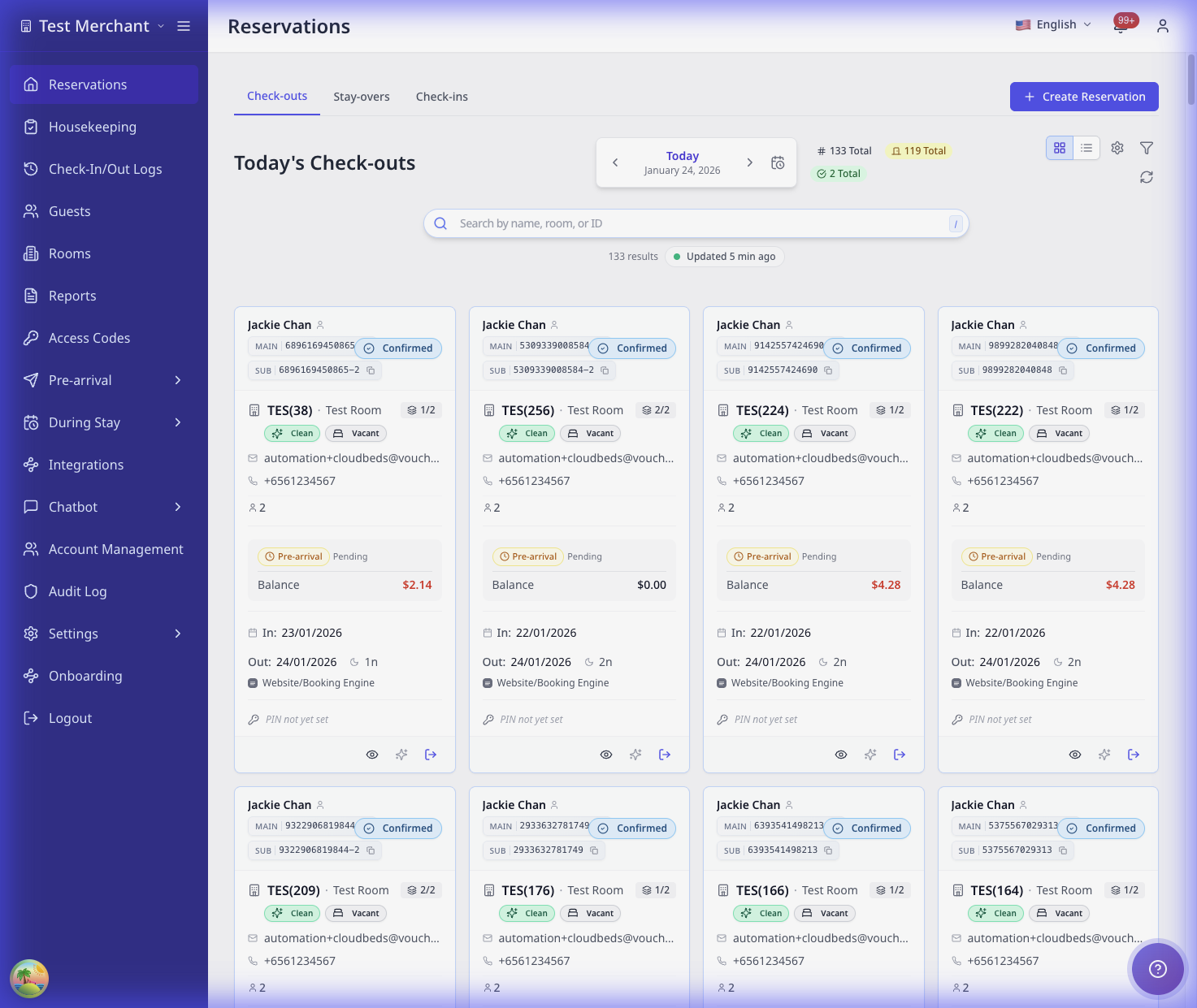
Quick Reference
| Step | What it does | Where it appears |
|---|---|---|
| Reservation Lookup | Finds the booking | Check In or Staff Access |
| Document Upload | Scans passport/ID | Guest Verification on each room card |
| Guest Information | Confirms details | Guest Information → Fill |
| Signature | Captures signature | Signature → Sign |
| Check-In | Finalizes check-in | Proceed to Check-In |
| Room Access | Issues keys, PINs, or locker codes | Room Information |
Before You Start
Confirm these items:
- The reservation is active (not cancelled or no-show)
- The guest has a passport or ID ready
- The room is ready or can be assigned
- Your configured room-access delivery is ready
Steps
1. Find the reservation
-
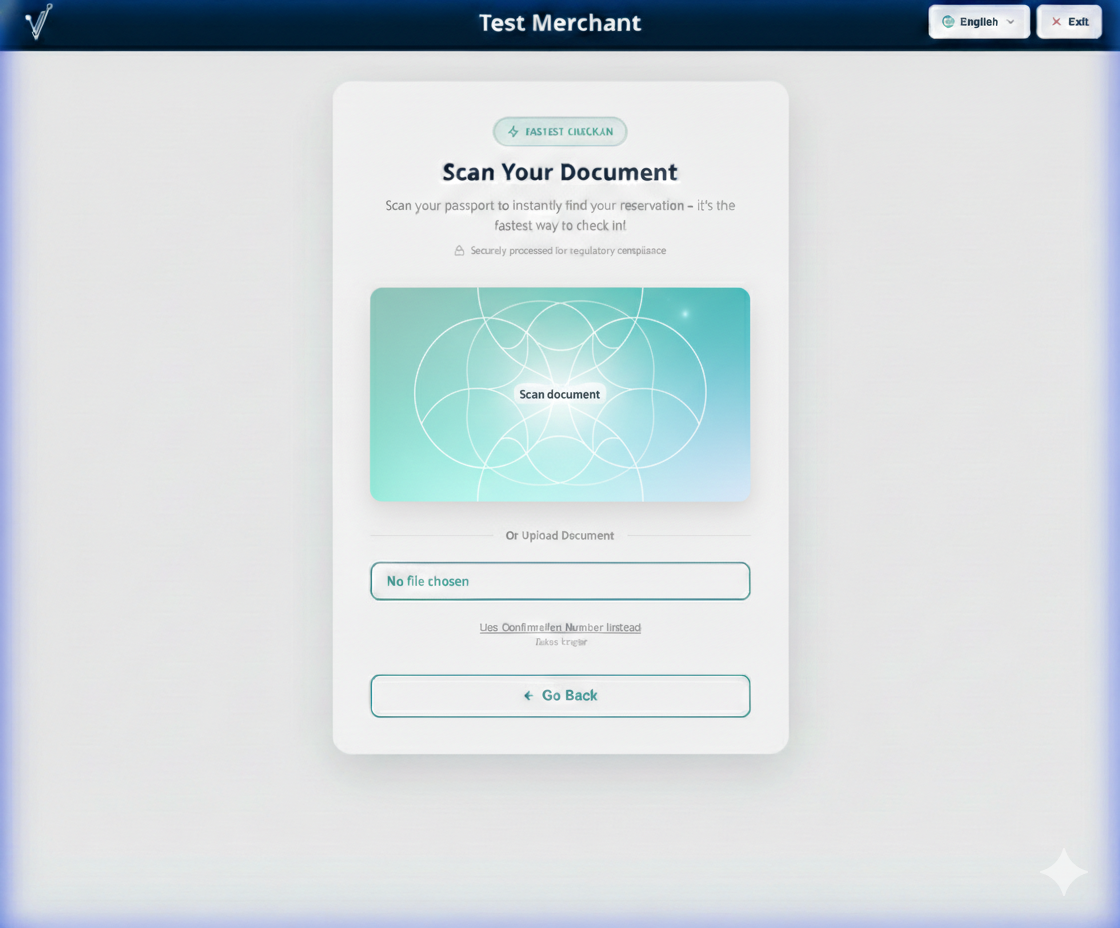
On the Check In screen, scan the guest's passport or ID.
-
If Passport Scan Booking Lookup is off, select Use Confirmation Number Instead.
-
Enter the confirmation number and select Continue.
✓ AVA shows lookup progress while it finds and loads the reservation.
✓ The room cards appear when the lookup finishes.
If the guest's value is an OTA or external booking reference, enter it in the same field. AVA checks the confirmation number first, then uses the external reference as a fallback. For Opera reservations, AVA verifies the full record before selecting a result. If an exact reference lookup returns no result, AVA retries once with the reference in uppercase. AVA compares the reference without case differences on the full reservation record. Confirmation-number lookup behavior is unchanged. It checks the external reference and arrival date, so stale summary data does not select the wrong booking. If the details do not match or Opera returns ambiguous results, AVA does not select a booking.
Watch reservation lookup progress
AVA shows named stages while it looks up the reservation. This replaces the earlier spinner and helps you see that the lookup is still running.
| Lookup method | Stages you may see |
|---|---|
| Passport or ID scan | Reading your document → Finding your booking → Retrieving your reservation → Checking your booking |
| Confirmation number | Finding your booking → Retrieving your reservation → Checking your booking |
| Confirmation number after a failed document check | Verifying your document may appear before the other stages |
The progress bar may pause near the end while AVA completes its final checks. Do not press Continue again while the lookup is running.
For some passport scans, AVA shows the room list before these checks finish. This booking preview can show stay dates, room types, and guest counts. Room numbers, confirmation references, and other guest names remain hidden temporarily.
You may see a You booked [number] rooms message and pending room cards. Fill is enabled for the matched guest while AVA confirms the booking. Start guest details, then wait for confirmed values to appear.
✓ Your typed details stay with the correct guest during confirmation.
AVA lists every predefined guest in the preview. The matched guest starts with uploaded passport details. For another guest, select Upload on that guest's row while confirmation continues. AVA keeps that upload pending and verifies it against the confirmed guest after confirmation. If live confirmation switches bookings, AVA matches the passport to the confirmed booking's guest profile. An ambiguous match or same-booking guest-profile change is rejected without attaching the passport.
If the confirmation cannot finish, AVA returns to the normal lookup flow. Use the same passport image or enter the full confirmation number.
If a guest restarts the journey, scanning the same trusted passport can show the limited preview again. AVA waits for the live reservation check before showing it. This works only when the same guest remains on the booking and nobody has checked in. The repeat scan does not save another document or show live billing details. Other documents, changed guest details, cancelled bookings, and checked-in bookings return to confirmation lookup.
If the lookup fails, AVA returns you to the form and keeps the confirmation number. Check the number, then select Continue once more.
If a passport retry fails after verification, AVA clears the progress screen. It sends you to confirmation lookup so you can continue with the confirmation number.
On iPad-range screens, you see stacked room details. Confirmation, OTA, Guests, and Stay stay separate and easy to read. Guest actions move below the guest name on the card.
On phones and small tablets in portrait mode, AVA asks you to choose a room first. Review each tile's room number, type, confirmation number, and booked guest names. Select the tile for the room you are checking in to.
Before adding a guest, confirm the Adding to Room [number] of [total] label. Select Wrong room? to choose a different room. When a room finishes, AVA announces the next room in a message.
In Check-In and Pre-arrival, AVA briefly shows the active camera and where to hold the document. The hint may appear shortly after the preview starts while AVA identifies the camera direction. The hint disappears after about three seconds, or when you tap it. No extra tap is needed to continue scanning. During Upload All Documents, the hint appears once per bulk-upload session. It does not repeat for additional documents or retakes. Opening a new bulk-upload modal shows the hint again. Assisted Check-In does not show the animated hint. The Back camera or Front camera badge stays visible during the scan. Follow the badge and the on-screen guide if the hint disappears.
If you are using Assisted Check-In (ACI)
-
On the welcome screen, select Check In.
-
Open Staff Access.
-
Search by guest name, reservation ID, or external booking ID.
-
Select the correct reservation.
If you searched with a room confirmation number, AVA looks up that room. This remains true when the result includes several grouped rooms. Confirm the room number before continuing.
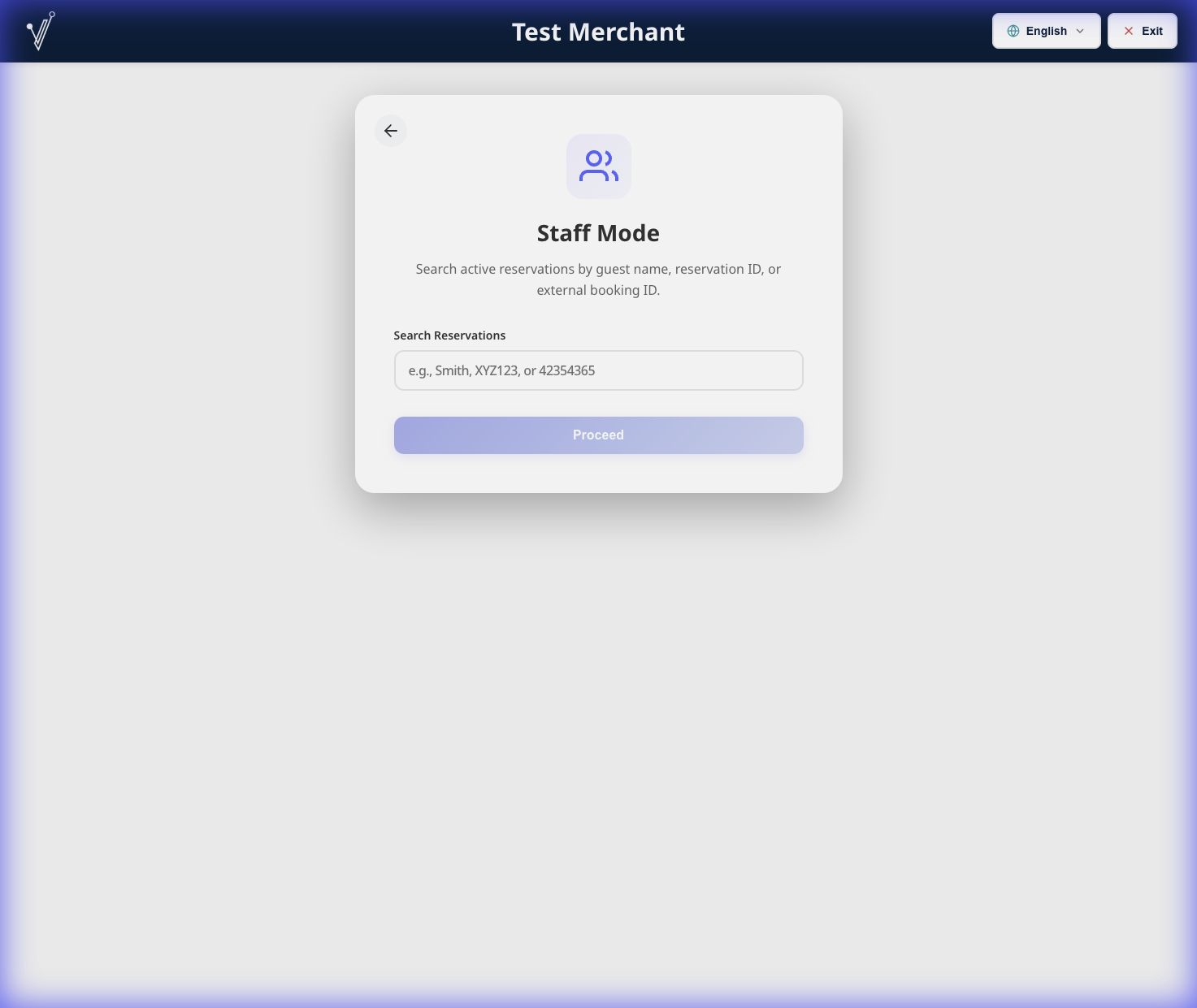
Staff Access only shows arrivals from yesterday and today. To find any other date, search by confirmation number.
Before the allowed time, verified ACI staff see the allowed date and time. They can select Override and check in or Cancel. Self Check-In and Pre-arrival remain blocked until the allowed time. For zero-night reservations, Day use must still be enabled.
2. Upload documents
-
Select Document Upload → Upload for the main guest.
-
Scan the passport or ID.
✓ The document status shows as complete.
Follow the camera hint when it appears in Check-In or Pre-arrival. It may appear a moment after the preview becomes active. During Upload All Documents, it appears once for the session. The hint does not repeat for additional documents or retakes. The matching Back camera or Front camera badge remains visible while scanning. If no camera badge appears, follow the generic on-screen scan instruction.
Tip: Use Upload All Documents to scan every guest at once.
If Guest Step Auto-Advance is on, AVA opens Guest Information for that guest automatically. If it is off, you stay on the room card until you open the step yourself. Bulk upload stays on the group review path.
In the Upload All Documents review, the summary stacks above the list on narrow screens. Scroll the review area to reach every passport or ID card and its assignment controls. Long guest names wrap inside their cards instead of extending beyond the screen. The bottom actions stay reachable and preserve space around device edges. On laptops and iPad landscape, the overview actions remain visible while you review the list.
3. Complete guest information
-
Select Guest Information → Fill.
-
Confirm required fields. For Estimated Arrival Time or Departure Time, select OK after choosing a time. Select Cancel, tap outside the picker, or press
Escapeto keep the previous value. -
Select Save.
✓ The Guest Information step is complete.
If Guest Step Auto-Advance is on, AVA opens Signature or the next required step after you save. If it is off, you must select the next step yourself. Use the modal that opens instead of clicking the room card again.
If the guest has no phone number, AVA uses the passport nationality for the default country code.
Existing phone numbers keep their saved country code.
AVA clears obvious placeholder numbers, such as +1 0000000000, before prefill.
4. Capture the signature
-
Select Signature → Sign.
-
Capture the guest's signature.
✓ The Signature step is complete.
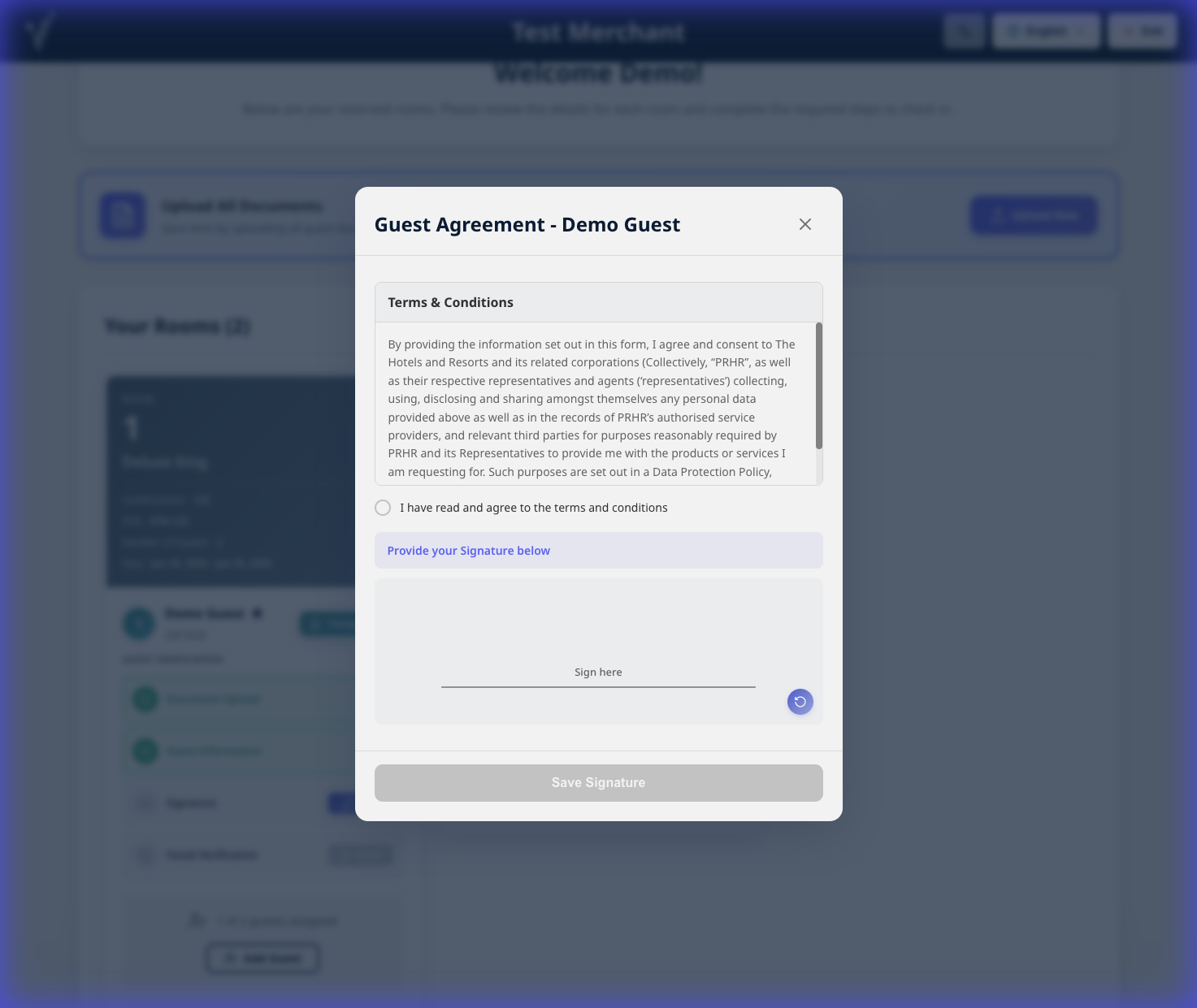
If the signature is tiny or incomplete, AVA shows inline guidance instead of saving silently. Ask the guest to sign across more of the line, then tap Save Signature.
If the submit fails: Select Sign again on the same row, then capture and submit the signature again.
5. Finalize the check-in
-
Select Proceed to Check-In.
-
Wait for the progress screen to finish.
✓ The room card shows the check-in completed state.
6. Provide room access
Open Room Information on the room card:
AVA requires this step when AVA-managed delivery is configured. That includes PIN smart locks, QRLOCK digital keys, lockers, and configured non-manual keycards. Manual or unavailable delivery remains a separate staff outcome.
If the PMS has no phone number, AVA omits that missing value and continues the configured keycard flow. You can create the keycard after the guest completes check-in.
-
Keycards: In one-device ACI, confirm the handover first. In two-device ACI, actions appear after successful check-in. Select Create Keycard or Already Encoded. If the selected Guest Tablet has an active default encoder, AVA preselects it. If that encoder is unavailable, select an active encoder manually.
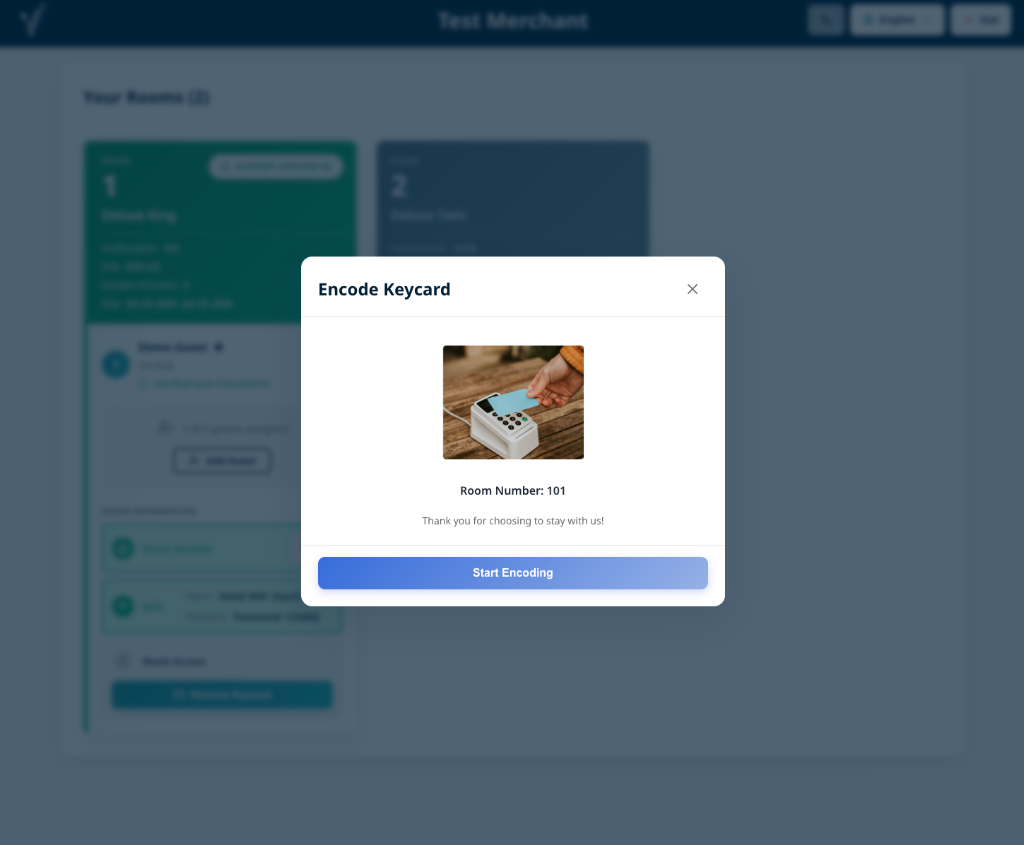
-
Smart Locks: Select Show PIN and share the code.
-
QRLOCK: Check the delivery status, then copy the current hosted guest link if needed. Email delivery reuses the issued key and does not create another key.
-
Lockers: Share the Locker Number and Show Code.
Set the ACI keycard valid-until date and time
These controls appear only for ACI keycard encoding. Use them for late checkout or back-to-back reservations.
- In the final keycard encoding step, review Key valid until.
- Select the date when the guest should lose access.
- Select the time when the guest should lose access.
- Select Reset to hotel default to restore both values.
- Continue encoding the card.
The date starts at the departure date. If a previous encode date is still in the future, AVA starts with that date. The time starts from the previous encode when available. Otherwise, AVA uses the later of the hotel default and the latest guest departure time. If your hotel never saved a key expiry time, the hotel default is 14:00. This includes companions and duplicate main guests shown on other rooms in the booking. Waived manual-ACI main guests are excluded because they do not occupy the room. AVA uses your hotel's timezone. You cannot select a date in the past.
Select a later date when the guest has consecutive reservations. One keycard can then cover the complete stay. The later date applies only when you change it from the departure date.
When you encode several cards, AVA reuses and locks the same expiry date and time. After the first card succeeds, AVA keeps those values for the remaining cards. This changes the keycard only and does not update the PMS reservation.
The keycard date or time is not what you expected
What you see: Key valid until shows an unexpected date or time.
Fix:
- Check the hotel's Keycard Expiration Time setting.
- Check the departure times for every guest in the room.
- Check the selected Key valid until date.
- Select Reset to hotel default if you need the configured hotel expiry.
- Enter the confirmed late-checkout date and time, then continue encoding.
What Happens After Check-In
- The room status updates to occupied.
- Room access appears on the room card after the required ACI step.
- WiFi details appear under WiFi when the post-check-in toggle is on.
Return to the kiosk welcome page
After a completed CCI check-in, a configured kiosk returns to its Welcome page. This lets the next guest start without staff reopening the kiosk link.
Browser Back and in-app Exit also return to the same kiosk Welcome page. The kiosk keeps its saved hotel, mode, and kiosk assignment during these exits.
After kiosk bootstrap finishes, AVA removes the setup identifiers from the browser address.
The Welcome page should show the clean kiosk root URL, such as /#/.
The saved kiosk context continues to identify the correct hotel, mode, and kiosk.
Do not copy or share old launch URLs after setup finishes. Use the clean root URL for normal kiosk operation. AVA keeps the launch details only when they match the saved kiosk context exactly. An unpaired browser or mismatched saved context opens Kiosk Setup instead.
After a deployment, refresh or relaunch a managed legacy kiosk at its usual root URL. If its saved context remains, AVA restores the correct Welcome page automatically. This also works when the URL is empty or contains only the merchant context.
If the browser has no pairing or saved kiosk context, it opens kiosk setup instead. Pair the browser with the intended kiosk before accepting guests.
Kiosk opens setup after check-in
What you see: A completed CCI check-in opens Kiosk Setup instead of Welcome.
Fix:
-
Go to Settings → Kiosk.
-
Refresh or relaunch the kiosk at its managed root URL.
-
Confirm the browser is paired with the intended kiosk.
-
Confirm its check-in mode is Self Check-In (CCI).
-
Follow Pair the browser if pairing is missing.
-
Complete one test check-in again.
✓ The configured kiosk returns to its Welcome page after completion.
Kiosk identifiers remain in the address
What you see: The kiosk works, but mid, mode, or kioskId remains in the browser address.
Fix:
-
Confirm the kiosk completed its initial bootstrap.
-
Refresh the kiosk at its managed root URL.
-
Confirm the browser is paired with the intended kiosk.
-
Complete one test check-in, then return to Welcome.
✓ The kiosk keeps its saved context and shows the clean root URL.
If identifiers remain after these steps, stop using that kiosk. Contact support so they can check for a storage or context mismatch.
Still Stuck?
Contact success@vouch-technologies.com if:
- ❌ The reservation cannot be found
- ❌ Check-in stays blocked after all steps are complete
- ❌ Room access does not appear after check-in
Helpful to include:
- Screenshot of the error
- Reservation confirmation number
- Time the issue started