Check-In Policy
Set age limits, check-in time, and room rules. Most properties finish in about 5 minutes.
This guide helps you set who can self check-in, when they can start, and which rooms are eligible. These rules apply to both self-service and assisted check-in flows.
Where to Find It
Settings → Check-In → Check-In PolicyQuick Reference
| Setting | What It Controls | Guest Impact |
|---|---|---|
| Minimum Age | Youngest guest allowed to self check-in | Underage guests are directed to the front desk |
| Child Maximum Age | Age at or below which scanned guests count as children | Sends the correct adult and child mix to your PMS |
| Facial Verification Exemption Maximum Age | Age at or below which eligible guests can skip facial verification | Removes the selfie step when the exemption toggle is on |
| Require EVA before check-in | Requires a current successful EVA result before PMS check-in | Failed, pending, missing, stale, or unavailable EVA keeps check-in retryable |
| Allow DOB Editing | Whether guests can correct OCR birth dates | Prevents accidental age blocks from OCR errors |
| Allow Travel Document Upload | Allows a photo upload instead of a live camera scan | Guests can upload a passport or ID photo |
| Image Retention Policy | Automatically deletes travel document and selfie images after set days | Older images may be removed after you apply changes |
| Document Storage | Chooses where captured documents and signatures are stored | Controls storage destination for check-in records |
| PMS Upload Policy | Controls whether supported check-in documents are sent to your PMS | Documents can stay in Streamliner without syncing to PMS |
| Registration Card Upload Timing | Chooses when supported registration cards upload to your PMS | Uploads can wait until guest sync or check-in completes |
| Upload main guest's registration card to all rooms | Renders the signed main-guest card for every room in a multi-room booking | Each room receives a card with its own reservation details |
| Required registrations before room check-in | Chooses which predefined PMS guests must register first for each check-in mode | The selected mode waits for those guest registrations |
| Additional guest representative | Allows an additional guest to represent the room | Self or Assisted Check-In can continue before the main guest |
| Self Check-In arrival reservation policy | Chooses which reservation CCI checks in when an additional guest arrives first | Automatically includes verified guests' reservations or the main booking |
| Match and merge guest profiles | Matches returning guests and enables staff-assisted duplicate-profile merging | Reduces duplicate Opera guest profiles |
| Allowed Check-In Time | Earliest time check-in starts | Early guests wait; verified ACI staff can choose whether to continue |
| Validate Check-In Time Only | Whether AVA checks only the time, or both the arrival date and time | Controls how strict early-arrival validation is |
| Long Stay Restrictions | Blocks stays at or above a shared night threshold by journey | Enabled journeys require staff review |
| Let assisted check-in staff collect payments | Allows payment requests during Assisted Check-In | ACI requests payment when on, or continues without payment when off |
| Kiosk Welcome Buttons | Shows or hides Check-In, Check-Out, and Request Assistance on CCI and ACI kiosk welcome screens | Guests see only the actions you enable on the kiosk home screen |
| Group Checkout | Lets the guest checkout flow handle linked reservations together | Guests can complete checkout for linked reservations in one flow when your PMS supports it |
| Show smart-lock PIN during guest checkout | Shows the stay's existing PIN for physical key return | Guests can reopen a smart container and return a physical key |
| Guest Step Auto-Advance | Opens the next required guest step after save | Keeps the check-in flow moving, or lets guests advance manually |
| Check-in and checkout blocking by mode | Applies selected payment, balance, reservation, routing, long-stay, and code rules per journey | Sends blocked journeys to staff support |
| Room Automation | Separate controls for roomless reservations, pre-assigned room moves, and queueing | Controls room readiness checks and queue safety |
| Expected room-assignment behaviour | The before and after check-in matrix for roomless and pre-assigned reservations | Helps staff explain waiting and Room Ready emails |
| OPERA Specials Codes | Searchable codes for journey steps | Tracks registration, pre-auth, check-in, and check-out progress |
| Show reservation details for assisted check-in | Shows the staff-only Arrival brief in two-device ACI | Helps staff prepare for the guest conversation |
| Allow ACI room swaps | Lets ACI staff use a clean room assigned to another booking | Supports high-occupancy arrivals when Opera, Cloudbeds, or AVA PMS can plan the moves |
| Alert codes that block a room swap | Stops selected hotel-defined Opera alerts from moving a room holder | Keeps bookings with local do-not-move alerts in place |
| Room type upgrades | Offers higher room types when the booked type has no ready room | Keeps the booked rate while improving room readiness |
Use Explicit Arrival Decisions
Supported PMS connections provide explicit arrival decisions automatically. No separate activation is needed.
Use explicit arrival decisions when staff must confirm who has physically arrived before room assignment or guest synchronization. Availability depends on your active PMS adapter supporting this capability.
| What controls availability | What it controls |
|---|---|
| PMS capability | Makes explicit arrival decisions available for supported hotel connections |
| Streamliner permissions | Determines whether the signed-in staff member can use the flow |
| Self Check-In arrival reservation policy | Determines which reservations CCI includes when an additional guest arrives first |
| Mandatory Guest Registration | Can require every expected guest before room check-in |
You do not need to add your hotel to an activation list or configure an environment variable. Unsupported PMS adapters continue using their existing arrival flow.
Do not delete arrival decisions during a rollout or rollback. AVA keeps targeting and reconciliation support for journeys that already started.
Show Reservation Details for Assisted Check-In
Use Show reservation details for assisted check-in to show the staff-only Arrival brief. The brief includes read-only reservation facts and advisory suggestions.
The setting is off by default. Only an explicitly saved on value enables it for your hotel.
-
Find Kiosk & payments. The setting is at the end of this card, after Long Stay Restrictions.
-
Turn on Show reservation details for assisted check-in.
-
Click Save.
✓ Arrival briefs can appear after eligible reservations are retrieved successfully. ✓ The setting remains enabled after you reload the page.
The brief appears after AVA retrieves one or more eligible reservations successfully. When one reservation is eligible, AVA opens the original direct brief view. Passport upload is not required. It appears only on the staff screen in ACI Two Device mode. It does not appear in one-device ACI, self check-in, pre-arrival, or guest tablet screens.
When the lookup returns multiple eligible reservations, the staff rail labels each reservation. The rail shows compact reservation entries instead of stacked briefs. Reservations without an assigned guest remain visible but disabled. They show No guests assigned and cannot start an Arrival brief request. Select an enabled entry to review that reservation's brief. AVA loads a brief only after you select its reservation. Reopening an already opened entry reuses its loaded brief without another request. AVA keeps the guest assigned to the tablet. When a sibling reservation reuses the active arrival step, AVA keeps the multi-room journey authorized. You can continue switching reservations and refresh the selected brief. After a keycard succeeds, AVA refreshes only the brief for the changed reservation.
Read the brief in a narrow staff rail
The Arrival brief adapts to the width of its staff rail. This keeps titles, reservation facts, and currency amounts readable on narrow screens.
- Titles wrap between words instead of splitting into individual letters.
- Compact reservation facts use one column when two columns are too narrow.
- Currency amounts stay together and align to the end of their row.
- Print pro-forma moves below the title when the header needs more space.
- Refresh stays beside the title when the header has enough room.
You do not need to change settings or resize the browser. The brief adjusts automatically while you review the reservation.
Review optional reservation details
AVA shows core reservation facts first. These include alerts, notes, membership, rate code, balance, and stay total. Reservation preferences and packages are collapsed until you open them.
Open an optional section when you need more context:
| Section | Details loaded when opened |
|---|---|
| Profile | VIP level, preferences, memberships, and completed stays |
| Rate | Stay total, pre-stay deposit, and outstanding stay cost |
| Folio | Room charges, payments, guest-window balance, and posted lines |
Each section loads independently. Opening one section does not load the others. The brief shows Loading while AVA retrieves a section. Missing values appear as Not provided.
Select Refresh to reread an opened section. If a section cannot load, select Refresh and try again. AVA keeps details tied to the active reservation and guest. Normal reloads and keycard events reuse valid cached details without another PMS request. During an explicit refresh, AVA keeps the current details visible. If the refresh fails, AVA keeps the last usable details after checking your access again. If the refresh finds changed reservation facts, AVA shows the fresh facts even when suggestions cannot regenerate. When the evidence is unchanged, AVA preserves the completed brief and its reviewed suggestions.
The basic Balance is the current guest-window balance. The Rate section's outstanding stay cost comes from OPERA rate information. AVA does not substitute or calculate one value from the other. Opening Rate makes its read independently, and reopening it uses its cache.
Optional details help you prepare for the guest conversation. They do not change PMS data or affect check-in, checkout, or payment decisions.
Keep the guest tablet preview visible
In two-device ACI, the guest tablet preview keeps its minimum size. The staff panel scrolls when the browser window is short. You can scroll the staff panel to reach the complete preview and its controls.
The brief does not change PMS data or block guest steps. Verify important details in your PMS before acting on suggestions.
An optional section is unavailable
What you see: An opened Profile, Rate, or Folio section shows that details are unavailable.
Fix:
- Confirm the reservation and guest are still the active ACI journey.
- Select Refresh in the affected section.
- Keep the section open until loading finishes.
- Verify the details in Opera if the section remains unavailable.
An Arrival brief or document override is denied
What you see: A verified staff screen shows a 403 or cannot use the current journey.
Why this happens: The saved journey context can become outdated between staff and guest-tablet requests. AVA can repair it when the same staff kiosk, guest, browser session, live lease, and assignment still own the tablet.
Fix:
-
Keep the same verified staff browser open.
-
Confirm the guest tablet remains paired and the reservation is active.
-
Select Refresh or retry the Arrival brief.
-
Retry the approved document verification override.
✓ AVA can repair stale context for an active two-device journey with matching ownership. ✓ A busy tablet can recover when this exact journey owns it. ✓ AVA keeps competing kiosks, guests, sessions, assignments, and expired leases blocked.
The guest tablet preview looks too small
What you see: The staff panel appears crowded, or the preview is below the visible area.
Fix:
- Scroll the staff panel.
- Maximize the browser window when possible.
- Keep the paired guest tablet connected.
- Confirm the preview updates after the guest tablet reports its current screen.
To stop showing the brief, turn off the setting and click Save.
Allow ACI Room Swaps
Use Allow ACI room swaps when staff may move a checking-in guest into a clean room another booking holds. The setting is off by default.
-
Find the Assisted check-in staff tools section in Kiosk & payments.
-
Find Allow ACI room swaps after the Arrival brief setting.
-
Turn it on, then click Save All Check-In Settings.
✓ Verified ACI staff can see eligible held rooms during reassignment.
This setting only enables the staff choice. Your PMS must also advertise room-swap planning support. Opera, Cloudbeds, and AVA PMS support this planning flow. Self Check-In, pre-arrival, and unverified staff sessions are unchanged.
The setting appears only when your PMS reports room-swap planning support. If it is hidden, AVA keeps any previously saved value unchanged.
The swap can move up to two other bookings. Confirm your team can check each moved booking in the PMS before enabling this setting.
Set alert codes that block room swaps
Use Alert codes that block a room swap for your hotel's own Opera do-not-move alerts.
For example, AMN can mean that amenities remain in the room.
-
Turn on Allow ACI room swaps.
-
Find Alert codes that block a room swap below the room-swap setting.
-
Choose an Opera alert code, or type its code.
-
Select Add for each code that must keep its booking in place.
-
Click Save All Check-In Settings.
✓ A holder with a selected code stays in its room during a swap.
PMS-provided built-in blocking alerts appear as fixed chips. They show · always blocks and do not need to be added. Streamliner uses the blocking alerts supplied by your PMS. Codes are trimmed, upper-cased, and deduplicated when saved. You can add up to 50 hotel-defined codes. If the alert-code list cannot load, type a code manually. Other alerts remain reviewable and can still be moved after acknowledgement.
Cloudbeds uses reservation notes and native room locks to protect held bookings. Cloudbeds does not support coded blocking-alert policies for this flow. Do not select a coded alert list for Cloudbeds room-swap upgrades.
Set Up Room Type Upgrades
Use Room type upgrades when a booked room type has no ready room for the full stay. Staff can also request higher ready room types while the booked type remains available. ACI can offer higher room types in the same ladder, never lower types. The guest keeps the booked rate.
The card appears only when your PMS supports room type upgrades. It is separate from the Allow ACI room swaps setting.
Create room type ladders
Group compatible room types from lowest to highest. Keep bed types in separate groups, such as Kings and Twins.
- Go to Settings → Check-In → Check-In Policy.
- Open Room type upgrades.
- Turn on Offer room type upgrades in Assisted Check-In after adding a group.
- Select Add group.
- Enter a group name, such as
Kings. - Search for a room type and select Add.
- Add at least two room types to the group.
- Use Rank higher or Rank lower to set the order.
- Add separate groups for different bed types or room families.
- Click Save room type upgrades.
✓ The highest room type appears at the top of each group. ✓ ACI offers only types above the guest's booked type. ✓ ACI keeps the guest's booked rate for a complimentary upgrade.
When the booked type has a ready room, staff can select Show upgrades in the ACI room list. This request lists higher ready rooms without changing the automatic upgrade trigger. Requested upgrades are not marked Recommended. They do not move another booking or reclaim a courtesy upgrade.
AVA loads room types from your PMS. Each room type can appear once across all groups.
Choose upgrade policies
Use the policy controls to limit offers and protect guest priorities.
| Setting | Choose this when |
|---|---|
| How far up a guest can go | Limit offers to one level, two levels, or any higher type |
| Take back courtesy upgrades | Decide when AVA can reclaim an upgrade later |
| Guests with VIP or loyalty status | Treat all guests equally, prefer status guests, or protect their upgrades |
| Upgrade by room swap | Let ACI use a higher room held by another booking, when supported |
Select Upgrade by room swap only with a PMS and ACI workflow that supports room swaps. The Allow ACI room swaps setting must also be on for this option.
Cloudbeds upgrade swaps require Guest status: Ignore and no coded blocking-alert list. Cloudbeds does not provide verified paid-room provenance or courtesy takeback support. Unassigned guests receive same-type choices only.
Check save requirements
AVA checks these rules before saving:
- Each group contains 2–20 room types.
- Your hotel can have up to 30 groups.
- A room type appears in only one group, once.
- Room type codes can contain up to 40 characters.
- Group names can contain up to 60 characters.
- Turning upgrades on requires at least one group.
Room Type Upgrade Problems
The Room type upgrades card is missing
What you see: You cannot find Room type upgrades under Check-In Policy.
Why this happens: Your PMS does not report room type upgrade support.
Fix:
- Open Settings → Essentials → PMS Integration.
- Confirm the intended PMS connection is active.
- Return to Settings → Check-In → Check-In Policy.
- Contact support if your PMS should support this feature.
Room types cannot be loaded
What you see: The card says the hotel system's room types could not be read.
Fix:
- Confirm your PMS connection is active.
- Select Try again on the Room type upgrades card.
- Leave upgrades off until AVA can verify the room types.
- Contact support if the message continues.
A room type shows “Not in the hotel system”
What you see: A saved room type has a Not in the hotel system label.
Fix:
- Check the room type code in your PMS.
- Remove the old code from the affected group.
- Search for the current room type and select Add.
- Reorder the group if needed.
- Click Save room type upgrades.
A guest does not receive an upgrade
What you see: ACI does not offer a higher room type.
Fix:
- Confirm the booked room type belongs to a saved group.
- Confirm a higher type appears above it in that group.
- Check that the higher room is ready for the full stay.
- Check How far up a guest can go.
- Turn on Upgrade by room swap only when the required swap settings are active.
- Save the policy and start a new ACI room search.
Room type upgrades affect Assisted Check-In room searches and room assignment. They do not lower the guest's room type or change the booked rate.
Set Check-In Blocking by Mode
Use separate blocking rules for Pre-arrival, Self Check-In, and Assisted Check-In.
Check-out rules remain separate from these settings.
Each mode appears in its own expandable row.
The row shows how many checks are enabled, such as 2/5.
Open a row to review or edit that mode's rules.
| Rule | What It Blocks | Availability |
|---|---|---|
| Block Check-in When Guest Needs To Pay At Hotel | A journey with hotel payment due and an outstanding balance | Cloudbeds only, when payment-source support is available |
| Block Check-in for Outstanding Balance | A journey with a folio balance above zero | Available independently |
| Block Kiosk Check-In for Travel Agent Bookings | A journey booked through a travel agent | Only when your PMS reports kiosk-code support |
| Block Kiosk Check-In for Existing Routing Instructions | A journey with routing instructions | Only when your PMS reports kiosk-code support |
| Apply Check-In code rules for this mode | Reservations matching one of the selected check-in codes | Only when your PMS reports kiosk-code support |
Kiosk-code controls require the active PMS to report support for this capability. Opera supports this capability, including normalized OHIP aliases. Cloudbeds, Mews, eZee, AVA, and Furama currently hide these controls.
The Block Check-in When Guest Needs To Pay At Hotel rule also requires a payment-source capability. Cloudbeds v3 currently reports this capability. Opera, Mews, eZee, Furama, and AVA hide the rule when they cannot verify who should collect payment. Use Block Check-in for Outstanding Balance when you want balance-only blocking.
The setting can disappear after you connect an unsupported PMS. Hiding the setting does not remove a value previously saved for your hotel. The rule cannot match reservations when that PMS cannot report the payment source.
Hotel-payment blocking control is missing
What you see: You cannot find Block Check-in When Guest Needs To Pay At Hotel.
Why this happens: Your active PMS cannot report which reservations require hotel payment.
Fix:
-
Open Settings → Essentials → PMS Integration.
-
Confirm the active PMS matches your intended provider.
-
If you use Cloudbeds, reconnect the PMS if its capability is missing.
-
Use Block Check-in for Outstanding Balance for other supported PMS workflows.
✓ AVA hides the hotel-payment rule when payment-source information is unavailable. ✓ A previously saved value remains stored but does not block check-in for unsupported PMSs.
Existing flat payment, balance, and code blocking settings keep their Self Check-In behavior. Pre-arrival and Assisted Check-In blocking starts off until you enable it. Long Stay Restrictions use separate migration and compatibility rules described below.
- Go to Settings → Check-In → Check-In Policy.
- Find Check-in blocking by mode.
- Open the Pre-arrival, Self Check-In, or Assisted Check-In row.
- Confirm the scope note names the journey you want to edit.
- Turn on the rules that should block that journey.
- To use codes, turn on Apply Check-In code rules for this mode.
- Add codes in Block Kiosk Usage for Check-In Codes.
- Use Copy from Self Check-In when another mode should use the same codes.
- Open another mode row if you need different rules there.
- Click Save Check-In Policy.
✓ Each journey applies only the rules saved for its selected mode.
After copying codes, turn on Apply Check-In code rules for this mode separately. Copying only fills the mode's list.
When kiosk-code controls are unavailable, you can still edit Block Check-in for Outstanding Balance. The hotel-payment rule appears only when your PMS reports payment-source support.
These controls affect check-in journeys only. Configure checkout rules in the separate checkout section below.
A mode still allows a blocked reservation
What you see: A reservation with a matching code continues in one check-in journey.
Fix:
- Return to Settings → Check-In → Check-In Policy.
- Open the affected journey row under Check-in blocking by mode.
- Confirm Apply Check-In code rules for this mode is enabled.
- Confirm the matching code appears in Block Kiosk Usage for Check-In Codes.
- Click Save Check-In Policy.
- Retry the reservation lookup in the affected journey.
Each mode row has its own code-list setting. Copy from Self Check-In copies the current Self Check-In codes into another mode. It does not link future changes between modes.
Before you save the new mode policy, existing flat check-in blocking settings continue applying to Self Check-In. Pre-arrival and Assisted Check-In do not inherit those settings automatically.
Kiosk-code controls are missing
What you see: You cannot find the mode selector, code-rule checkbox, or code list.
Why this happens: Your active PMS does not report the kiosk-code capability.
Fix:
-
Open Settings → Essentials → PMS Integration.
-
Confirm the intended PMS is active and connected.
-
Return to Settings → Check-In → Check-In Policy.
-
If your PMS is Opera or OHIP, refresh the page after reconnecting.
-
Use payment or balance rules when your PMS does not support kiosk codes.
✓ AVA keeps stored code values safe when capability data is missing temporarily.
Do not switch PMS providers only to restore kiosk-code controls. Choose rules supported by your active PMS and operating workflow.
Set Checkout Blocking by Mode
Use separate checkout rules for Self Check-In and Assisted Check-In. Guest checkout uses Self Check-In rules. Staff lookup and staff-assisted checkout use Assisted Check-In rules.
| Checkout mode | Used for | Rules you can control |
|---|---|---|
| Self Check-In | Guest-led checkout | Codes, travel-agent bookings, routing, long stays, and balance |
| Assisted Check-In | Staff-led checkout | Codes, travel-agent bookings, routing, long stays, and balance |
Each mode has its own expandable row. Open a row to review its enabled-rule count and saved values. The code checkbox controls whether that mode's code list is applied.
Hotels without a saved checkout mode policy keep the existing flat checkout code list. That list applies to both guest and staff checkout paths. Saving the new policy opts the hotel into separate checkout behavior. The Self Check-In list mirrors the legacy flat list for compatibility. The Assisted Check-In list starts empty.
Leave a mode's balance setting unset to keep the existing hotel-wide balance rule. Set a mode-specific balance value only when that journey needs different behavior.
-
Find Checkout blocking by mode.
-
Open Self Check-In or Assisted Check-In.
-
Turn on the rules for that checkout journey.
-
Enable the mode's checkout code checkbox when its code list should apply.
-
Enter or update the codes for that mode.
-
Open the other mode when it needs different rules.
-
Click Save Check-In Policy.
✓ Guest checkout and staff checkout now use their selected mode rules.
Deploy the updated CCI service before enabling the new Streamliner checkout settings. Deploy both services before configuring separate checkout rules.
Checkout still uses the old code list
What you see: Guest and staff checkout both use the same checkout code list.
Why this happens: No checkout mode policy has been saved for the hotel.
Fix:
-
Open Settings → Check-In → Check-In Policy.
-
Find Checkout blocking by mode.
-
Configure and save the Self Check-In and Assisted Check-In rows.
-
Start a new checkout lookup.
✓ Each checkout path uses its saved mode after the policy is configured.
A checkout mode does not block a reservation
What you see: A reservation matching a rule can still continue through checkout.
Fix:
- Open the row for the affected journey.
- Confirm the rule is enabled for that mode.
- If using codes, enable the code checkbox.
- Confirm the reservation's code appears in that mode's list.
- Check that the reservation uses the expected guest or staff checkout path.
- Click Save Check-In Policy and retry the lookup.
If the mode balance setting is blank, AVA uses the existing hotel-wide balance rule.
Set Guest Eligibility
Minimum Age for Check-In
- Go to Settings → Check-In → Check-In Policy
- Enter a value in Minimum Age for Check-In (commonly 18 or 21)
- Click Save
How it works:
- The age check applies to the primary guest on the reservation
- If the primary guest is under the minimum age, self check-in is blocked
- Age is calculated from the Date of Birth captured during registration
Set the Child Maximum Age
Use Child Maximum Age to classify guests scanned during check-in. Guests at or below this age count as children. Older guests count as adults.
The setting accepts whole numbers from 0 to 17.
It defaults to 12, matching the existing Age 0-12 guest form label.
PMS vendors do not provide their child age band through the integration. Set this value to match the child age band used by your property's rate plans. If the values disagree, your PMS may reject the adult and child mix.
-
Find Child Maximum Age under Guest identity & documents
-
Enter the maximum child age used by your PMS rate plans
-
Click Save
✓ AVA uses the saved boundary when it classifies scanned guests during check-in.
For example, 12 classifies guests aged 0–12 as children.
It classifies guests aged 13 and older as adults.
Set the Facial Verification Exemption Maximum Age
Use Facial Verification Exemption Maximum Age to control facial verification separately. It does not change Child Maximum Age or PMS occupancy classification.
Guests at or below this age can skip facial verification when Skip Child Facial Verification is on. AVA requires a complete, valid birth date from the scanned travel document.
The setting accepts whole numbers from 0 upward.
New hotels use 15 by default.
Existing hotels keep their effective previous exemption cutoff when this setting first loads.
For example, with Child Maximum Age set to 12 and the exemption age set to 6,
a 10-year-old remains a child for occupancy but must complete facial verification.
-
Find Facial Verification Exemption Maximum Age under Guest identity & documents.
-
Enter your hotel's maximum exempt age.
-
Turn on Skip Child Facial Verification in the same section.
-
Click Save.
✓ AVA keeps occupancy classification and facial exemption decisions independent.
Require Successful EVA Before Check-In
Turn on Require EVA before check-in when your hotel needs EVA to succeed before PMS check-in. The setting is off by default.
-
Find Require EVA before check-in in the check-in settings.
-
Turn it on.
-
Click Save Check-In Policy.
✓ Applicable arriving guests must have a current successful EVA result before AVA calls your PMS.
AVA checks this policy for single, group, companion, confirm, resume, and legacy arrival flows. For a group, AVA checks every room before the first PMS check-in.
The policy does not change existing EVA exemptions, pre-arrival registration, or arrival-selection rules. Children exempt from facial verification do not need EVA. Adults in the same booking still need a successful EVA result. Staff facial overrides still require EVA when this policy is on.
Confirm the hotel's EVA environment and transport work before enabling this requirement. Failed, pending, unknown, missing, stale, disabled, or unconfigured EVA outcomes block check-in.
Existing in-progress guests may need a fresh EVA verification after you enable this setting. Older audit records alone cannot prove the current guest identity.
Allow Guests to Edit Date of Birth
Use Allow editing guest date of birth to control whether guests can fix OCR errors:
- Enabled: Guests can correct the scanned date of birth
- Disabled: Date of birth stays locked to the scanned document
Consider disabling when:
- Local regulations require an exact document match
- You need strict age verification (for example, age-restricted amenities)
Allowing edits reduces false age blocks when document scanning misreads dates.
Allow Travel Document Upload
Use Allow travel document upload to let guests upload a document photo:
- Enabled: Guests can upload a passport or ID photo
- Disabled: Guests must scan with a live camera
- Go to Settings → Check-In → Check-In Policy
- Turn Allow travel document upload on or off
- Click Save
Set Image Retention Policy
Use Image retention policy to delete stored images after a set number of days.
If a toggle is off, Streamliner does not delete that image type based on retention.
Saving a shorter retention period deletes existing travel document or selfie images older than the selected days immediately.
-
In Image retention policy, turn on Travel document or Selfie
-
Enter retention days (1-365). Default is 180.
-
Click Save
-
If a confirmation window appears, type
DELETE IMAGES -
Click Save and apply now
✓ Your retention policy is saved and active.
If you change image retention and click Save right away, AVA uses your latest values. The confirmation window also appears when the change needs destructive approval.
Set Document Storage
Use Document storage to choose where check-in documents and signatures are stored.
-
In Document storage, use Use your own server (on-premises)
-
Choose one mode:
- Turn it OFF to use S3 cloud storage
- Turn it ON to use your on-site image storage service
-
If on-premises is ON, enter your Image storage URL
-
If a secret is shown, click Copy next to Image storage secret
-
Click Save
✓ Your document storage setting is saved.
The Image storage secret field is read-only. You can copy it when a value exists.
When on-premises storage is enabled, AVA connects directly to your configured image storage service. This applies to travel documents, selfies, registration cards, retrievals, and deletions. Make sure the service is reachable from the AVA backend before guest check-in.
Set PMS Upload Policy
Use PMS upload policy to control which check-in documents Streamliner sends to your PMS.
This does not change local storage or retention rules in Streamliner.
Check PMS attachment support
AVA checks your active PMS capabilities before it offers document-upload controls. Travel-document and registration-card support are checked separately.
| Document | What AVA checks | If unsupported |
|---|---|---|
| Travel document | Travel-document attachment support | AVA keeps the document locally and skips PMS delivery |
| Registration card | Registration-card attachment support | AVA keeps the card locally and skips PMS delivery |
Profile-photo support does not count as travel-document support. An unavailable control means AVA cannot safely offer that PMS upload. This does not affect document storage, retention, or downloads in AVA.
If capability data is temporarily unavailable, AVA disables both controls. It does not show an unsupported-PMS notice because support is unknown. This fail-closed state protects saved settings during a temporary PMS outage.
AVA shows The active PMS does not accept check-in document uploads only when the PMS explicitly reports both document types as unsupported.
Your PMS can support travel documents but not registration cards, or the reverse. Check each control separately before you test a guest check-in.
Furama iPMS supports both travel-document and registration-card attachments. When Upload registration card to PMS is enabled, AVA sends the signed card using your selected timing. Review delivery in Operations → Command Center.
In v4, AVA saves travel documents and guest photos locally first.
It then delivers them to your PMS asynchronously when the guest becomes Verified.
This is the default behavior for existing setups.
Legacy missing or guestSync timing values also use guestVerified.
Explicit checkIn timing still works for older records.
For sharer reservations, AVA sends each verified guest's travel document to the correct PMS reservation.
Cloudbeds is an exception: it files sub-room guest documents on the parent reservation.
Cloudbeds accepts reservation-level attachments only.
If Upload travel document to PMS is off, AVA skips the upload.
Only large document photos are compressed before PMS upload.
Smaller files stay unchanged.
The document can appear in AVA before PMS delivery finishes.
Check the attachment status in Operations → Command Center.
For Opera sharer reservations, signed registration cards follow Upload sharer documents to. Choose the main reservation to keep all sharer attachments together. Choose the sharer reservation to keep each card with its guest's reservation. This setting applies when Upload registration card to PMS is on.
-
In PMS upload policy, turn on or off:
- Upload travel document to PMS
- Upload registration card to PMS
-
Click Save
✓ Your document sync policy is saved. ✓ AVA shows PMS delivery progress separately from local document storage.
If your active PMS explicitly reports no document support, both toggles are disabled. AVA shows an unsupported-PMS notice and keeps captured documents locally. If capability data is unknown, the toggles remain disabled without that notice. AVA keeps captured documents locally while you wait for capability data to return.
Set Registration Card Upload Timing
Use Registration card upload timing to choose when AVA sends the card to your PMS.
By default, AVA uses When check-in completes. That keeps existing properties on the current flow. AVA generates and stores the registration card before PMS delivery starts. The card can appear in AVA while the PMS upload remains pending.
-
In PMS upload policy, turn on Upload registration card to PMS
-
In Registration card upload timing, choose one:
- When guest syncs - AVA uploads after PMS guest sync succeeds
- When check-in completes - AVA uploads after check-in finishes
-
Click Save
✓ Your registration card timing is saved.
You only see this setting when Upload registration card to PMS is on. It stays hidden when registration-card delivery is unsupported or unavailable. If the saved value is missing or invalid, AVA falls back to When check-in completes. After the card is saved, check its attachment status in Operations → Command Center.
Upload the main guest's card to every room
Turn on Upload main guest's registration card to all rooms for multi-room bookings. This also applies to separately booked reservations that staff combine into a manual ACI group. AVA renders the card for each room's PMS destination. Each rendered card uses that room's number, confirmation number, room type, rate, and dates. For a manual ACI group, AVA uses the primary booking's recorded main guest and signature.
This setting works with the selected registration-card template. It also works whether additional guests are accompaniments or sharers. The setting is off unless you turn it on.
-
Turn on Upload registration card to PMS.
-
In Registration card upload timing, choose when AVA starts the upload.
-
Turn on Upload main guest's registration card to all rooms.
-
Click Save.
✓ Each room receives a signed card with its own reservation details after the selected upload event.
AVA does not copy the card to other rooms when this setting is off. Each room follows the normal registration-card upload flow.
For manual ACI groups, AVA reconciles cards when the group is created. It can retry reconciliation after guest sync, check-in, regeneration, or an idempotent grouping retry. The group remains usable when card delivery fails.
AVA creates a separate rendered card, even when a room has no registered guest. It preserves a guest's own card when that guest already signed one. An additional-room representative keeps their own signed card. That card does not replace or suppress the primary booking's copied card. For PMS templates, AVA signs the rendered card only when PMS confirms the room's reservation belongs to the main guest. Otherwise, AVA keeps the main guest's signed registration while applying the room's reservation details. If rendering fails deterministically, AVA uses that labelled fallback. Temporary PMS or signature errors remain retryable. The room card appears in the room's check-in log and supports downloads.
AVA uses the family's explicit main-room identity. If that identity is missing or conflicting, AVA defers the copy. It does not use another guest's signature.
When When guest syncs is selected, AVA resumes the PMS guest sync after a staff override. This applies to document, guest registration, and facial verification overrides. After the guest sync succeeds, AVA continues the registration-card upload.
Require Guest Registration for PMS Guests
Choose a room check-in requirement. Setup takes about 1 minute.
Use Required registrations before room check-in to choose the room-readiness rule. Self Check-In and Assisted Check-In now have separate settings. The setting affects initial room check-in only.
| Check-in mode | All predefined PMS guests does this |
|---|---|
| Self Check-In | Requires every predefined PMS guest before Self Check-In room check-in. |
| Assisted Check-In | Requires every predefined PMS guest before Assisted Check-In room check-in. |
| Pre-arrival | Keeps its existing registration flow and does not use room readiness. |
-
Find Guest registration.
-
Open Self check-in or Assisted check-in.
-
Turn on All predefined PMS guests when that mode must wait for PMS-listed guests.
-
Leave it off when that mode should not wait for additional guests.
-
Click Save All Check-In Settings.
✓ The selected mode uses the saved rule during its next initial room check-in.
Hotels with only the older shared setting keep its value until you save a mode-specific value. Pre-arrival keeps the existing behavior and has no room-readiness switch.
This setting controls room check-in readiness only. It does not change Pre-arrival registration or its recipient settings.
After the room is in-house, pending guests can still register through the companion flow. The room-readiness rule does not block that later registration.
A retired requirement needs migration
What you see: The page shows a warning about All guests currently added.
Why this happens: Your hotel still uses a retired legacy requirement. The legacy rule remains enforced until you choose a supported option.
Fix:
-
Open Self check-in or Assisted check-in.
-
Turn All predefined PMS guests on or off.
-
Click Save All Check-In Settings.
✓ The warning disappears after the supported choice saves. ✓ The selected supported rule controls future room check-ins.
Do not assume the warning means the legacy rule has already been removed. The migration happens when you choose and save a supported option.
Let Additional Guests Register First
Enable this when an additional guest may arrive first. Setup takes about 2 minutes.
Use the representative setting when an additional guest may arrive before the main guest. This setting applies only to Self Check-In and Assisted Check-In. Pre-arrival remains independent.
The setting controls who may represent the room during initial room check-in. It does not decide which other guests must register.
When an additional guest arrives first during Self Check-In, a separate policy decides which reservation AVA checks in. It does not change who may upload a document or register.
| Setting | What happens |
|---|---|
| Off | The main guest must represent the room before initial room check-in continues. |
| On | An eligible additional guest can represent the room and complete initial room check-in first. |
Manual ACI grouping waives the main guest in each additional room. A signed replacement guest can represent that room, even when this setting is off. AVA asks replacement guests to sign until one can represent the room. The waived booker is treated as not staying and remains exempt from registration. Other guests in that room still need registration. The Require all rooms ready before multi-room check-in setting also controls this group. When it is off, staff can check grouped rooms in separate attempts. The group stays active until every member room is checked in.
-
Find Guest registration.
-
Open the Self check-in or Assisted check-in row.
-
Turn on Allow an additional guest to represent the room while the main guest is pending.
-
For Self Check-In, choose a When an additional guest arrives first during self check-in option.
-
Close the row, or open another mode to configure it separately.
-
Click Save Check-In Policy.
✓ The selected mode uses the eligibility choice you saved.
Choose the Self Check-In arrival reservation
Use the arrival reservation policy when an additional guest may arrive first. The setting applies to Self Check-In and stays separate from Assisted Check-In arrival decisions.
Only the two choices below are available. The retired Ask the front desk to decide option no longer appears.
| Choice | What happens |
|---|---|
| Check in verified guests’ reservations | CCI automatically checks in reservations belonging to verified guests. |
| Include the main booking | CCI automatically includes the main booking, even when the main guest remains pending. |
For a separately booked sharer, the first choice keeps the main booking due in. For an accompanying guest, the guest shares the main booking. Their check-in therefore includes the main booking, while the main guest's registration remains pending.
CCI applies this policy automatically after you select Check In. It does not show an arrival-selection dialog. Guests who are not verification-ready stay pending. Room capacity does not create guests or expand the selected scope.
In ACI, AVA asks whether the main guest is arriving later or not staying when the alert is enabled. The primary booking must not already be checked in. This includes accompanying and mixed arrivals.
The second choice preserves the previous behavior for hotels that have not saved a policy. Choose the first option when staff must resolve the main booking separately.
When Mandatory Guest Registration is on, every required guest must register before room check-in. The arrival reservation selector is disabled and additional-first arrival is unavailable.
When this setting is active, the first additional guest who signs is recorded as the representative. PMS-listed guests and guests added during check-in qualify. There is no separate representative selector for staff. The representative must complete registration and verification before initial room check-in continues. The PMS main guest remains the main guest.
In Assisted Check-In, staff see a notice when the main guest is still pending. The main guest can finish registration later through the companion flow.
Guests can upload passports and complete registration in any order. The retired main-guest document setting no longer blocks guest creation or document upload. The setting above controls representative eligibility and room check-in completion.
Apply the predefined guest requirement
Choose All predefined PMS guests to require PMS-listed additional guests before initial room check-in.
Here, predefined additional guests means guests already listed on the reservation. It does not include guests added locally during the journey.
- It requires PMS-listed additional guests in the main guest's room to complete registration.
- It applies only while the initial room check-in is in progress.
- It does not change whether an additional guest may represent the room first.
- Self Check-In and Assisted Check-In can use opposite settings.
After the room is in-house, a predefined guest can complete registration through the companion flow. The guest can also upload a passport without starting room check-in again.
Configure it under the relevant mode in Guest registration in Settings → Check-In → Check-In Policy. Guests added locally during the journey are not part of this predefined PMS list.
You can require predefined PMS guests and still allow an additional guest to represent the room. The two settings answer different questions.
Complete guest registration after room check-in
You can finish a guest's registration after the room is already in-house.
- Room check-in requirements do not reopen room check-in after the room is in-house.
- The predefined-guest requirement does not block the companion flow again.
- Passport upload remains available for the pending guest.
- The companion flow does not require checking in the primary reservation again.
Apply the rule to multi-room check-in
When atomic multi-room check-in is active, AVA checks every pending room together. It applies the active Self Check-In or Assisted Check-In rule to all pending rooms. One incomplete predefined PMS guest can therefore keep the whole check-in from starting.
Check In Later does not bypass this requirement for a pending room in the atomic group. Complete the required guest registration, or turn off the rule for that check-in mode.
When atomic multi-room check-in is off, AVA keeps per-room behavior. The rule blocks only the room currently being checked in.
For Assisted Check-In, a verified staff device selects the mode for the requested room once. AVA reuses that decision for guest readiness and family checks.
An incomplete predefined guest blocks check-in
What you see: Check-in stays unavailable, or Check In Later does not continue.
Fix:
-
Open each pending room in the check-in group.
-
Find the predefined PMS guest without completed registration.
-
Complete that guest's registration and verification.
-
Refresh the room list.
-
Retry check-in.
✓ Atomic multi-room check-in starts only after every required pending-room guest is ready.
If that guest will not arrive, turn off All predefined PMS guests for the active mode. Save the setting, then refresh the reservation before retrying.
Additional guest cannot register first
What you see: The additional guest is blocked until the main guest registers.
Fix:
-
Confirm you selected Self Check-In or Assisted Check-In.
-
Open Guest registration.
-
Turn on Allow an additional guest to represent the room while the main guest is pending.
-
Click Save Check-In Policy.
-
Start a fresh reservation lookup.
✓ The selected mode should allow eligible additional guests to register first.
If another eligible additional guest already signed, AVA keeps that representative. Refresh the journey before trying to change the selection.
Self Check-In checks in the wrong reservation
What you see: CCI checks in the wrong reservation, or leaves the main booking due in unexpectedly.
Fix:
-
Open Settings → Check-In → Check-In Policy.
-
Find Guest registration and open Self Check-In.
-
Confirm Allow an additional guest to represent the room while the main guest is pending is on.
-
Choose Check in verified guests’ reservations or Include the main booking.
-
Click Save Check-In Policy.
-
Start a fresh Self Check-In reservation lookup.
✓ CCI automatically includes the current verification-ready guests under the saved policy.
For a separately booked sharer, choose Check in verified guests’ reservations when the main booking should remain due in. For an accompanying guest, choose Include the main booking when the shared booking must check in.
Match and Merge Guest Profiles
Enable this Opera-only option in about 1 minute.
Use Match and merge guest profiles to match returning guests and merge verified duplicate profiles. AVA matches the guest's name and identity document conservatively.
| Setting | Result |
|---|---|
| On | AVA checks for a verified Opera profile and enables staff-assisted duplicate-profile merging. |
| Off | AVA creates a new profile when additional-guest registration requires one. |
-
Find Guest registration.
-
Turn on Match and merge guest profiles.
-
Click Save Check-In Policy.
✓ The saved policy applies to future additional-guest registration.
This setting appears only when AVA detects the Opera controls capability. Cloudbeds, Mews, eZee, and AVA PMS do not show this control. The setting is off by default.
This is the only setting for Opera profile matching and staff-assisted profile merging. There is no separate merge setting. Previously stored merge values do not enable merging when this setting is off.
During two-device Assisted Check-In, staff can review verified candidates. Staff can choose an existing profile or select Create new. Ambiguous results require staff selection. Failed searches block registration until staff select Retry.
An empty profile review needs a decision
What you see: The review opens, but no Opera profiles are available to select.
Fix:
-
Select Retry lookup to search again.
-
Wait for the retry cooldown if AVA temporarily disables the button.
-
Open the review again if the result remains empty.
-
Select Create a new profile only after confirming no existing profile is correct.
-
Continue registration after AVA shows your decision on the guest row.
✓ AVA does not choose a profile or create a new profile automatically.
Your saved signature remains available after a failed profile lookup. An explicit staff choice remains during receipt renewal when the identity is unchanged. If the chosen profile becomes unavailable, AVA asks you to decide again. Choices become fixed when registration starts.
Turning this on adds Opera API calls during additional-guest registration. Keep it off if your property does not want profile matching.
A returning guest creates a duplicate profile
What you see: A returning additional guest receives a new Opera profile.
Why this happens: Profile reuse is off, or AVA could not verify one unique match.
Fix:
-
Open Settings → Check-In → Check-In Policy.
-
Confirm the active PMS is Opera.
-
Find Guest registration.
-
Turn on Match and merge guest profiles.
-
Click Save Check-In Policy.
-
Check that the guest's name and identity document match Opera's profile.
-
Retry the additional-guest registration.
✓ AVA reuses the profile only when the identity match is verified.
Select Review profile or Review N profiles on the staff device. Compare candidates, then select a profile or Create new. Select Retry when the guest row shows a failed search.
Set Multi-Room Check-In Policies
Use these settings when one reservation covers multiple rooms. Setup takes about 2 minutes.
The Multi-room check-in card contains settings for later rooms and room readiness. These settings are separate from Guest registration.
| Setting | What it controls |
|---|---|
| Allow empty subsequent room check-in | Lets later rooms check in without local guest registration after the main guest registers and signs |
| Require all rooms ready before multi-room check-in | Requires every room to be ready before a supported multi-room check-in starts |
-
Find the Multi-room check-in card.
-
Turn on Allow empty subsequent room check-in when later rooms may have no guest details yet.
-
Turn on Require all rooms ready before multi-room check-in when every room must pass readiness checks together.
-
Click Save Check-In Policy.
✓ Each setting applies to multi-room reservations immediately after saving.
You can enable either setting without enabling the other. The main guest can represent a later room from a checked-in sibling room. The later room does not need its own main-guest registration. If you move the main guest out of a room during check-in, that guest can represent the room they left. The guest must register and sign in the destination room first. This also covers the primary room and all-rooms-ready check-ins. The arriving guest must still meet verification and room-readiness requirements. For a manual ACI group, this setting controls whether rooms check in together or separately. Manual groups are available only with PMS support for atomic multi-room check-in.
Find the main guest in each ACI room
ACI shows the main guest's location when that guest is not visible in a room card.
| Room card | What you see | What it means |
|---|---|---|
| Main guest is visible | The normal guest card | This room contains the main guest. |
| Main guest is hidden or in another room | A read-only Main guest row | The row shows the guest's name and registered room. |
| No main guest is available | No reference row | Continue using the room's visible guests. |
The row appears above the room's guests. It does not add a guest number or change the guest count. It does not add verification or registration steps. For example, In Room 1 · 1203 means the main guest is registered in Room 1.
If staff use Change Room, the reference follows the main guest's new room. This display applies only to ACI. CCI and pre-arrival screens are unchanged.
A later room cannot check in
What you see: A later room stays blocked, or AVA asks for guest registration.
Fix:
- Confirm the reservation has multiple rooms.
- Open Settings → Check-In → Check-In Policy.
- Turn on Allow empty subsequent room check-in if later rooms have no guest details.
- Confirm the main guest registered, signed, and checked in to a sibling room.
- Confirm the later room's arriving guests are verified.
- Check that every room meets your allowed room-status rules.
- Save the policy, then refresh the reservation.
If the later room has its own main guest, that guest must still register there. AVA uses the sibling-room representative only when both rooms share the same booking main guest. When the booking main guest was moved out of a room, AVA uses that guest as the room's representative after the guest registers and signs in the destination room. AVA holds the moved-out room until then.
If several rooms show their own main guest, AVA does not add reference rows to those rooms. The reference uses the booking's primary reservation when it needs to identify the main guest's room.
For Opera explicit-arrival bookings, an empty later room skips the arrival preview when this setting is on. AVA still checks staff authorization and payment readiness. When the booker checked in to a sibling room, AVA treats that booker as the later room's representative. It does not ask the verified companion to answer the main-guest question again. With Require all rooms ready before multi-room check-in on, the empty room must also pass readiness checks. When the booker moved out of the primary room, AVA can use the booker as that room's representative after the booker registers and signs in the destination room.
One room blocks the whole reservation
What you see: Check-in cannot start because one room is not ready.
Fix:
- Open Settings → Check-In → Check-In Policy.
- Find the Multi-room check-in card.
- Turn off Require all rooms ready before multi-room check-in if rooms may check in separately.
- If the setting stays on, make the blocked room ready in your PMS.
- Refresh the reservation and retry check-in.
For a manual ACI group, turning this setting off allows ready rooms to check in separately. The group remains active for later rooms. Each waived room still needs a signed replacement guest.
Use OPERA Special Code Suggestions
When your active PMS is an OPERA-family PMS such as Opera or OHIP, AVA loads matching special code suggestions. Other PMS providers ignore these fields, so they do not affect non-Opera reservations.
You can still type a code manually if you do not want to use a suggestion.
| Check-in mode | Codes used for registration, pre-authorisation, and check-in |
|---|---|
| Pre-arrival | The codes saved for Pre-arrival |
| Self Check-In | The codes saved for Self Check-In |
| Assisted Check-In | The codes saved for Assisted Check-In |
AVA uses the code set for the selected check-in mode.
If you explicitly leave a mode's code blank, AVA does not replace it with the global OPERA Check-In code.
When you upgrade from older settings, AVA copies the legacy codes into all three mode rows.
Open each row separately when the modes need different codes.
Checkout remains separate and uses the global Specials code for check-out.
The Self Check-In row opens first.
Each row shows a count of its configured codes, such as 1/3.
During Opera registration, AVA can post the active Cash payment method first when the reservation has none. It uses Opera's payment type list and leaves existing payment methods unchanged.
- Go to Settings → Check-In → Check-In Policy
- Find the OPERA Specials Codes section
- Open the Pre-arrival, Self Check-In, or Assisted Check-In row.
- Confirm the scope note names the journey you want to edit.
- Fill in that mode's fields:
- Specials code for registration
- Specials code for pre-authorisation
- Specials code for check-in
- Enter the global Specials code for check-out separately.
- Start typing in each field to search the list of valid codes.
- Select a suggestion or enter your own code.
- Open another mode row if you need different codes there.
- Click Save Check-In Policy.
✓ Changes are stored only after you click Save Check-In Policy. ✓ Each check-in journey uses only its selected mode's saved codes.
If saving fails, your entered mode values remain on the page. Correct the error, then click Save Check-In Policy again.
Suggestions appear only when your active PMS is Opera or OHIP and the PMS settings are complete.
Entered values must match Opera Specials exactly. Wrong values can break status mapping.
Set Check-In Time
- In Allowed Check-In Time, choose your official check-in time
- Click Save
Format rules:
- Use 24-hour format (example:
14:00) - Leave empty to allow check-in at any time
Guest experience:
- Before check-in time → the early arrival message appears
- After check-in time → guests can continue if other rules allow it
Verified Assisted Check-In staff see an override confirmation before the allowed time. The prompt shows the effective allowed date and time. Select Override and check in to proceed, or Cancel to return to room actions. This choice is available only on the verified ACI staff device. Self Check-In and Pre-arrival keep the normal early-arrival block.
For day-use stays, the same prompt appears before the configured day-use start time. The prompt does not bypass a day-use end-time block or a disabled Day Use policy.
Handle an early ACI check-in
What you see: A verified ACI staff device shows an Override check-in time? warning. The warning includes the effective allowed check-in date and time.
Fix:
-
Confirm the reservation and room are correct.
-
Review the displayed allowed date and time.
-
Select Override and check in if the property approves early check-in.
-
Select Cancel if the guest must wait.
✓ Override and check in assigns the room and resumes check-in. ✓ Cancel leaves the reservation unchanged.
Only a verified ACI staff device can continue before the allowed time. The override does not apply to Self Check-In or Pre-arrival.
Validate Check-In Time Only
Use Validate Check-In Time Only when you want AVA to check the time without comparing the arrival date.
- Yes: AVA validates using check-in time only
- No: AVA validates using both arrival date and check-in time
-
Turn Validate Check-In Time Only on or off
-
Click Save
✓ Your check-in time validation rule is saved.
Use Yes if your property wants a time-only rule for arrivals. Use No if you want arrival date and time checked together.
Payment Settings Moved
Payment gateway setup now lives in Settings → Payment. Accommodation, checkout rounding, and Opera-specific payment controls now live in Settings → Payment. The Check-In page does not show checkout rounding controls. The Assisted Check-In Setup wizard does not show or save checkout rounding controls. Use the Payment page as the single place to view and change these settings.
Use that page to configure:
- Gateway connection (Stripe or Red Dot)
- Deposit and full payment collection
- Accommodation charge policies, checkout rounding, and Opera-specific payment controls
Allow Payments During Assisted Check-In
The switch is on by default. Turn it off when ACI staff must complete check-in without requesting payment.
Use this setting to control payment requests during Assisted Check-In (ACI). It does not change Self Check-In or Pre-arrival payment behavior.
-
Go to Settings → Check-In → Check-In Policy.
-
Open Kiosk & payments.
-
Find Assisted check-in staff tools.
-
Select Let assisted check-in staff collect payments.
-
Click Save Check-In Policy.
✓ When selected, ACI staff can request eligible deposits or payments. ✓ When cleared, ACI does not ask for payment and continues through check-in.
The setting is on unless your hotel saved it off. Hotels already collecting ACI payments continue collecting them after this update.
The Assisted Check-In Setup wizard does not show or save this staff-tools setting. Change it from the Check-In Policy page.
Payment requests stay enabled in ACI
What you see: ACI still asks for payment after you cleared the switch.
Fix:
- Confirm you changed Let assisted check-in staff collect payments.
- Click Save Check-In Policy.
- Start a new ACI check-in session.
- Confirm the setting is still cleared after reopening the page.
- Contact support if new ACI sessions still request payment.
Check-In Balance Policies
This takes about 2 minutes. Turn on one balance policy, then return to Payment if your PMS supports rounding.
Use these settings when you want AVA to block or settle an outstanding balance during check-in or checkout.
During checkout, an evaluated PMS payable amount controls the amount due. A PMS payment-waiver flag alone does not bypass Check-in outstanding-balance blocking. Checkout rounding also depends on the active PMS capability.
| Setting | What It Controls | Payment Impact |
|---|---|---|
| Check-in outstanding-balance blocking | Stops check-in until the balance is resolved | Enables rounding adjustment in Settings → Payment |
| Checkout balance settlement | Collects the remaining balance during checkout | Also enables rounding adjustment in Settings → Payment |
-
Turn on Check-in outstanding-balance blocking or Checkout balance settlement.
-
Click Save.
✓ AVA keeps the saved values for these settings. ✓ Rounding controls in Payment become active while one of them stays on.
If both balance policies are off, AVA keeps the saved rounding value in Payment. It just stops affecting the payment flow.
Rounding settings stay inactive
What you see: Rounding adjustment in Settings → Payment is disabled or has no effect.
Fix:
- Open Settings → Check-In → Check-In Policy.
- Turn on Check-in outstanding-balance blocking or Checkout balance settlement.
- Save the settings.
- Return to Payment Gateway Integration.
Housekeeping Coordination
Prompt Housekeeping to Confirm Same-Day Checkout
Enable this if you want housekeeping to confirm checkout before finishing a same-day cleaning update. It helps staff close out rooms that were missed by front desk.
Long Stay Restrictions
Set the shared night threshold, then choose which check-in journeys block long stays. This takes about 2 minutes.
Use Long Stay Restrictions to control extended stays separately for each journey. The shared threshold applies to every journey where blocking is enabled. The threshold field appears when at least one journey has long-stay blocking enabled. The default threshold is 7 nights.
| Journey | Setting | Result |
|---|---|---|
| Pre-arrival | Block long-stay reservations | Blocks long stays during Pre-arrival |
| Self Check-In | Block long-stay reservations | Blocks long stays during Self Check-In |
| Assisted Check-In | Block long-stay reservations | Blocks long stays during Assisted Check-In |
The threshold is inclusive.
For example, a threshold of 7 blocks stays of 7 nights or more.
-
Find Long Stay Restrictions.
-
Turn on Block long-stay reservations for each journey that needs blocking.
-
Set Long-stay threshold (nights) from
1to365. -
Click Save Check-In Policy.
✓ Each enabled journey blocks reservations at or above the saved threshold. ✓ Journeys with blocking turned off continue to the normal eligibility checks.
Older records with the former global long-stay setting keep their enabled behavior across all three journeys. After you save explicit journey values, each journey uses its own setting.
Reservations meeting or exceeding this threshold must check in with staff in that journey.
Set Kiosk Welcome Buttons
Use Kiosk Welcome Buttons to show or hide welcome actions on the kiosk home screen. These settings apply when the kiosk runs in CCI or ACI mode. Other check-in modes continue showing both actions by default.
In ACI, this action is available for lost-keycard replacement only. Use Set Up the Kiosk Welcome Screen to customize its text. Use Set Up Guest Lost Keycard Replacement to control the I lost my keycard option.
- Go to Settings → Check-In → Check-In Policy
- Find Kiosk Welcome Buttons
- Turn Check-In, Check-Out, and Request Assistance on or off
- Click Save
✓ AVA keeps the saved button values, even when you turn a button off. ✓ CCI and ACI kiosk welcome screens update after you reload them.
The same saved buttons apply to every kiosk mode for the merchant. If you disable an action, it is hidden on both CCI and ACI kiosks.
Use the existing Walk-In Booking setting to control the Walk-In button. AVA shows that button based on booking capability, not this setting.
Set Group Checkout
Use Group Checkout to control whether related reservations can finish checkout together.
AVA shows this setting only when your active PMS reports Group Checkout support. Opera currently reports support. Other PMS providers hide this setting and checkout flow.
-
Find Group Checkout in the checkout controls section
-
Turn Group Checkout on or off
-
Click Save
✓ AVA remembers your choice for the guest checkout flow. ✓ When this is on, the Group Checkout tab appears on the checkout screen.
Turn this on when you want guests to finish linked reservation checkouts together. Leave it off when you want each reservation to check out separately.
Show a Smart-Lock PIN for Physical Key Return
Use this only when guests must reopen a smart container to return a physical key.
Leave this setting off unless your hotel uses SmartLock PINs for physical key return.
-
Find Physical key return.
-
Turn on Show smart-lock PIN during guest checkout.
-
Click Save.
✓ Eligible guests see the stay's existing PIN before checkout completes.
AVA shows this step only when the reservation has an existing SmartLock PIN. Locker codes and other room-access methods are not shown by this setting.
Set Guest Step Auto-Advance
Use Guest Step Auto-Advance to decide whether AVA opens the next required guest step after you save.
-
Find Guest Step Auto-Advance
-
Turn it on to keep the current auto-open flow
-
Turn it off to make guests and staff open each step manually
-
Click Save
✓ New check-in steps follow the setting immediately.
If the setting is missing, AVA treats Guest Step Auto-Advance as on. That keeps existing hotels on the current flow.
Room Automation and Room Status Rules
Most hotels spend about 5 minutes here. Start with room automation, then choose allowed room statuses.
This section controls when AVA assigns rooms, queues reservations, or leaves staff to resolve them. You can edit each applicable rule directly in the behavior table.
AVA disables unsupported toggles and explains why. If your PMS cannot auto-assign rooms, you must assign rooms in the PMS first.
When a reservation already has a room, AVA checks that room's current PMS status before assignment. Occupied, locked, out-of-service, missing, and unverified rooms are rejected. The room must also provide positive vacancy evidence. If the room is not eligible, AVA rejects the assignment before writing it to the PMS. After check-in time, CCI can send the reservation through the Room Not Ready queue.
For Cloudbeds, housekeeping vacancy alone does not prove that a room is free. AVA also checks live checked-in reservations before automatic assignment or an in-house room move. When Smart Room Assignment is enabled, AVA checks Cloudbeds room availability across the requested stay. An overdue checked-in reservation can still block the room after its departure date.
For an Opera sharer, AVA can keep an occupied pre-assigned room. The room must belong to this stay or its linked in-house share partner. The share partner must occupy the same room. Housekeeping must be clean or inspected. AVA does not search for another room or create a room-assignment queue. An unrelated occupant, unreadable share details, or a dirty room still blocks check-in.
Assign a room when no room is assigned
Use this control when a reservation has no room yet.
When enabled, AVA asks the PMS for an available room. When off, AVA does not assign or reassign rooms automatically.
If your active PMS is eZee, this control stays disabled. AVA does not use this automatic room-assignment toggle for eZee. For eZee, assign-room still needs one clean room of the booked type.
If Allow Vacant Dirty Rooms is enabled, AVA turns off automatic room assignment. That prevents guests from being assigned to unclean rooms.
For eZee, AVA only offers clean rooms during assign-room. If every matching room is dirty, clean one room in Housekeeping and try again.
Furama iPMS v2 supports Allow Vacant Dirty Rooms during check-in. AVA allows an assigned Dirty room only when Furama confirms that it is vacant. AVA rejects occupied, locked, out-of-service, missing, or unverifiable rooms before assignment. AVA also rejects a room when Furama reports a maintenance block, even if its housekeeping condition is allowed. Use this only when your front desk has approved the room for guest arrival.
If Opera returns the same valid room, AVA keeps it. If a linked in-house share partner already occupies the same room, AVA also keeps it. The room must have an acceptable housekeeping status. AVA does not post another assignment or search for a vacant room in this case. If Opera needs a different room and reassignment is off, AVA queues the room assignment. If Opera rejects the room as not vacant clean or inspected, AVA shows Room Not Ready messages.
Move a pre-assigned reservation when the room is unavailable
Use this control when a reservation already has a room, but that room is unavailable after check-in time.
When enabled, AVA can move the reservation to another eligible room. Edit this rule in the At or after allowed check-in time table cell. When off, AVA keeps the original room and follows the queue flow below.
For early arrivals, edit the separate Find another room if this one is occupied or restricted control. That control requires both Enable Automatic Room Assignment and Auto Queue Room. It also requires PMS support for room reassignment.
If an early room is occupied, blocked, marked Do Not Disturb, or service was refused, AVA tries another room. The replacement must have the same room type. If the status is unknown or no replacement exists, AVA keeps the assignment without queueing. Do Not Move protection overrides this behavior.
If PMS refresh succeeds and the reservation no longer has a room, AVA clears the stale local room. When roomless assignment is on, AVA then uses the normal auto-assign flow for a clean or inspected replacement. If PMS refresh fails, AVA keeps the existing room target.
Allow Room Assignment Without Housekeeping Status
Enable this if your PMS does not send housekeeping status. When enabled, AVA ignores room status filters. AVA still verifies pre-assigned rooms before queueing them. If AVA cannot verify the room, it does not queue the booking.
Allowed Room Statuses
Choose which room statuses are eligible for check-in:
- Allow Vacant Inspected Rooms (recommended)
- Allow Vacant Clean Rooms
- Allow Vacant Dirty Rooms (emergency only)
Allowing dirty rooms can create health and service issues. Use only when you have a manual process in place.
At least one room status must be enabled for self check-in to work.
Auto-assignment and check-in use separate status lists:
- Rooms AVA may auto-assign controls rooms selected automatically.
- Rooms guests can check into controls accepted rooms and queue release.
For a roomless early arrival, AVA tries enabled auto-assignment statuses in this order: Vacant Inspected, Vacant Clean, then Vacant Dirty.
AVA shows Allow Vacant Dirty Rooms only when your active PMS supports dirty-room check-in. If the setting is disabled, AVA names the PMS blocking this capability. Assign a clean or inspected room before guest check-in.
Multi-Room Readiness Checks
When all-rooms readiness is required, AVA rechecks every assigned room before check-in starts. If any assigned room is not eligible, AVA blocks the whole reservation family. When the setting is off, supported multi-room flows can continue one room at a time. Manual ACI groups stay active until every member room is checked in. For Opera, the PMS room must match the room already assigned to that reservation. If Opera returns a different available room for a Dirty preassigned room, AVA treats it as not ready.
Expected room-assignment behaviour
Use this table to review outcomes and edit the rule for each situation. The Before allowed check-in time and At or after allowed check-in time controls can be linked. Changing one linked control updates the same setting in the other cell.
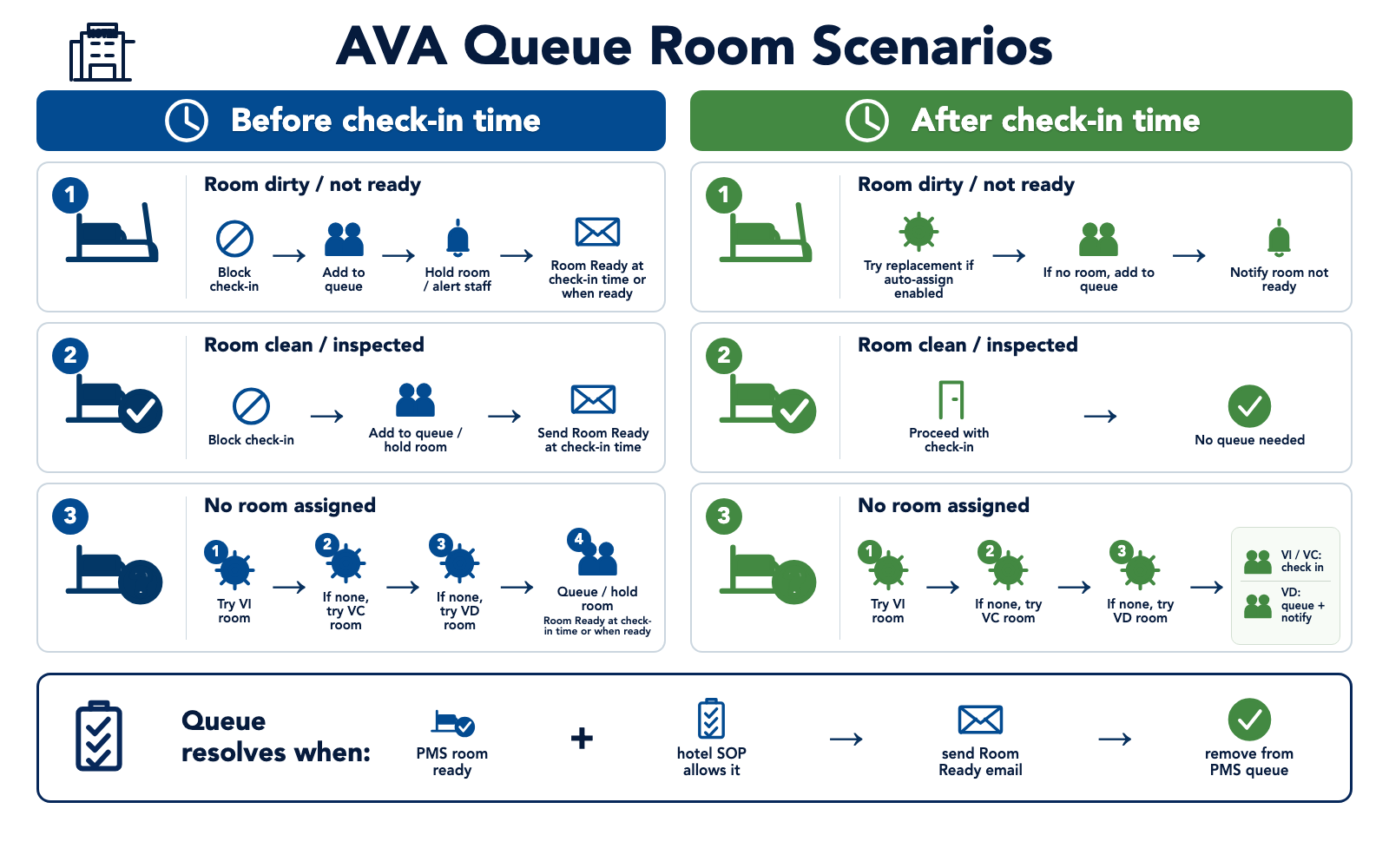
| Reservation state | Before allowed check-in time | At or after allowed check-in time |
|---|---|---|
| No room assigned | With Auto Queue Room, AVA tries auto-assignment, then queues the booking whether or not a room was assigned. Without it, the guest remains in the before-check-in flow. | With automatic assignment, AVA assigns a room. If none is available, AVA queues it when queueing is enabled. Otherwise, staff assigns the room. |
| Room pre-assigned | With Auto Queue Room, AVA queues the assigned room only after safe status verification. Early reassignment can find another same-type room for occupied, blocked, Do Not Disturb, or refused-service rooms. Unknown status or no replacement keeps the assignment without queueing. | With reassignment enabled, AVA keeps an available room or assigns another available room. Otherwise, AVA keeps the room and queues it when queueing is enabled. |
| Room is clean or inspected | AVA continues check-in when the room meets the check-in rules. | AVA continues check-in when the room meets the check-in rules. |
Queueing requires the complete room-ready queue lifecycle from your PMS. Opera is the currently supported PMS for this lifecycle. If PMS queueing is unavailable, AVA still blocks check-in and shows the not-ready message. The reservation may not stay in the PMS queue. Your property's queue settings remain authoritative.
If your PMS does not support queueing, the before-check-in assignment control works only at or after the allowed time. The early reassignment control stays unavailable without queue support.
By default, when a queued room becomes ready, AVA removes the booking from the PMS queue. The Room Ready email and DO-NOT-MOVE alert still send. To keep the booking on the queue, turn on Keep Booking in Queue When Room Is Ready.
You can turn on roomless assignment without enabling pre-assigned room replacement. You can also enable pre-assigned room replacement without changing roomless assignment.
Do Not Move protection takes priority over early-arrival and after-check-in reassignment. AVA keeps the original room and does not queue an unsafe or occupied early-arrival reservation.
This table shows standard assignment rules. When Smart Room Assignment is enabled, AVA may reconsider an unoccupied pre-assigned room. Smart Room Assignment checks that each candidate is ready now and free for the requested arrival-to-departure stay window. It excludes rooms assigned to another reservation during that window. It keeps the current reservation's own pre-assigned room eligible. Opera, Cloudbeds, and AVA PMS support this whole-stay check. If overlapping Opera reservations are temporarily unavailable, Opera remains the final conflict authority.
Assigning or queueing a room does not override Allowed Check-In Time. Early guests still follow the allowed-time rule, even when a room is assigned.
Troubleshooting
Guests are blocked unexpectedly
What you see: Valid guests sent to front desk
Check:
- Minimum Age and DOB accuracy
- Child Maximum Age and the PMS rate-plan child age band
- Allowed Check-In Time
- Validate Check-In Time Only
- Long Stay Restrictions for the selected journey
- Room status eligibility
- Payment setup in Settings → Payment
A long stay is blocked in one journey only
What you see: A reservation is blocked in one check-in journey but not another.
Fix:
-
Open Settings → Check-In → Check-In Policy.
-
Find Long Stay Restrictions.
-
Check the Block long-stay reservations setting for the affected journey.
-
Compare the shared Long-stay threshold (nights) with the reservation length.
-
Click Save Check-In Policy after making changes.
✓ The selected journey uses its saved long-stay rule during lookup and completion.
PMS rejects the adult and child mix
What you see: A reservation with children fails after document scanning. The PMS may report that no matching rate exists for the guest mix.
Why this happens: Child Maximum Age does not match the rate plan's child age band. AVA must classify scanned guests before it sends their adult and child counts to the PMS.
Fix:
-
Open the reservation's rate plan in your PMS.
-
Confirm the child age band for that rate plan.
-
Go to Settings → Check-In → Check-In Policy in AVA.
-
Set Child Maximum Age to the same maximum age.
-
Click Save, then retry the guest registration.
✓ The PMS should receive the correct adult and child mix.
Upload option is missing
What you see: Guests only see live camera scan
Fix:
- Turn on Allow travel document upload
- Save your changes and test again
Confirmation button stays disabled
What you see: Save and apply now is gray in the confirmation window.
Fix:
- Type
DELETE IMAGESexactly as shown - Click Save and apply now
Retention days field is gray
What you see: You cannot edit the retention days.
Fix:
- Turn on Travel document or Selfie
- Enter the number of days
On-premise storage URL keeps reverting
What you see: The Image storage URL does not stay saved.
Fix:
- Turn ON Use your own server (on-premises)
- Enter a full URL, for example
https://image-storage.yourhotel.local - Click Save and refresh the page once
On-premise storage is unavailable
What you see: A document, selfie, or registration card does not save or open.
Fix:
-
Confirm your Image storage URL is correct and reachable from the AVA backend.
-
Confirm your image storage service is running and accepts AVA requests.
-
Check that the service allows the configured AVA backend network connection.
-
Retry the upload or reopen the document from Command Center → View Details.
✓ AVA should save and open the file after the storage service responds.
Copy button is disabled for image storage secret
What you see: Copy is gray and cannot be clicked.
Fix:
- Turn ON Use your own server (on-premises)
- Confirm a secret value exists in Image storage secret
- If empty, ask your admin team to set the secret first
PMS upload toggles are disabled
What you see: You cannot change Upload travel document to PMS, Upload registration card to PMS, or timing.
Why this happens: AVA disables controls when support is unavailable or unknown. It shows an unsupported-PMS notice only after the PMS explicitly reports no support.
Fix:
-
Check your active PMS provider in Settings → Essentials → PMS Integration.
-
Check whether travel-document and registration-card support differ for your PMS.
-
Refresh the page if PMS capability data was temporarily unavailable.
-
If the controls remain unavailable, keep the document in AVA or contact support.
✓ Disabled controls do not prevent local document storage or downloads.
Registration card timing option is missing
What you see: You cannot find Registration card upload timing.
Fix:
-
Turn on Upload registration card to PMS
-
Confirm your PMS reports registration-card attachment support.
-
Refresh the page if the PMS connection was temporarily unavailable.
-
Save the page again.
-
Reopen Settings → Check-In → Check-In Policy.
✓ The timing option appears only when registration-card delivery is available.
Registration card is missing after a verification override
What you see: A staff override completes, but the registration card does not reach the PMS.
Why this happens: PMS guest sync or attachment delivery may still be processing.
Fix:
-
Open Command Center → Status → View Details for the reservation.
-
Find the Registration Card attachment status.
-
Wait if the status shows Waiting or Processing.
-
If Retry appears, fix the PMS issue and select Retry.
✓ AVA resumes the guest sync after eligible verification overrides. ✓ The registration card uploads after the PMS confirms the guest.
A multi-room booking has no room-specific main-guest card
What you see: The main guest's card reaches one room, but not every room.
Fix:
-
Confirm Upload registration card to PMS is on.
-
Confirm Upload main guest's registration card to all rooms is on.
-
Check that every room has its own confirmation number in the PMS.
-
Open Command Center → Status → View Details for the reservation.
-
Review each room's Registration Card attachment status.
-
If Retry appears, fix the PMS issue and select Retry.
✓ Each room card shows that room's reservation details and the main guest's stored signature.
The setting does not copy cards when registration-card delivery is unsupported or unavailable.
Automatic room assignment is disabled
What you see: The room automation toggle is off, disabled, or missing.
Fix:
- Check your active PMS in Settings → Essentials → PMS Integration.
- If it is eZee, automatic room assignment is unavailable by design.
- Turn off Allow Vacant Dirty Rooms before enabling automatic assignment.
- Confirm your PMS sends room status updates.
- If the PMS does not support queueing, Auto Queue Room stays unavailable.
- If you need roomless assignment, use a PMS that supports automatic assignment.
- Enable the relevant table control for pre-assigned room replacement.
An Opera sharer is sent to the front desk
What you see: A sharer cannot keep the room already occupied by the main guest.
Check:
-
Confirm the main guest and sharer are linked in Opera.
-
Confirm both reservations use the same room number.
-
Confirm the occupied room is Clean or Inspected.
-
Refresh the reservation and try check-in again.
✓ AVA keeps the shared room when Opera confirms the link and room status.
If the share details cannot load, or the room is dirty, AVA keeps the room blocked. Resolve the share or housekeeping status in Opera, then retry.
A room rule is disabled in the behavior table
What you see: A table checkbox is gray, or a prerequisite message appears.
Fix:
-
Turn on Enable Automatic Room Assignment for assignment or reassignment rules.
-
Turn on Auto Queue Room for early-arrival queue and reassignment rules.
-
If queueing is unsupported, use the after-check-in rule instead.
-
Save the policy, then reopen Settings → Check-In → Check-In Policy.
✓ Linked controls show the same saved value in both time columns.
Vacant dirty-room check-in is disabled
What you see: Allow Vacant Dirty Rooms is disabled, with a note naming your PMS.
Why this happens: Your active PMS does not support dirty-room check-in.
Fix:
-
Assign a Clean or Inspected room before guest check-in.
-
Confirm the correct PMS is active in Settings → Essentials → PMS Integration.
-
Contact support if your PMS should support dirty-room check-in.
✓ The setting becomes available when your PMS reports support for this capability.
Furama iPMS v2 supports room operations and dirty-room check-in. If Allow Vacant Dirty Rooms is missing for Furama, refresh the page and confirm the active PMS connection.
Early arrival message never appears
What you see: Guests check in early without a message
Fix:
- Set Allowed Check-In Time
- Add messages in Room Not Ready Messages
Check-in time validation feels too strict
What you see: Guests are blocked even when the check-in time looks correct.
Fix:
- Check Validate Check-In Time Only
- Set it to Yes if you want time-only validation
- Set it to No if you want arrival date and time checked together
- Save and test with a new reservation
Group checkout option is missing
What you see: Guests can only check out one reservation at a time.
Fix:
- Go to Settings → Check-In → Check-In Policy
- Confirm your active PMS is Opera and the connection is active
- If the setting appears, turn on Group Checkout
- Save your changes
- Reload the guest checkout screen and test again
Opera currently reports Group Checkout support. Other PMS providers do not show the setting or checkout flow.
Smart-lock PIN does not appear during checkout
What you see: The guest moves directly to checkout without a key-return step.
Fix:
- Turn on Show smart-lock PIN during guest checkout.
- Confirm the stay already has a SmartLock PIN.
- Confirm the room uses SmartLocks.
- Save the setting and start a new checkout lookup.
Opera specials codes are not taking effect
What you see: Journey progress is not marked correctly in Opera.
Fix:
- Confirm your active PMS is an OPERA-family PMS
- Open the check-in mode row you are testing
- Check that each mode code matches Opera exactly, including spelling
- Confirm a deliberately blank mode field is not expected to use the global code
- Save again using Save Check-In Policy
- Test with a new check-in session
OPERA code suggestions do not appear
What you see: The special code fields stay empty or show no matches.
Fix:
- Confirm your active PMS is an OPERA-family PMS
- Check that the OPERA PMS settings are complete
- Type part of the code to filter the list
- Enter the code manually if you already know it
- Save and reopen the page
Related Guides
- Registration Fields - Required guest information
- Room Not Ready Messages - Messages for early arrivals and delays
- Opera PMS Integration - Connect and validate Opera settings
Still Stuck?
Contact success@vouch-technologies.com if:
- ❌ Guests are blocked but should be eligible
- ❌ Room assignment is not working as expected
- ❌ You need help setting age or payment rules
Helpful to include:
- Screenshot of your policy settings
- Example reservation that is blocked
- PMS provider and property type