Support Takeover Guide
Support Takeover lets hotel staff assist guests in real-time via video call during self-service check-in. While connected, staff can override verification steps and payments on behalf of a guest who needs help.
Overview
The Support Takeover flow works like this:
- A guest starts check-in on a kiosk or mobile device
- The guest encounters a step they cannot complete (e.g., document upload fails, payment issue)
- The guest taps the phone icon, the "Need a hand?" prompt, or Request Assistance, then selects Talk to support
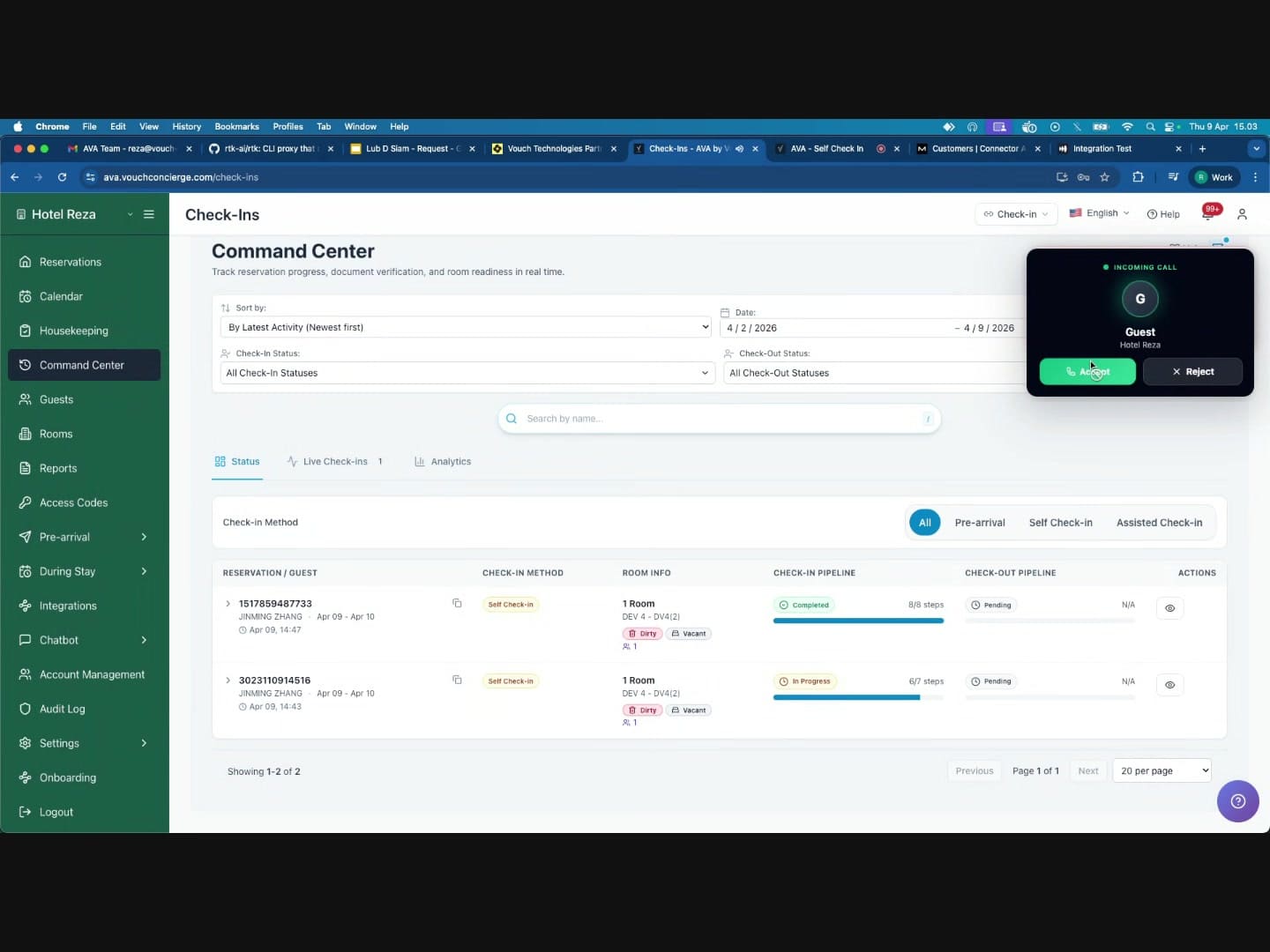
- A staff member receives the call in the Command Center and connects
- While on the call, the staff member can perform overrides to complete steps on the guest's behalf
- The guest's check-in page updates automatically as each override is applied
- Once all steps are resolved, the guest is checked in and receives their room assignment
Call activity also appears in the audit trail inside Command Center. Use it to review who answered and when the call ended.
After the main guest verifies their document, the staff widget shows verified guest and stay context. That context can include the confirmation number, room type, stay dates, and guest counts. When a guest title is available, the widget displays the title and last name, such as Mr. ZHANG. If no title is available, the widget displays the guest's full name. Room numbers appear only for stays with INHOUSE status. Before check-in, the context does not include the room number. Split stays show related room numbers only after those stays become INHOUSE. AVA builds that snapshot from server-side check-in data, not browser-entered details. Use it to confirm you are helping the right reservation before you apply overrides.
Calls started from a printed room QR code can show the QR's room or location context immediately. When exactly one active in-house stay matches that room, AVA links the call to that stay. The call context can then include sanitized stay details for staff review. AVA also matches one native DUE_OUT stay when your PMS capability contract supports that status. Otherwise, printed room QR lookup matches CHECKED_IN stays only. The lookup uses the exact room value encoded in the QR code. If no unique active in-house stay matches, the QR context remains unverified. Use unverified context as a location hint, and verify the reservation before overrides.
Overrides can only be submitted while a video call is actively connected. If the call disconnects, override buttons stay disabled until a new connection is established. The buttons re-enable automatically when the connected call returns.
Prerequisites
Before using Support Takeover, ensure:
- Video Calling is enabled for your property
- Go to Communication Hub → Video Calls in the Streamliner dashboard
- Confirm the status shows as Enabled (see Video Call Settings)
- If the video-call schedule is on, guests can only start calls during open windows
- You are logged into the Command Center
- Navigate to the Check-Ins page via the left sidebar
- The video call receiver widget loads automatically in the background
- Push notifications are enabled in your browser
- You will receive a push notification when a guest initiates a video call
- The notification title will read "Incoming Video Call"
- You may also hear a ringtone for the incoming call alert
Guest Experience
Understanding what the guest sees helps you guide them during the call.
Starting Check-In
-
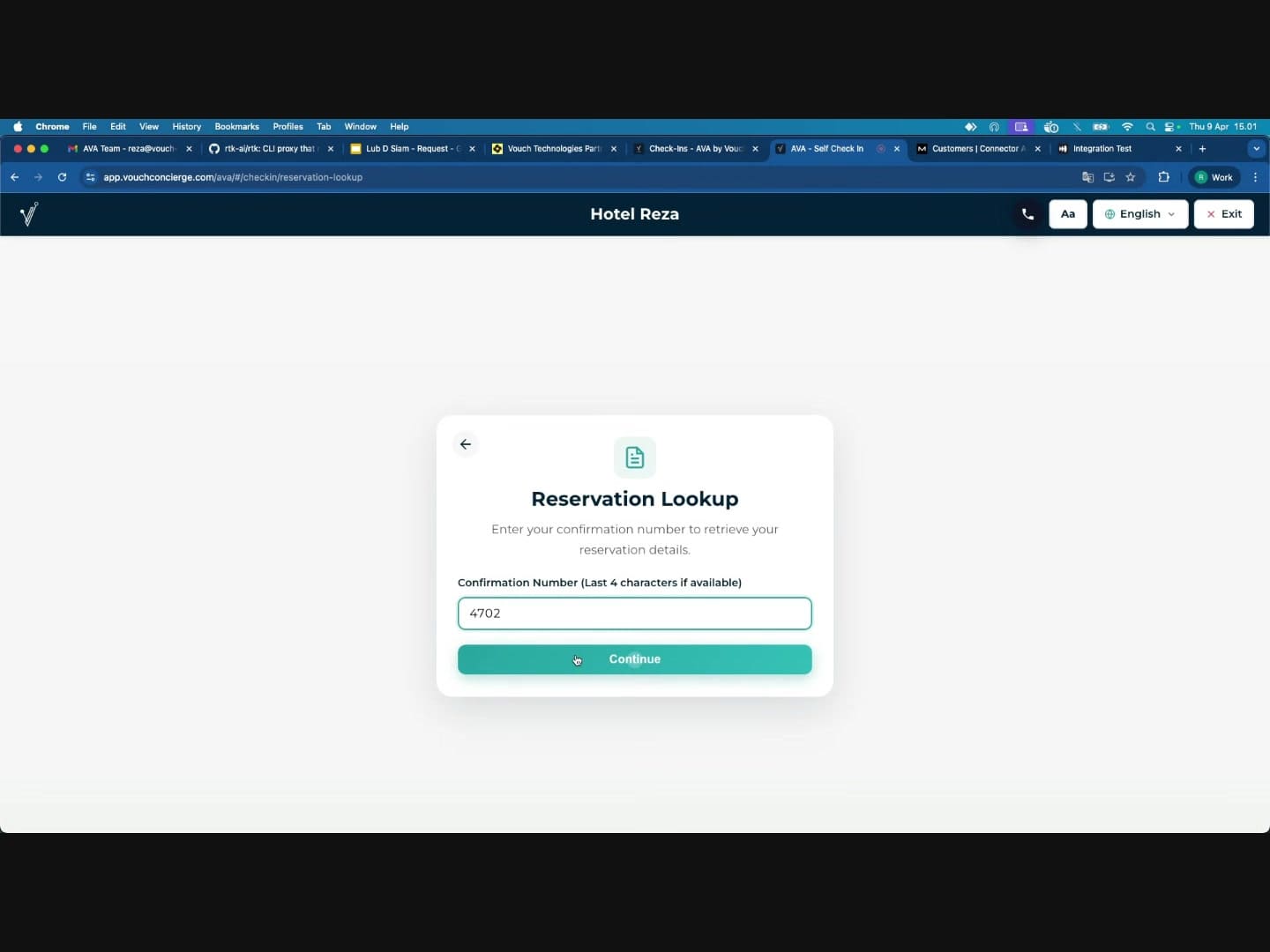
Guest opens the check-in page and enters their confirmation number (last 4 characters)
-
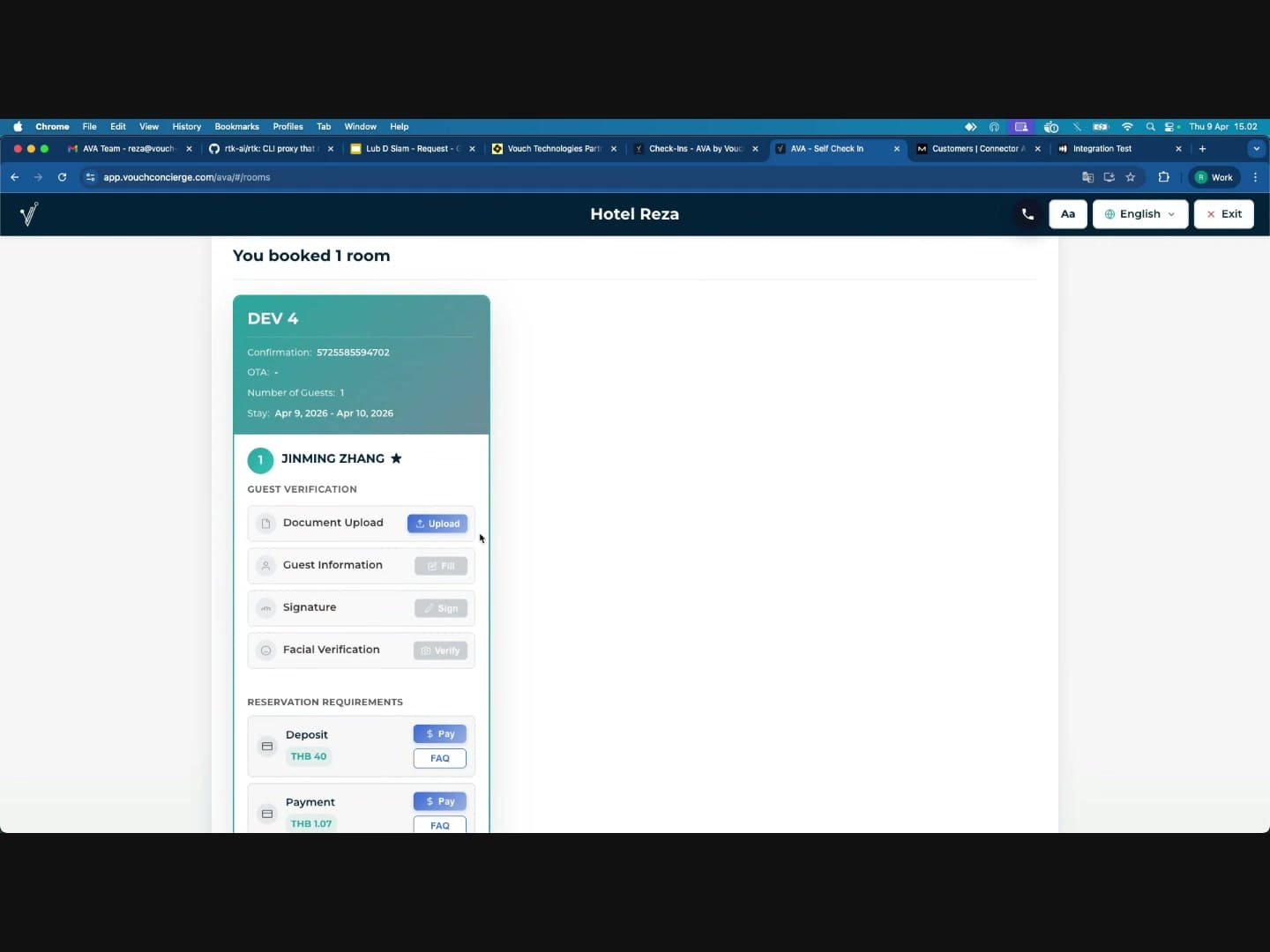
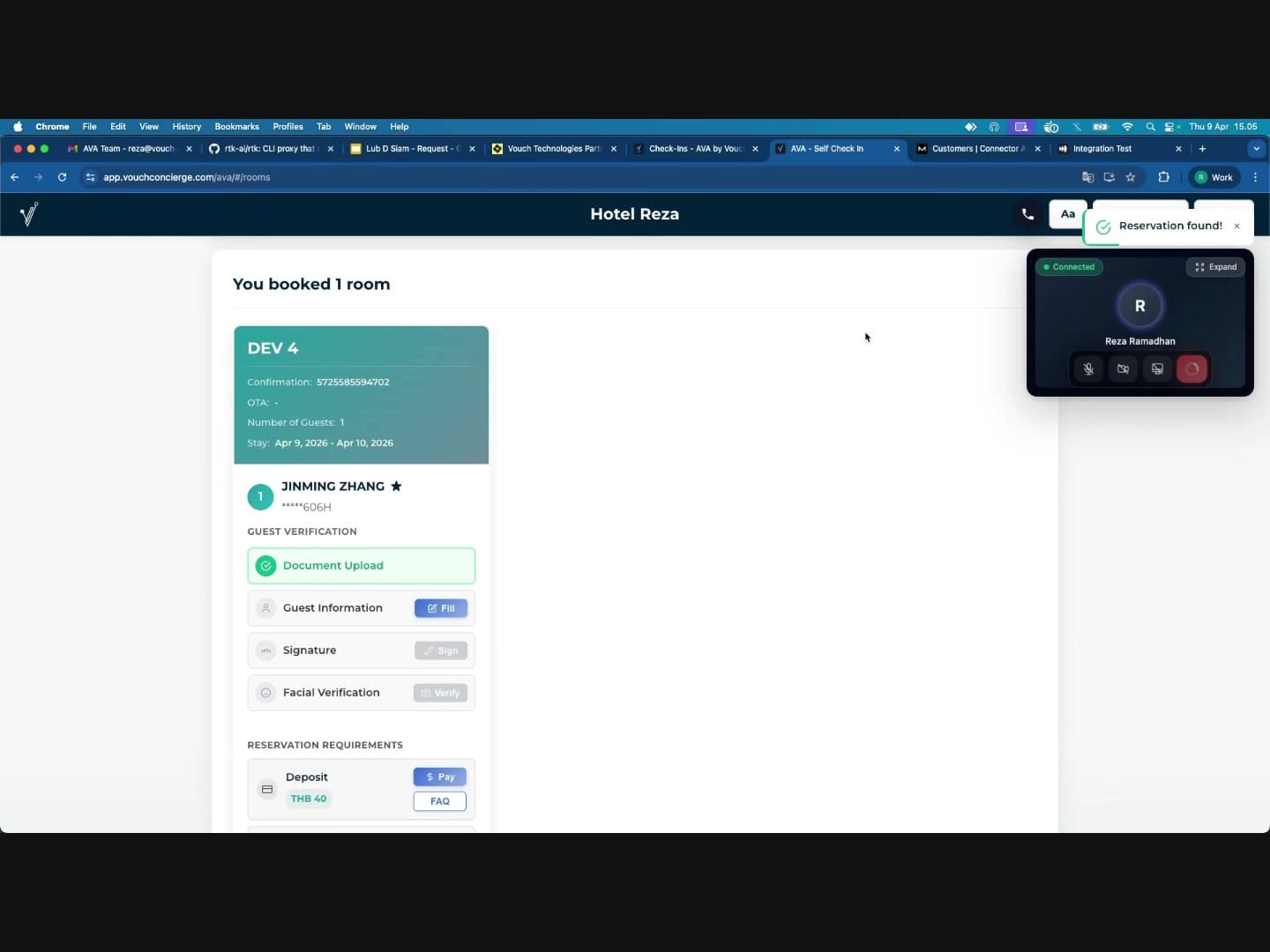
After clicking Continue, their reservation loads showing:
- Room details (room name, confirmation number, stay dates, number of guests)
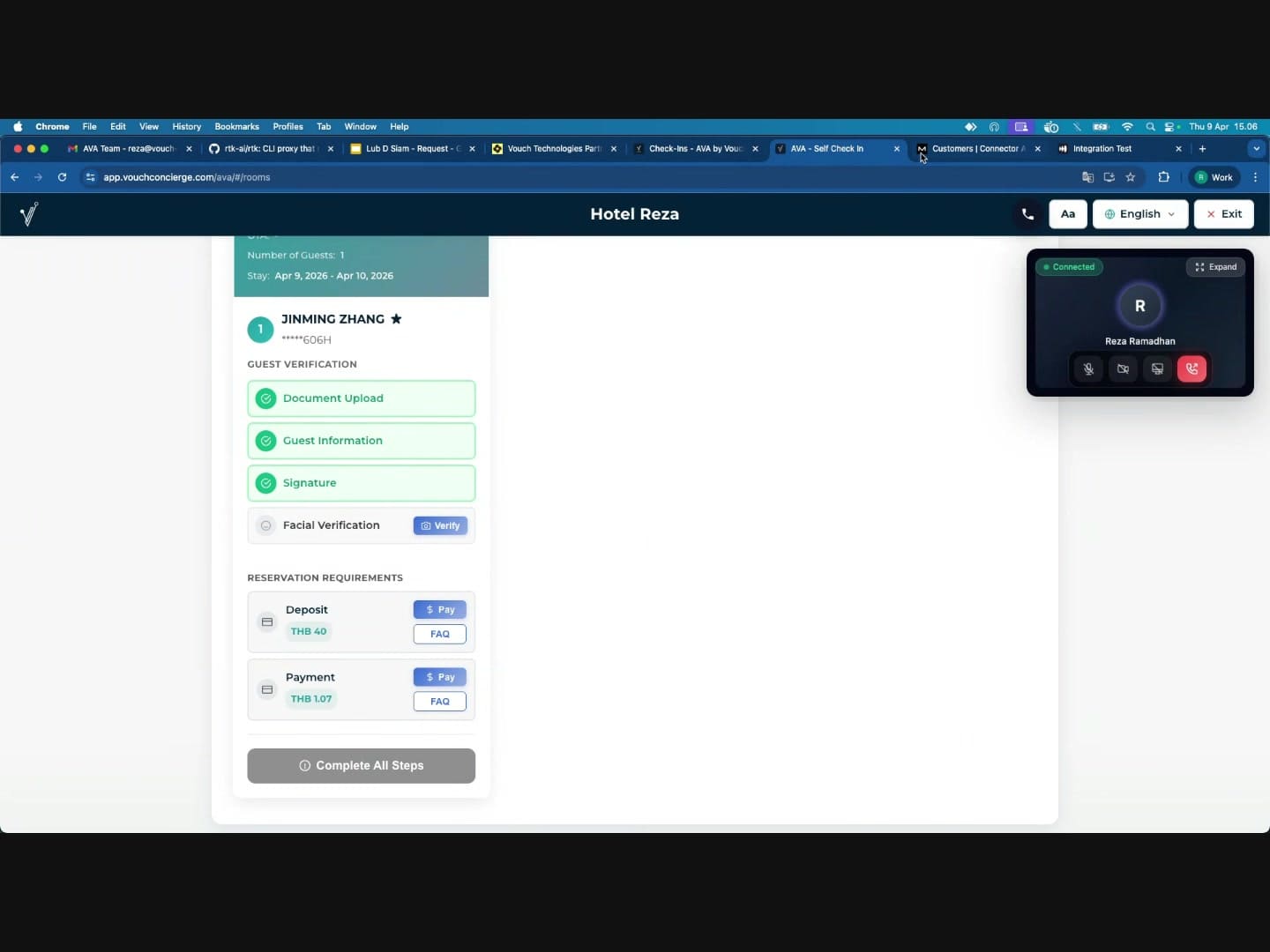
- Guest Verification steps: Document Upload, Guest Information, Signature, Facial Verification
- Reservation Requirements: Deposit and Payment amounts
Requesting Support
The guest can request help in three ways:
-
Phone icon in the top header bar -- tapping this initiates a video call immediately
-
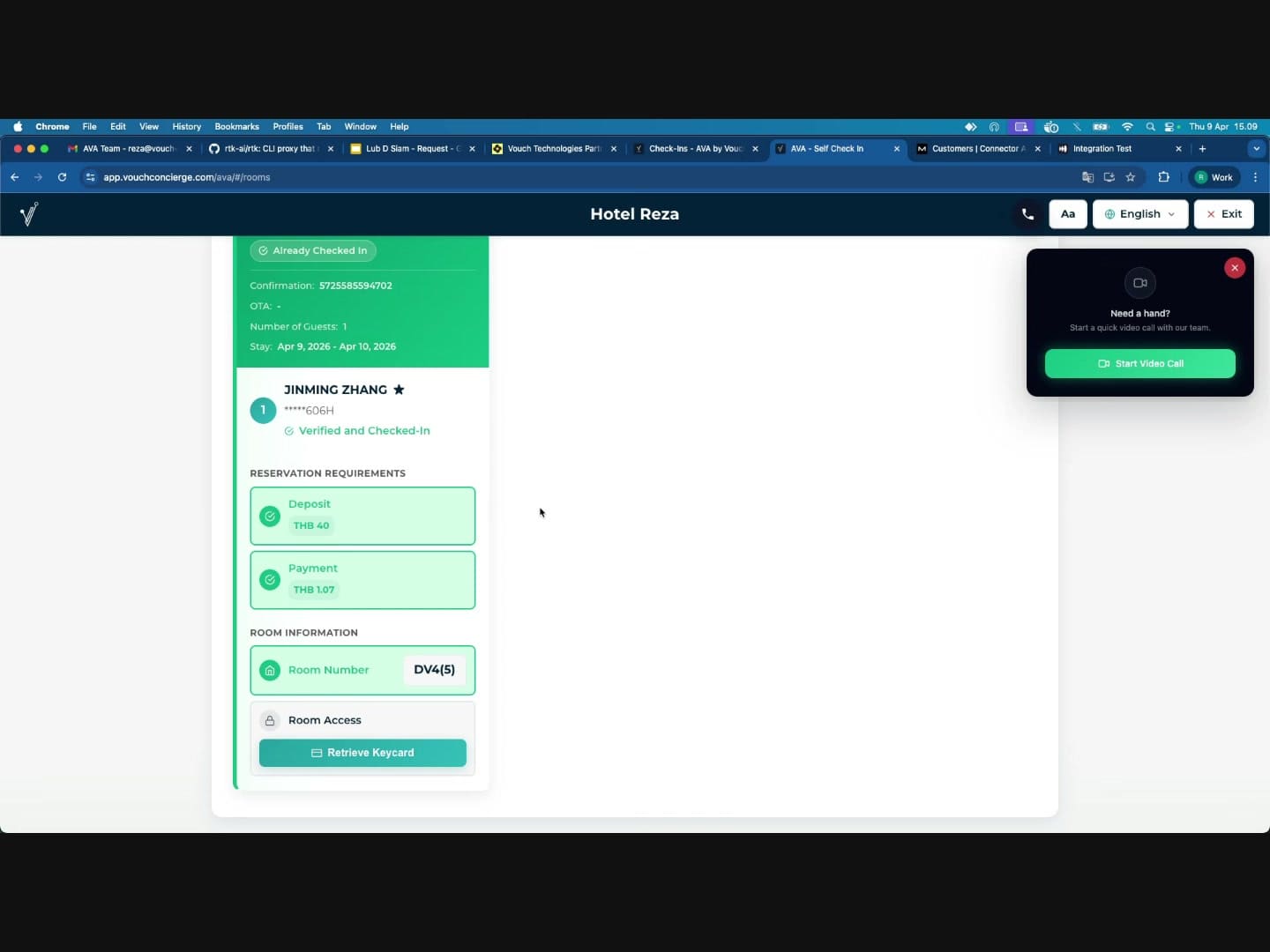
"Need a hand?" prompt -- a floating widget that appears in the top-right corner offering to start a quick video call with the hotel team. The guest taps "Start Video Call"
-
Request Assistance on the kiosk welcome screen -- the guest selects Talk to support and starts the same call path
During the Call
-
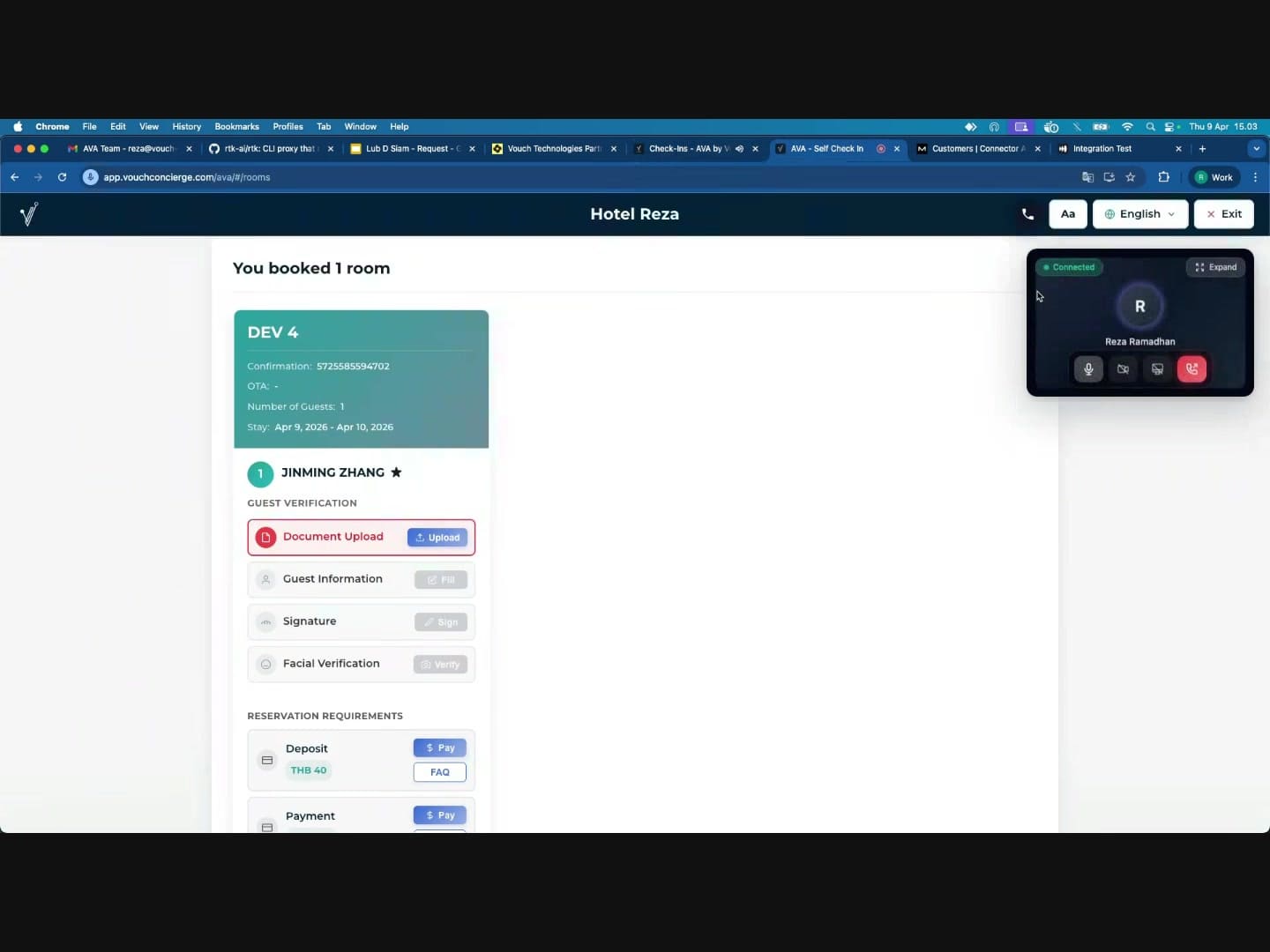
A call widget appears showing the connected staff member's name and a green "Connected" indicator
-
The widget has controls for mute, camera, screen share, and ending the call
-
As the staff applies overrides, the guest's check-in steps automatically update:
- Pending steps show action buttons (e.g., "Upload", "Fill", "Sign", "Verify", "Pay")
- Completed steps turn green with a checkmark
- Once all verification steps are green, the guest status changes to "Verified"
- Once payments are also completed, the system assigns a room and shows "Verified and Checked-In"
Staff Workflow
1. Receiving a Video Call
When a guest initiates a call:
- You will receive a push notification: "Incoming Video Call -- A guest is requesting a video call"
- The call widget appears in the top-right corner of the Command Center
- Click the notification or the widget to accept the call
- Once connected, the widget shows "Connected" with the guest's camera feed (if enabled)
- Review any printed QR room or location context shown by the widget
- Review the verified reservation snapshot before you start any overrides
- If the guest has not verified yet, wait for verification before applying overrides
Several guests can call your property at the same time. The active call board lists each call separately, with its current status and staff owner.
| Status | What you should do |
|---|---|
| Ringing | Select the guest you want to help, then answer |
| Handled by AI | Join when the guest requests a human |
| Handled by [staff name] | Leave the call with that colleague, or monitor when available |
| Connected | Continue helping that guest |
Each staff session can answer a different ringing call. Review the guest context on the selected card before applying overrides.
The call card updates with that colleague's display name. You may see an answer conflict while selecting the call. Choose another Ringing card instead.
If an AI assistant answers first, the guest can request a human during that call. You then receive a new Guest Requested a Human alert with the ringtone again. Click the alert or the matching call widget to join the existing call. In AVA Portal, tap the native mobile alert to join that same call. The handoff does not start a second guest call.
If the call came from a printed room QR code, the widget can show the encoded room or location while the call is ringing. When one active in-house stay matches, the widget can also show its sanitized stay context, including the title-aware guest display name when a title is available. Otherwise, the QR details remain an unverified origin hint.
The browser session that accepts the call owns that call. Use that same session if you need to rejoin, cancel, or end it. If that session answers its own incoming notification, the call stays connected. If you refresh the page, return to the tab that accepted the call.
You cannot end a call answered or monitored by another staff session. Ask the colleague who owns it to end the call.
When you answer from the AVA mobile shell, Streamliner sends your signed-in display name when available. This helps call records identify the staff member who answered or declined. When AI hands off to a human, the mobile alert keeps the same call identity. Tap Guest Requested a Human to rejoin the existing call.
When either person ends the call, matching incoming-call alerts and the ringing card close automatically. You may see a non-ringing Call Ended alert.
Guest Language Prefill
When the guest starts the call, Streamliner stores their selected CCI language with the call. The staff widget preselects that saved language when the call connects. You can still change it if you need a different language.
The guest-facing video-call widget also uses the guest's selected CCI language.
It translates visible labels, prompts, and call controls automatically.
Supported languages include English, Thai, Korean, Chinese, Japanese, and Indonesian.
Regional values, such as th-TH, use the matching base language.
Unsupported languages use English.
The guest does not choose a separate call language. Your staff translation controls remain independent from the guest widget language.
While the call shows Connected, navigate to the guest's reservation in the Check-Ins table. The override actions appear as soon as the row is eligible and the call is live.
2. Travel Document Override
Use this when the guest's passport or ID document upload has failed or needs manual approval.
When to use: The guest uploaded their document but it was not automatically verified (e.g., poor image quality, unsupported document type, OCR failure).
Steps:
- In the Check-Ins table, find the guest's reservation and expand it
- Click the override action for the document upload step
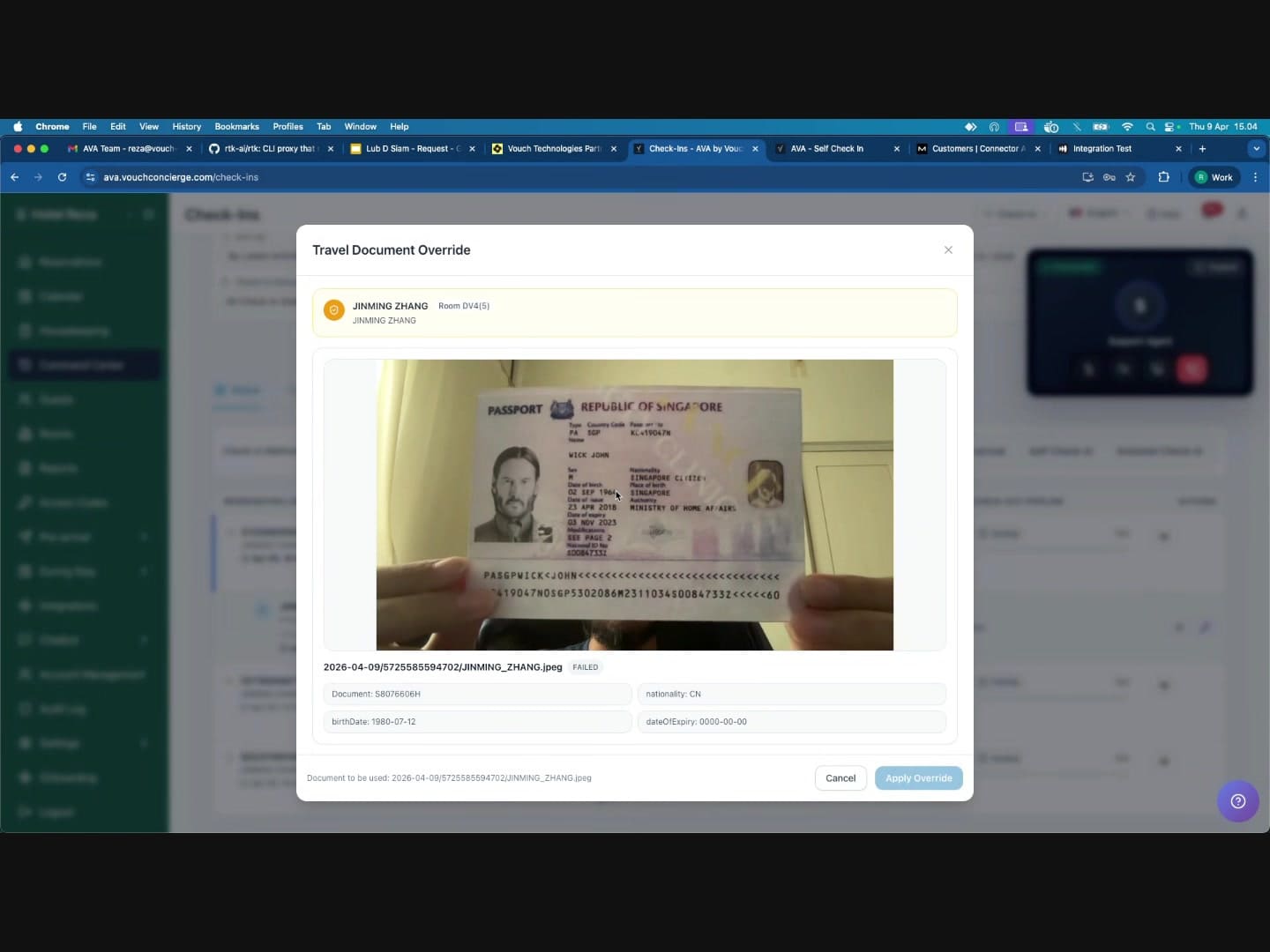
- The "Travel Document Override" modal opens, showing:
- Guest name and room number
- A preview image of the uploaded document (passport, ID, etc.)
- Extracted fields: document number, first name, last name, nationality, birth date, expiry date
- Review the document image to confirm it is legitimate
- Enter an Override reason (required, max 500 characters) -- e.g., "Document verified visually via video call, OCR failed due to glare"
- Click "Apply Override"
The guest's Document Upload step will turn green.
3. Guest Registration Override
Use this when guest information needs to be filled in or corrected by staff.
When to use: The guest cannot complete the registration form themselves, information extracted from their document is incorrect, or additional fields are required (e.g., for government compliance like TM30).
Steps:
-
Click the override action for the guest registration step
-
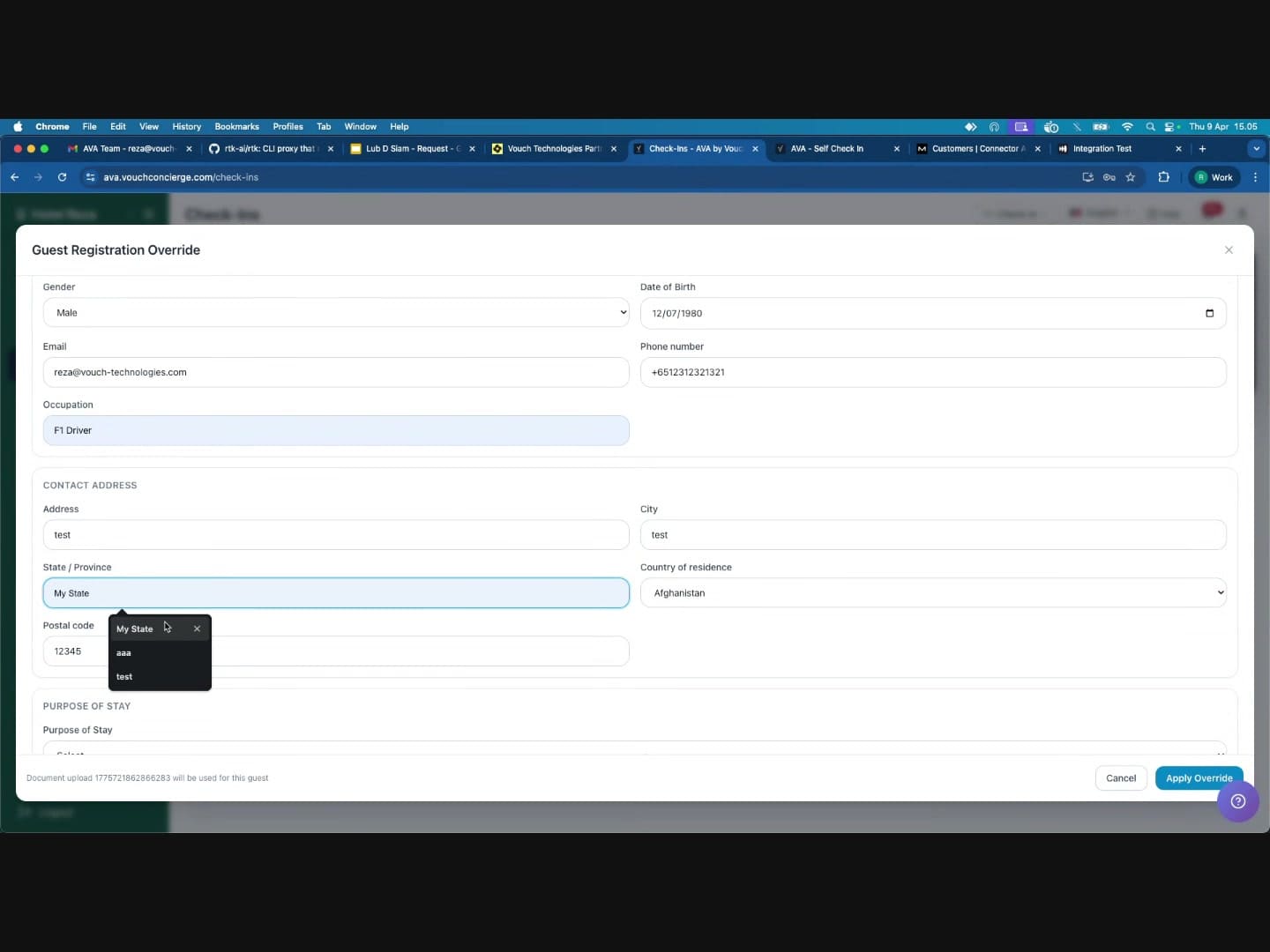
The "Guest Registration Override" modal opens with a comprehensive form
-
Review and fill in the required fields:
Basic Information:
- Salutation, First Name, Last Name
- Document Number, Nationality
- Permanent Resident / Work Permit holder checkbox
- Gender, Date of Birth
Contact Information:
- Email address, Phone number
- Occupation
Address:
- Street address, City, State/Province
- Country of residence, Postal code
Travel Details (if applicable for your property):
- Place of Departure (country, state, address) -- option to use current address
- Next Destination (country, state, address) -- option to use current address
- Estimated arrival time and Departure time
Purpose of Stay (dropdown)
-
Enter an Override reason at the bottom (required, max 500 characters)
-
Click "Apply Override"
The guest's Guest Information step will turn green.
4. Facial Verification Override
Use this when the guest cannot complete the facial verification step.
When to use: The facial recognition camera is not working, the guest's face does not match due to appearance changes, lighting conditions are poor, or the guest has a disability preventing them from completing the step.
Steps:
- Click the override action for the facial verification step
- The "Facial Verification Override" modal opens showing the guest name and room number
- Visually verify the guest's identity through the video call -- compare their face with the uploaded document photo
- Enter an Override reason (required, max 500 characters) -- e.g., "Guest identity confirmed visually via video call"
- Check the confirmation box: "I confirm the guest has passed facial verification and this step should be marked valid."
- Click "Mark facial verification as valid"
The guest's Facial Verification step will turn green.
After all four verification steps are overridden or completed by the guest, the status changes to "Verified":
5. Deposit Payment Override
Use this to mark the deposit as paid without processing an online payment.
When to use: The guest paid the deposit in cash, by card at the front desk, or the deposit has been waived.
Steps:
- Click the override action for the deposit payment
- The "Deposit Payment Override" modal opens showing:
- Guest name and room number
- Instructions to mark the deposit as paid after confirming the override reason
- Enter an Override reason (required, max 500 characters) -- e.g., "Guest paid deposit in cash at front desk"
- Check the confirmation box: "I confirm the deposit payment should be marked as paid."
- Click "Mark deposit as paid"
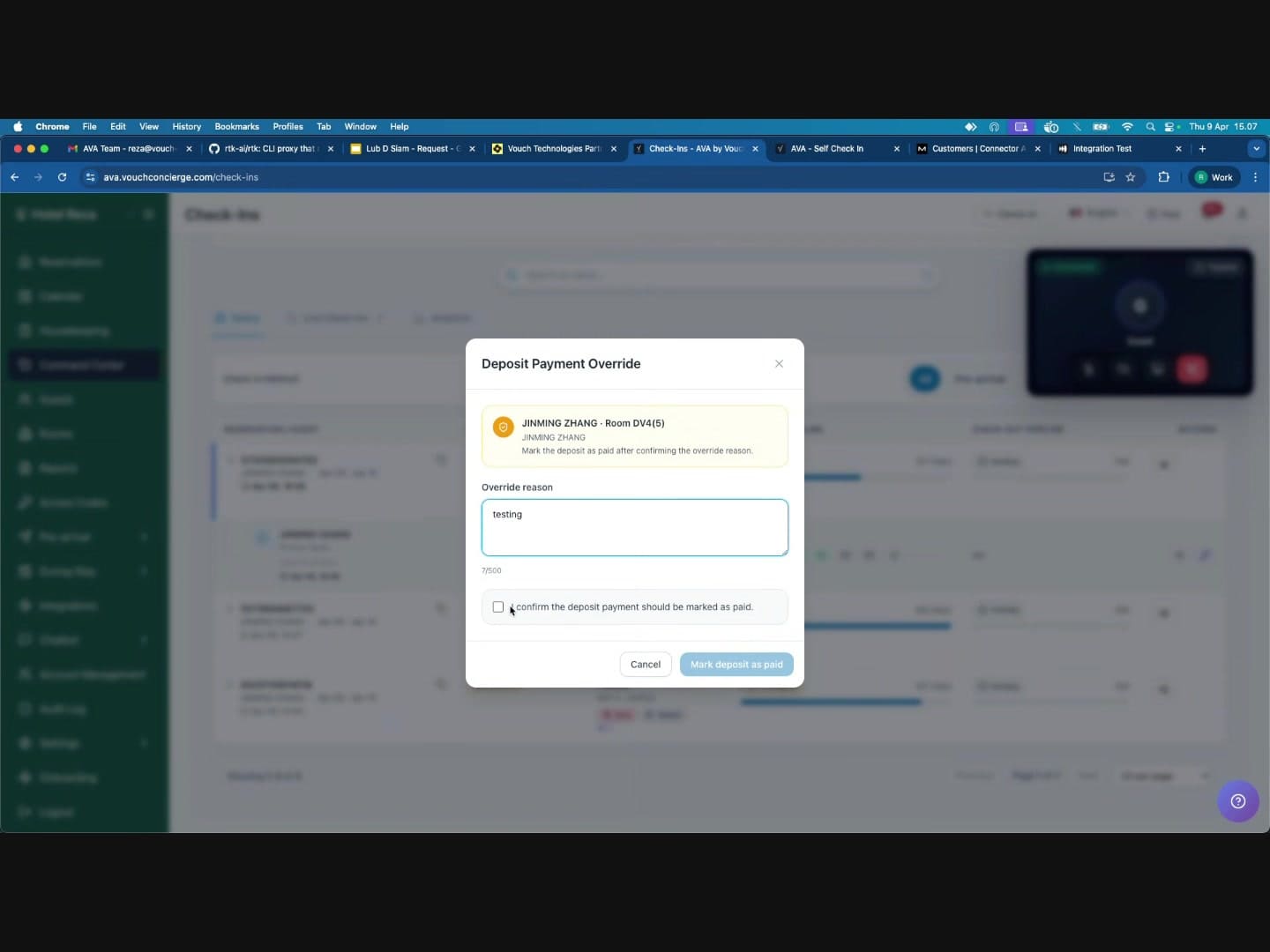
The guest's Deposit step will turn green.
6. Room Payment Override
Use this to mark the room payment as paid without processing an online payment.
When to use: The guest paid the room charge in cash, by card at the front desk, payment was pre-arranged, or the charge has been waived.
Steps:
- Click the override action for the room payment
- The "Room Payment Override" modal opens showing:
- Guest name and room number
- Instructions to mark the room payment as paid after confirming the override reason
- Enter an Override reason (required, max 500 characters) -- e.g., "Room payment collected at front desk via card terminal"
- Check the confirmation box: "I confirm the room payment should be marked as paid."
- Click "Mark room payment as paid"
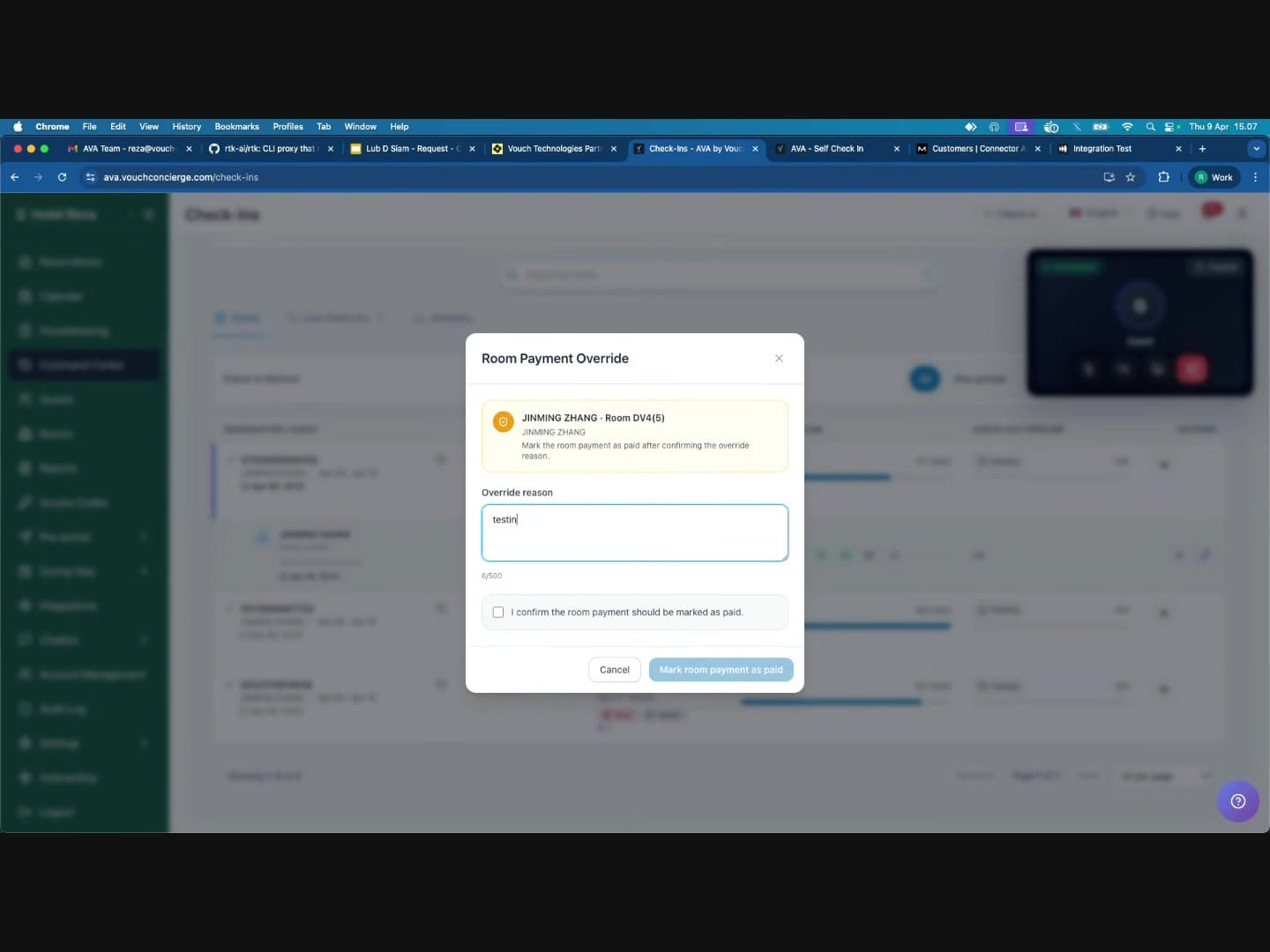
The guest's Payment step will turn green.
How Overrides Reach the Guest
When you apply an override in the Command Center, the guest's check-in page automatically refreshes within a few seconds. The guest does not need to reload the page or take any action -- the completed steps will appear as green checkmarks on their screen in real time.
This means you can guide the guest through the process step by step during the video call, and they will see each step resolve as you apply the overrides.
PMS delivery after verification overrides
If registration-card timing is When guest syncs, AVA resumes PMS guest sync after an override. This applies to document, guest registration, and facial verification overrides. After PMS guest sync succeeds, AVA continues the registration-card upload.
Check the result in Command Center → Status → View Details. Open the Registration Card attachment status and wait for Completed. If Retry appears, fix the PMS issue and select Retry.
Completing the Check-In
Once all required steps are completed (either by the guest or via staff overrides):
-
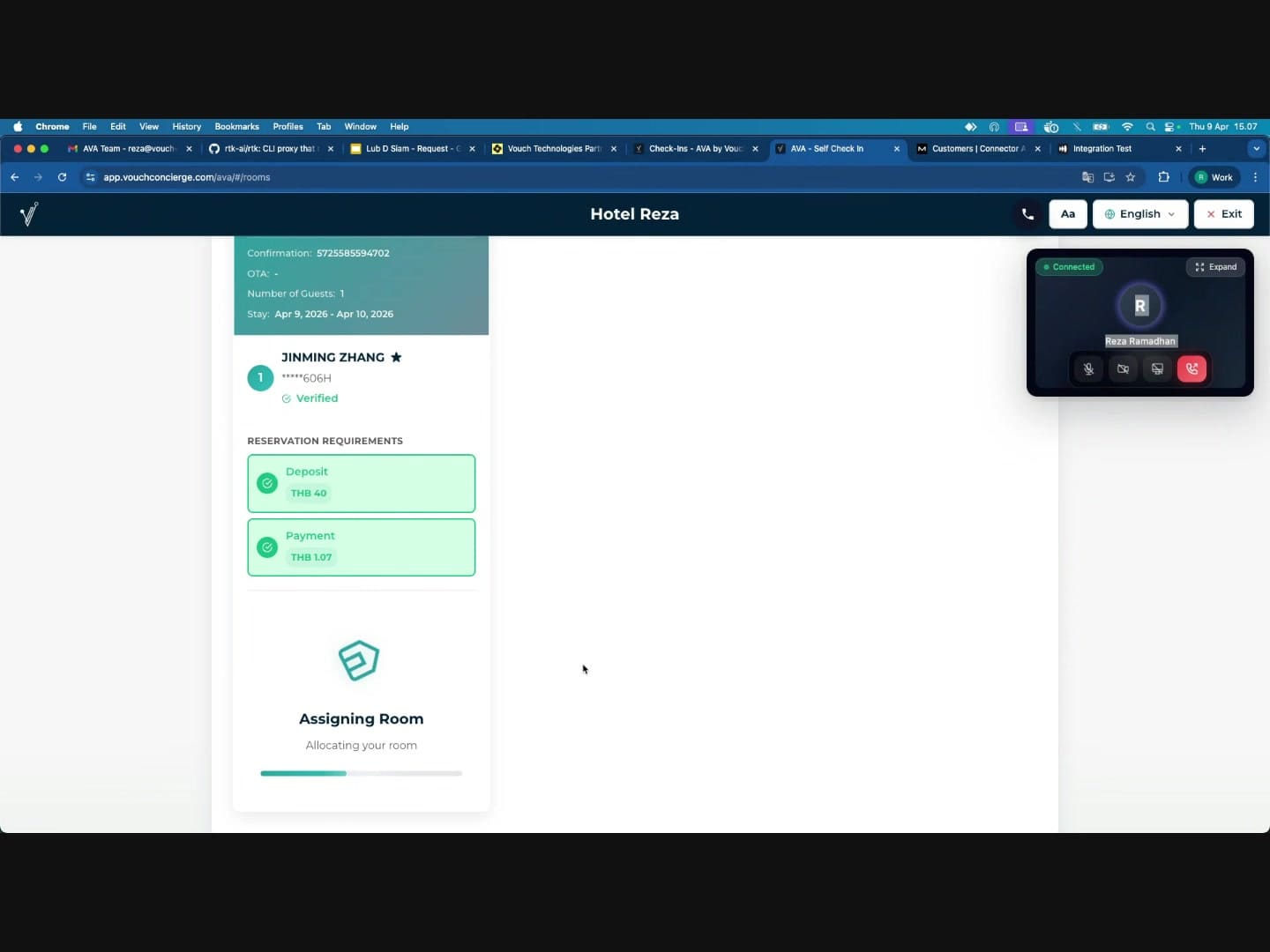
All verification steps turn green -- the guest's status changes to "Verified"
-
All payments turn green -- if deposit and room payment are both resolved
-
Room assignment begins -- the system shows "Assigning Room -- Allocating your room"
-
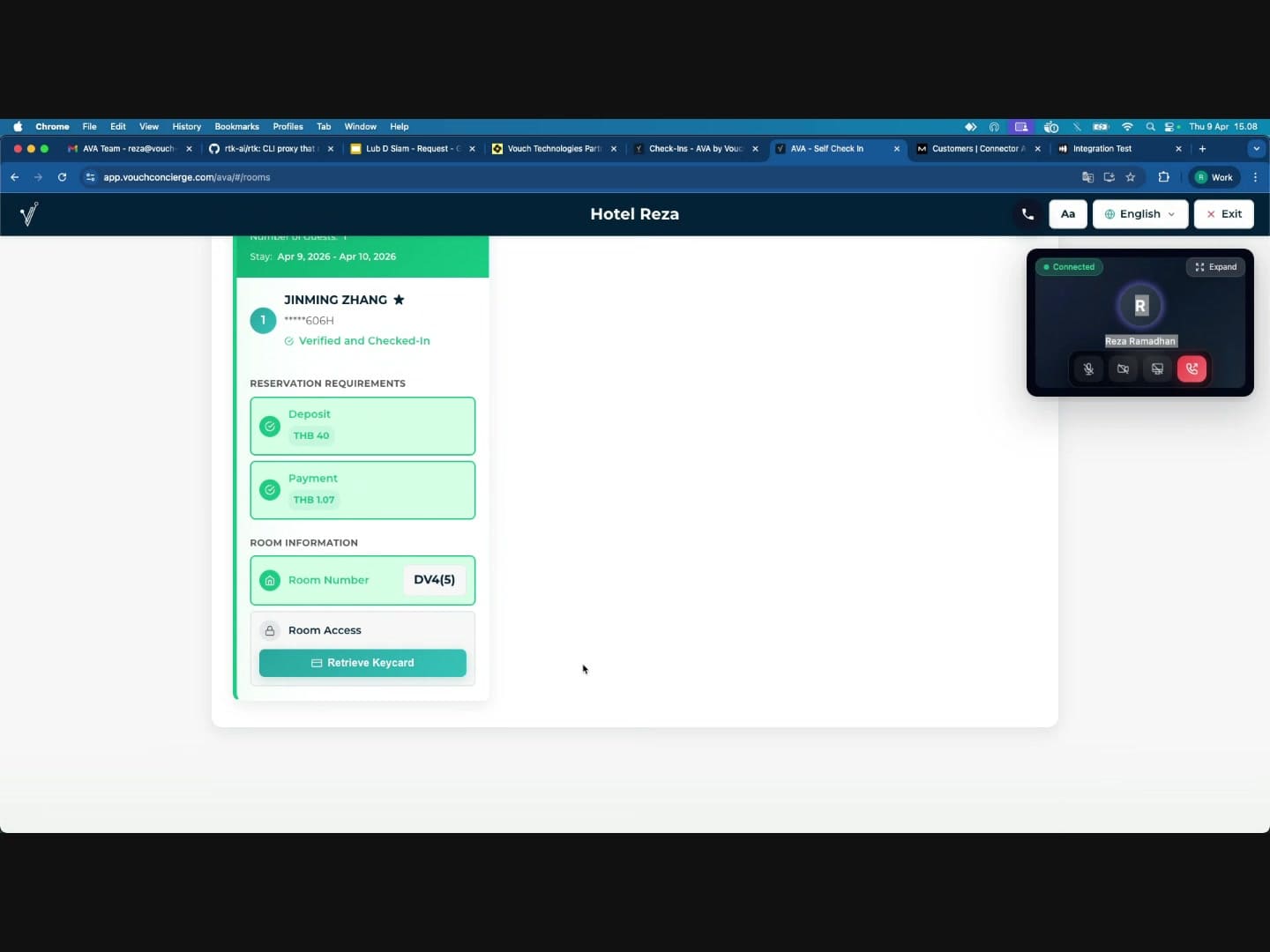
Check-in completes -- the guest sees:
- Status: "Verified and Checked-In"
- Their assigned Room Number
- A "Create Keycard" button (if keycard encoding is configured)
- Room Access information (if smart locks are configured)
-
In the Command Center, the reservation status updates to "Completed"
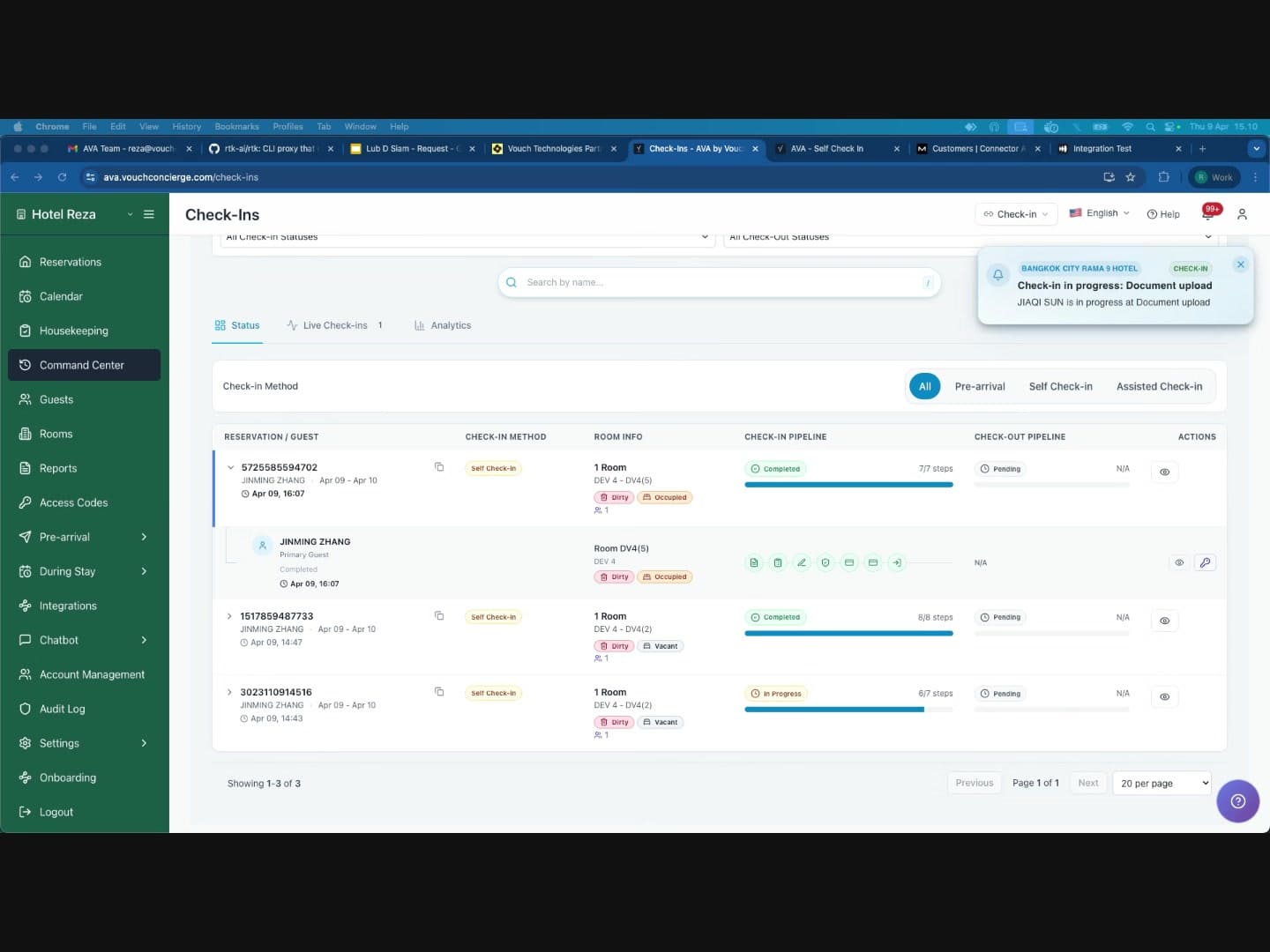
You can now end the video call. The guest's page will show the "Need a hand?" widget again in case they need further assistance.
Tips and Best Practices
Writing Good Override Reasons
Override reasons are logged for audit purposes. Write clear, specific reasons.
- Good: "Guest passport verified visually via video call. OCR failed due to glare on lamination."
- Good: "Deposit of THB 40 collected in cash at front desk. Receipt #1234."
- Bad: "testing"
- Bad: "ok"
General Tips
- Stay on the call while applying overrides. If the call disconnects, you will not be able to submit any overrides until a new call is established.
- Work through steps in order: Document Upload first, then Guest Information, then Signature (guest does this), then Facial Verification, then payments. This matches the natural check-in flow.
- Let the guest complete steps they can: Only override steps the guest genuinely cannot complete. For example, the guest should sign their own signature if possible.
- Verify identity carefully: Before applying a Travel Document Override or Facial Verification Override, confirm the guest's identity through the video call by comparing their face with their document photo.
- Check the reservation in Command Center: After all overrides are applied, confirm the reservation shows as "Completed" in the Check-Ins table.
- Multiple guests: If a reservation has multiple guests, each guest's verification steps need to be completed independently.
Troubleshooting
The call alert keeps ringing after the guest ends
What you see: The guest ended the call, but an incoming-call alert or ringing card remains.
Fix:
- Confirm the call ended in Communication Hub → Video Calls → Activity.
- Return to the browser session that accepted the call.
- Refresh that session once.
- Contact support if the ringing alert remains.
The human request alert does not appear
What you see: The AI answered, but the guest's human request does not alert staff.
Fix:
-
Confirm Browser Notifications is enabled in Settings → Customizations → Push Notifications.
-
Allow Streamliner notifications in your browser.
-
Keep the Command Center or Video Call page open.
-
Ask the guest to request a human again.
If you use AVA Portal, check native mobile notifications instead.
✓ The Guest Requested a Human alert should ring and open the existing call.
Contact support if the alert is missing, silent, or opens the wrong call.
Call opens in the wrong staff session
What you see: You accepted the call on one computer, but another staff session tries to rejoin it.
Fix:
- Return to the browser session that accepted the call.
- Close duplicate Command Center tabs or sign out of extra devices.
- Refresh the answering session.
- Rejoin the call from that same session.
The call board shows the wrong call
What you see: A call card opens a different guest call than the one you selected.
Fix:
-
Close the opened call without ending your colleague's call.
-
Return to the Command Center or Video Call page.
-
Wait for the active call cards to refresh.
-
Select the card showing the correct guest and status.
✓ Each active call has its own card and guest context.
| Issue | Solution |
|---|---|
| "Apply Override" button is disabled | Ensure the call shows Connected, enter an override reason, and check any required confirmation boxes |
| Guest's page does not update after override | Ask the guest to wait a few seconds. If it still does not update, ask them to pull down to refresh the page |
| Registration card is not in the PMS after an override | Open View Details, check the attachment status, then wait or select Retry after fixing the PMS issue |
| Video call will not connect | Check that Video Calling is enabled in Communication Hub → Video Calls. Ensure your browser allows notifications and camera/microphone access |
| Override fails with an error | Read the error message displayed in the modal. Common issues: the check-in session expired, or another staff member already applied an override for that step |
| Guest cannot find the call button | Direct them to look for the phone icon, the "Need a hand?" widget, or Request Assistance on the kiosk welcome screen |
Still Stuck?
Contact success@vouch-technologies.com if:
- ❌ The call stays disconnected after you retry
- ❌ Override buttons remain disabled while the widget shows Connected
- ❌ The modal shows an error you cannot clear by refreshing
Include the reservation number, the step you tried to override, and a screenshot of the call widget.