Set Up Video Calls
Turn on Video Call, then set guest entry points and the weekly schedule. This takes about 10 minutes.
This guide helps you let guests start video calls, decide who rings, and test alarms. You can route calls to a staff member's paired Streamliner account. Alarm-code routing is no longer available. The page has three tabs: Settings, Alarm, and Activity. Settings combines entry-point toggles and the weekly schedule. The old Entry Points & Hours and Staff Schedule tabs now open Settings. The Alarm tab only handles paired video-call alarms. Check-in and checkout alerts live in Push Notifications. Guests only see Video Call during open windows when the schedule is on. Windows without staff ring every alarm device. If the schedule is off, guests can start calls at any time. You can set multiple time windows for each weekday. You can also receive alerts and recall missed calls. The timezone shows as a chip and includes a Change link to hotel settings. The check-in entry point now uses AVA Check-In in configured summaries. The GEP entry point provides AI-only voice assistance when your property enables it. Configure GEP in HOME → Guest Homepage, not in Streamliner. GEP assistance remains available 24 hours a day and does not ring staff.
On narrow screens, the Alarm tab stacks the device list and action buttons. You can still pair, rename, and remove devices without horizontal scrolling.
Older bookmarks to the removed tabs now open Settings. That keeps old links working after the schedule merge.
If you manage several hotels, use Night Shift → Overview to set the shared night window. That bulk flow can also create staff routing for each selected hotel. It does not create or link new alarm codes. Use this page later to review or edit those settings.
Video Call follows your active application context, like Live Chat. In hotel context, staff alerts and activity stay limited to the active hotel. In organization context, authorized hotel calls can use the organization scope. Switch context before reviewing cross-hotel calls or changing shared settings.
Check-in v3 now creates and saves a unique clientInstanceId in browser session storage for each tab.
This keeps the active call tied to the tab that started it.
Several guests can call the same property at once.
Each guest sees and controls only their own call.
The same guest device cannot start a second call until its current call ends.
Only the owning guest tab can rejoin, cancel, or end that call.
The same ownership rule applies to staff sessions that answer a support call or recall.
If you refresh the page, return to the same tab that accepted the call.
Use that tab if you need to rejoin it.
When a call ends unexpectedly, Streamliner clears that call after the provider reports the room ended.
Use Voice Translator During Assisted Check-In
Voice Translator helps staff and guests communicate across a language barrier. It translates spoken turns and shows the conversation text. Voice Translator has an independent hotel setting. It stays available when Video Call is off. The setting is enabled by default for existing hotels. The button stays disabled while the translator loads. If setup fails, AVA retries automatically while the page remains open.
You need the Check-in entitlement to use Voice Translation during Assisted Check-In.
You need voice_translation:read permission to view Voice Translation.
You need voice_translation:manage permission to change the toggle.
Staff without manage access can view the setting, but the toggle stays disabled.
Turn Voice Translation on or off
Use this setting when you want to control translation without changing video calls.
-
Go to Communication Hub → Voice Translation.
-
Turn Voice Translation on or off.
-
Wait for the saved status. There is no separate Save button.
-
Reload ACI on the staff device and Guest Tablet.
✓ The Voice Translator button appears when the setting is on. ✓ The button stays hidden when the setting is off. ✓ Video Call keeps its own setting and behavior.
Turning translation off blocks new sessions after reload. An already-open session may continue until staff close it.
| ACI setup | How Voice Translator works |
|---|---|
| One device | Staff open Voice Translator from the TopBar on the staff kiosk. |
| Two devices | Staff open it from the TopBar. It opens on the paired Guest Tablet too. |
| Before reservation lookup | Staff can open it whenever the paired tablet serves their desk. |
| Session limit | Each session lasts up to one hour. |
Start translation on one device
Use this flow when staff and guests share the staff kiosk.
-
Open an Assisted Check-In staff page.
-
Select Voice Translator in the TopBar.
-
Wait while the translator loads and indicates that it is ready.
-
Speak after the translator indicates that it is ready.
-
Wait for the translated speech and conversation text before taking the next turn.
✓ Staff use the merchant language by default. ✓ The guest uses the active ACI interface locale by default. ✓ Staff and guests can speak through the same kiosk.
Start translation on two devices
Use this flow when a Guest Tablet is paired with the staff kiosk.
-
Confirm the Guest Tablet is paired and serving your staff desk.
-
Select Voice Translator in the staff TopBar.
-
On first open, select the guest language or choose Let guest choose.
-
Ask the guest to speak on the Guest Tablet when it is ready.
-
Speak on the staff device, then wait for the translated turn.
✓ Voice Translator opens on both devices. ✓ The guest can choose their language when you select Let guest choose. ✓ Closing the staff panel also closes the Guest Tablet panel.
The guest-language picker includes Filipino (Tagalog), German, Italian, Dutch (Nederlands), French (Français), and Polish (Polski). These options are available in Voice Translator even when check-in interface locales are unchanged. The picker lists your hotel language first, then English, then the remaining languages alphabetically. If your hotel language is unsupported, Voice Translator starts with English.
The Guest Tablet cannot change the staff language or clear the conversation. Reopening the same conversation keeps its language decision. Returning the kiosk to Welcome clears the conversation for the next guest.
If the Guest Tablet setup previously failed, sending the session starts an immediate retry. The panel opens when setup succeeds.
Reset the guest language after clearing the conversation
Use this flow when the next guest needs a different language.
-
Select Clear conversation in the open staff translator panel.
-
Select Reset guest language.
-
Select the guest's language, or choose Let guest choose.
-
Ask the guest to choose a language on the Guest Tablet if needed.
✓ The Guest Tablet applies the new choice as a new guest session. ✓ Let guest choose shows the language flag grid on the tablet.
If you dismiss the language dialog, AVA forgets the previous choice. The open panel keeps its current languages until you open the dialog again. The next reset asks you to choose a language again.
The session belongs to the desk currently serving the Guest Tablet. Moving the tablet, re-pairing it, or changing its serving desk ends the session. The session also ends when staff close it or when one hour expires.
Voice Translator is unavailable
What you see: Voice Translator does not appear in the ACI TopBar.
Fix:
- Open Communication Hub → Voice Translation.
- Confirm Voice Translation is on.
- Reload ACI on the staff device and Guest Tablet.
- Confirm you opened an Assisted Check-In staff page.
- Contact support if the button remains unavailable.
Translation stays unavailable after enabling it
What you see: You enabled Voice Translation, but new sessions cannot start.
Fix:
- Confirm your hotel's Gemini configuration is available.
- Reload the ACI staff page.
- Confirm the staff device is verified for Assisted Check-In.
- Reopen Voice Translator.
- Contact support if new sessions still fail.
Voice Translator loading fails
What you see: The translator does not finish loading, or the first attempt fails.
Fix:
- Keep the ACI page open while AVA retries setup.
- Confirm the Voice Translation setting is on.
- If a guest session arrives, send it again to trigger an immediate retry.
- Wait for the translator to become ready.
- Reload ACI only if setup remains unavailable after several minutes.
- Contact support if loading still fails.
AVA retries after about 2, 5, 15, and 30 seconds. It then retries about once per minute while the page remains open.
The Guest Tablet does not open Voice Translator
What you see: Voice Translator opens on staff, but the paired Guest Tablet shows only its floating button.
Fix:
- Confirm the Guest Tablet is online and paired.
- Confirm it currently serves your staff desk.
- Send the guest language or session again from the staff device.
- Keep the Guest Tablet page open while AVA retries setup.
- Wait for the translator panel to open.
- Refresh the Guest Tablet only if it remains unchanged after several minutes.
- Contact support if the tablet still does not open the translator.
The guest session triggers an immediate setup retry when the tablet is not ready.
Translation starts with garbled audio
What you see: The first translated word sounds garbled on the Guest Tablet. This can happen when a two-device translation or Repeat starts.
Fix:
- Wait for the translator to finish loading on both devices.
- Ask the speaker to start the turn again.
- Select Repeat if the translated turn needs replaying.
- Confirm the audio starts clearly on the Guest Tablet.
- Contact support if the first word remains garbled on repeated attempts.
AVA now relays each device's audio messages in arrival order. This keeps the start of new translations and Repeat playback clear.
The target language is not available
What you see: You cannot select the language the guest needs.
Fix:
- Close and reopen Voice Translator to refresh the language picker.
- Check for Filipino (Tagalog), German, Italian, Dutch (Nederlands), French (Français), or Polish (Polski).
- Choose Let guest choose if the guest can select another available language.
- Use the hotel's normal communication process if the language is unavailable.
Translation stops during the conversation
What you see: Translation stops, or the session closes unexpectedly.
Fix:
- Check that both devices still have microphone access.
- Confirm the Guest Tablet still serves the same staff desk.
- Ask both speakers to use shorter turns.
- Reopen Voice Translator and select the language again if prompted.
- Contact support if new sessions stop working.
Closing or minimising the translator panel stops microphone capture. The panel does not continue listening in the background.
| Tab | What It Controls | What You Use It For |
|---|---|---|
| Settings | Turns video calling on and sets the weekly schedule | Guests see Video Call during open windows |
| Alarm | Manages paired video-call alarms and labels | You connect and test devices |
| Activity | Shows missed, cancelled, rejected, and ended calls | You can recall a guest device |
| Timezone | Shows the hotel timezone used for schedules | You change it in hotel settings |
| Status | Current state | You know if calls are active |
If you use AVA Portal, incoming video-call alerts route through the native shell. You will not see a browser permission prompt there. The caller widget still opens the same way. The shell receives the call activity and room identity when available. This keeps two calls at the same property separate during ringing and call-state updates. It also receives AI pickup and human-request updates through the same mobile notification preference. When you answer or decline, Streamliner sends your signed-in display name when available. If AI answers first, the shell receives the human-request handoff for that same call. The weekly roster also controls human-request and AI Monitor alerts. Only staff on duty receive the current handoff or Monitor alert. Tap the alert to join the existing call instead of starting a second call.
Recognize formal AI acknowledgements
AI voice assistance uses a formal hotel-staff register during guest calls. AI selects each checking phrase from an approved set for that call. The sequence avoids repeating the phrase from the previous delegated turn. AI delivers the selected phrase once, without repeating it during that check. The next phrase is selected silently after the delegated turn completes. It avoids casual fillers such as “Hmm,” “Sure,” or “Okay.” When AI cannot resolve an enquiry, it says, “Our apologies. Please speak with our front desk team for further assistance.” This behavior applies to both phone calls and video calls.
Set Automatic Staff Escalation Scenarios
Use scenarios when specific guest situations should move an AI video call to staff. Scenarios apply only when human escalation is enabled.
-
Open Settings.
-
Turn on Allow escalation to a human.
-
Add an automatic escalation scenario.
-
Enter a clear Scenario name.
-
Enter the Condition that should trigger staff handoff.
-
Choose whether the scenario is Active.
-
Add, edit, or remove scenarios as needed.
-
Select Save changes.
✓ Active scenarios apply to new eligible AI video calls. ✓ A matched scenario name appears in the call activity. ✓ Existing calls keep the policy captured when they started.
| Setting | What it controls |
|---|---|
| Scenario name | The label shown when the scenario matches in call activity |
| Condition | The guest situation that should request staff |
| Active | Whether AVA can match the scenario on new calls |
| Human escalation | The master switch for all automatic scenarios |
Use scenario examples or custom text
Each new rule starts blank with Custom selected. Choose one of ten example pills to fill both fields together. The examples cover common requests, including luggage, billing, access, safety, and refunds.
- Select Custom to clear both fields.
- Edit either field to switch the selection back to Custom.
- Leave unchanged example text selected after saving and reloading.
The editor supports up to 20 scenarios. Scenario names allow 100 characters, and conditions allow 600 characters.
Save or discard scenario changes
Scenario edits mark Settings as changed. Select Discard to restore the last saved rules and selected examples. Select Save changes to apply the complete settings draft. The editor text is available in English, Khmer, Korean, Thai, and Chinese.
AVA snapshots active scenarios when an eligible AI video call starts. Later edits affect subsequent calls, not calls already in progress. Turning off Allow escalation to a human preserves your saved scenarios.
Use short, distinct conditions so each scenario describes one staff-handoff situation. Names and conditions cannot be empty or whitespace-only. Duplicate names or conditions cannot be saved. Duplicate checks ignore case and repeated whitespace.
Review automatic escalation in call activity
Open Communication Hub → Video Calls → Activity after a handoff. Review the matched scenario name with the call details. The handoff remains part of the existing call, so staff do not receive a duplicate call.
GEP AI-only calls do not use automatic escalation scenarios. They remain available for AI voice assistance without staff ringing.
Automatic escalation scenarios do not save
What you see: AVA rejects a scenario or keeps the previous settings.
Fix:
-
Enter a scenario name and condition.
-
Replace whitespace-only values with meaningful text.
-
Give each scenario a unique name and condition.
-
Check differences in spelling, capitalization, and repeated spaces.
-
Select Active only for scenarios you want to use.
-
Save again after correcting every validation message.
✓ Invalid scenarios remain available for correction or removal. ✓ You can repair or remove invalid rules after turning off AI or human escalation. ✓ Leaving the scenario list unchanged preserves the current configuration. ✓ Removing every scenario clears automatic escalation scenarios.
Set Staff Shift Routing
Use staff routing when only the team on duty should hear the call. Overlapping shifts are allowed, so more than one person can be on duty at once. Each enabled window stores the Streamliner staff accounts that should receive browser calls. Native alarms use the selected staff member's active account-paired devices. Night Shift bulk activation can also create routing from the shared night window. Those generated windows are labeled for Night Shift.
The Add staff picker stays inside the visible viewport. It moves focus into the list when it opens. Press Escape or click Cancel to close it.
- Go to Communication Hub → Video Calls
- Open Settings
- Wait for the full settings to load
- Turn on Limit video calls to operating hours
- Add a window for each weekday you want to cover
- Set the start and end times for the window
- Click Add staff
- Search for the staff member and select them
- Select Paired Streamliner account for native alarm delivery
- Click Save changes
✓ Browser calls during that window target only the selected on-duty accounts. ✓ Active devices paired to the selected accounts receive native alerts. ✓ More than one staff member can share the same time window. ✓ If a day has no windows, the page uses fallback behaviour. ✓ A roster does not broaden browser calls to unrelated off-duty accounts.
Route calls to a paired Streamliner account
Use this option when a staff member should receive native alerts on every active AVA device.
-
Click Add staff in the schedule editor.
-
Select an employee with an active paired AVA device.
-
Select Paired Streamliner account under Alarm target.
-
Save the schedule.
✓ The schedule keeps the paired-account target. ✓ Native alerts ring all active devices paired to that account. ✓ Suspended devices and disabled property preferences do not receive the alarm.
The option is unavailable until the employee has an active account binding. Alarm-code targets are no longer available. Each device must use account pairing.
The schedule shows the current number of eligible paired devices for each staff account. Counts refresh when the schedule loads, when you return to the browser window, and after pairing completes. You do not need to edit or save the schedule to refresh these counts. The live count does not create an unsaved schedule change.
The weekly roster controls the browser audience for incoming calls, human-support handoffs, and AI Monitor alerts. Account-paired devices use the selected staff account and its property preference. If an assigned account has no eligible paired device, that assigned shift rings nobody. If delivery to an assigned account fails, Streamliner does not widen delivery to unrelated staff. Broadcast fallback remains limited to disabled schedules, uncovered periods, and intentionally empty shifts.
Handle Several Guest Calls
The staff call board shows every active call for the current property. Use it when several guests request help at the same time.
| Call board status | What it means | What you can do |
|---|---|---|
| Ringing | The guest is waiting for staff | Answer the call |
| Handled by AI | The AI is speaking with the guest | Join when the guest requests a human |
| Handled by [staff name] | A colleague answered the call | Monitor or leave it, when available |
| Connected | Your session is handling the call | Continue the conversation or end your call |
-
Open the Command Center or Video Call page.
-
Review the active call cards.
-
Select a Ringing call for the guest you want to help.
-
Answer the call.
-
Use a different call card for each guest you support.
✓ Two staff members can answer two guests simultaneously. ✓ The board refreshes when a call rings, connects, changes hands, or ends. ✓ Each call keeps its own guest context and staff owner.
If a colleague answers first, the call card updates with their display name. Choose another Ringing call instead.
Monitor follows the weekly roster
Use Monitor when you need to observe a call handled by AI or another staff member.
- Only staff on duty receive new AI Monitor alerts.
- A roster change can stop alerts for staff who are no longer on duty.
- The call board and manual Monitor access keep their existing behavior.
Plan Access
- Settings and Activity require a paid Video Call plan.
- Alarm requires Push Notifications.
- Staff assignment inside Settings requires Push Notifications.
- Free-tier accounts see an upgrade prompt instead of the Video Calls page.
To upgrade, go to Settings → Billing & Subscription.
Role permissions
Administrators can assign Video Call access separately from other Communication settings. Open the role editor and search for Video Call or Voice Translation in the Communication category.
| Permission | Allows |
|---|---|
video_call:settings:manage | View and change entry points, schedules, and related settings |
video_call:activity:read | View Video Call activity and transcripts |
video_call:activity:manage | View activity and transcripts, recall calls, and run activity analysis |
video_call:device_pairing:manage | Manage account-owned AVA Alarm device pairing controls |
voice_translation:read | View the Voice Translation setting |
voice_translation:manage | Change the Voice Translation setting |
voice_translation:manage also grants voice_translation:read.
Read access does not grant management access.
Built-in Owner and Hotel Manager roles include the Video Call permissions. Custom roles receive only the permissions you select. The Video Call plan and Push Notifications requirements still apply.
General Settings permissions no longer grant Video Call access.
video_call:activity:read does not allow recall or activity analysis.
video_call:activity:manage includes activity reading, recall, and analysis.
Signed-in staff can still pair their own mobile device when account pairing is available. Property-wide Video Call settings and alarm delivery still follow the assigned role permissions.
See Create and Manage Scoped Roles for role changes.
Step-by-Step Setup
-
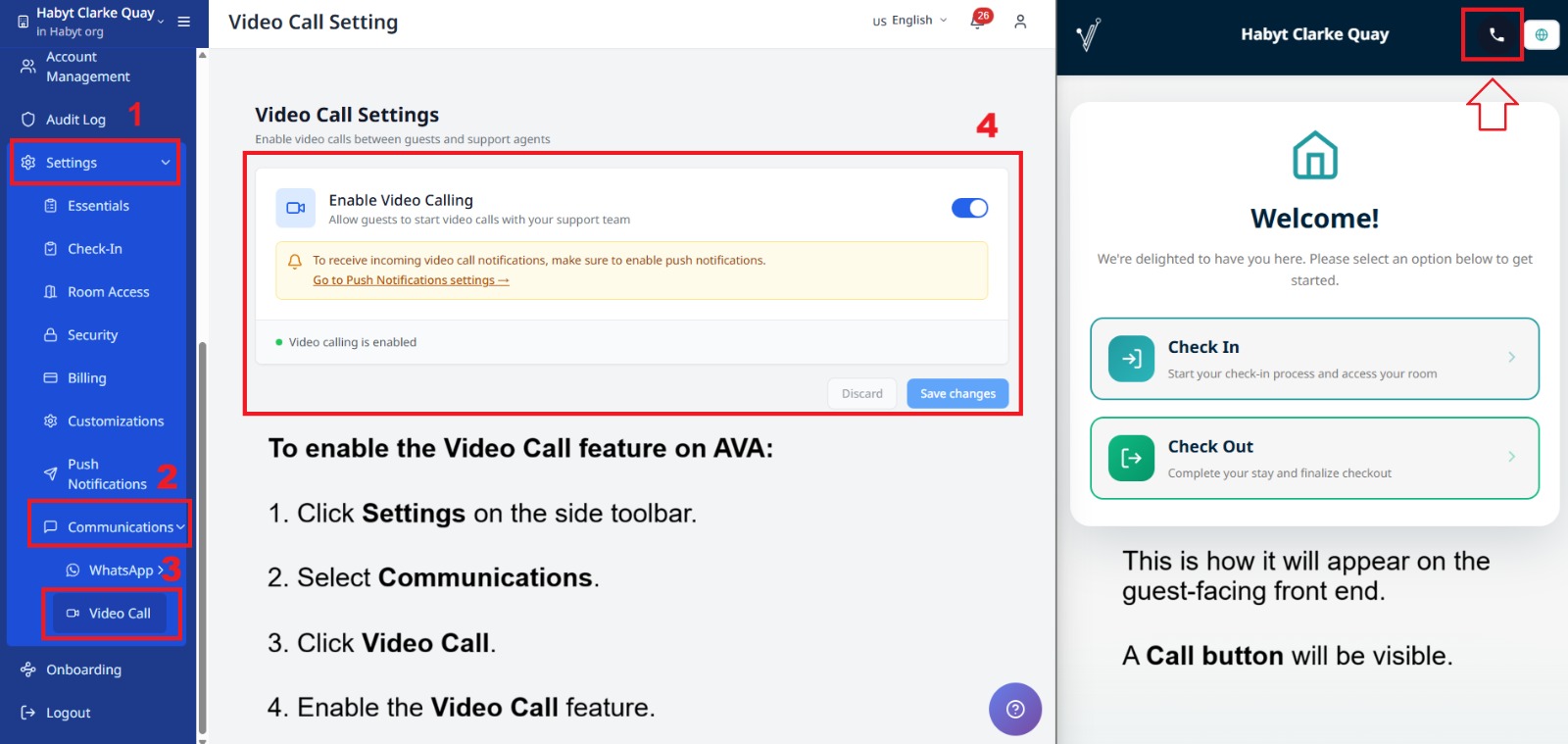
Open Settings
-
Turn on AVA Check-In and/or Chat widget
-
Turn on Limit video calls to operating hours if guests should follow a weekly schedule
-
Click Save changes
✓ The status dot turns green and shows "Video calling is enabled." ✓ Guests see Video Call on the selected entry points.
Click Discard to undo changes before you save.
-
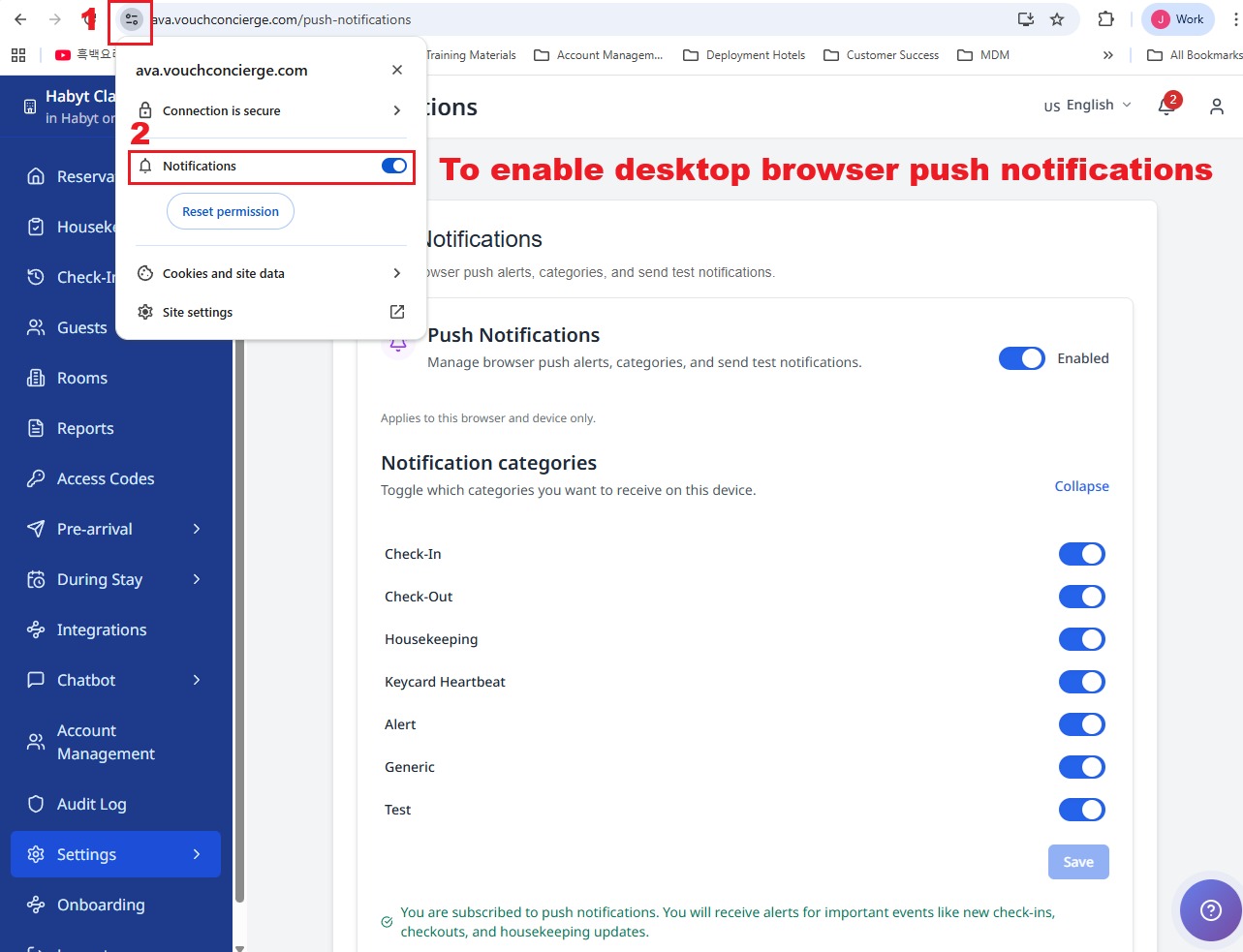
Open Settings → Customizations → Push Notifications
-
Under Device level: browser notifications, turn on the toggle and allow the prompt
✓ The status chip shows Enabled.
-
Return to Communication Hub → Video Calls and keep Video Call on
✓ Incoming calls now trigger a call prompt.
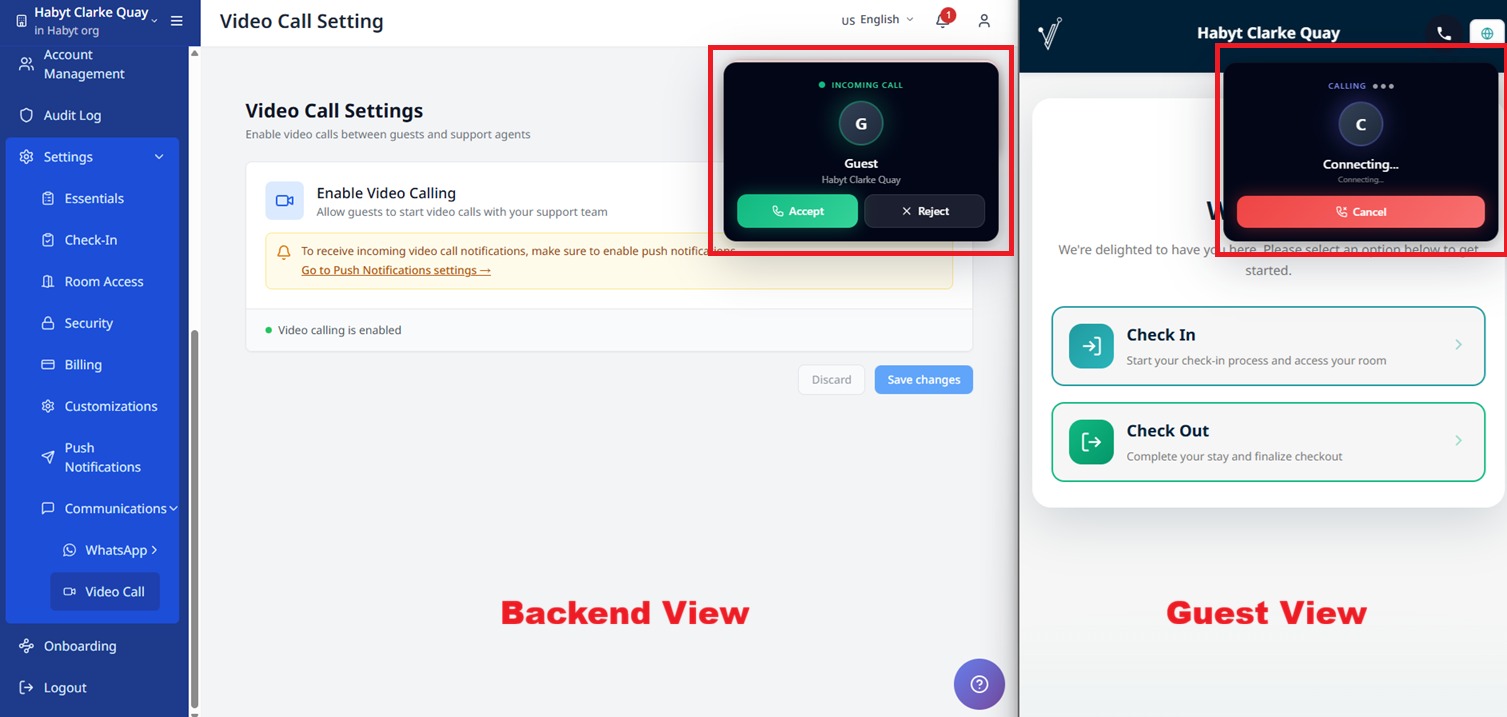
Ordinary staff-routed calls play a ringtone with the browser alert. When AI auto-answer and human escalation are enabled, the initial AI alert stays silent. The silent alert still appears so you can monitor the AI call. If an AI assistant answers and the guest requests a human, Streamliner rings again. That alert is titled Staff assistance requested and says A guest is waiting for hotel staff. The wording is localized for Korean, Chinese, Thai, and Khmer staff interfaces. AVA Portal shows the same handoff in the native mobile shell. Open that alert to join the existing call. When several guests call at once, each alert has its own ringtone. Answering or ending one call stops only that call's ringtone. Other active calls continue ringing until you handle them. The handoff ringtone stops when you accept the call, dismiss the toast, or the call ends. Authenticated staff can hear calls from another enabled property only when the active context allows that property.
When a support call ends, Streamliner closes the matching incoming-call alert and ringing card. You may still see a non-ringing Call Ended alert. You do not need to dismiss the old ringing alert manually.
-
Open a self check-in screen (CCI) and confirm Video Call appears in the top bar
✓ Guests can start a call from the check-in screen.
-
Review Recent Video Call Activities and use Recall when a guest needs another call
✓ You can reopen the guest's device after a missed or cancelled call. ✓ Staff recalls appear in the activity list with a Staff recall label.
Enable AI guest action transcription
Enable Call transcription when guests must complete AI voice service requests during video calls. The AI uses the call transcription to understand and confirm the guest's request.
-
Find Call transcription in Settings
-
Turn on Call transcription
-
Click Save changes
✓ Guests can complete supported AI voice service requests during video calls.
If your organization controls this setting centrally, review Organization → Video Call. The property setting uses the organization value when no property-specific value is saved.
Video calling can still work with transcription disabled. Guests cannot complete AI voice service requests until transcription is enabled.
Check or Cancel an Existing Guest Request
Guests can ask the AI assistant about, or cancel, a service request they already made. They can describe the request naturally, such as “cancel the towel request I just made.” They do not need to provide an internal request ID.
| Guest action | AI behavior |
|---|---|
| Ask about an existing request | AI checks the guest's current request list before answering |
| Cancel an existing request | AI checks the request list, then prepares the matching cancellation |
| Mention an unclear request | AI asks which listed request the guest means |
| Mention an unknown request | AI does not send the unknown ID to Housekeeping |
The AI reads the request back before a cancellation. The guest must confirm the exact cancellation in a later turn. Only a request returned in the guest's list can reach Housekeeping.
Test existing request actions
-
Create a guest service request through the supported AI voice flow.
-
Ask for its status without mentioning an internal identifier.
✓ The AI answers from the guest's listed requests.
-
Ask to cancel the request using its service name.
✓ The AI reads the matching cancellation back before acting.
-
Confirm the exact cancellation in a later turn.
✓ The request is cancelled only after confirmation.
AI cannot find an existing request
What you see: The guest asks about or cancels a request, but AI cannot identify it.
Fix:
- Ask the guest to describe the service, such as towels or luggage.
- If several requests match, ask the guest to choose one.
- Confirm Call transcription is enabled and saved.
- Ask the guest to repeat the request.
- Contact support if AI still cannot find a request that appears in Housekeeping.
Use GEP AI-Only Voice Assistance
GEP is the Guest Experience entry point for AI voice assistance. It is separate from staff-routed video-call surfaces.
| GEP state | Guest experience | Staff experience |
|---|---|---|
| GEP and AI-only enabled | AI voice assistance is available 24/7 | No staff ringing or human escalation |
| GEP disabled | The GEP entry point is unavailable | No GEP call activity is created |
Streamliner does not provide GEP configuration controls. Use HOME → Guest Homepage to manage the GEP entry point and AI-only voice setting. Vouch Core enforces the saved AI-only policy for every GEP call.
-
Open HOME → Guest Homepage.
-
Confirm the GEP entry point and AI-only voice setting are enabled.
-
Start a test call from the Guest Experience entry point.
-
Confirm the AI answers without a staff ringing alert.
-
Review the saved call transcript after the call ends.
✓ GEP calls can start outside staff operating hours. ✓ GEP calls never enter the staff-ringing path. ✓ Staff-routed video-call surfaces still follow the saved schedule.
GEP does not provide human escalation. Use a staff-routed video-call surface when guests need a live staff member.
Let GEP guests request services by room
GEP can handle guest-service requests when the call includes an authorized room number. Guests can request items such as towels without a PMS-verified guest name or reservation.
| Guest action | GEP behavior |
|---|---|
| Request a listed service | Prepares and confirms the request for the authorized room |
| Ask about an existing request | Lists requests returned for that room |
| Check a request status | Shows the matching request from the room's list |
| Cancel a request | Reads the matching cancellation, then waits for confirmation |
Room authorization includes only the room number needed to route Housekeeping. It does not expose current-stay details, reservation facts, or guest entitlements.
-
Start a GEP call from an authorized guest entry point.
-
Ask for a service listed in your guest-service catalogue.
-
Confirm the exact request when GEP reads it back.
-
Check Housekeeping for the room-scoped request.
✓ GEP can prepare and confirm the request without revealing reservation details.
Answer Questions from Hotel Information
At the start of a video call, AI loads a bounded set of facts from sources enabled for AI Video. It can answer a question directly when those facts fully and clearly cover it. For follow-up questions, AI uses recent conversation context to resolve references such as “it” or “there”. It delegates the latest request when the answer is incomplete, uncertain, conflicting, changing, personal, or action-based. It also delegates when the startup facts are unavailable or missing.
Answer local questions with public search
When hotel documents do not cover a nearby-place question, AI can search the public internet. This fallback covers nearby malls, dining, transport, attractions, and directions. The search uses the hotel's documented name and address as its starting point. AI asks for clarification when the guest's starting point is too vague.
| Guest question | AI behavior |
|---|---|
| Ask about a nearby public place | Searches public sources and shows a cited answer with nearby options |
| Ask for directions from an unclear origin | Asks the guest to clarify the starting point |
| Ask about hotel policy, personal stay details, or an action | Uses the trusted hotel or front-desk route instead |
| Public search is unavailable | Keeps supported hotel facts or gives the approved front-desk response |
Private room numbers, booking references, aliases, and guest details are never sent to public search. The same fallback applies to Phone AI calls.
Your deployment administrator can disable this fallback with OPENAI_LIVE_LOCAL_SEARCH_ENABLED=false.
Hotel-document answers and trusted guest-service routes continue to use their existing behavior.
| What happens | Guest experience |
|---|---|
| Facts fully cover the question | AI gives a concise answer without a front-desk handoff |
| Facts only partly cover the question | AI directs the guest to the front desk |
| The question is personal, changing, or action-based | AI directs the guest to the front desk |
| Startup facts are missing or unavailable | AI directs the guest to the front desk |
You do not need to change Video Call settings for this fact loading. Keep the relevant source enabled for AI Video in Chatbot Documents.
General policy questions, such as late checkout or luggage storage, can be answered directly when the hotel facts fully cover them. This also works without a verified stay. Requests to arrange late checkout, check personal eligibility, or confirm availability go to the front desk.
Set Guest Hours
Use the weekly schedule when guests should only start calls during front desk hours. This works best when your team has split shifts or different evening coverage. The schedule always uses your hotel timezone. The header shows a live status pill and the current day's row gets a TODAY badge. If you use Night Shift bulk activation, the same window can also become the shared entry-point hours.
-
In Settings, turn on Limit video calls to operating hours
-
Check the Timezone chip
-
If it is wrong, click Change
-
Update your Timezone in Settings → Essentials → Hotel Basic Details
-
Return to Video Call and add one or more open periods for each weekday
-
Use Copy Mon → weekdays, Copy Mon → all days, Set 24/7, or Clear all to fill faster
-
Use Open this day when a day stays closed
-
Click Save changes
✓ The status pill shows Open now or Closed now. ✓ The status pill can also show the next open or close time. ✓ Guests can only start calls during open windows. ✓ This only limits guest-started calls. ✓ Long-lived check-in sessions update automatically when the schedule changes. ✓ Invalid times show red borders and helper text. ✓ The coverage bar helps you spot gaps and overlaps.
If schedule data is incomplete or malformed, Streamliner loads a safe fallback schedule. You can still open the page, review the editor, and save a corrected schedule.
The timezone on this page always matches your hotel timezone. Use the Change link to open Settings → Essentials → Hotel Basic Details.
Recall a Guest
Use Recall when a guest missed, cancelled, rejected, or ended a call.
The recall modal now shows a warning message before you start the new call. This helps you avoid interrupting a guest who is still active.
-
Find the guest in Recent Video Call Activities
-
Select Recall
-
Confirm the recall when prompted
✓ Streamliner starts a new call to the same guest device. ✓ The guest sees an incoming call prompt again. ✓ You also see an amber warning box before you confirm. ✓ If you refresh the page, the same staff tab keeps the recall session. ✓ Another tab stays on Busy until you switch back.
During a Call
Use these controls when a call is connected.
| Control | What It Does | Where You See It |
|---|---|---|
| Mic | Mute or unmute yourself | Call controls |
| Camera | Turn your camera on or off | Call controls |
| Share screen | Share your screen or a window | Call controls (minimized or fullscreen) |
| Fullscreen | Expand the call view | Call controls |
Guest video-call language
The guest video-call widget uses the language selected in the CCI check-in flow.
This includes visible widget labels, prompts, and call controls.
Supported languages include English, Thai, Korean, Chinese, Japanese, and Indonesian.
Regional values, such as th-TH, use the matching base language.
Unsupported languages fall back to English.
The guest does not need to choose a call language separately. Staff translation settings remain separate from the guest widget language.
Share your screen
-
During a connected call, click Share screen
-
Choose a screen, window, or tab
-
Click Share
✓ The other person sees what you share. ✓ The button shows Sharing.
Click Stop sharing or use the browser's Stop button.
Troubleshooting
Communication Hub is hidden
What you see: Communication Hub, its Overview, and search results are hidden.
Fix:
-
Ask an administrator to open Superadmin → Permissions → Roles.
-
Check the staff member's assigned role in the active context.
-
Grant at least one dedicated Communication feature permission.
-
Refresh AVA after the role changes.
✓ Communication Hub appears when the role can access at least one Hub feature.
General settings:read and settings:write permissions do not make an empty Hub visible.
Video Call access is missing
What you see: The Video Calls page, tab, or control is hidden or unavailable.
Fix:
-
Ask an administrator to open Superadmin → Permissions → Roles.
-
Check the staff member's assigned role in the active hotel or organization.
-
Add the required Video Call permission under Communication.
-
Use
video_call:activity:readfor viewing only. -
Use
video_call:activity:managefor recall or activity analysis. -
Sign out and sign in again after the role changes.
✓ The available page, tabs, and actions match the assigned permissions.
The Video Call plan and Push Notifications requirements still apply.
Voice Translation access is missing
What you see: Voice Translation does not appear in Communication Hub.
Fix:
-
Switch to the hotel you want to configure.
-
Confirm the hotel has the Check-in entitlement.
-
Ask an administrator to grant
voice_translation:readpermission. -
Refresh AVA and search for Voice Translation again.
✓ Staff with
voice_translation:readcan open the setting. ✓ Staff also needvoice_translation:manageto change it.
Voice Translation setting does not save
What you see: The toggle shows an error, or returns to its previous value.
Fix:
- Confirm you are in the correct hotel context.
- Confirm your role has
voice_translation:managepermission. - Wait for the saved status after changing the toggle.
- Refresh the page and try the change again.
- Reload ACI only after the setting saves.
- Contact support if the setting still reverts.
AVA restores the last saved value after a failed update. This prevents an unsaved toggle from changing guest-facing behavior.
Call notifications do not appear
What you see: No pop-up when a guest starts a call.
Fix:
- Open Settings → Customizations → Push Notifications
- Confirm the browser status shows Enabled
- Allow notifications for Streamliner in your browser settings
- Refresh the page and wait for a new call
Human request does not ring again
What you see: An AI answers the call, but no new alert appears when the guest requests a human.
Fix:
-
Confirm Browser Notifications shows Enabled in Settings → Customizations → Push Notifications.
-
Allow Streamliner notifications in your browser settings.
-
Keep the Video Call page or Command Center open.
-
Ask the guest to request a human again.
If you use AVA Portal, confirm Receive incoming-call alarms for this property is on under Alarm Devices. Then check the native mobile notification.
✓ You should see Staff assistance requested and hear the ringtone again. ✓ The alert opens the matching call instead of starting an unrelated call.
Contact support if the alert appears without a ringtone or opens the wrong call.
Another staff member answered first
What you see: The call no longer rings, or Streamliner says another staff member answered.
Fix:
-
Wait for the active call board to refresh.
-
Confirm the card shows the colleague's display name.
-
Select another Ringing call if another guest needs help.
✓ The answered call stays connected to the staff member who won the answer.
You cannot end a colleague's call
What you see: The End call action is unavailable for a call handled by another staff member.
Fix:
-
Open the call board.
-
Confirm the card shows Handled by and the colleague's display name.
-
Ask that colleague to end the call, or use Monitor if your role allows it.
✓ You cannot accidentally disconnect another staff member's guest call.
A call alert keeps ringing after the call ends
What you see: The call ended, but an Incoming Video Call alert or ringing card remains.
Fix:
- Confirm the call ended in Communication Hub → Video Calls → Activity.
- If you manage multiple properties, select the property that received the call.
- Refresh the Streamliner page once.
- Contact support if the alert remains after the refresh.
Calls stop after you switch properties
What you see: Calls worked before. Then you switch properties and calls stop.
Fix:
- Stay on the property you want to receive calls for
- Refresh the Streamliner tab
- Wait 10 seconds so the widget reloads
- If calls still do not appear, sign out and sign in again
Toggle will not stay on
What you see: Video Call turns off after refresh.
Fix:
- Check your internet connection
- Turn the toggle on again
- Click Save changes
- If it turns off again, contact support
Status stays gray
What you see: The status shows "Video calling is disabled" after you turn it on.
Fix:
- Turn Video Call off, then on again
- Click Save changes
- Refresh the page
- If it stays gray, contact support
"Not saved" stays visible
What you see: A "Not saved" badge stays on the page.
Fix:
- Click Save changes
- Wait for the success message
- Refresh the page if it stays
Guests do not see the Video Call button
What you see: The check-in screen does not show Video Call.
Fix:
- Confirm Video Call is on and saved
- Make sure you are testing Self Check-In (CCI), not assisted check-in or pre-arrival
- Refresh the check-in screen
AI sends a hotel question to the front desk
What you see: AI cannot answer a question that your hotel information should cover.
Fix:
-
Open Chatbot Documents.
-
Confirm the relevant source is active and enabled for AI Video.
-
Wait for knowledge processing to finish before testing again.
-
Ask your AVA administrator to check the knowledge service if the source is ready.
✓ AI loads the enabled source for the call and answers fully covered questions directly.
Guests cannot complete AI voice service requests
What you see: A guest starts an AI voice service request, but cannot complete it.
Fix:
-
Open Communication Hub → Video Calls for the property.
-
Confirm Call transcription is on and saved.
-
If the property uses an organization fallback, check Organization → Video Call.
-
Ask the guest to start the request again.
✓ The guest can hear the request recap and confirm the service request.
GEP cannot create a room service request
What you see: A GEP caller asks for a service, but the request is not created.
Fix:
- Confirm the guest started GEP from an entry point authorized for the correct room.
- Confirm the requested item is active in the guest-service catalogue.
- Ask the guest to name the service again using its catalogue name.
- Ask the guest to confirm the exact request after GEP reads it back.
- Contact support if the room is authorized and the request still fails.
GEP room-service requests use the authorized room number. The guest does not need a PMS-verified name or reservation for this flow.
Guests cannot call after hours
What you see: Guests do not see Video Call, or the settings page shows Closed now.
Fix:
- Go to Communication Hub → Video Calls
- Check Limit video calls to operating hours
- Confirm today's time window is open
- Check the read-only Timezone chip matches Settings → Essentials → Hotel Basic Details
- If it does not match, update Timezone in hotel basic details and save
- Return to Video Call and click Save changes
- If you just crossed into a new time window, wait for the next transition or refresh the check-in screen
Calls still ring every device
What you see: A browser call reaches more staff accounts than expected.
Fix:
-
Open Settings
-
Confirm the current day has a saved window
-
Check that the window covers the current time
-
Open the window and confirm only the right staff members are selected
-
Click Save changes again
-
Check that the selected staff accounts have active paired devices
✓ Off-duty or unrelated accounts do not receive the browser call.
Paired-account target is unavailable
What you see: The staff picker does not show Paired Streamliner account.
Fix:
-
Open Alarm Devices inside the AVA mobile shell.
-
Pair the staff member's AVA device with the correct Streamliner account.
-
Confirm the device is active and the property alarm preference is on.
-
Return to the schedule editor and select the employee again.
✓ The picker shows Paired Streamliner account when an active device is available.
The paired-device count looks outdated
What you see: A staff member shows zero paired devices after pairing an AVA device.
Fix:
-
Confirm the device is paired to the correct Streamliner account.
-
Return to the Video Call schedule.
-
Wait for the schedule to refresh, or switch away and return to the browser window.
-
If pairing just finished, wait for the native pairing confirmation.
✓ The staff chip and On duty right now preview show the current eligible device count. ✓ You do not need to add the staff member again or save the schedule again.
Streamliner refreshes these counts when scheduled account identities change, when pairing completes, and when the window regains focus. If a refresh fails, the last saved count remains visible until the next successful refresh.
Paired-account target cannot be saved
What you see: Saving reports that the account has no active paired alarm device.
Fix:
- Confirm the employee still has access to this property.
- Sign in again if the paired device is paused.
- Check that Receive incoming-call alarms for this property is on.
- Save the pairing, then save the video-call schedule again.
Timezone looks wrong
What you see: The timezone on the Video Call page does not match the property.
Fix:
- Go to Settings → Essentials → Hotel Basic Details
- Check the property Timezone
- Update it if needed and save
- Return to Communication Hub → Video Calls
- Confirm the read-only timezone now matches
A schedule window looks missing
What you see: A day or time window does not match what you saved.
Fix:
- Open Communication Hub → Video Calls
- Review the weekday schedule and add the missing window again
- Click Save changes
- If the issue returns, contact support
Validation errors appear
What you see: A time field turns red, or you see overlap or end-before-start text.
Fix:
- Check the day with the red border
- Remove the overlap or move the end time after the start time
- Use Clear all if you want to rebuild the schedule
- Click Save changes again
Screen sharing does not start
What you see: Clicking Share screen does nothing or the browser blocks it.
Fix:
- Make sure the call is connected
- Allow screen sharing in the browser prompt
- Refresh the page and try again
Recall is disabled
What you see: The Recall button is disabled or you see a "Try again shortly" message.
Fix:
- Refresh the page.
- Wait a few seconds for the activity list to finish loading.
- Confirm the guest call shows a finished status.
- If you just switched properties, stay on the correct property and try again.
Recall opens in the wrong tab
What you see: You start or rejoin a recall, but another tab takes focus.
Fix:
- Go back to the tab that accepted the recall.
- Refresh that tab if it looks stale.
- Close duplicate tabs for the same staff session.
- If the wrong tab keeps taking over, sign out and sign back in.
Calls open in the wrong tab
What you see: An incoming call or recall opens in a different browser tab.
Fix:
- Close duplicate tabs for the same guest or staff session.
- Reload Streamliner on the tab you want to use.
- If you answered the call in another tab, return to that tab to rejoin.
- If the issue keeps happening, sign out and sign back in.
Another tab shows busy
What you see: You open a second tab and only see a busy state.
Fix:
- Switch back to the tab that owns the active call.
- Use that tab to rejoin, cancel, or end the call.
- Close extra tabs if you keep opening the widget twice.
A new guest sees busy after the previous call ended
What you see: A new guest scans the same QR code, but the caller widget shows Busy.
Fix:
-
Wait briefly while Streamliner receives the ended-call update.
-
Refresh the guest check-in screen.
-
Confirm the previous call ended in Communication Hub → Video Calls → Activity.
-
Contact support if the widget still shows Busy after a few minutes.
✓ The shared room state clears automatically after the call provider reports the room ended.
Still Stuck?
Contact success@vouch-technologies.com if:
- ❌ Video calls still do not appear after enabling notifications
- ❌ The toggle keeps turning off
- ❌ The issue lasts longer than 30 minutes
Helpful to include:
- Screenshot of the Video Call settings
- Screenshot of your browser notification settings
- Time the issue started