Reply to Guests in Live Chat
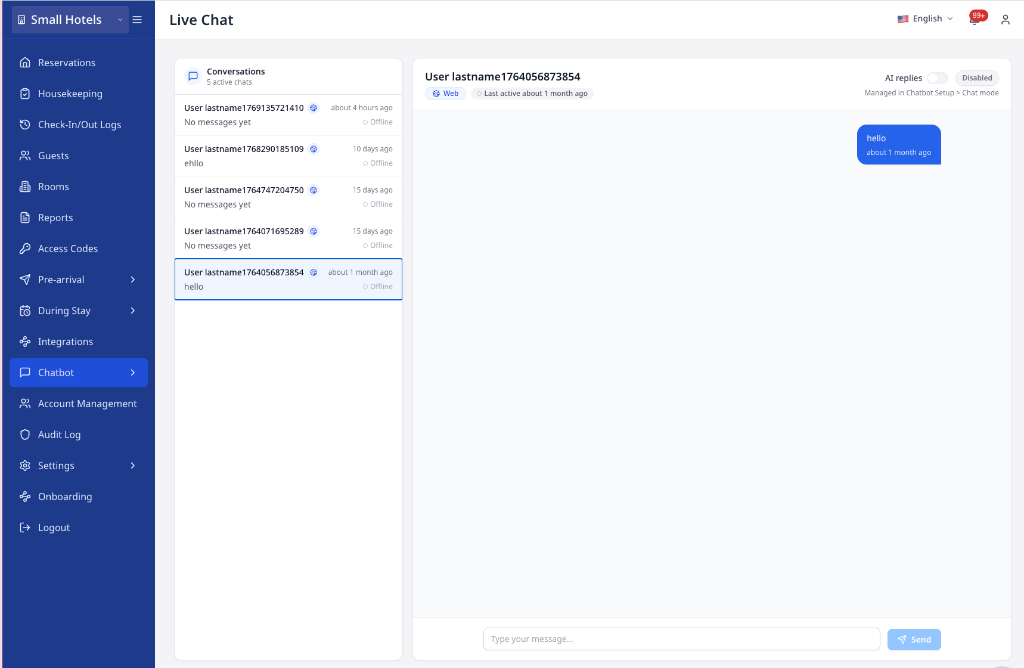
Select a conversation, type your message, and press Enter to send. This takes under 1 minute.
This guide helps you read, translate, and reply to guest messages in Live Chat.
Go to: Live Chat
Quick Reference
| Task | Where to click | Result |
|---|---|---|
| Open a conversation | Conversation list | Message history appears |
| Reply to a guest | Message box → Send | Your message is delivered |
| Add a line break | Press Shift + Enter | New line in the message |
| Change guest language | Guest language → Change | Future replies use the selected language |
| Take over from AI | Send → Disable bot and send | AI replies turn off for that guest |
| View room context | Conversation list and Conversation header | Shows reservation or printed QR context when available |
Your property turns auto translation on in Communication Hub → Livechat. Your personal Chat Language stays in Personal Settings.
Plan Access
- Live Chat is available on paid plans.
- Free-tier accounts see an upgrade screen instead of Live Chat.
To upgrade, go to Settings → Billing.
Open a Conversation
-
Go to Live Chat.
-
Click a guest name in the left panel.
✓ The message history loads on the right.
Unread chats show a blue badge with the count.
Reply to a Guest
-
Select a conversation.
-
Type your message.
-
Press Enter or click Send.
✓ Your reply appears on the right.
To add a new line without sending, press Shift + Enter.
Guest Language and Translation
Live Chat keeps one guest language per conversation. When your merchant enables auto translation, AVA translates guest messages into your chat language.
When auto-translate is on, AVA translates messages both ways:
- Guest messages appear in your chat language
- Agent replies appear in the guest's language
- Handoff messages
- Closure messages
To change the guest language:
-
Open the conversation.
-
Find Guest language in the conversation header.
-
Click Change.
-
Select a language or choose Automatic.
-
Click Apply language.
✓ Future replies use the selected language. ✓ Choosing Automatic returns to language detection.
How Translated Messages Look
- Guest messages show the original text above the translated text.
- Long original text collapses behind Show more.
- Agent messages keep your sent text first.
- Use View sent translation (LANG) to reveal the translated version.
Review Guest Message Presentations
Some guest messages include approved rich content, such as an image, buttons, or a list. Live Chat shows a read-only preview below the complete message text.
Use the preview to understand what the guest received. Do not use it to confirm an action for the guest. Guest actions remain controlled by the guest's channel and approval flow.
| Preview | What you see |
|---|---|
| Image | The image description shown to staff |
| Buttons | The available guest choices |
| List | The list title, sections, and choices |
| Delivery status | Queued, sending, or another delivery state |
AVA keeps the complete text when rich content cannot be shown. Widget and WhatsApp agent replies now use complete canonical text and translated delivery text. Existing translations remain available with the message text. Older adaptive presentation choices are no longer applied to new replies.
View the Reservation Badge
When a guest is linked to a reservation, the conversation cards and conversation header show a room badge.
If the room type is available, the badge shows both:
- Room number
- Room type name
The conversation details panel uses the same reservation information. It shows Room number and Room type rows for linked reservations. This helps you confirm the guest's stay without opening the reservation.
Recognize printed QR room context
Guests who scan a printed room QR code can start chat with room context.
When exactly one active in-house stay matches the scanned room, AVA links that stay to the conversation. The conversation list and header then show the linked reservation and room details. AVA refreshes this link before text chat, voice, or video-call features use the stay context. If the guest already has a conversation, another room scan updates that conversation with the latest room context. The latest room scan takes priority when the guest's room has changed. AVA also matches one native DUE_OUT stay when your PMS capability contract supports that status. Otherwise, printed room QR lookup matches CHECKED_IN stays only. The lookup uses the exact room value encoded in the QR code.
If no unique active in-house stay matches, AVA keeps the room as Unverified context. Use unverified room context as a helpful hint, not as proof of the guest's room assignment.
Recognize printed location QR context
Guests who scan a location QR code can start chat with location context. AVA keeps this context separate from guest and reservation data. Location QR sessions do not verify reservations, link stays, or show reservation badges. They also do not add reservation details to video calls. The conversation list and details panel show the named location with a Location QR Code label.
Use location context to answer general questions about the scanned area. Ask the guest to use a room QR code or verify their stay when room-specific help is needed.
Take Over from AI
If AI replies are on, Live Chat asks you to take over.
-
Type your message and click Send.
-
In the confirmation dialog, click Disable bot and send.
✓ AI replies turn off for that guest. ✓ Your message sends. ✓ AVA shows Sending handoff message… while it finishes the handoff.
Recognize AI Voice Assistant Messages
When AI answers a guest call, Live Chat labels it clearly.
- The conversation list shows AI Voice Assistant.
- Assistant messages show Replied by AI Voice Assistant in the meta line.
Use those labels to separate AI turns from staff replies.
Streaming AI replies keep one creation timestamp across all reply parts. This keeps the displayed reply time consistent while the answer arrives.
Handle housekeeping follow-ups
When a guest requests a housekeeping item, AI keeps that item during follow-up questions.
For example, the guest can reply one after requesting towels. AI uses the saved item context and the quantity together. AI checks the available service catalogue before preparing the request. It confirms progress only after the request result is verified.
If the guest changes the item, ask them to repeat the full request.
Understand Channel Badges
- WhatsApp badge means the guest is chatting from WhatsApp.
- Web badge means the guest is using the web chat widget.
Troubleshooting
Messages show the wrong language
What you see: Guest replies, handoff text, or closure text stay in English.
Fix:
- Check the Guest language label in the conversation.
- Click Change.
- Pick the right language, or choose Automatic again.
- Send the message again.
Guest language is unknown
What you see: The composer says the guest language has not been detected yet.
Fix:
- Wait for a guest message to arrive.
- Or set the language manually with Change.
- Send your reply again.
Live Chat is disabled
What you see: A screen that says "Live Chat is disabled (AI-only mode)."
Fix:
- Go to Communication Hub → Chatbot → Setup → Widget & Access → Chat mode.
- Select Live chat only or Hybrid (AI + live chat).
- Return to Live Chat.
Cannot send a message
What you see: Send is disabled or nothing happens.
Fix:
- Make sure you selected a conversation.
- Type a message. The button stays disabled when empty.
- If you see a takeover prompt, confirm it.
Rich preview is missing or incomplete
What you see: A historical rich preview is missing, but the complete message text remains.
Fix:
- Confirm you opened the correct conversation.
- Refresh Live Chat and reopen the conversation.
- Check that the complete message text remains visible.
- If the complete text is also missing, contact support with the conversation ID.
New widget and WhatsApp agent replies are expected to show their complete text.
Conversation list is empty
What you see: "No conversations yet."
Fix:
- Confirm the widget is live and guests can reach you.
- Wait for the first guest message to create a conversation.
Room type does not show
What you see: The reservation badge shows only a room number.
Fix:
- Open the conversation details panel.
- Confirm the guest is linked to a reservation.
- Refresh Live Chat after the reservation sync completes.
- If the reservation is historical, the room number may appear without a room type.
Still Stuck?
Contact success@vouch-technologies.com if:
- ❌ Conversations do not load
- ❌ Messages fail to send after retries
- ❌ Live Chat stays disabled after updating chat mode
Helpful to include:
- Guest name or conversation ID
- Screenshot of the Live Chat page
- Time the issue started