Turn AI Replies On or Off in Live Chat
Select a conversation, then use the AI replies switch. This takes under 1 minute.
This guide helps you control AI replies for a single guest conversation in Live Chat.
Go to: Live Chat
Quick Reference
| Setting | What it controls | Where you see it |
|---|---|---|
| AI replies | Turns AI replies on or off for the selected guest | Live Chat → Conversation header |
| Status tag | Shows AI state: On, Off, or Disabled | Live Chat → Conversation header |
When your property enables auto translation in Communication Hub → Livechat, AI replies and away messages use the guest's language.
Plan Access
- Live Chat is available on paid plans.
- If your plan does not include Live Chat, you see an upgrade screen.
To upgrade, go to Settings → Billing.
Turn AI Replies On or Off
-
Go to Live Chat.
-
Select a guest conversation.
-
Find AI replies in the conversation header.
-
Toggle AI replies on or off.
✓ The status tag updates to On or Off.
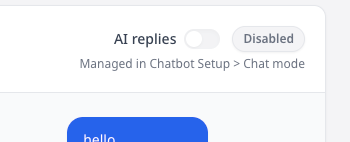
What the Status Tag Means
- On: AI replies are enabled for this guest.
- Off: AI replies are paused for this guest.
- Disabled: AI replies are unavailable for this chat mode.
Troubleshooting
AI replies shows "Disabled"
What you see: The toggle is disabled and the status tag says "Disabled."
Fix:
- Go to Communication Hub → Chatbot → Setup → Widget & Access → Chat mode.
- Select Hybrid (AI + live chat).
- Refresh Live Chat.
Live Chat is disabled (AI-only mode)
What you see: A screen that says "Live Chat is disabled (AI-only mode)."
Fix:
- Go to Communication Hub → Chatbot → Setup → Widget & Access → Chat mode.
- Select Live chat only or Hybrid (AI + live chat).
- Return to Live Chat.
Status does not change after toggling
What you see: The status tag stays the same after you switch AI replies.
Fix:
- Wait 5 seconds and try again.
- Refresh Live Chat and repeat the toggle.
- If it still fails, contact support.
Still Stuck?
Contact success@vouch-technologies.com if:
- ❌ AI replies stay disabled after settings are enabled
- ❌ The status tag never changes
- ❌ You cannot respond to guests for more than 10 minutes
Helpful to include:
- Screenshot of the conversation header
- Guest name or conversation ID
- Time the issue started