Cara Menyelesaikan Check-In
Sebagian besar check-in membutuhkan waktu 3-5 menit jika dokumen sudah siap. Panduan ini menjelaskan pengalaman check-in tamu di kiosk mandiri AVA atau perangkat check-in berbantuan.
Panduan ini membantu Anda memahami dan mendukung proses check-in tamu, mulai dari pencarian reservasi hingga akses kamar. Tamu menyelesaikan check-in menggunakan kiosk check-in AVA (diakses melalui kode QR atau URL) dalam tiga mode: mandiri (CCI), dibantu staf (ACI), atau sebelum kedatangan.
Cara tamu mengakses check-in:
- Pindai kode QR yang ditampilkan di properti Anda
- Kunjungi URL check-in yang Anda berikan
- Staf dapat membantu menggunakan antarmuka check-in berbantuan (ACI)
Untuk mengelola reservasi dan penugasan kamar dari dashboard staf, buka halaman Reservations (layar beranda). Panduan ini berfokus pada pengalaman check-in yang dihadapi tamu.
Video singkat ini menunjukkan seluruh perjalanan check-in multi-kamar dari sudut pandang tamu.
Referensi Cepat
| Langkah | Siapa yang menyelesaikan | Di mana muncul |
|---|---|---|
| Reservation Lookup | Tamu atau staf | Check In, Reservation Lookup, atau Staff Access |
| Document Upload | Tamu atau staf | Guest Verification pada setiap kartu kamar |
| Bulk Upload | Staf (untuk grup) | Tombol Upload All Documents di atas kartu kamar |
| Guest Information | Tamu atau staf | Guest Information → Fill atau Edit |
| Signature | Tamu (terkadang semua tamu) | Signature → Sign |
| Facial Verification | Tamu (CCI atau ACI, jika diaktifkan) | Facial Verification → Verify atau tablet tamu yang dipasangkan |
| Group Facial Verification | Staf (jika diaktifkan) | Room List → Verify group photo |
| Deposit / Payment | Tamu (hanya check-in mandiri, jika diaktifkan) | Reservation Requirements |
| Check-In / Pre-Arrival | Tamu atau staf | Proceed to Check-In atau Complete Pre-Arrival |
| Room Access | Diperlukan jika pengiriman yang dikelola AVA dikonfigurasi | Room Information |
Mode Check-In
| Mode | Cocok untuk | Yang berubah |
|---|---|---|
| Pre-Arrival | Tamu sebelum kedatangan | Verifikasi wajah grup mungkin muncul jika diaktifkan. Gunakan Complete Pre-Arrival setelah tamu yang diwajibkan diverifikasi. AVA mengirim perkiraan waktu kedatangan tamu pertama ke PMS yang didukung. Akses kamar diberikan saat kedatangan. |
| Self Check-In (CCI) | Tamu di kiosk | Verifikasi wajah mungkin muncul. Deposit atau pembayaran dapat memblokir Proceed to Check-In. |
| Assisted Check-In (ACI) | Check-in yang dipandu staf | ACI satu perangkat berjalan di perangkat staf. ACI dua perangkat mengirim langkah tamu ke tablet yang dipasangkan. Keduanya menampilkan kesiapan perangkat staf. |
Video singkat ini menunjukkan seluruh alur check-in berbantuan (ACI) dari sudut pandang staf.
Mengerjakan satu reservasi dari beberapa meja
Beberapa meja Check-in Connect yang telah diverifikasi dapat membuka reservasi yang sama secara bersamaan. Hal ini membantu staf membagi grup multi-kamar dan melakukan check-in kamar secara paralel.
Buka pemesanan yang sama di setiap meja staf terverifikasi, lalu sepakati siapa yang menangani setiap kamar. AVA memperbarui perubahan kamar dari setiap meja secara langsung untuk meja lainnya.
Melihat siapa yang sedang mengerjakan pemesanan
AVA menampilkan meja lain yang sedang melihat pemesanan di dekat daftar kamar. Kartu kamar menunjukkan meja yang sedang memegang atau menyelesaikan setiap kamar. Anda mungkin melihat label seperti Front Desk 2 · at the desk atau Checked in by Front Desk 2.
Perubahan dari meja lain muncul otomatis, biasanya dalam waktu sekitar satu detik. AVA menyorot kamar yang berubah sebentar dan menampilkan pemberitahuan. Anda tidak perlu memuat ulang reservasi setelah setiap perubahan.
| Yang Anda lihat | Artinya | Yang harus dilakukan |
|---|---|---|
| Desk · at the desk | Meja tersebut sedang mengerjakan kamar | Berkoordinasi sebelum mulai mengerjakan kamar itu |
| Checked in by desk | Meja tersebut menyelesaikan check-in kamar | Lanjutkan ke kamar lain jika diperlukan |
| Pemberitahuan perubahan | Meja lain mengubah pemesanan | Tinjau kartu kamar yang diperbarui |
Mengerjakan kamar dengan aman
Mencari atau melihat pemesanan tidak mengklaim kamar-kamarnya. Tindakan yang mengubah data akan mengklaim kamar sebelum membuat perubahan yang tidak dapat dibatalkan. Ini mencakup langkah tamu, check-in, operasi kamar, dokumen, pembayaran, pengesampingan, dan keycard. AVA mengirim setiap tindakan ACI menggunakan kredensial terverifikasi untuk meja yang aktif. Jika meja tersebut memerlukan verifikasi, AVA meminta Anda memverifikasinya sebelum tindakan yang dilindungi dilanjutkan.
Jika meja lain yang sedang aktif memegang kamar tersebut, AVA menghentikan tindakan sebelum mengubah data. Pesan tersebut menyebutkan meja dan kamar terkait. AVA menganggap meja sedang bekerja jika kamar memiliki aktivitas dalam lima menit terakhir. Tablet tamu milik meja yang memegang kamar juga menjaga kamar tetap terlindungi selama tablet melayani kamar tersebut. Meja yang terbuka tetapi sudah tidak aktif lebih lama tidak menghalangi meja lain.
- Pastikan meja lain masih mengerjakan kamar tersebut.
- Pilih Leave it with the named desk untuk menghentikan tindakan Anda.
- Pilih Take over room hanya setelah berkoordinasi dengan meja tersebut.
- Lanjutkan ketika AVA mencoba kembali tindakan setelah pengambilalihan.
Mengambil alih kamar menghentikan tablet tamu meja lain untuk kamar tersebut. Progres yang tersimpan tetap ada, sehingga Anda dapat melanjutkan dari meja ini.
Jika meja yang memegang kamar tidak lagi aktif, AVA mengambil alih kamar untuk Anda secara otomatis. Anda tidak akan melihat permintaan pengambilalihan dalam kasus ini. Jika tablet tamu milik meja yang memegang kamar masih melayani kamar tersebut, AVA tetap menjaga kamar terlindungi. Formulir panjang tamu dapat tetap terbuka tanpa kehilangan kamar. Meja lain tetap tidak dapat memindahkan kamar saat tamu sebelumnya mengirimkan suatu langkah. Meja check-in berbantuan satu perangkat dan dua perangkat mengikuti aturan kamar yang sama.
Membagi grup multi-kamar antar meja
- Minta setiap meja terverifikasi membuka reservasi yang sama.
- Sepakati kamar mana yang akan ditangani setiap meja.
- Biarkan setiap meja hanya melakukan tindakan pada kamar yang ditugaskan kepadanya.
- Pantau kartu kamar untuk melihat pembaruan langsung dari meja lain.
- Berkoordinasi sebelum mengambil alih kamar yang sedang dipegang meja lain.
✓ Setiap meja dapat menyelesaikan kamar yang ditugaskan tanpa menimpa pekerjaan meja lain.
Sebelum Memulai
Pastikan hal-hal berikut:
- Reservasi aktif (bukan dibatalkan atau no-show)
- Tamu telah menyiapkan paspor atau ID
- Kamar siap atau dapat ditugaskan
- Encoder keycard atau sistem smart lock Anda aktif
Jika ACI menampilkan Staff verification recommended, pilih Verify Device dan pindai QR kiosk satu kali terbaru. Pencarian staf dan daftar reservasi aktif tetap tidak tersedia sampai verifikasi selesai. Tindakan ACI yang mengubah status, termasuk check-in, memerlukan perangkat staf yang telah diverifikasi. Mode demo tetap tersedia tanpa verifikasi perangkat.
Check-In Langkah demi Langkah
Jika Guest Step Auto-Advance aktif, AVA membuka langkah wajib tamu berikutnya setelah Anda menyimpan. Jika nonaktif, Anda harus memilih langkah berikutnya secara manual.
Saat pengiriman yang dikelola AVA dikonfigurasi, Room Access diperlukan untuk menyelesaikan check-in. Ini mencakup smart lock, locker, dan pengiriman keycard non-manual yang dikonfigurasi. Hasil Pending atau Failed membuat check-in tetap belum selesai sampai akses berhasil. Konfigurasi akses kamar manual atau yang tidak tersedia tidak menambahkan langkah wajib ini. Jika AVA tidak dapat memuat konfigurasi akses kamar, bukti akses yang ada tetap terlihat sebagai referensi. Bukti tersebut tidak menjadi langkah penyelesaian yang wajib sampai konfigurasi tersedia.
AVA mempertahankan status check-in selesai ketika pembacaan okupansi PMS berikutnya gagal. Okupansi yang tersimpan tetap tidak berubah sampai AVA menerima nilai baru yang telah dikonfirmasi. AVA tidak menerbitkan akses kamar sampai dapat mengonfirmasi okupansi kamar. Segarkan reservasi, konfirmasikan kedatangan dan kamar di PMS, lalu coba lagi akses kamar.
1. Menemukan reservasi
-
Pada layar Check In, pindai paspor atau ID tamu
-
Jika pemindaian tidak tersedia, pilih Use Confirmation Number Instead
-
Masukkan nomor konfirmasi dan pilih Continue
✓ Anda seharusnya melihat kartu kamar reservasi
Jika Anda mengulangi pencarian, AVA menyegarkan sesi ACI satu perangkat saat ini. Riwayat pencarian yang ada tetap dipertahankan dan Anda dapat melanjutkan pada perangkat staf yang sama.
Verifikasi perangkat staf sebelum memuat atau menyegarkan daftar reservasi aktif. Setelah verifikasi, AVA memuat daftar baru untuk browser dan hotel saat ini. Jika kredensial dicabut atau tidak lagi tersedia, AVA menghapus daftar tersebut dan meminta Anda memverifikasi lagi.
Jika nilai tamu adalah referensi pemesanan OTA atau eksternal, masukkan di kolom yang sama. AVA memeriksa nomor konfirmasi terlebih dahulu, lalu menggunakan referensi eksternal sebagai cadangan. Untuk reservasi Opera, AVA memverifikasi catatan lengkap sebelum memilih hasil. Jika pencarian referensi yang sama persis tidak menghasilkan apa pun, AVA mencoba sekali lagi dengan referensi dalam huruf besar. AVA membandingkan referensi tanpa membedakan huruf besar-kecil pada catatan reservasi lengkap. Perilaku pencarian berdasarkan nomor konfirmasi tidak berubah. Pencarian memeriksa referensi eksternal dan tanggal kedatangan, sehingga data ringkasan yang kedaluwarsa tidak memilih pemesanan yang salah. Jika detailnya tidak cocok atau Opera mengembalikan hasil yang ambigu, AVA tidak memilih pemesanan.
Pencarian melalui pemindaian hanya mencocokkan kedatangan kemarin dan hari ini. Gunakan nomor konfirmasi untuk kedatangan lebih awal atau di masa mendatang.
Jika Anda menggunakan Cloudbeds, pencarian reservasi menunggu hingga 20 detik. Jika Cloudbeds berhenti merespons, AVA menampilkan kesalahan layanan tidak tersedia dan tidak terus menunggu. Coba lakukan pencarian lagi setelah menunggu sebentar.
Jika pemindaian mengarah ke reservasi yang dibatalkan atau sudah check-out, AVA menyegarkan pencarian nama dan mencoba mencocokkan reservasi aktif lagi. Jika hasil yang disegarkan masih ambigu, AVA menampilkan alur Multiple reservations found yang biasa.
Anda juga mungkin melihat Verify Your Booking setelah pencarian melalui pemindaian, pencarian dengan nomor konfirmasi, atau percobaan ulang unggah dokumen Room List. Fitur ini menggunakan alur verifikasi nama reservasi yang sama. Jika reservasi sudah diverifikasi, AVA mempertahankan hasil tersebut saat Anda mencoba lagi. Di ACI, staf dapat mengonfirmasi pengesampingan alih-alih mengirim OTP tamu ketika properti mengaktifkannya. Lihat Pengesampingan Staf ACI untuk Ketidaksesuaian Nama.
Jika pencarian berhasil tetapi verifikasi perjalanan gagal, AVA tetap menyediakan reservasi yang dikembalikan. Kredensial yang gagal tidak menjadi bukti pendaftaran tepercaya. Kebijakan pendaftaran dan perangkat yang tersisa tetap berlaku sebelum Anda melanjutkan. Jika AVA meminta verifikasi perangkat, verifikasi perangkat saat ini sebelum mencoba lagi tindakan yang diblokir.
Produk Mews yang telah diverifikasi dan termasuk dalam tarif dapat mengikuti pembebasan paket kamar yang sesuai. Biaya layanan relatif kamar juga mengikuti pembebasan tersebut, meskipun Mews melaporkan Once tetapi membebankannya setiap malam. Jika AVA tidak dapat membuktikan klasifikasinya, AVA menahan jumlah tersebut untuk ditinjau staf. Saat pengumpulan pembayaran kamar diaktifkan, AVA memblokir pencarian reservasi dan mengarahkan tamu ke meja depan. AVA tidak menggunakan saldo tersimpan atau mengumpulkan jumlah yang belum diverifikasi. Bandingkan jumlah tak terduga dengan tagihan Mews langsung sebelum mengumpulkan pembayaran. Lihat Peninjauan Tagihan Diperlukan Sebelum Check-In.
Jika Anda menggunakan Assisted Check-In (ACI)
Pengelompokan manual berfungsi di ACI jika kiosk memiliki kredensial staf yang telah diverifikasi. ACI satu perangkat menggunakan kredensial yang ada tanpa memulai runtime dua perangkat. Sesi CCI dan AVA biasa tidak dapat mengotorisasi pengelompokan manual.
- Pada layar sambutan, pilih Check In
- Buka Staff Access
- Cari berdasarkan nama tamu, ID reservasi, ID pemesanan eksternal, atau nomor konfirmasi kamar mana pun
- Pilih reservasi yang benar
✓ Anda akan melihat daftar kamar
AVA mempertahankan kamar yang dikelompokkan dalam satu hasil reservasi.
Anda dapat mencari menggunakan nomor konfirmasi kamar mana pun dalam hasil tersebut.
Jika kamar menggunakan nomor konfirmasi yang berbeda, chip-nya menampilkan Res#: <confirmation>.
Gunakan label tersebut untuk memastikan Anda memilih kamar yang benar sebelum melanjutkan.
Saat Anda mencari menggunakan nomor konfirmasi kamar tersebut, AVA mencari kamar yang dimaksud.
Ini mencegah kamar lain dalam hasil yang dikelompokkan terbuka secara tidak sengaja.
Kamar yang hanya berbagi referensi pemesanan eksternal tetap terpisah.
AVA mempertahankan kamar Opera yang tertaut tetap bersama meskipun Opera mengembalikan keluarga tersebut dari halaman daftar kedatangan yang berbeda.
Jika Anda menggunakan OPERA, AVA mencari direktori profil tamunya saat pencarian berdasarkan nama. Hal ini membantu staf menemukan reservasi aktif ketika beberapa tamu memiliki nama yang sama. Fitur ini juga mendukung nama depan yang terdiri dari beberapa bagian dan nama belakang majemuk. Setelah memilih satu reservasi, tinjau Other reservations with the same guest name. Pilih hanya reservasi yang termasuk kedatangan yang sama.
Jika reservasi yang dipilih sudah termasuk dalam grup reservasi PMS, AVA menggunakan kembali grup tersebut. AVA tidak membuat grup manual kedua untuk reservasi yang sama. AVA membuka grup menggunakan nomor konfirmasi utamanya dan mempertahankan check-in serta cakupan verifikasi wajah terkait. Reservasi saudara yang sudah dikelompokkan tetap tersembunyi dari daftar nama sama opsional. Jika Anda mencari menggunakan nomor konfirmasi tingkat kamar, AVA menggunakan kamar tersebut untuk pencarian. Hasil yang dikelompokkan tetap mempertahankan konteks kamar bersama dari grup PMS.
Jika kedatangan Opera mencakup reservasi yang dipilih, AVA hanya melakukan check-in untuk reservasi tersebut. AVA tidak otomatis menambahkan reservasi pendamping yang tidak hadir. Jika pendamping tiba lebih dahulu, AVA tetap menyediakan reservasi utama yang berstatus due in untuk kedatangan tersebut. Pilihan kosong tidak pernah diperluas menjadi check-in reservasi otomatis.
Meninjau cakupan kedatangan sebelum check-in
Jika PMS aktif Anda mendukung keputusan kedatangan eksplisit, AVA menentukan cakupan kedatangan dari tamu yang telah diverifikasi. Hal ini dilakukan sebelum penetapan kamar atau sinkronisasi tamu. Fitur ini memisahkan kedatangan fisik dari check-in reservasi di PMS.
Tidak diperlukan daftar aktivasi hotel. Kemampuan PMS, izin Streamliner, dan kebijakan kedatangan CCI yang tersimpan mengatur ketersediaan fitur ini. Adaptor PMS yang tidak didukung tetap menggunakan alur kedatangan yang sudah ada.
Di ACI, pratinjau ini tidak menetapkan kamar, menyinkronkan tamu, atau melakukan check-in reservasi. Anda dapat meninjau cakupan yang ditentukan sebelum melanjutkan.
Untuk Self Check-In, AVA mengikuti Self Check-In arrival reservation policy yang tersimpan. AVA otomatis menyertakan tamu yang telah diverifikasi dan belum tiba. Kebijakan tersebut melakukan check-in untuk reservasi mereka atau menyertakan pemesanan utama. CCI tidak menampilkan dialog pemilihan kedatangan.
Untuk Assisted Check-In, AVA menggunakan cakupan tamu terverifikasi yang sama. AVA menanyakan tamu utama ketika peringatan diaktifkan dan pemesanan utama masih berstatus due in. Ini mencakup kedatangan pendamping dan kedatangan campuran. Tamu yang belum diverifikasi tetap tertunda. Kapasitas kamar tidak membuat tamu atau memperluas cakupan kedatangan.
Untuk tamu utama, pilih Yes, arriving later atau No, not staying saat ACI bertanya. Pertanyaan muncul ketika tamu yang tiba bukan tamu utama dan status PMS langsung belum menunjukkan check-in. Jika reservasi utama berstatus INHOUSE, CHECKED_IN, atau DUE_OUT, AVA melewati pertanyaan ini. CCI tidak menampilkan pertanyaan ini selama pemilihan kedatangan otomatis.
Jika hotel Anda mengaktifkan peringatan arriving-later Opera, memilih Yes, arriving later menambahkan peringatan yang dikonfigurasi ke reservasi utama. Self Check-In menerapkan peringatan tersebut secara otomatis ketika tamu tambahan melakukan check-in lebih dahulu. Peringatan menggunakan kode, area, dan pilihan teks yang tersimpan untuk hotel. Pengiriman peringatan bersifat best-effort, sehingga check-in dapat selesai jika Opera menolak peringatan tersebut.
Ketika peringatan dinonaktifkan, AVA tidak menampilkan pertanyaan maksud ini. Untuk Self Check-In, AVA secara default menganggap tamu utama yang tidak hadir akan tiba kemudian. Pilihan staf tersimpan yang eksplisit berupa No, not staying menggantikan default tersebut.
| Situasi kedatangan | Perilaku CCI | Perilaku ACI |
|---|---|---|
| Pendamping dengan pemesanan terpisah tiba lebih dahulu | Menerapkan kebijakan tersimpan secara otomatis | Menanyakan maksud tamu utama ketika tamu utama tidak hadir |
| Pemesan tidak menginap | Menyertakan pemesanan utama jika diwajibkan oleh kebijakan tersimpan | Pilih No, not staying ketika ditanya |
| Tamu pendamping tiba lebih dahulu | Menyertakan pemesanan utama bersama | Menyertakan pemesanan utama bersama dan menanyakan maksud tamu utama ketika peringatan diaktifkan |
| Reservasi utama berstatus INHOUSE, CHECKED_IN, atau DUE_OUT | Menerapkan kebijakan tersimpan secara otomatis | Melewati pertanyaan tentang tamu utama |
| Tamu utama tiba kemudian | Meninjau status PMS saat ini | Meninjau status PMS saat ini |
Untuk Self Check-In, pendamping dengan pemesanan terpisah mengikuti kebijakan reservasi yang tersimpan. Tamu pendamping berbagi pemesanan utama, sehingga pemesanan tersebut disertakan ketika tamu pendamping tiba lebih dahulu. AVA menganggap tamu utama yang tidak hadir akan tiba kemudian kecuali staf menyimpan No, not staying.
Jika ACI menampilkan pertanyaan tentang tamu utama:
- Tinjau tamu dan reservasi terverifikasi yang ditampilkan dalam pratinjau kedatangan.
- Jawab Yes, arriving later atau No, not staying.
- Periksa konsekuensi yang ditampilkan sebelum melanjutkan.
- Pilih Continue.
Jika keanggotaan reservasi, kesiapan, kebijakan, atau data reservasi berubah sebelum check-in, AVA menghitung ulang cakupan kedatangan. AVA meminta Anda mengonfirmasi kembali pilihan tamu utama jika diperlukan. Tamu baru dapat muncul sebelum hubungannya terselesaikan sepenuhnya. AVA berhenti sebelum check-in jika tidak dapat menargetkan tamu tersebut dengan aman dalam reservasi akhir.
AVA memeriksa kembali status reservasi utama secara langsung sebelum menjalankan keputusan akhir. Jika check-in PMS dibatalkan setelah pratinjau, AVA meminta keputusan tentang tamu utama lagi.
Ketika Mandatory Guest Registration aktif, setiap tamu yang diharapkan harus siap. Penyelesaian dokumen pre-arrival tidak mengizinkan kedatangan sebagian. Pengaturan ini juga menggantikan Self Check-In arrival reservation policy.
Di ACI, AVA menyimpan keputusan tamu utama yang ditinjau secara terpisah dari tampilan kamar. Jika Anda mencoba lagi, AVA mempertahankan keputusan tersebut selama cakupan reservasi dan kondisi check-in tidak berubah. CCI menentukan kembali cakupan dari daftar tamu terverifikasi saat ini ketika Anda mencoba lagi. Jika pilihan kedatangan berubah antara peninjauan dan konfirmasi, AVA melakukan satu peninjauan kedatangan otomatis. AVA menggunakan kembali jawaban staf yang sama ketika cakupan reservasi tidak berubah. Jika cakupannya berubah, AVA meminta Anda meninjau pilihan kedatangan yang diperbarui. Jika peninjauan kedua masih bertentangan atau terjadi kesalahan lain, AVA menampilkan kesalahan tersebut.
Menyelesaikan kedatangan tamu utama yang tiba kemudian
Ketika tamu utama tiba kemudian, jangan hanya mengandalkan riwayat kedatangan sebelumnya.
-
Cari reservasi lagi dan baca status PMS saat ini.
-
Jika statusnya Due In, selesaikan check-in tamu utama.
-
Jika statusnya sudah In House, buka alur pendamping.
-
Selesaikan pendaftaran pribadi dan verifikasi wajib tamu utama.
-
Segarkan akses kamar sebelum menerbitkan atau memulihkan kredensial.
✓ AVA menggunakan okupansi saat ini sebelum memulihkan akses kamar.
Catatan kedatangan historis tidak mengizinkan kredensial akses kamar baru.
Peringatan arriving-later adalah pengingat untuk staf meja depan. Peringatan tersebut tidak menggantikan check-in tamu utama. Peringatan tersebut tidak menerbitkan akses kamar atau mengubah status tamu pada reservasi.
Saat tamu berbagi kamar Opera, AVA menyinkronkan setiap kedatangan yang dikonfirmasi ke catatan tamu lain dalam pembagian kamar tersebut. Hal ini mencegah kamar bersama menampilkan satu tamu sebagai tertunda setelah tamu lain tiba. AVA tidak memperlakukan pembagian kamar sebagai keluarga multi-kamar. Pembagian kamar tidak mengubah aturan check-in multi-kamar, pembayaran, pengaturan ulang, kartu registrasi, atau akses kamar.
Beberapa pemesanan Mews menggunakan ID pemesanan eksternal yang sama. Meskipun Mews menggunakan kembali ID keluarga, AVA tetap memisahkan setiap masa inap. Tamu, kamar, tanggal, status, dan total tetap berada pada reservasi tersebut.
Mengelompokkan reservasi dengan nama sama yang dipesan terpisah dalam ACI
Gunakan opsi ini ketika satu tamu memiliki beberapa reservasi OPERA terpisah untuk masa inap yang sama. Opsi ini menggabungkan kamar untuk perjalanan ACI ini tanpa mengubah keluarga reservasi di OPERA. Anda tidak perlu memasukkan nomor konfirmasi lain secara manual.
Gunakan alur ini hanya untuk reservasi yang dipesan secara terpisah. Jika AVA sudah mengidentifikasi reservasi sebagai bagian dari grup PMS, lanjutkan dengan grup yang dipulihkan tersebut. Jangan pilih lagi reservasi saudaranya yang sudah dikelompokkan.
Pengelompokan manual memerlukan kredensial staf kiosk yang telah diverifikasi. Tindakan ini berfungsi pada ACI satu perangkat dan dua perangkat. ACI satu perangkat menggunakan kredensial yang ada tanpa memulai runtime dua perangkat. Jika perlu, pilih Verify Device pada panel kesiapan ACI. Gunakan Settings → Kiosk → Re-verify staff device ketika pemindai tidak tersedia. Jika verifikasi gagal selama pengelompokan, AVA menampilkan panduan perangkat staf secara langsung. AVA tidak menganggap kegagalan tersebut sebagai reservasi yang hilang atau menggunakan kredensial yang belum diverifikasi.
-
Pilih reservasi utama di Staff Access.
-
Tinjau Other reservations with the same guest name (optional).
-
Pilih setiap reservasi tambahan yang termasuk kedatangan yang sama.
-
Periksa nomor dan tanggal masa inap setiap reservasi yang dipilih.
-
Pilih Proceed.
✓ AVA membuka kamar yang digabungkan dalam satu alur check-in berbantuan.
Gunakan hanya reservasi dengan tamu utama yang sama dan tanggal masa inap yang saling tumpang tindih. Jangan pilih reservasi yang dibatalkan, no-show, sudah check-out, atau sudah check-in.
| Reservasi | Yang dilakukan AVA |
|---|---|
| Primary | Mempertahankan tamu utamanya sebagai tamu utama untuk check-in |
| Additional | Hanya mengabaikan pendaftaran tamu utama reservasi tersebut |
| Additional guest updates | Menambahkan tamu yang menginap tanpa menimpa tamu utama |
Ketika pemesan kamar tambahan dibebaskan, tamu pengganti yang telah menandatangani dapat mewakili kamar tersebut. Hal ini berlaku meskipun pendaftaran tamu tambahan terlebih dahulu dinonaktifkan untuk mode ACI. AVA meminta tamu pengganti untuk menandatangani sampai salah satunya dapat mewakili kamar tersebut. Pemesan yang dibebaskan tetap ditandai sebagai tidak menginap, sementara tamu lainnya tetap perlu didaftarkan.
Kartu registrasi dalam grup ACI manual
Jika Upload main guest's registration card to all rooms aktif, AVA juga menyalin kartu ke seluruh grup ACI manual. Pemesanan utama menentukan tamu utama dan penanda tangan. Fitur ini tetap berfungsi meskipun pemesanan PMS terpisah menggunakan ID profil yang berbeda.
Setiap salinan menggunakan nomor konfirmasi dan detail reservasi kamar tujuannya. Perwakilan kamar tambahan tetap memiliki kartu yang ditandatangani sendiri. Kartu tersebut tidak menekan kartu salinan tamu utama.
AVA merekonsiliasi pengiriman saat Anda membuat grup dan selama tindakan sinkronisasi tamu, check-in, atau pembuatan ulang berikutnya. Jika pengiriman gagal, alur grup dan akses kamar tetap dapat dilanjutkan. Coba lagi dari status lampiran yang tersedia, atau ulangi tindakan pengelompokan idempoten setelah memperbaiki masalah PMS.
Cara AVA menghitung tamu di kamar yang dikelompokkan
Di setiap kamar tambahan, AVA menyembunyikan tamu utama yang disalin dari reservasi tambahan. Profil yang disalin tersebut tidak menggunakan slot tamu atau menambah okupansi PMS. Anda dapat mendaftarkan tamu sebenarnya yang dipesan untuk kamar tersebut.
Sebagai contoh, kamar yang dipesan untuk dua tamu menerima dua pendaftaran. Okupansi PMS tetap dua setelah check-in ACI yang dikelompokkan.
Perilaku ini hanya berlaku untuk reservasi yang dipilih untuk pengelompokan ACI manual. Grup ACI biasa dan identitas duplikat yang tidak terkait tetap menggunakan perilaku yang ada.
Pilih reservasi hanya jika reservasi tersebut milik tamu dan kedatangan yang sama. Tautan pengelompokan manual hanya berlaku untuk perjalanan ACI saat ini.
Staff Access hanya menampilkan kedatangan kemarin dan hari ini. Untuk menemukan tanggal lain, cari menggunakan nomor konfirmasi.
Jika Opera atau PMS lain mengirimkan tanggal bisnis historis, ACI tetap dapat menyelesaikan check-in. AVA mempertahankan tanggal yang dihitung untuk diagnostik dan menampilkan instruksi akses kamar manual. Pengecualian ini tidak berlaku untuk Smart Locks, Keycards, atau Lockers.
Jika tamu telah menyelesaikan pre-arrival
Temukan reservasi menggunakan nomor konfirmasi, lalu lanjutkan dengan Proceed to Check-In saat tamu tiba.
2. Meninjau kamar dan tamu
Pastikan setiap kamar memiliki tamu yang benar. Tanda ★ menandai tamu utama.
Untuk reservasi multi-kamar, AVA menanyakan kamar mana yang akan Anda gunakan untuk check-in terlebih dahulu. Ini muncul di ponsel dan tablet kecil dalam mode potret ketika masih ada dua kamar atau lebih yang terbuka.
- Tinjau setiap ubin kamar.
- Periksa nomor kamar, tipe kamar, nomor konfirmasi, dan nama tamu yang dipesan.
- Pilih ubin kamar yang Anda perlukan.
✓ AVA membuka kamar tersebut di Room List.
Pemilih kamar muncul sebelum pendaftaran tamu dimulai. Setelah pendaftaran dimulai, gunakan konteks kamar atau Change Room untuk memperbaiki kamar tamu.
Jika reservasi memiliki beberapa kamar
- Pilih Set Your Rooms
- Pindahkan tamu ke kamar yang benar
- Pilih Change Room pada kartu tamu untuk memindahkan tamu tersebut nanti
- Pilih I'm Done setelah semua tamu ditugaskan
Bagian tambah tamu menunjukkan kamar yang akan menerima tamu. Contohnya, Anda mungkin melihat Adding to Room 2 of 2 · Twin Deluxe.
- Konfirmasi nomor kamar dan tipe kamar sebelum memilih Add Guest.
- Pilih Wrong room? jika kamar yang ditampilkan tidak benar.
- Pilih kamar yang benar dari pemilih kamar.
Saat sebuah kamar selesai, AVA mengumumkan kamar berikutnya alih-alih mengubahnya tanpa pemberitahuan. Periksa pesan Room 1 is complete atau Now showing Room 2 of 2 sebelum melanjutkan.
Change Room sekarang mempertahankan tamu yang Anda pilih, bahkan ketika tamu tersebut belum mengunggah dokumen. Ini mencegah AVA memindahkan orang yang salah dalam reservasi multi-kamar.
Setelah tamu berstatus Verified, AVA menyembunyikan Change Room. Pindahkan tamu sebelum langkah verifikasi terakhir.
Jika Anda membuka kembali Change Room sebelum check-in selesai, AVA menampilkan Room 1, Room 2, dan seterusnya. Anda tetap akan melihat tipe kamar di bawah setiap label.
Jika Anda menggunakan Opera OHIP, AVA mempertahankan kamar yang Anda cari sebagai kartu kamar utama setelah pencarian.
Hal ini tetap berlaku meskipun Opera menormalkan family menjadi konfirmasi utama.
Jika Opera mengulangi nameId yang sama di kamar lain, AVA membiarkan slot tamu kamar tersebut kosong untuk diisi staf.
Ini membantu meskipun OPERA menyimpan catatan tamu dengan ID internal yang berbeda.
Untuk keluarga multi-kamar SiteMinder yang dinyatakan secara eksplisit, AVA juga merekonsiliasi bentuk profil pendamping yang berulang.
AVA hanya menampilkan slot tamu yang didukung oleh okupansi dewasa yang dinyatakan di seluruh keluarga.
Jika AVA tidak dapat membuktikan bahwa keluarga atau okupansi tersebut aman, AVA mempertahankan daftar tamu asli.
Jika Anda menggunakan Cloudbeds, AVA mempertahankan reservasi utama tetap tersinkron setelah penugasan kamar. Ini menjaga kartu kamar tetap akurat ketika Cloudbeds memecah satu reservasi menjadi sub-reservasi. Saat Anda melakukan check-in pada kamar yang dipilih, AVA hanya melakukan check-in pada kamar tersebut. Hal ini juga berlaku untuk kamar pertama yang dituju oleh nomor konfirmasi utama pemesanan. AVA tidak menggunakan status kamar saudara untuk melewati kamar yang dipilih.
Furama iPMS v2 mempertahankan setiap kamar dalam masa inap multi-kamar sebagai entri kamar tersendiri. Pilih kartu kamar sebelum menetapkan kamar, melakukan check-in, atau menambahkan tamu. AVA mengirim tindakan tersebut ke kamar itu, bukan ke kamar pertama dalam masa inap. Proses kamar lainnya secara terpisah.
Saat check-in dimulai, AVA memeriksa ulang setiap kamar yang ditugaskan. Jika salah satu kamar belum siap, seluruh keluarga tetap diblokir. Untuk Opera, AVA hanya menerima kamar yang sudah ditugaskan ke reservasi tersebut. Jika Opera mengembalikan kamar tersedia yang berbeda untuk kamar yang telah ditetapkan dengan status Dirty, AVA mempertahankan kamar asli tetap diblokir. Jika Opera merepresentasikan suite dengan kamar komponen, AVA juga memeriksa setiap kamar anggota yang terhubung. Kamar anggota yang terisi mempertahankan alasan terisi sebagai status prioritas. Jika suite komponen yang dipilih secara otomatis tidak dapat diverifikasi, AVA memblokir penugasan.
Melanjutkan kamar berikutnya setelah tamu utama melakukan check-in
Untuk pemesanan multi-kamar, Anda dapat melanjutkan ke kamar berikutnya setelah pemesan melakukan check-in di kamar lain. Fitur ini berfungsi ketika Allow empty subsequent room check-in diaktifkan.
-
Selesaikan pendaftaran dan tanda tangan tamu utama di kamar pertama.
-
Selesaikan check-in kamar tersebut.
-
Buka kamar berikutnya dan verifikasi tamu yang tiba.
-
Pilih Proceed to Check-In.
✓ AVA menggunakan pemesan yang sudah check-in sebagai perwakilan kamar berikutnya.
Kamar berikutnya tidak memerlukan pendaftaran tamu utama lagi. Tamu yang tiba tetap perlu diverifikasi, dan kamar harus lolos pemeriksaan kesiapan. Jika kamar berikutnya mencantumkan tamu utama yang berbeda, tamu tersebut harus mendaftar di sana.
Opera mungkin mengembalikan kamar berikutnya tanpa tamu utama reservasinya sendiri. AVA menggunakan tamu utama dari kamar utama pemesanan jika pemesanannya cocok. AVA tidak menerapkan aturan perwakilan ini pada pemesanan yang tidak terkait.
Jika satu kamar dalam reservasi multi-kamar dibatalkan atau sudah check-out, AVA melewati kamar tersebut. Anda hanya melihat kartu kamar aktif setelah pencarian.
Anda dapat memindahkan tamu utama reservasi ke kamar lain selama check-in. Setelah dipindahkan, tamu tersebut dapat mewakili kamar yang ditinggalkannya. Tamu tersebut harus mendaftar dan menandatangani di kamar tujuan terlebih dahulu. AVA kemudian menggunakan tamu tersebut untuk kamar yang ditinggalkan, termasuk kamar utama. Jika semua kamar check-in bersama, AVA menerapkan perwakilan tersebut dalam check-in yang sama.
Jika tamu belum mendaftar dan menandatangani di kamar tujuan, AVA menahan kamar yang ditinggalkannya. Ini mencegah kamar pendamping melakukan check-in tanpa perwakilan yang diperlukan.
Setelah check-in kamar tujuan selesai diproses, AVA hanya menghapus penanda tamu yang dipindahkan. AVA mempertahankan pembaruan kamar dan keycard yang lebih baru pada kamar asal.
Jika staf memperbarui kamar di PMS, AVA menyegarkan kamar saat ini sebelum penugasan kamar dibuka. Anda melihat nomor kamar dan ID kamar terbaru, bukan catatan check-in yang lama. Jika PMS sekarang tidak menampilkan kamar, AVA menghapus kamar lokal yang sudah tidak berlaku dan mencoba ulang dengan penugasan otomatis tanpa kamar saat pengaturan tersebut aktif.
Jika PMS memindahkan tamu setelah keycard diterbitkan, segarkan reservasi sebelum melakukan encoding lagi. AVA memeriksa penugasan PMS saat ini sebelum menghubungi encoder. Kartu pertama untuk kamar baru menggunakan encoding NEW. Gunakan DUPLICATE untuk kartu tambahan pada kamar yang sama. AVA mempertahankan verifikasi tamu dan riwayat keycard sebelumnya, tetapi tidak menggunakan kembali penyelesaian dari kamar lama.
Jika Anda menggunakan Opera OHIP, AVA mempertahankan tipe kamar yang ditagihkan saat menetapkan kamar fisik baru. Ini menjaga tipe kamar folio tetap stabil selama perubahan kamar.
Meninjau profil tamu yang sudah ada di ACI dua perangkat
Jika properti Anda mengaktifkan Match and merge guest profiles, AVA memeriksa tamu yang kembali setelah konfirmasi identitas. Opsi ini berlaku untuk properti Opera dan mengurangi duplikasi profil tamu.
AVA menyimpan keputusan pencocokan sebelum pendaftaran dimulai. Pendaftaran kemudian menggunakan keputusan tersebut tanpa mengulangi pencarian profil berbayar.
| Hasil tamu | Tindakan staf | Hasil default |
|---|---|---|
| Satu kecocokan terverifikasi | Opsional: pilih Review profile | Gunakan kembali profil |
| Beberapa kandidat | Pilih Review N profiles atau Choose profile | Tunggu pilihan Anda |
| Tidak ada kecocokan yang memenuhi syarat | Tidak ada tindakan peninjauan yang muncul | Buat profil baru |
| Pencarian gagal | Pilih Retry | Pendaftaran tetap terblokir sampai berhasil |
Menyelesaikan pilihan profil tamu yang tertunda
Jika beberapa profil Opera cocok, AVA menahan check-in sampai staf memilih profil.
Baris tamu yang terdampak menampilkan lencana amber Profile choice needed. Label Action needed dan tombol peninjauan amber menjaga tugas tetap terlihat. Kartu kamar juga menampilkan banner amber dengan Choose profile.
-
Pilih Choose profile pada baris tamu atau banner kamar.
-
Bandingkan identitas yang dikonfirmasi dengan setiap kandidat.
-
Pilih profil yang sudah ada, atau pilih Create new.
-
Konfirmasikan pilihan Anda.
-
Lanjutkan check-in setelah penahanan dilepas.
✓ Proceed to Check-In dapat tersedia setelah semua pilihan yang tertunda diselesaikan.
Tamu dapat menandatangani satu kali sebelum Anda memilih profil. Tanda tangan tetap tersimpan, dan tamu melihat Thank you. Tamu tidak perlu menandatangani lagi setelah peninjauan staf.
Jika peninjauan profil tertunda, selesaikan pilihan pada perangkat staf. Hanya kegagalan pencarian atau keputusan profil yang terblokir yang memerlukan bantuan lebih lanjut.
Memilih profil atau membuat profil baru
-
Buka perjalanan tamu aktif di perangkat staf.
-
Temukan baris tamu dengan Review profile atau Review N profiles.
-
Pilih tindakan tersebut untuk membuka jendela perbandingan.
-
Bandingkan identitas yang dikonfirmasi dengan tahun lahir, kewarganegaraan, petunjuk kontak yang disamarkan, dan ID profil setiap kandidat.
-
Pilih profil yang sudah ada, atau pilih Create new secara eksplisit.
-
Konfirmasikan pilihan Anda.
✓ Baris tamu menampilkan pilihan Anda dan tindakan Change.
AVA tidak pernah memilih kandidat terlebih dahulu untuk Anda. Tanda centang hijau hanya merekomendasikan kandidat unik dengan nama dan informasi kelahiran yang cocok. Data yang tidak tersedia tetap netral, dan hasil yang sama tidak menerima rekomendasi. Anda dapat mengubah atau membatalkan pilihan sampai pendaftaran dimulai.
Menutup peninjauan dengan satu kecocokan mempertahankan penggunaan kembali otomatis. Menutup peninjauan dengan hasil ambigu membiarkannya tertunda. Baris tamu lain mempertahankan keputusannya masing-masing.
Pencocokan profil tidak menyelesaikan pendaftaran
Yang Anda lihat: Pendaftaran terblokir, atau baris tamu menampilkan pencarian profil yang gagal.
Perbaikan:
- Pastikan Match and merge guest profiles diaktifkan di Settings → Check-In → Check-In Policy → Guest registration.
- Pilih Retry pada baris tamu yang terdampak.
- Tunggu hasil baru, lalu tinjau atau konfirmasikan pilihan yang tersimpan.
- Mulai pendaftaran lagi.
Jika pencarian gagal, AVA mempertahankan dokumen yang diunggah dan catatan tamu lokal. AVA tidak mengirim email hasil pendaftaran untuk kondisi yang belum selesai ini.
Jika pencarian masih tertunda, AVA mempertahankan langkah tamu yang telah ditandatangani dan menahan check-in. Gunakan Choose profile dari banner kamar atau baris tamu saat peninjauan tersedia.
Setelah pendaftaran dimulai, staf tidak dapat mengubah keputusan profil. Percobaan ulang pendaftaran mempertahankan pilihan yang dibekukan dan tidak memilih profil lain secara otomatis.
Menggabungkan profil Opera duplikat yang dipilih
Saat Match and merge guest profiles aktif, staf dapat menggabungkan dua hingga lima profil duplikat yang telah diverifikasi selama peninjauan ACI. Fitur ini berlaku untuk tamu utama, pendamping, dan tamu berbagi yang memenuhi syarat.
Pengaturan ini adalah satu-satunya kontrol untuk pencocokan dan penggabungan profil Opera. Tidak ada pengaturan penggabungan terpisah.
-
Buka peninjauan profil tamu di perangkat staf.
-
Pilih Merge selected profiles.
-
Pilih dua hingga lima profil duplikat yang telah diverifikasi.
-
Pilih profil yang dipertahankan sebagai Survivor.
-
Tinjau pratinjau tersamarkan dari Opera.
-
Akui penggabungan permanen, lalu pilih Submit.
✓ Baris tamu menampilkan Profiles merged successfully setelah Opera mengonfirmasi penggabungan. ✓ ID profil yang diserap tidak tersedia untuk dipilih lagi.
Penggabungan mengubah masa inap dan riwayat tamu yang tertaut di Opera. Penggabungan tidak dapat dibatalkan dari AVA.
Opsi penggabungan tidak tersedia
Yang Anda lihat: Anda tidak menemukan Merge selected profiles saat meninjau profil.
Perbaikan:
-
Pastikan Match and merge guest profiles diaktifkan di Settings → Check-In → Check-In Policy → Guest registration.
-
Pastikan PMS aktif adalah Opera.
-
Simpan kebijakan, lalu mulai atau segarkan peninjauan profil ACI.
✓ Merge selected profiles muncul ketika AVA menemukan duplikat terverifikasi yang memenuhi syarat.
Nilai penggabungan lama yang tersimpan tidak mengaktifkan opsi ini dengan sendirinya.
AVA memblokir kandidat ketika detail identitas berbeda atau pratinjau belum lengkap. AVA juga memeriksa keluarga pemesanan dan revisi profil terbaru sebelum pengiriman.
Penggabungan diblokir atau hasilnya tidak pasti
Yang Anda lihat: AVA memblokir penggabungan atau menampilkan hasil yang tidak pasti setelah pengiriman.
Perbaikan:
-
Jangan kirim ulang penggabungan.
-
Periksa profil mana yang tetap aktif di Opera.
-
Catat survivor, ID profil yang diserap, nomor reservasi, dan pesan AVA.
-
Hubungi dukungan Vouch untuk rekonsiliasi.
✓ Dukungan dapat memverifikasi operasi permanen sebelum pendaftaran dilanjutkan.
Meninjau status kamar ACI
Dalam Assisted Check-In (ACI) yang telah diverifikasi, setiap kartu kamar menampilkan informasi kamar PMS setelah pencarian reservasi. ACI Satu Perangkat dan Dua Perangkat yang telah diverifikasi mendukung detail dan tindakan kamar ini. Tindakan tersebut hanya muncul sebelum check-in dan penerbitan akses kamar selesai.
| Kolom | Artinya | Yang harus Anda lakukan |
|---|---|---|
| Assigned room | Kamar yang saat ini ditugaskan di PMS Anda | Pastikan cocok dengan reservasi |
| Room status | Kondisi dan kode status PMS | Perbarui kondisi jika diperlukan |
| Occupancy | Apakah PMS melaporkan kamar sebagai Vacant atau Occupied | Pastikan kamar kosong sebelum check-in |
Kondisi kamar mencakup Clean, Dirty, Inspected, dan Out of service. Kode singkat di samping kondisi berasal dari PMS Anda. Jika PMS belum menetapkan kamar, Assigned room menampilkan Unassigned. Jika data housekeeping tidak tersedia, Room status dan Occupancy menampilkan Unavailable.
Jika kamar Dirty, Out of service, atau Occupied, AVA menampilkan peringatan kesiapan.
Memilih tindakan kedatangan ACI
Setelah pendaftaran selesai, AVA menampilkan tindakan berikutnya yang paling aman untuk kamar yang dipilih. Tindakan tersebut bergantung pada waktu kedatangan, kesiapan kamar, dan pengaturan antrean hotel Anda.
| Yang Anda lihat | Artinya | Yang harus dilakukan |
|---|---|---|
| Review early check-in | Kamar siap, tetapi waktu check-in yang diizinkan belum dimulai | Tinjau detail kedatangan awal, lalu konfirmasikan check-in awal setelah disetujui |
| Check in guest | Kamar siap dan waktu check-in yang diizinkan telah dimulai | Pilih Check in guest |
| Queue room | Kamar belum siap dan PMS mendukung antrean kamar yang diaktifkan | Konfirmasikan Queue room; pendaftaran tetap tersimpan, tetapi tamu belum check-in |
| Refresh availability | AVA tidak dapat mengonfirmasi bahwa kamar aman atau siap | Segarkan status kamar, lalu tinjau tindakan kamar yang tersedia |
| Opsi kamar yang ada | Antrean tidak tersedia, dinonaktifkan, atau tidak didukung | Gunakan Find ready rooms atau tindakan kamar lain yang tersedia |
Queue room hanya mengirim kamar ke antrean PMS. Tindakan ini tidak melakukan check-in tamu atau membuat akses kamar. Pilih Refresh ketika kamar sudah siap, lalu pilih Check in guest.
ACI hanya menampilkan Queue room ketika PMS mendukung seluruh siklus hidup antrean kesiapan kamar. Opera adalah PMS yang saat ini didukung untuk tindakan ini. Pengaturan antrean properti Anda tetap menentukan apakah antrean diaktifkan.
Untuk antrean yang terkonfirmasi atau tertunda, AVA mencegah Queue room dikirim lagi. Kembali ke reservasi dan pilih Refresh untuk membaca status kamar terbaru. Jika kamar yang diantrekan menjadi siap, AVA menampilkan tindakan check-in secara terpisah.
Tinjau tanggal dan waktu efektif yang diizinkan sebelum menyetujui check-in awal. Kamar yang siap tidak menghapus aturan waktu check-in hotel Anda.
Mengubah kondisi kamar di ACI
Anda dapat memperbarui kondisi PMS yang didukung dari kartu kamar sebelum check-in. Kondisi yang tersedia adalah Clean, Dirty, dan Inspected.
-
Pilih Change room status pada kartu kamar yang ditetapkan.
-
Pilih Clean, Dirty, atau Inspected.
-
Pilih Confirm.
✓ AVA memperbarui PMS dan menyegarkan kondisi serta okupansi kamar.
AVA mengonfirmasi perubahan kepada PMS sebelum menampilkan keberhasilan. Jika PMS tidak mengonfirmasi perubahan, AVA mempertahankan status kamar sebelumnya. Gunakan Refresh di samping Assigned room sebelum mencoba lagi.
Ubah kondisi kamar sebelum check-in atau penerbitan akses kamar selesai. Setelah salah satu peristiwa tersebut, perbarui kamar di PMS.
Menemukan kamar siap di ACI
Untuk pemesanan yang belum memiliki kamar, Find ready rooms muncul pada kartu kamar. Pemeriksaan ACI normal tetap berlaku.
- Pilih Find ready rooms.
- Tinjau kamar siap yang ditampilkan sebagai ubin yang dapat dipilih.
- Pada layar yang lebih besar, kamar ditampilkan dalam beberapa kolom.
- Pada ponsel, kamar ditampilkan dalam tata letak dua kolom.
- Gunakan kolom pencarian untuk mencocokkan nomor kamar, tipe, kode status, kondisi, atau okupansi.
- Pilih ubin kamar, lalu pilih Confirm.
✓ AVA memperbarui penetapan di PMS dan menyegarkan informasi kamar.
Untuk pemesanan yang belum memiliki kamar, AVA menawarkan kamar yang cocok dengan tipe kamar yang dipesan. Setelah Anda mengonfirmasi, AVA membaca kembali pemesanan dan mempertahankan kamar fisik persis yang dikembalikan PMS. Muat ulang reservasi untuk memverifikasi bahwa kamar yang dipilih tetap ditetapkan.
AVA mencocokkan kamar siap menggunakan identitas tipe kamar PMS. Untuk Opera, Cloudbeds, dan AVA PMS, AVA memeriksa bahwa setiap kamar kosong selama seluruh sisa masa inap. Pemeriksaan dimulai dari waktu yang paling akhir antara kedatangan, tanggal bisnis PMS, atau tanggal lokal hotel. Kamar yang dipilih harus tetap kosong sampai tanggal keberangkatan. Hal ini mencegah kamar ditawarkan ketika reservasi lain menggunakannya di tengah masa inap. Kemampuan PMS, bukan nama vendor, mengatur pemeriksaan ini. Koneksi PMS lainnya tetap menggunakan perilaku ketersediaan kamar yang ada.
AVA mengurutkan hasil yang didukung sebagai Inspected, lalu Clean. Hanya sebelum check-in, AVA juga menampilkan kamar Dirty yang kosong di bawah Needs cleaning. Gunakan kamar kotor hanya jika tim Anda dapat membersihkannya sebelum tamu masuk. Pemindahan kamar yang sudah in-house tidak pernah menampilkan grup Needs cleaning.
Hal ini menjaga kamar yang valid tetap tersedia ketika kode PMS berbeda dari nama tipe kamar yang ditampilkan. Untuk properti Mews, AVA memeriksa seluruh inventaris properti sebelum menerapkan filter tipe kamar. Ini mencakup kamar yang cocok di luar 100 ruang pertama. Pencarian mengisi kisi kamar siap secara inline. Ubin yang dipilih tetap disorot sampai Anda mengonfirmasi penetapan. Pilih lagi ubin yang disorot untuk menghapus pilihan. Anda harus memilih kamar dan mengonfirmasi sebelum AVA mengubah penetapan.
Menampilkan tipe kamar yang lebih tinggi di ACI
Jika aturan upgrade berlaku, ACI biasanya hanya menampilkan upgrade ketika tidak ada kamar dengan tipe yang dipesan yang siap. Anda dapat meminta AVA menampilkan tipe kamar siap yang lebih tinggi meskipun tipe yang dipesan masih memiliki kamar siap.
- Pilih Find ready rooms pada kartu kamar tamu.
- Pilih Show upgrades ketika opsi tersebut muncul.
- Tinjau ubin kamar yang diperbarui di atas tipe kamar yang dipesan.
- Pilih kamar, lalu pilih Confirm.
Tamu tetap mendapatkan tarif kamar yang dipesan untuk upgrade yang diminta. Upgrade yang diminta tidak menampilkan lencana Recommended. Upgrade tersebut tidak memindahkan reservasi lain atau menggunakan rencana pengembalian dengan sopan. Kotak centang tidak muncul untuk tamu yang sudah check-in.
Jika tidak ada kamar yang lebih tinggi yang siap untuk seluruh masa inap, AVA menampilkan pesan hasil kosong. Periksa kesiapan kamar dan tanggal menginap di PMS Anda, lalu cari lagi nanti.
Kamar dalam Needs cleaning menampilkan petunjuk pembersihan. Saat Anda mengonfirmasi salah satunya, AVA mengirim kondisi kamar sebagai Clean, Inspected, dan Dirty. PMS harus mengonfirmasi penetapan sebelum AVA melaporkan keberhasilan.
Beberapa ubin menampilkan Awaiting PMS confirmation. Artinya AVA sedang menunggu PMS mengonfirmasi kesiapan kamar tersebut. Tinjau statusnya sebelum mengonfirmasi penetapan ulang.
Jika tidak ada kamar kosong dan siap yang cocok, AVA menampilkan pesan informatif. Tindakan Find ready rooms tidak menetapkan ulang reservasi secara otomatis. Periksa housekeeping dan PMS Anda, lalu coba lagi ketika kamar yang cocok sudah siap.
Jika kredensial staf ACI yang telah diverifikasi tidak tersedia, AVA menampilkan panduan verifikasi perangkat staf standar. Pilih Verify Device, pindai QR kiosk terbaru, lalu coba lagi Find ready rooms.
AVA memeriksa kembali kamar yang dipilih sebelum penetapan ulang. Jika kamar tidak lagi siap, segarkan daftar kamar siap dan pilih kamar lain.
Beralih ke kamar yang sedang digunakan reservasi lain
ACI yang telah diverifikasi dapat menawarkan kamar bersih yang ditetapkan untuk reservasi lain. Opsi ini hanya muncul jika hotel mengaktifkan pertukaran kamar ACI dan PMS mendukung perencanaannya. Opera dan Cloudbeds mendukung alur ini.
Cloudbeds menggunakan pemindahan kamar yang dijaga karena tidak memiliki operasi pertukaran atomik yang terverifikasi. Rencana dapat memindahkan hingga dua reservasi yang terdampak dan menampilkan hingga tiga pilihan. Cloudbeds tidak menawarkan pengambilan kembali sebagai bentuk kelonggaran atau asal kamar berbayar setelah pemindahan. Tamu Cloudbeds yang tidak memiliki kamar menerima pilihan dengan tipe yang sama saja. Cloudbeds tidak menawarkan rangkaian lintas tipe ketika pemegang yang tidak memiliki kamar perlu berganti tipe.
Tinjau detail berikut sebelum memilih kamar yang sedang digunakan:
Ketika AVA membaca seluruh daftar peringatan pemegang, kartu kamar menampilkan setiap kode peringatan sebagai pill. Peringatan global menggunakan pill berbayang dan menyertakan catatan On every stay of this guest. Pill peringatan berada di luar pemilihan kamar, sehingga membukanya tidak memilih kamar.
Pilih pill peringatan untuk membaca kode, area, dan deskripsi lengkap setiap peringatan pada kartu tersebut. Gunakan Show alert details di atas grup pertukaran untuk membuka teks peringatan pada semua kartu sekaligus. Pengalih ini hanya muncul setelah daftar peringatan setidaknya satu pemegang selesai dibaca.
Jika PMS hanya menyediakan jumlah peringatan, AVA menampilkan jumlah tanpa detail peringatan. Jika pembacaan tidak mengembalikan peringatan, AVA menampilkan No alerts pada kartu pemegang tersebut. Pemegang yang belum dibaca mempertahankan jumlah dari PMS, seperti 2 alerts, tanpa menampilkan No alerts. Anda tetap dapat meninjau detail peringatan yang tersedia dalam rencana pertukaran sebelum mengonfirmasi.
| Detail | Informasi yang ditunjukkan |
|---|---|
| Room type | Kategori kamar yang saat ini ditetapkan untuk pemesanan |
| Room type charged (RTC) | Kategori kamar yang dibayar oleh pemesanan |
| Do Not Move atau peringatan pemblokiran | Pemesanan tidak dapat dipindahkan selama pertukaran ini |
| Alerts | Catatan PMS penting tentang pemesanan |
| Membership | Program utama dan tingkatan pemegang, dengan keanggotaan lain yang tersedia saat diarahkan |
AVA menampilkan RTC pemegang, meskipun sama dengan tipe kamar yang ditetapkan. Ketika PMS menyediakan data loyalitas, kartu kamar pemegang menampilkan keanggotaan utama dengan bintang. Jika ada keanggotaan lain, kartu menampilkan jumlah +N. Arahkan kursor ke pill keanggotaan untuk meninjau semua keanggotaan. Pembaca layar dapat membaca daftar keanggotaan lengkap. Jika pemegang tidak memiliki keanggotaan, kartu menampilkan No loyalty membership. Jika PMS tidak menyediakan data loyalitas, AVA membiarkan detail ini kosong. Pemegang Do Not Move tetap terlihat tetapi tidak dapat dipilih. Pemegang Opera dengan peringatan pemblokiran yang dikonfigurasi hotel juga berperilaku sama. Ubin kamarnya menampilkan Blocked by alert. Anda tetap dapat membuka dan membaca peringatan pemegang tersebut, meskipun kamar tidak dapat dipilih. Ubin kamar menampilkan tipe kamar di bawah nomor kamar. Setelah peningkatan cuma-cuma, ubin menyorot RTC di samping tipe kamar.
Kartu kamar tamu menampilkan Room type charged (RTC) jika tipe yang dibebankan berbeda. Rencana pertukaran menampilkan Assigned dan RTC untuk setiap pemesanan yang dipindahkan. Rencana tersebut juga menampilkan teks peringatan pemesanan jika tersedia. Di Opera, peringatan Strictly DO NOT RELEASE. Room Committed for Kiosk Guest memblokir pemindahan pemesanan tersebut. Kode peringatan yang dikonfigurasi hotel juga memblokir pemegangnya untuk dipindahkan. Peringatan pemegang lainnya tidak memblokir pemindahan, tetapi rencana yang memindahkannya diprioritaskan di bawah rencana tanpa pemesanan yang memiliki peringatan.
- Pilih Find ready rooms pada kartu kamar tamu.
- Buka Assigned to another booking.
- Tinjau nama pemegang, tipe kamar, RTC, tanggal menginap, lantai, dan peringatan.
- Pilih kamar bersih yang ingin digunakan.
- Tinjau rencana Recommended dan Alternative jika ada.
- Jika rencana memindahkan pemesanan dengan peringatan, baca peringatan yang ditampilkan dalam rencana.
- Pilih I've read the alerts for the holder's name and still want to swap.
- Pilih Swap rooms untuk mengonfirmasi rencana.
Tombol Swap rooms tetap dinonaktifkan sampai Anda mengakui setiap peringatan dalam rencana. Pengakuan tersebut direset ketika Anda memilih rencana lain. Pengakuan tetap dipilih jika Anda mencoba lagi setelah mengambil alih pertukaran.
Jika rencana yang dipilih masih mencakup pemegang yang diblokir, AVA menolak pemindahan tersebut. Pesan menjelaskan bahwa peringatan PMS menghentikan pemindahan pemesanan. Pemegang tetap berada di kamar saat ini.
Rencana yang direkomendasikan memindahkan reservasi lain ke kamar layak yang berbeda. Reservasi tersebut mungkin dipindahkan ke kamar yang dilepaskan tamu. Reservasi dengan kamar lain tetap berada di lantai asal jika memungkinkan. Rencana tersebut dapat memindahkan hingga dua reservasi lain. AVA membaca reservasi pemegang saat ini di seluruh halaman Opera sebelum membuat rencana. Ini mencakup reservasi terbaru yang dibuat dalam sesi AVA lain. AVA memeriksa kembali rencana sebelum menulis perubahan ke PMS.
Untuk Cloudbeds, AVA memverifikasi tipe kamar, tanggal, tarif, total, tamu, dan kamar saudara yang tidak terdampak setelah setiap pemindahan. Jika Cloudbeds mengonfirmasi bahwa hasil lengkap tidak tersedia, AVA meminta Anda menghapus penetapan yang kedaluwarsa dan memverifikasi PMS.
Tunggu hingga AVA mengonfirmasi setiap kamar yang terdampak. Kemudian berikan akses hanya untuk penetapan kamar final yang telah dikonfirmasi PMS.
AVA tidak menawarkan reservasi yang memiliki akses kamar aktif atau baru-baru ini diberikan untuk dipindahkan. Ini mencakup PIN, kode loker, kunci pintu, dan keycard yang telah dienkode. AVA juga memblokir reservasi dengan pekerjaan check-in aktif, antrean kamar, perubahan kamar tertunda, atau kartu registrasi. Jika kamar tamu saat ini masih memiliki akses yang dapat digunakan, AVA tidak menawarkan pertukaran.
Detail pertukaran kamar tidak tersedia
Yang Anda lihat: Detail tipe kamar, RTC, Do Not Move, atau peringatan tidak tersedia.
Mengapa ini terjadi: AVA belum menerima kolom reservasi terbaru dari PMS Anda. Beberapa koneksi PMS tidak menyediakan tipe kamar yang dibebankan atau peringatan pemegang.
Perbaikan:
- Segarkan reservasi di AVA.
- Pilih lagi Find ready rooms.
- Konfirmasikan tipe kamar yang ditetapkan dan dibebankan di PMS Anda.
- Jangan memilih kamar yang sedang digunakan sampai detail pertukaran lengkap.
- Hubungi dukungan jika kolom tersebut tetap tidak tersedia setelah PMS disegarkan.
AVA mencatat tipe kamar yang dibebankan saat berikutnya membaca atau menyegarkan reservasi. Reservasi lama tidak menerima nilai tersebut secara otomatis.
Hasil pertukaran dan pemulihan
| Yang Anda lihat | Artinya | Yang harus dilakukan |
|---|---|---|
| Rooms swapped | PMS mengonfirmasi perpindahan tamu dan reservasi lain | Segarkan setiap reservasi yang terdampak, lalu berikan akses final |
| Bookings changed since this swap was planned | Rencana sudah kedaluwarsa | Pilih lagi kamar yang ditahan dan tinjau rencana baru |
| This swap moves a booking with PMS alerts | Peringatan belum diakui untuk rencana yang dipilih | Baca setiap peringatan, pilih pengakuan, lalu coba lagi |
| A PMS alert stops a booking from moving | Pemegang memiliki Do Not Move, pemblokir PMS bawaan, atau kode peringatan yang diblokir hotel | Biarkan pemegang tetap di tempatnya, lalu pilih rencana atau tujuan lain |
| No rooms changed | PMS menolak sebagian rencana dan AVA memulihkan kamar semula | Konfirmasikan kamar di PMS, lalu coba lagi nanti |
| The swap stopped part-way | PMS tidak dapat menyelesaikan atau membatalkan setiap perpindahan | Periksa reservasi yang disebutkan di PMS sebelum memberikan akses |
| Refresh the rooms before handing over keys | PMS memindahkan reservasi, tetapi AVA tidak dapat membaca kamar barunya | Segarkan reservasi yang disebutkan dan verifikasi kamarnya di PMS |
Jika permintaan kehabisan waktu atau koneksi terputus, periksa Cloudbeds terlebih dahulu. Kemudian gunakan penyegaran kamar eksplisit di AVA. Jangan menyerahkan kunci sampai AVA menampilkan kamar yang telah dikonfirmasi PMS.
AVA menyegarkan pemegang kamar saat merencanakan pertukaran. Jika staf lain mengubah reservasi setelah itu, AVA meminta Anda meninjau rencana baru.
Operasi kamar masih tertunda
Yang Anda lihat: AVA menampilkan, "A room operation is pending. Refresh the room assignment to recover its result before continuing."
Mengapa ini terjadi: AVA tidak dapat mengonfirmasi apakah PMS telah menyelesaikan pemindahan kamar siap atau pertukaran. AVA menjaga operasi tetap terlindungi sampai hasil PMS diverifikasi. Check-in dan penerbitan akses kamar tetap diblokir selama pemulihan.
Perbaikan:
-
Jangan kirim ulang pemindahan atau pertukaran yang sama.
-
Periksa setiap reservasi yang terdampak di PMS Anda.
-
Konfirmasikan kamar, tipe kamar, dan tanggal menginap saat ini.
-
Pilih refresh icon di samping Assigned room di AVA.
-
Tunggu hingga kamar yang dikonfirmasi PMS muncul.
-
Segarkan setiap reservasi yang terdampak sebelum memberikan akses kamar.
✓ AVA melepaskan perlindungan setelah operasi kamar direkonsiliasi.
Saat hasil penetapan tidak pasti, AVA menyembunyikan Find ready rooms sampai Anda menyegarkan penetapan kamar. Hal ini mencegah pemilihan kedua memperlakukan pemesanan sebagai pemesanan yang baru tidak memiliki kamar.
Jika pesan tetap muncul setelah Anda mengonfirmasi status PMS dan menyegarkan, hubungi dukungan. Sertakan nomor reservasi, penyedia PMS, dan pesan lengkap.
AVA menyegarkan pemegang kamar saat merencanakan pertukaran. Jika staf lain mengubah reservasi setelah itu, AVA meminta Anda meninjau rencana baru.
Penetapan ulang kamar ACI melindungi reservasi yang dikunci
Jika PMS menandai reservasi sebagai Do Not Move, AVA menolak penetapan ulang yang diperlukan. Untuk Cloudbeds dan AVA PMS, AVA mengembalikan pesan penetapan terkunci alih-alih memilih kamar pengganti. Hapus Do Not Move di PMS sebelum memilih kamar lain. AVA tidak melaporkan keberhasilan kecuali PMS mengonfirmasi kamar yang dipilih.
Pencarian kamar siap gagal
Yang Anda lihat: AVA menampilkan kesalahan setelah Anda memilih Find ready rooms.
Mengapa ini terjadi: AVA tidak dapat menyelesaikan pemeriksaan ketersediaan untuk seluruh masa inap. Pemeriksaan dihentikan untuk mencegah kamar ditawarkan berdasarkan hasil yang tidak lengkap.
Perbaikan:
-
Periksa tanggal reservasi dan tipe kamar di PMS Anda.
-
Pastikan PMS tersedia.
-
Segarkan reservasi ACI.
-
Pilih Find ready rooms lagi.
✓ AVA hanya menampilkan kamar setelah PMS mengonfirmasi seluruh rentang masa inap.
Jangan gunakan kamar dari daftar sebelumnya setelah kesalahan ini.
Pilih refresh icon di samping Assigned room setelah perubahan kamar di PMS. AVA hanya menyimpan penugasan baru ketika PMS mengembalikan satu kamar yang cocok. Jika PMS tidak mengembalikan kamar atau hasil beberapa kamar yang ambigu, AVA mempertahankan penugasan yang tersimpan. Kolom status menampilkan Unavailable sampai PMS mengembalikan kecocokan yang jelas. Untuk Opera, respons out-of-service kosong yang valid berarti tidak ada kamar yang diblokir karena kondisi tersebut. Respons yang hilang atau formatnya salah tetap berstatus Unavailable dan perlu ditinjau di PMS.
Tetapkan ulang kamar sebelum check-in dan sebelum akses kamar diberikan. Setelah salah satu peristiwa tersebut, minta staf memperbarui penugasan di PMS Anda.
Membaca ringkasan kedatangan
Dalam Assisted Check-In (ACI) dua perangkat, sidebar staf dapat menampilkan ringkasan kedatangan. Ringkasan ini muncul setelah AVA berhasil mengambil satu atau beberapa reservasi yang memenuhi syarat. Jika satu reservasi memenuhi syarat, AVA mempertahankan tampilan ringkasan kedatangan langsung yang asli. Anda mungkin melihat kerangka pemuatan sebentar saat kode dan data reservasi ringkasan dimuat. Kerangka tersebut mempertahankan tata letak detail reservasi saat AVA menyiapkan ringkasan. Unggahan paspor tidak diperlukan. Staf dapat membuka kembali reservasi dalam sesi browser Check-in Connect yang baru. Ringkasan hanya-baca tidak memerlukan tablet tamu yang dipasangkan atau mengambil alih perjalanannya. Ringkasan tetap mengikuti perjalanan tamu aktif setelah pencarian. Sebelum penetapan tablet, ringkasan mengikuti tamu utama dari pemesanan yang terlihat. Jika tidak ada tamu utama yang ditandai, ringkasan menggunakan tamu pertama. Setelah penetapan, ringkasan tetap mengikuti tamu yang ditetapkan dan disembunyikan jika target tersebut menjadi kedaluwarsa. Tablet tamu tidak pernah menampilkan ringkasan ini.
Pada layar desktop dan iPad lanskap, sidebar tetap menempatkan ringkasan kedatangan dan alat tablet di samping formulir pendaftaran. Pada ponsel dan tablet potret, keduanya tetap ditumpuk agar formulir pendaftaran mudah dibaca.
Meninjau ringkasan untuk beberapa reservasi
Saat ACI mengembalikan beberapa reservasi yang memenuhi syarat, panel staf memberi label pada setiap reservasi. AVA mempertahankan tamu yang ditetapkan ke tablet saat Anda meninjau ringkasan reservasi. Pemilih reservasi tetap tertambat di bagian atas panel staf. Reservasi aktifnya menggunakan status dengan kontras tinggi dan target sentuh yang lebih besar. Setiap kartu kamar dan entri pemilih untuk beberapa reservasi menampilkan pengenal Room · confirmation yang sama. Gunakan pengenal ini untuk mencocokkan ringkasan dengan kartu pendaftaran yang benar.
Ketika reservasi saudara menggunakan kembali langkah kedatangan aktif, AVA mempertahankan otorisasi perjalanan multi-kamar. Anda dapat terus berpindah reservasi dan menyegarkan ringkasan yang dipilih.
Panel tersebut menampilkan entri reservasi ringkas, bukan ringkasan yang ditumpuk. AVA mempertahankan hubungan tamu PMS setiap reservasi untuk pemilih ini. Ini mencakup reservasi yang menggunakan satu tamu PMS dalam pemesanan multi-kamar. Alur kartu kamar mungkin menyembunyikan tamu duplikat, tetapi reservasi yang valid tetap dapat dipilih. Reservasi tanpa tamu yang ditetapkan tetap terlihat tetapi dinonaktifkan. Reservasi tersebut menampilkan No guests assigned dan tidak dapat memulai permintaan ringkasan kedatangan.
- Tinjau label reservasi di panel staf.
- Pilih reservasi yang aktif untuk membuka ringkasan kedatangannya.
- Pilih reservasi aktif lainnya saat Anda memerlukan ringkasannya.
- Gunakan label reservasi untuk memastikan setiap ringkasan cocok dengan tamu yang sedang Anda bantu.
AVA memuat ringkasan hanya setelah Anda memilih reservasinya. Hal ini menjaga aktivitas pembacaan PMS tetap stabil selama kedatangan dengan beberapa reservasi. Setelah menutup ringkasan, pilih reservasi yang sama untuk membukanya kembali. AVA mempertahankan ringkasan yang telah dibuka, sehingga membukanya kembali tidak membuat permintaan ringkasan kedatangan lain. Pencarian beberapa reservasi tidak membuat permintaan PMS ringkasan kedatangan sampai Anda memilih reservasi.
Setelah keycard berhasil, AVA hanya menyegarkan ringkasan untuk reservasi yang keycard-nya berubah. Ringkasan reservasi lainnya tetap tidak berubah.
Setelah pengodean keycard berhasil, AVA mempertahankan ringkasan dalam sesi staf yang sama. AVA menyegarkan ringkasan setelah respons keycard memperbarui status kamar. Tinjau ringkasan yang telah disegarkan untuk melihat detail reservasi terbaru.
Jika suatu langkah dokumen menandai perjalanan sebagai gagal, Anda tetap dapat membuka ringkasan kedatangan dalam sesi staf yang sama. AVA mempertahankan riwayat kegagalan perjalanan dan tidak mengubah statusnya. Mulai sesi baru hanya jika perjalanan saat ini tidak lagi tersedia.
Administrator Anda harus mengaktifkan Show reservation details for assisted check-in. Temukan pengaturan tersebut di Settings → Check-In → Check-In Policy → Kiosk & payments. Kontrol ini berada di bagian akhir kartu, setelah Long Stay Restrictions. Pemesanan harus berhasil diambil sebelum ringkasan muncul.
Saran dalam ringkasan kedatangan membantu Anda mempersiapkan percakapan. Saran tersebut tidak mengubah reservasi atau memblokir tablet tamu. Verifikasi detail penting di PMS sebelum menindaklanjuti saran.
| Detail reservasi | Yang dapat Anda tinjau |
|---|---|
| VIP level | Status VIP tamu |
| Membership | Program, tingkatan, dan nomor kartu setiap keanggotaan |
| Rate code | Kode tarif pada reservasi |
| Alerts | Peringatan reservasi dari PMS |
| Notes | Catatan reservasi dari PMS |
| Deposit paid | Jumlah deposit yang telah dibayar |
| Balance | Saldo reservasi saat ini |
| Total stay cost | Total biaya masa inap |
| Preferences | Preferensi tamu yang tercatat |
| Packages | Paket yang dilampirkan ke reservasi |
Untuk setiap keanggotaan, ringkasan menampilkan program dan tingkatan dalam satu baris. Nomor kartu keanggotaan muncul di bawahnya sebagai No. … jika tersedia. Jika PMS tidak mengirimkan tingkatan atau nomor kartu, AVA menggunakan label program yang tersedia.
Alerts, Notes, Preferences, dan Packages yang berisi data akan terbuka secara default. Nilai yang tidak tersedia tetap terlihat sebagai Not provided. AVA dapat menampilkan hingga enam saran berbasis bukti untuk ditinjau staf. Saat Anda membuka pemesanan atau mengubah cakupannya, AVA dapat menggunakan kembali data ringkasan yang baru dimuat. Gunakan penyegaran eksplisit jika Anda ingin AVA meminta data terbaru. Render normal, remount, dan pemuatan ulang yang dipicu keycard menggunakan kembali ringkasan yang valid tanpa permintaan PMS lain. Saat penyegaran eksplisit berjalan, AVA tetap menampilkan ringkasan saat ini. Jika penyegaran tersebut gagal, AVA mempertahankan ringkasan terakhir yang dapat digunakan setelah memeriksa akses Anda lagi. Jika penyegaran menemukan fakta reservasi yang berubah, AVA menampilkan fakta terbaru meskipun saran tidak dapat dibuat ulang. Jika buktinya tidak berubah, AVA mempertahankan ringkasan selesai dan saran yang telah ditinjau.
Untuk OPERA, ringkasan dasar menggunakan dua pembacaan upstream untuk kamar yang ditetapkan. Bagian Rate hanya dimuat ketika Anda membukanya. Perkiraan biaya masa inap yang masih harus dibayar berasal dari informasi tarif OPERA. Nilai ini terpisah dari Balance dasar untuk jendela tamu saat ini. Jangan mengganti salah satu nilai dengan nilai lainnya. Pembacaan Profile, Rate, dan Folio disimpan dalam cache secara terpisah setelah dibuka. Membuka kembali bagian yang masih terpasang tidak membuat permintaan PMS lain.
Mencetak faktur pro-forma saat kedatangan
Hotel Opera dapat mencetak faktur pro-forma dari layar staf ACI dua perangkat. Faktur menggunakan templat folio Opera properti Anda. Faktur memproyeksikan malam tersisa dan menampilkan deposit sebagai kredit.
-
Buka perjalanan tamu aktif di Assisted Check-In (ACI) dua perangkat.
-
Pastikan reservasi yang dimaksud dipilih di panel staf.
-
Pilih Print pro-forma di Ringkasan kedatangan.
-
Tunggu PDF terbuka di tab browser baru.
-
Cetak PDF menggunakan kontrol penampil PDF.
✓ PDF menampilkan proyeksi folio tamu untuk jendela 1. ✓ Pencetakan tidak membukukan biaya atau mengubah folio aktif.
| Perangkat atau browser | Yang terjadi |
|---|---|
| Browser desktop, Safari, iPadOS, atau Android | AVA membuka PDF di tab baru. |
Jika browser memblokir tab baru, AVA mengunduh PDF dan menampilkan pemberitahuan unduhan.
Tindakan cetak hanya muncul jika integrasi Opera yang terhubung mendukung faktur pro-forma. Penyedia PMS lain mungkin tidak menampilkan tindakan ini.
Opera menyiapkan proyeksi pro-forma untuk satu pembacaan laporan. Tunggu PDF sebelum memulai pencetakan lain untuk reservasi yang sama.
Untuk meninjau saran staf:
- Buka perjalanan tamu aktif di ACI dua perangkat.
- Baca setiap saran berbasis bukti di sidebar staf.
- Pilih Done setelah Anda menangani saran.
- Pilih Dismiss jika saran tidak berlaku.
- Buka Reviewed lalu pilih Reopen jika perlu meninjaunya kembali.
✓ Saran yang telah ditinjau berpindah dari daftar aktif tanpa mengubah data PMS.
Menampilkan folio di tablet tamu
Gunakan tindakan ini ketika tamu perlu meninjau biaya kamar selama ACI dua perangkat. Melihat folio tidak mengumpulkan pembayaran atau menyelesaikan pendaftaran. Fitur ini bekerja secara independen dari pengaturan pengumpulan pembayaran hotel.
Meninjau biaya per malam
Folio staf menampilkan satu baris untuk setiap malam masa inap jika datanya tersedia.
| Kolom | Yang ditampilkan |
|---|---|
| Date | Malam masa inap dalam bahasa staf hotel |
| Room | Biaya kamar untuk malam tersebut |
| Tax | Pajak kamar untuk malam tersebut |
| Night total | Biaya kamar ditambah pajak malam tersebut |
| Cumulative | Total berjalan hingga malam tersebut |
Pada layar sempit, baris berubah menjadi kartu bertumpuk dengan nilai berlabel. Hal ini menjaga rincian lengkap tetap terlihat tanpa menggulir ke samping.
Untuk Opera, malam mendatang dapat muncul sebagai Estimated sebelum dibukukan Opera. Malam yang diperkirakan membantu menjelaskan perkiraan biaya masa inap. Untuk malam kamar Opera yang diproyeksikan, AVA menetapkan pajak akomodasi ke kolom Tax malam tersebut. Pajak tersebut disertakan dalam Night total dan Cumulative. Malam tersebut tidak pernah menambah Payment Due atau jumlah yang harus dibayar. Pajak di luar cakupan kamar tetap dirinci di bawah Taxes.
Menjelaskan jumlah tersembunyi dan Payment Due
Staf dapat melihat jumlah sebenarnya yang disembunyikan aturan tarif hotel dari tamu.
Baris tersebut menampilkan lencana Hidden from guest.
Tablet tamu tetap menampilkan ✅ alih-alih jumlah yang disembunyikan.
Ketika evaluasi jumlah yang harus dibayar hotel mengecualikan jumlah tersembunyi tersebut, AVA menampilkan catatan ini di atas Payment Due:
Jumlah ini disembunyikan dari folio tamu oleh aturan tarif hotel dan tidak termasuk dalam Payment Due.
Gunakan Payment Due untuk jumlah yang saat ini harus dibayar tamu. Gunakan baris per malam dan total Cumulative untuk menjelaskan nilai masa inap penuh.
Jika AVA tidak dapat menghitung rincian per malam, catatan jumlah tersembunyi tidak menyatakan apa pun tentang Payment Due.
Untuk malam proyeksi sebelum kedatangan, AVA mungkin menampilkan lencana Booked rate. Malam tersebut berasal dari tarif yang dipesan karena belum ada yang dibukukan ke folio. Catatan Booked rate tidak mengonfirmasi apakah malam tersebut termasuk dalam Payment Due.
Jika rincian per malam tidak dapat dihitung, AVA menampilkan daftar baris folio yang tersedia.
Rincian per malam berlaku untuk modal View Folio staf.
Untuk pemesanan dengan tarif tersembunyi, staf melihat jumlah kamar, pajak, dan baris tersisa yang sebenarnya.
Tablet tamu tetap menyamarkan jumlah tersembunyi sebagai ✅ dan tidak menampilkan tabel ini.
Tablet tamu mempertahankan tampilan folio berkelompok yang sudah ada.
Pengaturan billingSummaryView merchant tetap mengontrol tampilan tamu tersebut.
Menampilkan folio di tablet tamu
Gunakan tindakan folio tablet tamu ketika tamu perlu meninjau biaya.
-
Buka perjalanan Assisted Check-In (ACI) dua perangkat yang aktif.
-
Pada kartu kamar TWO_DEVICE yang telah diverifikasi, pilih tindakan folio kamar tersebut.
-
Untuk kamar yang sudah ditampilkan dalam Billing Summary, gunakan tindakan folio kamar tersebut.
✓ Tablet tamu yang dipasangkan menampilkan biaya yang dikelompokkan, biaya tambahan, pajak, deposit, pembayaran, dan saldo tersisa.
-
Minta tamu meninjau folio.
-
Minta tamu memilih Done setelah selesai.
-
Pilih Return tablet to idle ketika tablet tamu siap digunakan oleh tamu lain.
AVA menggunakan data penagihan langsung jika tersedia. Jika penagihan langsung tidak tersedia, AVA dapat menggunakan snapshot faktur tersimpan milik kamar. Tampilan tamu menyembunyikan informasi yang tidak aman untuk dibagikan. Untuk Opera, folio staf dapat menampilkan malam masa inap mendatang yang belum dibukukan Opera. Baris Estimated ini hanya untuk tampilan. Baris tersebut tidak mengubah saldo, total, atau jumlah yang harus dibayar. AVA menampilkannya mulai dari tanggal bisnis hotel ketika informasi tarif Opera tersedia. Reservasi yang dialihkan, masa inap yang selesai atau dibatalkan, serta masa inap tanpa tanggal bisnis yang dapat dibaca tidak menampilkan baris ini.
Malam Opera mendatang tidak ada di folio staf
Yang Anda lihat: Folio staf Opera menampilkan biaya yang sudah dibukukan, tetapi tidak menampilkan malam masa inap mendatang.
Perbaikan:
-
Pastikan reservasi bukan Checked Out, Cancelled, atau No Show.
-
Pastikan reservasi tidak diarahkan ke jendela folio atau reservasi Opera lain.
-
Segarkan folio staf setelah informasi tarif Opera tersedia.
-
Tinjau saldo tamu saat ini di Opera sebelum mengumpulkan pembayaran.
✓ Malam yang diproyeksikan hanya merupakan bantuan tampilan dan tidak berarti Opera telah membukukan biaya.
Pengalihan folio tidak tersedia
Yang Anda lihat: View Folio tidak ada, atau tablet tamu tidak dapat membuka folio.
Perbaikan:
- Pastikan perjalanan menggunakan ACI dua perangkat.
- Pastikan perangkat staf telah diverifikasi.
- Pastikan tamu yang dimaksud sedang ditetapkan secara aktif ke kamar tersebut.
- Pastikan tablet tamu yang dipasangkan sedang online dan menampilkan perjalanan saat ini.
- Segarkan daftar kamar, lalu pilih View Folio lagi.
Jika tablet tamu sedang menampilkan folio, selesaikan dengan Done sebelum mengembalikannya ke keadaan idle. Jangan gunakan pengalihan folio sebagai konfirmasi pembayaran atau langkah penyelesaian pendaftaran.
Ringkasan kedatangan terus dimuat
Yang Anda lihat: Sidebar staf menampilkan baris placeholder abu-abu untuk ringkasan kedatangan.
Perbaikan:
- Tunggu beberapa detik hingga detail reservasi dimuat.
- Hindari penyegaran berulang saat kerangka pemuatan masih terlihat.
- Segarkan perjalanan aktif satu kali jika kerangka tersebut tidak selesai.
- Lanjutkan check-in tamu jika ringkasan tidak tersedia.
Ringkasan kedatangan tidak tersedia
Yang Anda lihat: Sidebar staf tidak menampilkan ringkasan kedatangan.
Perbaikan:
- Pastikan Anda menggunakan ACI dua perangkat.
- Pastikan perangkat staf telah diverifikasi.
- Pastikan pemesanan berhasil diambil.
- Tanyakan kepada administrator AVA apakah Show reservation details for assisted check-in telah diaktifkan.
- Buka kembali reservasi dalam Check-in Connect.
- Segarkan pemesanan dan periksa kembali sidebar staf.
Jika tamu tidak tersedia, AVA menyembunyikan ringkasan tersebut dan tidak menampilkan data tamu lain. Jika kredensial staf tidak ada, kedaluwarsa, atau berasal dari hotel lain, AVA menghapus ringkasan tersebut. Verifikasi kembali perangkat staf sebelum membuka reservasi lagi. Anda tidak perlu memasangkan tablet tamu untuk membaca ringkasan khusus staf.
Kiosk staf virtual menolak perjalanan aktif
Yang Anda lihat: Kiosk staf virtual menampilkan "Request does not match the active assisted check-in journey." Hal ini dapat terjadi saat menyetujui ketidaksesuaian wajah atau membuka ringkasan kedatangan.
Perbaikan:
-
Mulai pencarian reservasi baru dari kiosk staf virtual yang sama.
-
Pastikan perangkat staf menampilkan tamu dan hotel yang dimaksud.
-
Pastikan tablet tamu tetap dipasangkan jika Anda menggunakan ACI dua perangkat.
-
Coba lagi menyetujui atau buka kembali ringkasan kedatangan.
✓ Pencarian baru seharusnya menggunakan perjalanan ACI kiosk virtual yang aktif.
Hubungi dukungan jika pencarian baru masih menampilkan pesan ini.
Pembuatan ringkasan kedatangan gagal
Yang Anda lihat: Ringkasan menampilkan kesalahan atau tetap tidak tersedia setelah dimuat.
Perbaikan:
- Lanjutkan check-in tamu di tablet yang dipasangkan.
- Pilih Refresh hanya ketika Anda memerlukan detail PMS terbaru.
- Biarkan ringkasan saat ini tetap terlihat selama penyegaran berlangsung.
- Tinjau detail reservasi yang ditampilkan PMS Anda jika penyegaran gagal.
- Hubungi dukungan jika kesalahan berulang pada beberapa kedatangan.
Kegagalan pembuatan ringkasan kedatangan tidak menghentikan perjalanan tamu. Jika ringkasan yang dapat digunakan sudah ada, penyegaran yang gagal tetap mempertahankan ringkasan tersebut. Setelah penyegaran menemukan fakta PMS yang berubah, detail reservasi yang diperbarui menggantikan fakta lama. AVA tidak memulihkan fakta lama hanya karena pembuatan saran gagal.
Pencetakan faktur pro-forma tidak tersedia
Yang Anda lihat: Print pro-forma tidak ada di Ringkasan kedatangan.
Perbaikan:
- Pastikan PMS aktif adalah Opera.
- Pastikan hotel menggunakan ACI dua perangkat.
- Pastikan Ringkasan kedatangan diaktifkan di Settings → Check-In → Check-In Policy.
- Segarkan reservasi dan buka kembali Ringkasan kedatangan.
- Hubungi dukungan jika tindakan tetap tidak tersedia.
Pencetakan faktur pro-forma gagal
Yang Anda lihat: PDF tidak terbuka di tab baru atau AVA menyatakan PDF masih disiapkan.
Perbaikan:
- Periksa apakah browser memblokir tab baru dari AVA.
- Izinkan pop-up untuk situs AVA Anda, lalu kembali ke Ringkasan kedatangan.
- Tunggu beberapa menit jika staf lain memulai pencetakan.
- Jangan mengirim permintaan cetak berulang selama menunggu.
- Segarkan Ringkasan kedatangan.
- Pilih Print pro-forma satu kali.
- Buka folio langsung di Opera jika memerlukan salinan segera.
- Hubungi dukungan jika PDF tetap tidak terbuka.
Kegagalan dokumen menyembunyikan ringkasan kedatangan
Yang Anda lihat: Suatu langkah dokumen gagal, dan ringkasan kedatangan menampilkan kesalahan akses.
Perbaikan:
- Biarkan sesi browser staf yang sama tetap terbuka.
- Buka kembali ringkasan kedatangan untuk perjalanan tamu yang terikat.
- Gunakan ringkasan tersebut untuk meninjau detail reservasi saat staf menyelesaikan masalah dokumen.
- Mulai perjalanan baru hanya jika sesi atau keterikatan tamu saat ini sudah hilang.
✓ Ringkasan kedatangan tetap tersedia untuk perjalanan yang sudah terikat dan gagal. ✓ Status gagal dan riwayat kegagalan tetap tidak berubah.
Ringkasan kedatangan menghilang setelah encoding keycard
Yang Anda lihat: Ringkasan kedatangan tidak muncul kembali setelah keycard selesai diencoding.
Perbaikan:
- Tunggu hingga kartu kamar menampilkan hasil keycard yang berhasil.
- Biarkan sesi browser staf yang sama tetap terbuka.
- Segarkan perjalanan ACI aktif satu kali.
- Pastikan ringkasan menampilkan detail reservasi yang telah diperbarui.
Jika ringkasan tetap tidak tersedia, lanjutkan perjalanan tamu dan tinjau reservasi di PMS Anda.
Tanda tangan tamu tambahan gagal di Worker
Yang Anda lihat: Tamu tambahan menandatangani di Worker, tetapi AVA menolak tanda tangan tersebut.
Workstation staf dan tablet Worker menggunakan sesi browser yang berbeda. AVA mengotorisasi Worker melalui perjalanan aktif milik staf.
Perbaikan:
- Pastikan Worker dipasangkan dengan workstation staf yang dimaksud.
- Pastikan Worker masih menampilkan perjalanan tamu saat ini.
- Biarkan perangkat staf dan tamu tetap terhubung saat tamu menandatangani kembali.
- Minta staf menggunakan workstation staf ketika tanda tangan staf diperlukan.
✓ Tanda tangan tamu tambahan seharusnya tersimpan di Worker yang ditetapkan.
Jika Anda perlu menambahkan tamu yang belum ada
- Pilih Add Guest untuk kamar tersebut
- Unggah dokumen tamu
- Lengkapi informasi tamu
Jika tamu baru akan melebihi kapasitas kamar yang dilaporkan, AVA menampilkan kapasitas saat ini dan total yang diusulkan. Tinjau kebijakan okupansi properti Anda sebelum melanjutkan. Pilih Continue untuk mengirim percobaan pendaftaran ke PMS. Pilih Cancel atau tutup peringatan untuk membiarkan pendaftaran tetap tidak berubah. PMS tetap dapat menolak tamu tambahan tersebut.
Untuk Furama, Anda dapat menambahkan beberapa tamu sekamar dalam satu penyimpanan. Masukkan detail setiap tamu, bukan memilih profil tamu yang sudah ada. Furama tidak memiliki direktori profil tamu, sehingga penambahan tamu berdasarkan ID tidak tersedia.
Jika Anda menggunakan Opera OHIP, AVA juga memperbarui daftar tamu kamar di Opera saat Anda menyimpan. Ini membuat tamu yang ditambahkan tetap terkait dengan kamar setelah check-in.
Saat Opera menggunakan profil tamu pendamping, AVA mempertahankan tamu utama yang ada sebagai profil utama reservasi. AVA menyegarkan reservasi Opera yang menjadi sumber kebenaran sebelum melampirkan profil pendamping. Jika tamu utama masih tidak ada, atau muncul lebih dari satu tamu utama, perbaiki reservasi di Opera. Kemudian segarkan reservasi dan coba lagi penetapan tamu satu kali. Jangan membuat profil pengganti secara manual di Opera.
Jika seorang tamu tidak hadir
- Pilih Check In Later di bawah tamu tersebut
- Saat mereka tiba, pilih Check In Now untuk melanjutkan langkahnya
✓ Tamu tersebut dilewati dan tidak memblokir tamu utama
3. Mengunggah dokumen
-
Di bagian Guest Verification tamu, pilih Document Upload → Upload
-
Pindai paspor atau ID tamu
✓ Status dokumen berubah menjadi selesai dan nomor dokumen muncul
Di ACI, menyimpan dokumen tidak mengubah okupansi PMS. AVA memeriksa okupansi saat membuat atau menyinkronkan pendamping yang tertunda selama Registration. AVA memeriksa okupansi lagi sebelum Proceed to Check-In final. Jika Cloudbeds menolak kapasitas atau tarif, dokumen yang diunggah tetap tersimpan. Perbaiki jumlah tamu atau tarif di Cloudbeds, lalu coba lagi langkah yang diblokir.
Saat AVA mengirim tamu yang telah diverifikasi ke PMS Anda, AVA mengonfirmasi bahwa tamu tersebut termasuk dalam reservasi aktif. AVA juga mengonfirmasi cakupan reservasi dan nomor konfirmasi sebelum menghapus status pendaftaran yang tertunda. Jika PMS tidak dapat mengonfirmasi kecocokan tersebut, AVA mempertahankan pendaftaran dalam status tertunda. Hal ini mencegah detail tamu terlampir ke reservasi lain. Coba lagi setelah PMS selesai diperbarui, atau minta resepsionis meninjau reservasi.
Tips: Jika beberapa tamu sedang check-in, gunakan Upload All Documents di bagian atas halaman. Lihat bagian di bawah untuk rinciannya.
Jika tamu berpindah antara kamera depan dan belakang, AVA memperbarui panduan pemindaian secara otomatis. Ini menjaga instruksi di layar sesuai dengan kamera yang aktif.
Perlu memastikan ID yang diizinkan? Lihat Dokumen Perjalanan yang Diterima.
Persetujuan staf setelah kegagalan verifikasi dokumen
Dalam ACI dua perangkat, AVA dapat menawarkan persetujuan staf untuk beberapa kegagalan keras verifikasi dokumen. Kegagalan tetap terlihat sebelum persetujuan, sehingga Anda dapat mencoba memindai lagi terlebih dahulu.
-
Tinjau kegagalan pada perangkat staf.
-
Pilih Retry upload jika tamu dapat memberikan dokumen yang lebih jelas.
-
Jika kegagalan tetap terjadi, verifikasi tamu dan dokumen secara langsung.
-
Pilih tindakan persetujuan staf dan masukkan alasan yang diperlukan.
-
Konfirmasikan persetujuan.
✓ Tamu menampilkan Staff approved, dan check-in dapat dilanjutkan.
Asal persetujuan tetap tersimpan secara lokal pada perjalanan ACI dan tidak dikirim ke PMS. Setelah persetujuan, Re-upload tetap tersedia jika Anda perlu mengganti dokumen.
Jika sesi browser staf asli sudah tidak ada, buka peninjauan yang gagal dari tamu yang terdampak di Room List. AVA menampilkan dokumen yang gagal diunggah di samping kesalahan peninjauan. Pemulihan hanya berfungsi ketika tablet tamu yang dipasangkan dalam keadaan idle. AVA memverifikasi kiosk, alur, tamu, kredensial, dan sesi sebelumnya yang sama sebelum memulihkan peninjauan.
Jika tablet yang dipasangkan sedang sibuk, selesaikan atau tutup perjalanannya yang aktif terlebih dahulu. Kemudian buka kembali peninjauan dokumen yang gagal dan coba lagi pemulihan tersebut.
Tindakan ini hanya muncul untuk kegagalan yang memenuhi syarat dalam ACI dua perangkat. Gunakan Retry upload untuk dokumen yang tidak jelas atau tidak lengkap jika memungkinkan.
Jika Anda melihat peringatan dokumen duplikat
Anda mungkin melihat "Passport Already Uploaded" atau "This passport is already registered to...".
- Pilih Scan Another Guest's Passport untuk melanjutkan pemindaian
- Pilih Go to Existing Guest untuk meninjau tamu asli
Jika tamu baru saja berpindah kamar, tunggu hingga perpindahan selesai, lalu coba lagi pemindaian. AVA menjaga klaim tetap selaras selama perpindahan dalam keluarga reservasi yang sama. Klaim lama yang tidak lagi cocok dengan tamu aktif dapat terhapus otomatis setelah 15 menit. Klaim baru atau klaim yang tidak dapat diverifikasi tetap diblokir demi keamanan.
Menggunakan Upload All Documents untuk beberapa tamu
Saat check-in grup, Upload All Documents memungkinkan Anda memindai semua paspor dalam satu sesi sebelum menyimpannya.
Memindai melebihi jumlah tamu yang dipesan di ACI
Dalam Assisted Check-In (ACI), unggahan massal dapat menggunakan kapasitas kamar, termasuk tempat tidur tambahan Mews. Dengan demikian, Anda dapat memindai tamu tambahan yang tidak tercantum dalam pemesanan awal.
AVA menampilkan tamu yang dipesan terlebih dahulu sebagai slot wajib. Slot kapasitas tambahan yang kosong tetap opsional dan tidak memblokir penyelesaian. Slot tersebut juga tidak muncul dalam daftar peninjauan atau hitungan Scanned sampai Anda menggunakannya.
Setelah semua dokumen tamu yang dipesan dipindai, pilih Add extra guest. Anda juga dapat memilih Add an extra guest's passport or ID pada langkah peninjauan. Pemindai memberi label slot ini Extra guest. Pilih Proceed untuk melewatinya jika Anda tidak memerlukan slot tambahan tersebut.
Kapasitas kamar harus lebih besar daripada jumlah tamu saat ini. CCI dan pre-arrival tetap menggunakan batas tamu yang dipesan seperti sebelumnya.
Saat ACI memperingatkan tentang kapasitas kamar
Beberapa koneksi PMS memungkinkan staf mencoba melakukan pendaftaran di atas kapasitas kamar yang dilaporkan. AVA menampilkan peringatan alih-alih memblokir percobaan pada batas yang dilaporkan.
Tinjau kebijakan okupansi properti Anda sebelum melanjutkan. Jika Anda melanjutkan, AVA mengirim percobaan pendaftaran tamu ke PMS. PMS tetap menentukan apakah pendaftaran tamu berhasil.
Kemampuan ini tersedia untuk AVA PMS, Mews v2, OPERA/OHIP v1, dan Furama iPMS v2. Cloudbeds v3 dan eZee v1 mempertahankan batas kapasitas yang dilaporkan.
Kemampuan ini mungkin tidak tersedia ketika AVA tidak dapat mengonfirmasi dukungan PMS. Dalam kasus tersebut, AVA mempertahankan batas kapasitas yang dilaporkan.
Untuk Mews, AVA mempertahankan tamu tambahan yang diterima dalam okupansi lokal. Mews tidak mendukung pengeditan jumlah tamunya. AVA membaca okupansi maksimum kategori kamar dari pencarian Mews dan data kamar. Maksimum ini mencakup kapasitas standar ditambah tempat tidur tambahan yang dikonfigurasi. Ini dapat meningkatkan batas tamu dan slot kapasitas tambahan opsional yang ditampilkan selama unggahan massal ACI. Jika Mews melaporkan kategori yang tidak dikenal atau kapasitas nol, AVA membiarkan kapasitas tidak ditetapkan. Setelah perpindahan kamar Mews, segarkan reservasi sebelum menambahkan tamu. Ini memuat batas untuk kategori kamar yang baru. Untuk Opera, AVA membuat tamu tambahan melalui profil pendamping. Untuk Furama, AVA membuat tamu tambahan dan memperbarui okupansi di Furama iPMS.
Untuk kamar eZee, AVA memperlakukan batas maksimum dewasa dan anak sebagai batas pada tempat tidur yang sama. AVA menggunakan nilai maksimum kategori yang lebih besar, sambil mempertahankan okupansi dasar yang dikonfigurasi. AVA tidak menjumlahkan batas maksimum dewasa dan anak.
Langkah 1: Pindai semua paspor
- Pilih Upload All Documents di bagian atas daftar kamar
- Pindai paspor setiap tamu satu per satu
- Pelacak progres menampilkan status unggahan setiap paspor
- Jika pemindaian gagal, pilih Rescan passport untuk mencoba lagi
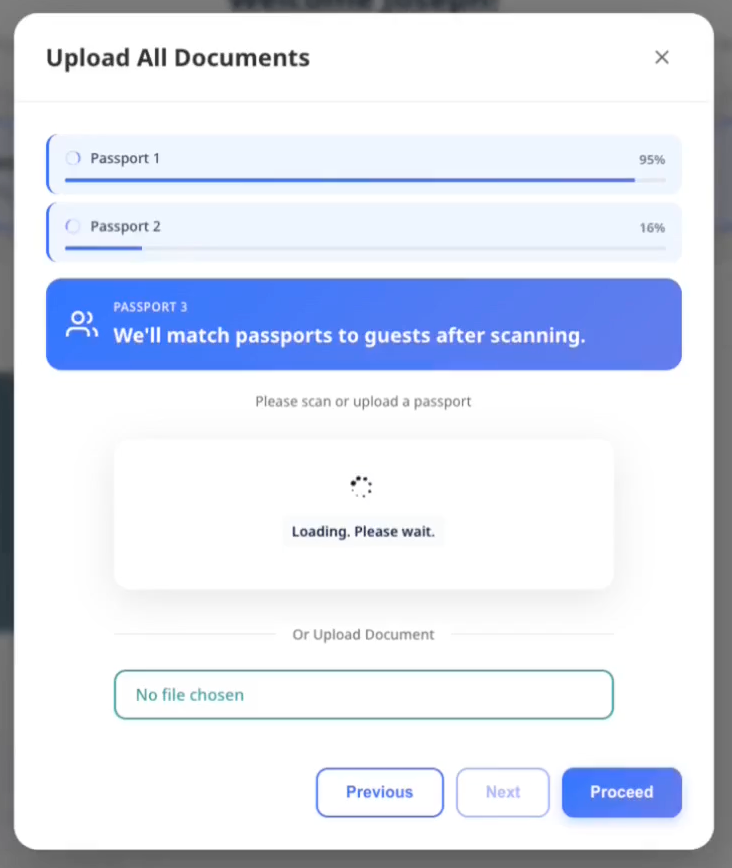
Langkah 2: Tinjau dan tetapkan
Setelah pemindaian, Anda melihat daftar semua paspor yang siap ditetapkan.
- ACI menyarankan tamu terdaftar yang paling sesuai ketika paspor tidak memiliki kecocokan nama yang meyakinkan
- ACI mempertahankan pilihan staf dan saran yang meyakinkan saat Anda meninjau
- Jika beberapa tamu terdaftar dapat cocok dengan paspor yang sama, ACI menampilkan Choose guest dan menonaktifkan Insert Guests sampai Anda memilih
- Jika saran tersebut benar, tidak diperlukan tindakan
- Untuk menetapkan tamu lain, pilih tamu tersebut dari daftar
- Untuk menambahkan orang baru, pilih Create new guest
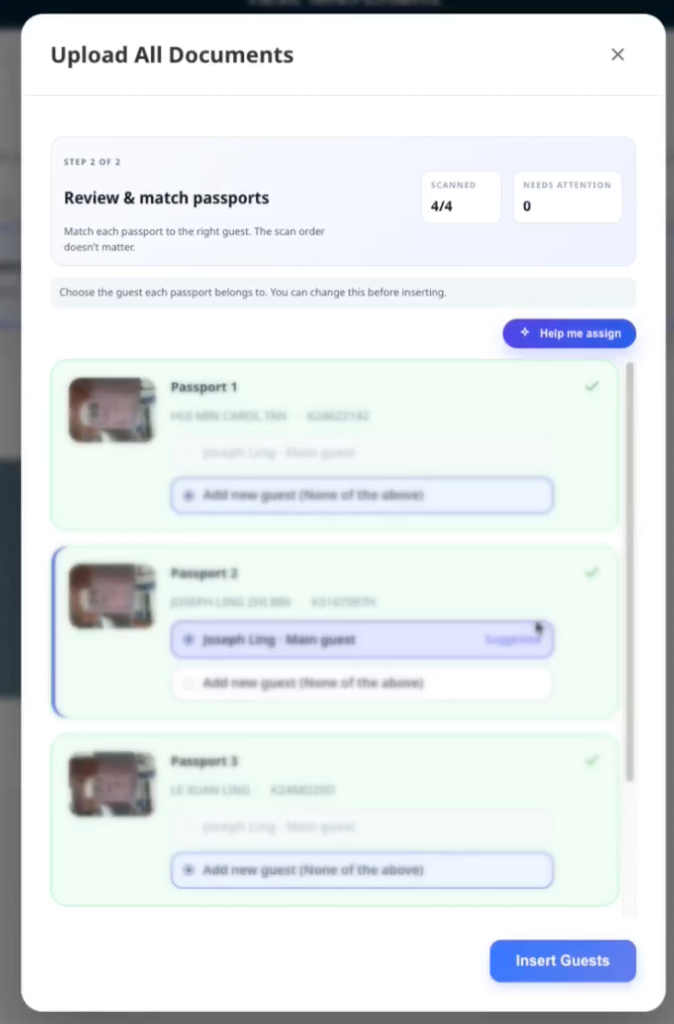
Tampilan penetapan:
- 3 tamu atau kurang: tombol pilihan bergaya kartu
- Lebih dari 3 tamu: menu dropdown agar lebih ringkas
Ketika ACI menyarankan tamu yang paling sesuai, bandingkan paspor dengan tamu yang dipilih sebelum menyimpan. Saran tersebut masih dapat berupa ketidakcocokan nama. Jika namanya berbeda, Insert Guests membuka permintaan peninjauan staf sebelum menyimpan. Untuk nama yang sama, pilih tamu yang benar sendiri karena nama yang cocok tidak memicu permintaan tersebut.
Langkah 3: Simpan penetapan
- Tinjau semua penetapan paspor-ke-tamu
- Pilih Insert Guests untuk menyimpan
- Kesalahan apa pun muncul di samping paspor yang terdampak
- Perbaiki masalah satu per satu dan coba lagi jika perlu
Jika batch menambahkan tamu melebihi kapasitas yang dilaporkan, AVA meminta Anda mengonfirmasi setiap kamar yang terdampak sebelum melakukan commit. Pilih Cancel untuk menjaga dokumen yang telah dipersiapkan tetap tersedia tanpa mengirimkan batch. Setelah membatalkan, Anda dapat menghapus dokumen, menyesuaikan penetapan, atau mengirimkan batch nanti.
Slot tambahan opsional berlaku satu kali per kamar dalam satu sesi unggahan massal. Mulai sesi unggahan massal lain jika Anda perlu mendaftarkan tamu tambahan lainnya.
Kesalahan umum:
- "Document number not detected" → pindai ulang dengan pencahayaan yang lebih baik
- "Already uploaded for [guest]" → tetapkan ke tamu lain
- "Guest limit reached" → tetapkan ke tamu yang sudah ada, bukan membuat tamu baru
- "Payment method is not enabled for reservations" → aktifkan metode pembayaran untuk penggunaan reservasi di Opera, lalu coba lagi
Saat Opera menolak tamu tambahan karena metode pembayaran dinonaktifkan, AVA menampilkan pesan yang dilokalkan dan aman bagi tamu. Staf tetap dapat melihat detail metode pembayaran Opera dalam informasi kesalahan. Lihat Penolakan Pembayaran Tamu Tambahan Opera.
Langkah 4: Verifikasi reservasi (hanya jika nama berbeda)
Jika nama pada dokumen yang dipindai tidak cocok dengan reservasi, AVA berhenti di Insert Guests dan menampilkan panel peninjauan.
Di ACI, panel tersebut mencantumkan setiap paspor yang tidak cocok dan tamu yang dipilih untuk kamar itu. Tinjau setiap pasangan sebelum mengonfirmasi. Konfirmasi hanya mencakup pasangan yang ditampilkan dalam permintaan tersebut. Ketidakcocokan lain yang muncul kemudian membuka permintaan peninjauan tersendiri.
-
Baca setiap pasangan Reservation name dan Passport name.
-
Konfirmasikan bahwa setiap paspor milik tamu yang dipilih.
-
Di ACI, pilih pengesampingan staf jika properti Anda mengaktifkannya.
-
Di CCI, buka konfirmasi pemesanan tamu.
-
Masukkan nama pemesanan, bukan nama pada paspor, lalu pilih Verify.
-
Jika jawaban gagal, pertahankan semua bagian nama pemesanan, termasuk gelar atau sufiks.
✓ Setelah disetujui, AVA menyimpan penetapan secara otomatis. Anda tidak perlu memilih Insert Guests lagi.
Panel Verify Your Booking muncul ketika AVA memerlukan konfirmasi reservasi tambahan. AVA tidak mengirimkan nama pemesanan dalam respons tantangan. Lihat Verifikasi Nama Reservasi untuk Kecocokan Parsial dan Fallback OTP untuk Ketidaksesuaian Nama. Jika fallback OTP muncul setelah verifikasi nama pemesanan gagal, gunakan kode terbaru dari email pemesanan. Di ACI, pengesampingan staf dapat menggantikan verifikasi tamu ketika properti Anda mengaktifkannya. Lihat Pengesampingan Staf ACI untuk Ketidaksesuaian Nama.
4. Melengkapi informasi tamu
-
Pilih Guest Information → Fill
-
Konfirmasi semua kolom. Kolom wajib ditandai dengan
* -
Perbarui Document Number jika diperlukan
-
Pilih Save
✓ Langkah Guest Information ditampilkan sebagai selesai
Jika Company diaktifkan untuk alur saat ini, masukkan nilainya di Guest Information. AVA memangkas nilai tersebut dan menerima hingga 80 karakter. Nilai tersebut dapat muncul pada profil tamu dan kartu pendaftaran. Input Company yang kosong atau tersembunyi tidak menghapus nilai tersimpan yang ada.
Untuk tamu tambahan, kartu Guest Information menampilkan Same contact details as [main guest name] di bagian atas. Aktifkan untuk menyalin nilai bersama yang terlihat di formulir tamu saat ini. Untuk tamu anak, AVA hanya menyalin kolom yang terlihat, seperti alamat atau detail perjalanan yang sama. Kolom Email dan Phone yang tersembunyi tetap tidak berubah untuk tamu anak. Jika informasi alamat atau perjalanan tersedia, AVA menjelaskan bahwa kolom tersebut akan disalin. Kolom yang disalin tetap terlihat dan dapat diedit. Nonaktifkan opsi tersebut untuk memulihkan nilai tamu anak sebelum penyalinan. Jika tamu anak tidak memiliki informasi alamat atau perjalanan untuk disalin, AVA menonaktifkan opsi tersebut dan menampilkan petunjuk input manual. Untuk tamu tambahan lainnya, AVA menonaktifkan opsi tersebut ketika tamu utama tidak memiliki nilai bersama yang terlihat.
Untuk reservasi ACI yang dikelompokkan secara manual, AVA mempertahankan tamu utama reservasi utama tanpa perubahan. Untuk setiap reservasi tambahan yang dipilih, AVA hanya melewati pendaftaran tamu utama reservasi tersebut. Tambahkan dokumen dan informasi tamu yang menginap ke kamar tersebut. Jika Anda memperbarui nama tamu yang dilewati, AVA akan membuat tamu tambahan. Pembaruan yang hanya mengubah email, telepon, atau alamat tetap diterapkan pada catatan tamu tersebut. Hal ini mencegah pembaruan menimpa tamu utama.
Jika tamu tidak memiliki nomor telepon, AVA menggunakan kewarganegaraan paspor untuk kode negara default. Nomor telepon yang sudah ada mempertahankan kode negara yang tersimpan.
Saat tamu mengetik kolom alamat atau perjalanan, AVA memprioritaskan Google Places berdasarkan kewarganegaraan tamu. Jika kewarganegaraan kosong, AVA menggunakan negara hotel sebagai pilihan cadangan.
Jika Anda melihat peringatan di bawah Document Number, periksa kembali ID tersebut. Peringatan tidak memblokir check-in.
Jika penyimpanan informasi tamu gagal
Yang Anda lihat: Kartu Guest Information menampilkan status kesalahan setelah Anda memilih Save.
Perbaikan:
-
Periksa kolom wajib dan koreksi nilai yang tidak valid.
-
Buka kembali Guest Information → Fill.
-
Pilih Save.
-
Jika kesalahan muncul lagi, segarkan halaman dan coba sekali lagi.
✓ Kartu seharusnya kembali ke status tersimpan setelah percobaan ulang berhasil.
Dalam ACI dua perangkat, AVA menyimpan perubahan tamu sebagai draf setelah suatu kolom kehilangan fokus. Perangkat staf yang dipasangkan secara otomatis menyegarkan formulir Guest Information yang terbuka setelah pembaruan yang sesuai. AVA hanya menyegarkan reservasi dan tamu yang aktif, sehingga formulir lain yang terbuka tidak berubah. Edit lokal yang belum selesai tetap berada dalam formulir selama penyegaran. Penyimpanan draf tidak menggantikan Save final atau menandai langkah sebagai selesai. Pada aplikasi tamu iPad yang terpasang, formulir dipulihkan setelah keyboard perangkat lunak ditutup. Tombol Save langsung menampilkan Saving saat permintaan draf masih berjalan. Jika Anda mengedit kembali suatu kolom sebelum permintaan selesai, nilai yang lebih baru tetap terlihat. Respons penyimpanan yang lebih lama tidak dapat menggantikan edit terbaru Anda.
Perubahan informasi tamu tidak muncul di perangkat staf
Yang Anda lihat: Tamu mengedit informasi, tetapi perangkat staf masih menampilkan nilai lama.
Perbaikan:
-
Minta tamu menyelesaikan pengeditan kolom saat ini.
-
Minta tamu mengetuk di luar kolom.
-
Tunggu sebentar hingga pembaruan draf selesai.
-
Biarkan formulir Guest Information yang sesuai tetap terbuka di perangkat staf.
-
Konfirmasikan nilai yang disegarkan, lalu pilih Save.
✓ Perangkat staf seharusnya menampilkan informasi tamu terbaru yang tersimpan.
Jika formulir tidak disegarkan, buka kembali Guest Information → Fill dan coba lagi.
Mengedit informasi tamu yang sudah selesai
Gunakan Edit untuk memperbaiki detail tamu yang tersimpan setelah langkah Guest Information selesai.
Anda dapat mengedit Guest Information yang sudah selesai di CCI, pre-arrival, dan ACI. Gerbang dokumen tidak mencegah Anda membuka kembali formulir yang sudah selesai. Aturan penetapan tamu yang ada tetap berlaku di ACI.
Saat panel verifikasi berurutan diperluas, langkah yang selesai menampilkan Edit. Tindakan ini tersedia meskipun kamar masih belum ditetapkan. Tindakan Edit ringkas pada tingkat kartu tetap tersedia ketika kartu menyusut menjadi Verified atau Checked-in. Langkah dokumen sebelumnya yang belum selesai tidak menyembunyikan edit Guest Information yang sudah selesai ini. Di ACI, tindakan Send pada tablet disembunyikan setelah Guest Information selesai.
-
Buka kartu kamar tamu yang sudah selesai.
-
Pilih Guest Information → Edit.
-
Perbaiki detail tamu.
-
Pilih Save.
✓ AVA menyinkronkan detail tamu yang diubah ke PMS, bahkan setelah sinkronisasi sebelumnya.
AVA hanya mengganti kartu registrasi yang ada jika informasi tamu yang sudah selesai berubah. Jika Anda menyimpan tanpa perubahan berarti, AVA tidak membuat kartu tambahan. AVA juga tidak membuat kartu registrasi lebih awal saat formulir masih belum lengkap. Setelah penyimpanan edit yang berubah, AVA membuat ulang dan mengirim kartu pengganti di latar belakang. Anda dapat melanjutkan setelah pembaruan tamu berhasil; jangan kirim edit yang sama lagi saat proses berlangsung.
Informasi tamu yang sudah selesai tidak dapat disimpan
Yang Anda lihat: Formulir Edit menampilkan kesalahan setelah Anda memilih Save.
Perbaikan:
- Periksa kolom wajib dan perbaiki nilai yang tidak valid.
- Segarkan reservasi sekali.
- Buka kembali Guest Information → Edit.
- Simpan perbaikan sekali lagi.
Periksa PMS sebelum mengulangi penyimpanan jika detail tamu sudah berubah.
Informasi tamu sedang diperbarui
Yang Anda lihat: AVA menyatakan "Guest information is already being updated."
Perbaikan:
- Tunggu hingga pembaruan sebelumnya selesai.
- Segarkan reservasi.
- Konfirmasikan apakah detail tamu sudah berubah.
- Coba lagi hanya jika detail tersimpan masih salah.
Kartu registrasi pengganti dapat terus diproses setelah pembaruan tamu berhasil.
Kontrol tablet tamu tidak merespons setelah keyboard ditutup
Yang Anda lihat: iPad yang dipasangkan menampilkan modal dengan benar, tetapi kontrol di bagian bawah tidak merespons setelah keyboard ditutup.
Perbaikan:
- Minta tamu mengetuk di luar kolom saat ini.
- Tunggu hingga Saving muncul dan selesai.
- Pilih Save lagi tanpa memperbesar halaman.
✓ Tablet tamu yang dipasangkan seharusnya menerima ketukan setelah keyboard ditutup.
Jika kontrol tetap tidak merespons, buka kembali Guest Information → Fill dan hubungi dukungan.
5. Mengambil tanda tangan (jika diperlukan)
-
Pilih Signature → Sign
-
Ambil tanda tangan tamu
✓ Langkah Signature ditampilkan sebagai selesai
Dalam ACI dua perangkat, tamu tambahan dapat mengirimkan tanda tangan melalui Worker yang ditetapkan. Biarkan Worker tetap dipasangkan dengan workstation staf dan perjalanan tamu tetap aktif. Tanda tangan yang diambil di workstation staf tetap memerlukan sesi perangkat staf.
Catatan: Secara default, tamu utama harus menandatangani. Beberapa properti mewajibkan semua tamu menandatangani.
Tamu tambahan mendaftar terlebih dahulu
Properti Anda mungkin mengizinkan tamu tambahan untuk mendaftar sebelum tamu utama. Opsi ini dikonfigurasi secara terpisah untuk setiap mode check-in.
Jika diaktifkan, tamu tambahan pertama yang menandatangani menjadi perwakilan pendaftaran. AVA tidak menampilkan pemilih perwakilan terpisah. Perwakilan tersebut menyelesaikan pendaftaran dan verifikasi sebelum alur berlanjut.
Identitas tamu utama di PMS tetap tidak berubah. Dalam Assisted Check-In, staf melihat pemberitahuan bahwa tamu utama masih tertunda. Tamu utama dapat menyelesaikan pendaftaran nanti melalui alur pendamping.
Saat Mandatory Guest Registration nonaktif, setiap mode check-in memiliki satu pengaturan pendaftaran tambahan-terlebih-dahulu:
| Pengaturan | Perwakilan yang memenuhi syarat |
|---|---|
| Off | Tidak ada tamu tambahan yang dapat menyelesaikan check-in kamar terlebih dahulu |
| On | Tamu tambahan mana pun yang tercantum di PMS atau ditambahkan secara lokal dapat mewakili kamar terlebih dahulu |
Tamu yang dibuat dari unggahan dokumen atau tanpa pemindaian ID tetap merupakan tamu lokal. Sinkronisasi PMS tidak menjadikan tamu tersebut tamu yang telah ditentukan.
Saat Mandatory Guest Registration aktif, setiap tamu PMS harus menyelesaikan pendaftaran sebelum check-in kamar awal selesai. Nonaktifkan pengaturan ini untuk mempertahankan tamu utama sebagai perwakilan yang wajib.
Paspor dan pendaftaran tamu dapat diselesaikan dalam urutan apa pun. Pengaturan urutan dokumen tamu utama yang sudah dihentikan tidak lagi memblokir pembuatan atau pengunggahan tamu. Gunakan pengaturan pendaftaran tambahan-terlebih-dahulu untuk mengontrol kelayakan perwakilan dan penyelesaian check-in kamar.
Saat pendaftaran tambahan-terlebih-dahulu diaktifkan, pemindaian Add guest menargetkan tamu tambahan yang baru. AVA tidak menganggap tamu utama sebagai target hanya karena dokumennya masih belum ada. Untuk memeriksa dokumen tamu utama, mulai unggahan dari baris tamu utama. Pencocokan nama tetap berlaku saat Anda memilih baris tamu tertentu.
Jika pengaturan pendaftaran tambahan-terlebih-dahulu nonaktif, check-in kamar awal menunggu sampai tamu utama mendaftar.
Require predefined additional guests before check-in tidak bergantung pada pengaturan tersebut. Pengaturan ini mengontrol waktu penyelesaian untuk tamu tambahan yang tercantum di PMS selama check-in kamar awal. Pengaturan ini tidak memperluas kelayakan perwakilan atau menjadikan tamu lokal sebagai tamu yang telah ditentukan.
Menyelesaikan pendaftaran setelah kamar berstatus in-house
Tamu dapat menyelesaikan pendaftaran setelah AVA menandai kamar berstatus in-house.
-
Buka alur pendamping reservasi.
-
Pilih tamu yang tertunda.
-
Selesaikan Guest Information, Document, dan langkah verifikasi apa pun yang diwajibkan.
-
Simpan pendaftaran tamu.
✓ Tamu terdaftar tanpa melakukan check-in ulang pada reservasi utama.
Unggah paspor tetap tersedia setelah check-in kamar. Persyaratan tamu wajib dan tamu yang telah ditentukan hanya berlaku untuk check-in kamar awal.
Tamu utama masih tertunda
Yang Anda lihat: Tamu tambahan telah mendaftar, tetapi tamu utama belum selesai.
Perbaikan:
-
Dalam Assisted Check-In, minta tamu utama kembali saat mereka tiba.
-
Buka alur pendamping reservasi.
-
Minta tamu utama menyelesaikan pendaftaran dan verifikasi.
-
Lanjutkan check-in setelah tamu utama selesai.
✓ PMS mempertahankan identitas tamu utama yang asli.
Jika PMS sudah menampilkan tamu sebagai sudah check-in, segarkan reservasi sebelum mencoba lagi. AVA dapat merekonsiliasi kedatangan yang telah dikonfirmasi tanpa mengirim check-in PMS lain. Gunakan perangkat staf terverifikasi atau sesi reservasi saat ini ketika mencoba lagi.
Sinkronisasi persetujuan privasi opsional tidak memblokir pengiriman tanda tangan. Jika PMS lambat atau tidak tersedia, AVA melanjutkan check-in dan mencoba ulang sinkronisasi persetujuan. AVA menyimpan tanda tangan terlebih dahulu, lalu menyelesaikan sinkronisasi lanjutan di latar belakang.
6. Menjalankan verifikasi wajah di CCI atau ACI
Jika Facial Verification terlihat:
-
Pilih Facial Verification → Verify
-
Ikuti petunjuk kamera di layar
✓ Langkah Facial Verification ditampilkan sebagai selesai
Tips: Verifikasi wajah muncul dalam mode Self Check-In (CCI) atau Assisted Check-In (ACI) jika diaktifkan untuk mode tersebut.
Catatan: AVA terlebih dahulu membandingkan wajah yang paling jelas pada dokumen. Ini membantu agar watermark paspor yang samar tidak mengganggu.
AVA menyimpan hasil verifikasi wajah yang berhasil sebelum menyelesaikan sinkronisasi lanjutan. Jika layanan terhubung lambat, lanjutkan check-in sementara AVA menyelesaikan sinkronisasi tersebut.
Saat tindak lanjut foto grup tertunda
AVA menyimpan setiap kecocokan foto grup berstatus Verified sebelum pembaruan tindak lanjut dimulai. Pembaruan tersebut berlanjut di latar belakang setelah langkah verifikasi wajah selesai.
Jika AVA dimulai ulang, AVA memulihkan pekerjaan tindak lanjut yang belum selesai dan aman secara otomatis. Jika hasil lanjutan tidak dapat dikonfirmasi, AVA mempertahankannya untuk ditinjau secara operasional.
Jangan ambil ulang kecocokan yang sudah menampilkan Verified. Periksa catatan tamu dan PMS Anda sebelum menghubungi dukungan.
Jika Anda menggunakan ACI dua perangkat
-
Staf mengirim Facial Verification ke tablet tamu yang dipasangkan.
-
Pilih Open tablet camera pada panel staf.
-
Minta tamu mengikuti petunjuk kamera.
-
Jika pencocokan gagal, kirim ulang langkah wajah yang sama dari panel staf.
✓ Tablet tamu membuka kembali kamera dan menghapus status ketidakcocokan sebelumnya.
Anda juga dapat memilih Verify in person setelah dokumen tamu diunggah. Tamu tidak perlu mengalami kegagalan verifikasi wajah terlebih dahulu. Periksa identitas tamu secara langsung, lalu masukkan alasan yang diwajibkan.
✓ Setelah penyegaran berikutnya, tamu menampilkan status Staff approved.
Jika verifikasi wajah sudah gagal, gunakan Staff override. Perangkat staf yang telah diverifikasi harus tetap ditautkan ke perjalanan ACI saat ini. Lihat Menyiapkan Verifikasi Wajah.
Setelah seorang tamu menyelesaikan suatu langkah, lanjutkan ke tamu berikutnya dari perangkat staf yang sama. Perangkat staf tetap mengendalikan perjalanan ACI dua perangkat yang aktif.
Jika hotel mengaktifkan pengambilan foto tablet yang dikendalikan staf, panel staf juga menampilkan pratinjau langsung tablet. Minta tamu melihat tablet, lalu pilih Capture. Tablet mengambil foto dengan resolusi sumber dan mengirimkannya untuk perbandingan wajah. Tamu melihat panduan menunggu selama pengunggahan dan verifikasi selesai. Tunggu hingga verifikasi selesai sebelum melanjutkan.
Jangan menganggap unggahan yang berhasil sebagai langkah wajah yang selesai. AVA harus menyelesaikan perbandingan dokumen, atau staf harus menggunakan pengesampingan yang disetujui.
Jika verifikasi wajah gagal
- Pilih Take another selfie untuk mengambil foto yang lebih jelas
- Jika masih gagal, pilih Re-upload document dan pindai ulang
7. Meninjau verifikasi wajah grup
Verifikasi grup muncul di Room List jika diaktifkan dan setidaknya satu tamu yang memenuhi syarat memiliki dokumen yang telah disimpan. Verifikasi ini tidak terbuka secara otomatis setelah unggah dokumen.
-
Pilih Verify group photo.
-
Minta semua tamu berdiri bersama dengan setiap wajah terlihat jelas.
-
Pada perangkat kamera, pilih Take group photo.
-
Tinjau setiap kecocokan yang diusulkan dalam Review group matches.
-
Pilih Reject match jika kecocokan yang diusulkan salah.
-
Pilih Retake missing guests untuk wajah yang hilang atau tidak jelas.
-
Pilih Save matched guests setelah meninjau hasilnya.
✓ Tamu yang disimpan menampilkan Verified. Tamu wajib yang belum terselesaikan tetap belum lengkap.
Jika AVA tidak dapat menggunakan usulan dengan aman, AVA membiarkan tamu tersebut belum terselesaikan. Usulan tersebut tidak memverifikasi tamu atau melanjutkan sebagai kecocokan yang disimpan. Minta tamu yang bersangkutan bergabung dalam foto berikutnya, lalu pilih Retake missing guests.
Anak-anak yang tercakup dalam pengecualian wajah menampilkan Not required. Mereka dikecualikan dari pencocokan dan tidak menerima potongan wajah yang disimpan.
Jika potret dokumen tidak dapat digunakan, AVA menampilkan Document needed. Tamu tersebut tidak muncul dalam Retake missing guests. Unggah dan simpan dokumen yang lebih jelas, lalu jalankan kembali verifikasi grup.
AVA juga membiarkan kecocokan belum terselesaikan ketika dokumen berisi beberapa wajah jelas yang berbeda. AVA menolak usulan potret duplikat kecuali pemeriksaan identitas mengonfirmasi bahwa potret tersebut milik satu orang. Tolak usulan yang tidak jelas dan jangan pernah menetapkannya secara manual.
Jika Anda menggunakan ACI dua perangkat
- Staf memilih Verify group photo dari Room List.
- Minta tamu mengambil foto pada tablet tamu yang dipasangkan.
- Tinjau dan simpan kecocokan pada perangkat staf.
- Gunakan Retake missing guests ketika hanya beberapa tamu yang memerlukan foto lain.
✓ Tablet tamu mengambil foto, tetapi staf mengendalikan peninjauan dan penyimpanan.
8. Mengumpulkan deposit atau pembayaran (hanya check-in mandiri)
Jika Reservation Requirements menampilkan Deposit atau Payment, alur pembayaran bergantung pada perjalanan.
Untuk Self Check-In, pilih Pay dari persyaratan reservasi. Untuk Assisted Check-In, staf terverifikasi dapat meminta item deposit atau pembayaran yang memenuhi syarat saat pengaturan pembayaran ACI aktif. Jika pengaturan nonaktif, ACI berlanjut tanpa meminta pembayaran. Untuk Pre-arrival, AVA menampilkan pembayaran kamar atau deposit yang diaktifkan menggunakan jumlah tagihan langsung. Pembayaran pre-arrival menggunakan gateway online dan tidak menggunakan uang tunai, terminal, atau alur terkonsolidasi.
-
Pilih Pay
✓ Pay berubah menjadi Processing dengan spinner dan tidak tersedia saat AVA menyiapkan langkah pembayaran.
-
Selesaikan langkah pembayaran
✓ Persyaratan pembayaran ditampilkan sebagai selesai
AVA memeriksa kutipan kamar dan paket yang memenuhi syarat sebelum membuka langkah pembayaran berikutnya. Tunggu hingga langkah tersebut muncul. Jangan pilih Pay lagi saat statusnya Processing.
Untuk check-in satu kamar, AVA menggunakan kutipan kamar terbaru yang harus dibayar sebelum pembayaran. Jumlah tersebut dapat disegarkan setelah Anda menambahkan tamu atau mengedit reservasi. Payment Due dapat lebih rendah daripada total biaya ketika PMS sudah mencatat deposit. Tinjau jumlah yang telah disegarkan sebelum tamu membayar.
Jika pembayaran terminal sudah selesai, AVA mempertahankan persyaratan tetap selesai saat dicoba ulang. Jangan memulai pembayaran kedua kecuali tanda terima menunjukkan tagihan gagal.
Catatan: Self Check-In dan Pre-arrival tidak dapat selesai sampai semua pembayaran yang ditampilkan berhasil. ACI hanya memerlukan pembayaran ketika staf memintanya dan pengaturan pembayaran ACI mengizinkannya.
AVA meminta pra-otorisasi deposit hanya jika masa berlakunya tetap mencakup waktu check-out. AVA melewati permintaan pada batas kedaluwarsa yang tepat. Tagihan kamar penjualan langsung mengikuti pengaturan pengumpulan kamar hotel.
9. Menyelesaikan check-in
-
Pilih Proceed to Check-In
-
Tunggu hingga layar progres selesai
✓ Kartu kamar menampilkan status check-in selesai ✓ Dengan pengiriman yang dikelola AVA, Room Access harus menampilkan Success sebelum penyelesaian. ✓ Dengan pengiriman manual atau yang tidak tersedia, check-in dapat selesai sementara Room Access tetap terpisah.
AVA dapat memberikan PIN, kunci QR, atau kredensial loker saat penetapan kamar. Setelah check-in final berhasil, AVA mempertahankan hasil akses yang berhasil tersebut pada tamu yang telah dikonfirmasi tiba. Anda tidak perlu memberikan kredensial yang sama lagi. Jika hasilnya masih menampilkan Pending atau Partial success, segarkan halaman dan ikuti status akses kamar.
Assisted Check-In terautentikasi menggunakan pilihan staf sebelum aturan deposit ketika ACI dua perangkat mendukungnya. Pengaturan tersimpan Tick No Post by default on Assisted Check-In memilih pilihan staf terlebih dahulu. Kotak Set No Post in the PMS muncul di atas Proceed to Check-In pada perangkat staf yang terhubung. Staf dapat memilih atau menghapus pilihannya. Pengaturan deposit tidak menggantikan pilihan staf ACI. ACI satu perangkat dan tablet tamu menggunakan pengaturan tersimpan dan tidak menampilkan kotak tersebut. Untuk alur kiosk dan pre-arrival yang memenuhi syarat, pembayaran yang disetel ke Do not collect, atau deposit nol, memaksa No Post. Alur kiosk dengan deposit wajib menggunakan Set No Post after Payment untuk kasus yang tersisa. Saat pengalih tersebut nonaktif, hanya tamu kiosk tanpa deposit wajib yang menerima No Post. Saat pembayaran nonaktif, pengalih pembayaran saja yang menentukan hasil kiosk. Keputusan tersebut berlaku untuk setiap reservasi yang di-check-in selama tindakan itu. Untuk ACI multi-kamar atomik, semua kartu kamar menggunakan satu pilihan staf. Untuk pendamping kiosk yang datang kemudian, hanya reservasi baru pendamping yang menerima No Post. Pemesanan kamar tidak dibatasi ulang. Keputusan ACI terautentikasi tidak dapat digantikan oleh header permintaan palsu. Check-in tetap berhasil jika pembaruan lanjutan ini gagal. Verifikasi reservasi di OPERA dan terapkan No Post secara manual bila diperlukan. Jika OPERA tidak melaporkan dukungan No Post, AVA melewati permintaan tersebut.
Tips: Selama check-in, sistem menjalankan Checking Availability → Assigning Room → Generating Keys → Finalizing.
Jika ini adalah registrasi pre-arrival
- Selesaikan semua langkah wajib di atas
- Pilih Complete Pre-Arrival alih-alih Proceed to Check-In
✓ Kamar ditandai sebagai pre-arrival selesai. Akses kamar diberikan saat tamu tiba.
Jika PMS Anda mendukung pembaruan ETA, AVA mengirimkan kembali perkiraan waktu kedatangan tamu pertama setelah pre-arrival. Jika PMS Anda tidak mendukungnya, check-in tetap selesai secara normal. Reservasi Opera/OHIP kini mendukung jalur pembaruan ini.
Jika kamar sudah check-in
Pilih Proceed to Check-In untuk menyelesaikan tamu yang tersisa. Tindakan ini tidak menetapkan ulang kamar. Anda juga dapat menggunakan alur pendamping untuk mendaftarkan tamu yang masih tertunda setelah kamar berstatus in-house.
Jika hasil PMS tidak jelas
Yang Anda lihat: Percobaan check-in pertama tampak macet. Penetapan kamar mungkin terblokir setelah PMS mungkin telah menyelesaikan check-in.
Perbaikan:
- Konfirmasikan status reservasi di PMS Anda.
- Segarkan reservasi di AVA.
- Tinjau keputusan kedatangan dan kamar yang dipilih yang tersimpan.
- Pilih Proceed to Check-In lagi.
AVA merekonsiliasi check-in PMS yang sudah ada sebelum melanjutkan. AVA melewati penetapan kamar duplikat untuk kamar yang dipilih. AVA tetap memvalidasi tinjauan kedatangan, kredensial, dan check-in final.
Jika PMS masih menunjukkan tamu belum check-in, AVA menggunakan penetapan kamar normal. Jika PMS tidak tersedia, tunggu hingga pulih sebelum mencoba lagi.
Untuk Opera, AVA mengonfirmasi tamu yang dipilih dari status reservasi langsung terbaru tamu tersebut. Ini mencakup pendamping ketika reservasi utama Opera tidak lagi mencantumkan tautan pembagian. AVA juga memeriksa kamar langsung tamu sebelum menandai check-in selesai.
Jika Opera menampilkan Checked In tetapi AVA masih menampilkan hasil yang tidak jelas, segarkan reservasi. Kemudian tinjau keputusan kedatangan yang tersimpan dan pilih Proceed to Check-In lagi. Jangan melakukan check-in manual untuk tamu tersebut sekali lagi di Opera.
10. Memberikan akses kamar
Setelah check-in, buka Room Information pada kartu kamar. Room Access tetap tersedia untuk tindak lanjut setelah penyelesaian jika tidak diwajibkan:
- Room Number ditampilkan di bagian atas
- Room Access bergantung pada metode pengiriman yang dikonfigurasi
Untuk QRLOCK, penetapan kamar yang memenuhi syarat memberikan satu kunci digital sebelum pengiriman email. Kartu kamar menampilkan status pengiriman, dan percobaan ulang email menggunakan kunci yang sama. Gunakan Email room information untuk mengirim ulang detail tanpa memberikan kunci lain.
Saat pengiriman QR image (direct image) dipilih, kartu kamar memuat gambar QR secara terpisah dari tautan tamu yang tersimpan. Kartu tetap menyediakan Open QR as a link saat gambar dimuat atau jika pengambilan gambar gagal.
Tautan tersebut menggunakan pemeriksaan kedaluwarsa dan akses yang sama seperti gambar. Jika penyajian gambar QR tidak tersedia, AVA tetap menyediakan pengalaman tautan ter-host.
Jika Anda menggunakan Keycards:
Jika Anda menggunakan Opera dengan encoder yang terintegrasi ke PMS, AVA menunggu status key yang telah dikonfirmasi terlebih dahulu. Respons Opera lama mungkin tidak menyertakan status tersebut. AVA kemudian memeriksa kamar yang tersimpan, jumlah key, dan jendela validitas hingga 30 detik. Jika permintaan tetap berakhir karena waktu habis, coba lagi kartu dari kamar yang sama.
Sebelum keycard ACI pertama, AVA juga memeriksa tamu Opera tertaut yang sudah berada di dalam hotel. Opera mungkin sementara menghilangkan tautan berbagi segera setelah pembaruan reservasi. Jika hal ini terjadi, AVA mencari reservasi tertaut agar kartu tamu yang sudah ada tetap aktif. Jika pendamping tetap tidak muncul, segarkan reservasi sebelum melakukan encoding.
AVA menentukan NEW atau DUPLICATE di server untuk setiap permintaan keycard. Jika pihak lain sudah berada di dalam hotel, AVA menggunakan DUPLICATE untuk melindungi kartu tamu tersebut. Setelah kamar dipindahkan, AVA menggunakan NEW untuk kamar baru. Jika PMS tidak dapat mengonfirmasi okupansi bersama, AVA mempertahankan cadangan normal NEW.
Sebelum melakukan encoding, AVA mengonfirmasi kamar melalui PMS Anda ketika kartu reservasi tidak memiliki nilai kamar yang dapat digunakan. Identitas kamar PMS yang valid tetap berlaku, termasuk pengenal PMS AVA yang panjang. Anda tidak perlu mengedit atau memendekkan identitas kamar.
-
Jika Anda berada di ACI, konfirmasikan serah terima terlebih dahulu.
-
Pilih Create Keycard untuk melakukan encoding kartu sekarang.
-
Jika keycard telah di-encode sebelumnya, pilih Already Encoded.
-
Encode setiap kartu saat diminta.
-
Jika Anda memerlukan lebih sedikit kartu, pilih Complete Check-In pada modal keycard
✓ Jika satu encoder aktif, AVA sebentar menampilkan Preparing keycard encoding... sebelum encoding dimulai.
Keycard tamu tambahan di CCI dan ACI
Ketika tamu tambahan melakukan check-in di kamar keycard yang sudah ditempati, AVA dapat menawarkan satu kartu. Penawaran ini kini muncul di Self Check-In (CCI) dan Assisted Check-In (ACI).
-
Selesaikan check-in tamu tambahan.
-
Pilih tindakan keycard yang ditawarkan.
-
Pilih encoder yang aktif saat AVA meminta.
-
Letakkan satu kartu kosong pada encoder.
✓ AVA menggunakan DUPLICATE dan mempertahankan kartu kamar yang ada tetap aktif.
Penawaran hanya muncul jika kamar sudah menyelesaikan pengumpulan keycard. Jika penawaran tidak muncul, segarkan kartu kamar dan pastikan akses keycard telah dikonfigurasi.
Mengatur tanggal dan waktu validitas keycard ACI
Dalam Assisted Check-In (ACI), Anda dapat mengatur kedua bagian Key valid until. Gunakan ini ketika tamu memiliki check-out terlambat atau reservasi yang berurutan.
- Tinjau tanggal dan waktu Key valid until.
- Pilih tanggal yang lebih lambat jika masa inap tamu berlanjut setelah keberangkatan.
- Pilih waktu ketika tamu harus kehilangan akses.
- Pilih Reset to hotel default untuk memulihkan kedua nilai.
- Lanjutkan encoding setiap kartu.
Tanggal dimulai pada tanggal keberangkatan reservasi. Jika tanggal encoding sebelumnya masih berada di masa mendatang, AVA menggunakan kembali tanggal tersebut. Waktu mengikuti encoding sebelumnya atau default hotel. Tanggal lampau ditolak. Jika Anda membiarkan tanggal keberangkatan tetap sama, AVA menggunakan perilaku kedaluwarsa normal.
Saat Anda melakukan encoding beberapa kartu, AVA mengunci tanggal dan waktu yang sama untuk setiap kartu. Mengubah tanggal hanya memengaruhi keycard, bukan reservasi PMS.
AVA tetap berada di kamar saat ini sampai encoding keycard berhasil. Kamar berikutnya terbuka setelah respons encoding berhasil terakhir menandai kartu sebagai diambil.
Jika modal Win A Complimentary 1-Night Stay muncul, tutup terlebih dahulu. Lalu pilih Complete Check-In.
Jika Anda menggunakan Smart Locks:
-
Pilih Show PIN
-
Bagikan PIN kepada tamu
✓ Jika kartu akses kamar masih menampilkan Pending atau Partial success, tunggu status siap terlebih dahulu.
Jika Anda menggunakan Lockers:
- Bagikan Locker Number
- Pilih Show Code dan bagikan kode locker
Jika Anda melihat pesan akses kamar alih-alih kode, ikuti instruksi di layar.
Manage Locker Code dan kode locker hanya muncul ketika Settings → Room Access diatur ke Locker Systems. Jika AVA masih memuat mode akses kamar, tunggu dan coba lagi dari kartu kamar.
Tips: Jika WiFi dikonfigurasi, bagian WiFi menampilkan nama dan kata sandi. Catatan kamar muncul di bawah General Information.
Pesan pada kartu kamar mengikuti bahasa tamu, termasuk kode regional seperti ko-KR.
Jika Anda menggunakan Assisted Check-In (ACI)
Setelah check-in, layar menampilkan Check-In Complete dan meminta tamu mengembalikan perangkat. Jika kamar menggunakan keycard, tindakan berikutnya bergantung pada pengaturan ACI Anda:
- ACI dua perangkat: Tindakan keycard muncul setelah check-in berhasil.
- ACI satu perangkat: Konfirmasikan serah terima tamu sebelum tindakan keycard muncul.
Gunakan Create Keycard untuk kartu baru atau Already Encoded untuk kartu yang disiapkan sebelumnya. Dalam masa inap multi-kamar, AVA menunggu keberhasilan keycard sebelum membuka kamar berikutnya.
Pemecahan Masalah
Verifikasi perangkat staf diperlukan untuk alur tertentu
Yang Anda lihat: Pencarian staf, reservasi, checkout, atau tindakan check-in tidak tersedia. ACI menampilkan Staff verification recommended.
Mengapa ini terjadi: Kredensial STAFF pada browser tertentu tidak ada, sudah kedaluwarsa, dicabut, atau berasal dari perangkat atau hotel lain.
Perbaikan:
- Pastikan Anda menggunakan browser staf atau perangkat kiosk yang dimaksud.
- Minta admin menampilkan QR verifikasi ACI terbaru dari Settings → Kiosk.
- Pilih Verify Device pada panel kesiapan ACI.
- Izinkan akses kamera, lalu pindai QR tersebut.
- Tunggu halaman ACI saat ini dimuat ulang dan coba lagi alur tertentu tersebut.
Pemindai menjaga verifikasi tetap berada dalam konteks browser saat ini. Hal ini membantu mempertahankan penyimpanan dalam Web Clip, PWA, atau pembungkus browser. QR hanya dapat digunakan satu kali, jadi buat pengganti jika sudah dipindai.
Selama verifikasi, AVA menjaga kelima instruksi bernomor tetap terlihat. Pratinjau responsif dan strip status menampilkan progres kamera, petunjuk pemindaian, atau kesalahan kamera. Pada layar lanskap, pratinjau berada di samping instruksi. Lihat Verifikasi perangkat staf ACI.
Jika pemindai tidak dapat dibuka, gunakan Settings → Kiosk lalu pilih Re-verify staff device. Selesaikan tautan satu kali terbaru pada perangkat fisik yang sama.
AVA mungkin memulihkan kredensial lama secara otomatis ketika browser terverifikasi yang sama masih memiliki otorisasi resetnya. Setelah pemulihan, AVA melakukan pemuatan baru daftar reservasi sebelum menampilkan operasional staf. Jika kesiapan hilang, AVA menghapus reservasi lama dan pilihan check-out. Verifikasi kiosk dan mode demo tetap menggunakan alur yang sudah ada.
ACI satu perangkat berhenti setelah pencarian ulang
Yang Anda lihat: Setelah mencari lagi, ACI satu perangkat tidak melanjutkan. Anda mungkin melihat "Unable to bind the assisted check-in journey to this staff device."
Perbaikan:
- Cari reservasi lagi dari layar Staff Access yang sama.
- Tunggu hingga kartu kamar reservasi muncul.
- Lanjutkan check-in pada perangkat staf yang sama.
- Jika AVA meminta verifikasi staf, ikuti Verifikasi perangkat staf diperlukan untuk alur tertentu.
Jika alur tetap terblokir setelah satu kali percobaan ulang, segarkan AVA dan hubungi dukungan.
Waktu pencarian reservasi Cloudbeds habis
Yang Anda lihat: Pencarian terus berputar, lalu menampilkan pesan waktu habis atau kesalahan layanan tidak tersedia.
Mengapa ini terjadi: AVA berhenti menunggu setelah 20 detik jika Cloudbeds tidak menjawab.
Perbaikan:
- Tunggu beberapa detik.
- Coba lakukan pencarian lagi.
- Pastikan Cloudbeds dapat dijangkau dan reservasi tersebut ada.
- Hubungi dukungan jika waktu habis terus terjadi.
Properti belum dikonfigurasi untuk check-in
Yang Anda lihat: Tamu melihat "Self check-in is not available at this property right now." Staf melihat "This property is not configured for check-in yet."
Mengapa ini terjadi: Properti tidak memiliki catatan merchant atau integrasi PMS. Reservasi mungkin valid, tetapi AVA tidak dapat mencarinya di properti ini.
Perbaikan:
-
Pastikan hotel yang benar dipilih di AVA.
-
Buka Settings → Essentials → PMS Integration.
-
Hubungkan PMS, atau selesaikan penyiapan AVA PMS.
-
Coba lagi pencarian setelah penyiapan berhasil disimpan.
✓ Pencarian reservasi normal seharusnya kembali setelah properti dikonfigurasi.
PMS sementara tidak tersedia saat penetapan kamar
Yang Anda lihat: Penetapan kamar menampilkan pesan PMS sementara tidak tersedia.
Mengapa ini terjadi: PMS tidak menjawab permintaan penetapan tepat waktu. Ini tidak berarti kamar belum siap.
Perbaikan:
-
Periksa reservasi dan status kamar di PMS Anda.
-
Segarkan reservasi di AVA.
-
Coba lagi penetapan kamar satu kali.
✓ AVA seharusnya menetapkan kamar atau menampilkan masalah kesiapan kamar yang sebenarnya.
AVA tidak mengirim email kamar belum siap untuk gangguan PMS sementara.
Reservasi tidak ditemukan setelah pemindaian
Yang Anda lihat: "Reservation not found" atau Anda diarahkan ke layar konfirmasi.
Jika kecocokan pertama tidak aktif, AVA menyegarkan pencarian nama dan mencoba reservasi aktif lagi. Anda mungkin melihat reservasi pengganti tanpa harus mencari ulang.
AVA mencoba ulang referensi OTA atau eksternal Opera sekali dalam huruf besar ketika pencarian yang sama persis tidak menghasilkan apa pun. Jika reservasi tetap tidak muncul, cari menggunakan nomor konfirmasinya.
Perbaikan:
- Masukkan nomor konfirmasi alih-alih melakukan pemindaian
- Pastikan tanggal kedatangan adalah hari ini atau kemarin
- Pastikan reservasi bukan dibatalkan atau no-show
Kamar yang dikelompokkan tidak muncul di Staff Access
Yang Anda lihat: Staff Access tidak menemukan reservasi menggunakan nomor konfirmasi kamar.
Mengapa ini terjadi: Pemesanan multi-kamar dapat muncul sebagai satu hasil yang dikelompokkan. Nomor konfirmasi kamar dapat berbeda dari nomor reservasi utama.
Perbaikan:
-
Buka Staff Access di Assisted Check-In (ACI).
-
Cari lagi menggunakan nomor konfirmasi kamar.
-
Cari nama lengkap tamu utama jika nomor tersebut tetap tidak muncul.
-
Pilih hasil yang dikelompokkan dan periksa label
Res#: <confirmation>untuk setiap kamar. -
Pastikan nomor kamar dan nomor konfirmasi sebelum melanjutkan.
✓ Nomor konfirmasi khusus kamar seharusnya membuka hasil reservasi yang dikelompokkan.
Jika pencarian apa pun tidak menemukan pemesanan, pastikan reservasi aktif dan kedatangannya kemarin atau hari ini. Hubungi dukungan dengan nomor konfirmasi kamar dan tanggal kedatangan jika reservasi tetap tidak ditemukan.
Beberapa reservasi ditemukan
Yang Anda lihat: "Multiple reservations found."
Perbaikan:
-
Cari berdasarkan nomor konfirmasi
-
Di Staff Access, cari berdasarkan ID reservasi atau ID reservasi eksternal
-
Untuk ACI dengan OPERA, cari nama lengkap tamu di Staff Access.
-
Pilih reservasi utama, lalu tinjau Other reservations with the same guest name.
-
Pilih reservasi tambahan hanya jika reservasi tersebut termasuk kedatangan yang sama.
✓ Setiap reservasi yang dipilih muncul sebagai opsi terpisah sebelum Anda melanjutkan.
Pengelompokan reservasi dengan nama sama tidak tersedia
Yang Anda lihat: Anda tidak dapat memilih reservasi dengan nama sama, atau AVA menolak pengelompokan tersebut. Jika otorisasi gagal setelah Anda memilih reservasi, AVA menampilkan panduan verifikasi perangkat staf secara langsung. AVA tidak membuka modal reservasi tidak ditemukan.
Perbaikan:
- Pastikan Anda menggunakan Assisted Check-In (ACI).
- Pastikan perangkat staf kiosk telah diverifikasi.
- Cari nama lengkap tamu di Staff Access.
- Pilih reservasi utama terlebih dahulu.
- Pilih hanya reservasi aktif untuk tamu yang sama dan tanggal yang saling tumpang tindih.
- Hapus reservasi yang sudah check-in, akan check-out, dibatalkan, atau merupakan bagian dari grup lain.
Jika kredensial kiosk tidak tersedia, AVA menghentikan tindakan pengelompokan secara lokal. AVA tidak mengirim permintaan pengelompokan ke API. Verifikasi perangkat kiosk, lalu coba lagi tindakan pengelompokan.
Jika AVA menolak permintaan setelah mencapai server, verifikasi ulang perangkat staf yang dimaksud. Hal ini melindungi pengelompokan dari kredensial yang hilang, tidak valid, salah peran, atau salah merchant.
Pengelompokan manual memerlukan koneksi PMS yang mendukung check-in multi-kamar atomik. Hubungi dukungan jika reservasi OPERA yang memenuhi syarat tetap tidak dapat dikelompokkan.
Kamar tambahan menampilkan tamu ekstra
Yang Anda lihat: Kamar tambahan menampilkan profil utama yang disalin. Anda tidak dapat mendaftarkan tamu terakhir yang dipesan.
Perbaikan:
-
Pastikan Anda memilih reservasi di Other reservations with the same guest name.
-
Pastikan reservasi tersebut milik tamu dan kedatangan yang sama.
-
Keluar dari alur pengelompokan, lalu mulai lagi dari Staff Access.
-
Pastikan profil yang disalin disembunyikan sebelum mendaftarkan tamu sebenarnya di kamar tersebut.
✓ Kamar tambahan menerima tamu yang dipesan tanpa menambah okupansi PMS.
Hubungi dukungan jika profil yang disalin masih muncul setelah memulai ulang alur ACI yang dikelompokkan.
Tombol check-in dinonaktifkan
Yang Anda lihat: Proceed to Check-In menampilkan "Complete all steps."
Periksa:
- Semua tamu telah menyelesaikan Document Upload
- Guest Information tersimpan untuk setiap tamu
- Signature selesai untuk tamu yang wajib menandatangani
- Facial Verification selesai jika diperlukan untuk CCI atau ACI
- Deposit dan Payment selesai jika ditampilkan
- Tamu yang belum ada ditandai Check In Later atau ditambahkan
Langkah pembayaran tidak terbuka
Yang Anda lihat: Pay tetap dinonaktifkan dan menampilkan Processing.
Perbaikan:
- Tunggu saat AVA menyiapkan kutipan kamar dan memeriksa paket yang memenuhi syarat.
- Jangan pilih Pay lagi. AVA memblokir permulaan pembayaran duplikat.
- Hubungi dukungan jika langkah pembayaran berikutnya tidak terbuka.
Untuk Pre-arrival, pastikan saldo kamar atau deposit langsung tersedia. AVA memblokir pembuatan pembayaran ketika jumlah saat ini tidak dapat dievaluasi dengan aman.
Jumlah pembayaran terlihat berbeda setelah perubahan reservasi
Yang Anda lihat: Jumlah pembayaran berubah setelah Anda menambahkan tamu atau mengedit reservasi.
Mengapa ini terjadi: AVA menyegarkan kutipan kamar yang harus dibayar sebelum pembayaran. Deposit yang sudah dibukukan juga dapat menurunkan Payment Due hingga di bawah total biaya.
Perbaikan:
- Tunggu hingga langkah pembayaran yang disegarkan selesai dimuat.
- Bandingkan Payment Due dengan saldo PMS saat ini.
- Jangan mengumpulkan pembayaran jika jumlahnya tidak cocok.
- Hubungi dukungan dengan nomor konfirmasi dan tangkapan layar.
Kamar belum siap atau terlalu awal
Yang Anda lihat: "Room not ready", "No rooms available", atau check-in gagal setelah Proceed to Check-In.
Perbaikan:
- Periksa status kamar di PMS atau Room Status
- Tetapkan kamar lain jika diizinkan
- Pilih Continue registration jika tamu masih perlu menyelesaikan kamar lain
- Pilih End session jika Anda ingin menghentikan check-in saat ini
- Ikuti kebijakan check-in lebih awal Anda
Untuk ACI dua perangkat, periksa kartu kamar terlebih dahulu. Jika kartu menampilkan Dirty, Out of service, atau Occupied, pilih Find ready rooms. Jika status menampilkan Unavailable, pilih refresh icon dan periksa koneksi PMS Anda. Jika pencarian tidak menemukan kamar siap yang cocok, ikuti pesan informasinya dan selesaikan status kamar di housekeeping atau PMS Anda. Jika AVA meminta Anda memverifikasi perangkat staf, selesaikan verifikasi sebelum mencoba lagi melakukan pencarian.
Untuk Cloudbeds, AVA membaca reservasi, kamar yang belum ditugaskan, dan data housekeeping terbaru sebelum penugasan otomatis. AVA secara eksplisit meminta kamar housekeeping yang kosong, lalu mengonfirmasi kembali kamar yang dipilih. AVA menghentikan penugasan jika hasil pembacaan tersebut terlalu berbeda atau pemeriksaan memerlukan waktu terlalu lama. Hal ini mencegah kamar ditugaskan setelah statusnya berubah di PMS.
Saat Anda memilih Continue registration, AVA mempertahankan tamu multi-kamar dalam alur Room List saat ini. Anda dapat menyelesaikan kamar yang tersisa tanpa mengirim semua orang kembali ke layar beranda.
End session menggunakan perilaku keluar kiosk yang sama seperti bilah atas. Ini menutup sesi saat ini dan mengembalikan tamu ke layar awal kiosk. Browser Back mengembalikan ke layar yang sama dan mempertahankan penetapan kiosk yang dikelola.
Jika Anda menggunakan Opera, kondisi kamar yang tidak diizinkan kini menggunakan alur kamar belum siap yang sama. Untuk suite komponen, periksa setiap kamar anggota yang terhubung sebelum mencoba lagi.
Ketika tamu utama sudah berstatus in-house, AVA mempertahankan kamar tersebut untuk pendamping terkait yang tiba kemudian. Hal ini mencegah perpindahan kamar yang tidak perlu ketika penetapan ulang diaktifkan atau hotel tidak memiliki kamar kosong. AVA tetap memeriksa kesiapan sebelum menyelesaikan check-in. Untuk kasus kamar yang terisi ini, Pickup diterima dengan Clean, Inspected, dan Dirty. Out of Order dan Out of Service tetap diblokir.
Jika satu kamar dalam reservasi multi-kamar masih belum siap, AVA memblokir seluruh keluarga. Periksa setiap kamar yang ditugaskan di Housekeeping atau PMS Anda sebelum mencoba lagi.
Jika tidak ada kamar yang tersedia setelah waktu check-in, AVA mengantrekan reservasi dan mengirim email kamar belum siap. Email kamar siap tetap dikirim kemudian.
Untuk Furama, AVA memeriksa kamar yang telah ditetapkan sebelumnya sebelum menulis penugasan. Kamar tersebut harus dapat diverifikasi kosong dan bebas dari blok okupansi, kunci, tidak beroperasi, atau pemeliharaan. Kamar Dirty yang disetujui tetap memenuhi syarat ketika Allow Vacant Dirty Rooms diaktifkan. Jika kamar gagal dalam pemeriksaan ini, AVA tidak menulis penugasan dan menggunakan alur Room Not Ready.
Penugasan kamar ACI tidak disegarkan
Yang Anda lihat: Status kamar menampilkan Unavailable, atau nomor kamar tetap tidak berubah setelah pembaruan PMS.
Mengapa ini terjadi: PMS belum mengembalikan satu penugasan kamar yang jelas untuk reservasi tersebut.
Perbaikan:
-
Konfirmasikan penugasan kamar di PMS Anda.
-
Di ACI dua perangkat, pilih refresh icon di samping Assigned room.
-
Tunggu hingga status kamar dan okupansi diperbarui.
-
Jika beberapa kamar muncul, pertahankan penugasan yang dimaksud di PMS Anda.
-
Segarkan AVA lagi setelah pembaruan PMS selesai.
✓ AVA memperbarui kamar ketika PMS mengembalikan satu penugasan yang cocok.
Pembaruan status kamar ACI gagal
Yang Anda lihat: Kondisi kamar tidak berubah, atau AVA melaporkan bahwa pembaruan gagal.
Mengapa ini terjadi: PMS tidak mengonfirmasi kondisi yang diminta, atau kamar berubah lebih dahulu.
Perbaikan:
- Konfirmasikan kamar yang ditetapkan di PMS Anda.
- Pilih refresh icon di samping Assigned room pada tampilan staf ACI yang telah diverifikasi.
- Pastikan kamar masih memiliki penetapan yang diharapkan.
- Pilih Change room status dan coba lagi sekali.
- Perbarui kondisi langsung di PMS jika tindakan tersebut tetap tidak tersedia.
AVA tidak melaporkan keberhasilan ketika PMS tidak dapat mengonfirmasi perubahan. AVA juga menghentikan pembaruan ketika check-in, akses kamar, atau operasi kamar lain telah mengambil alih.
Status kamar sedang diperbarui selama check-in
Yang Anda lihat: Kartu kamar menampilkan Updating room status… dan tindakan check-in-nya dinonaktifkan.
Mengapa ini terjadi: Housekeeping sedang menunggu PMS mengonfirmasi perubahan status kamar. AVA menjeda check-in untuk kamar tersebut guna mencegah operasi kamar yang tumpang tindih.
Perbaikan:
- Tunggu beberapa detik hingga pembaruan status kamar selesai.
- Lanjutkan ketika tindakan check-in tersedia kembali.
- Gunakan kamar lain hanya jika kamar tersebut tidak termasuk dalam operasi yang tertunda.
- Untuk check-in grup yang diwajibkan, tunggu hingga semua kamar yang berpartisipasi tersedia.
Jika AVA menampilkan konflik operasi kamar sementara, pilih OK. Sesi tetap terbuka, jadi tunggu beberapa detik dan coba lagi tindakan check-in. Anda tidak perlu memilih End session untuk konflik sementara ini.
Penugasan kamar Cloudbeds memerlukan status terbaru
Yang Anda lihat: Penugasan kamar Cloudbeds berhenti dengan pesan ketersediaan yang kedaluwarsa atau waktu penugasan habis.
Mengapa ini terjadi: Hasil kamar, reservasi, dan housekeeping Cloudbeds tidak menggambarkan satu keadaan terkini. AVA berhenti sebelum menulis penugasan ketika hasilnya kedaluwarsa atau batas waktu bersama berakhir.
Perbaikan:
-
Buka reservasi di Cloudbeds.
-
Konfirmasikan tanggal reservasi dan tipe kamar.
-
Pastikan kamar yang cocok berstatus Vacant dan siap di housekeeping Cloudbeds.
-
Selesaikan perubahan kamar atau pembaruan housekeeping yang masih berlangsung.
-
Segarkan reservasi di AVA.
-
Coba lagi penugasan kamar satu kali.
✓ AVA seharusnya menetapkan kamar setelah Cloudbeds mengembalikan status terkini yang cocok.
AVA tidak secara otomatis mengulangi penulisan penugasan kamar final setelah waktu habis. Konfirmasikan penugasan kamar di Cloudbeds terlebih dahulu, lalu coba lagi hanya jika tidak ada penugasan yang terjadi.
Modal penawaran opsional memblokir penyelesaian
Yang Anda lihat: Modal Win A Complimentary 1-Night Stay muncul sebelum Complete Check-In.
Perbaikan:
- Tutup modal
- Pilih Complete Check-In lagi
Unggah dokumen gagal
Yang Anda lihat: "Document upload failed" atau unggahan berhenti.
Perbaikan:
- Coba pindai lagi dengan pencahayaan yang lebih baik
- Pilih Upload Document dan pilih foto yang jelas sebagai gantinya
- Jika masalah berlanjut, gunakan Use Confirmation Number Instead
Jika verifikasi wajah diperlukan, AVA memeriksa potret dokumen selama pengunggahan. Jika potret tidak dapat menghasilkan wajah yang dapat digunakan, AVA menolak unggahan dan meminta pemindaian ulang.
Pemindaian dokumen tidak memicu pembaruan okupansi PMS di ACI. Jika dokumen sudah tersimpan, jangan pindai lagi setelah kesalahan kapasitas atau tarif. Coba lagi Registration atau Proceed to Check-In final setelah memperbaiki reservasi PMS.
Persetujuan dokumen ACI tidak tersedia
Yang Anda lihat: Kegagalan verifikasi dokumen muncul, tetapi tidak ada tindakan persetujuan staf yang tersedia.
Perbaikan:
- Pastikan alur menggunakan ACI dua perangkat.
- Pastikan perangkat staf telah diverifikasi untuk hotel saat ini.
- Pastikan tablet tamu dipasangkan dengan reservasi saat ini.
- Pilih Retry upload dan ambil seluruh dokumen dengan jelas.
- Jika kegagalan tetap terjadi, lanjutkan dengan kebijakan peninjauan manual properti Anda.
✓ Kegagalan yang memenuhi syarat menampilkan tindakan persetujuan staf setelah kegagalan saat ini terlihat.
Jika sesi staf asli sudah tidak ada, buka kembali peninjauan yang gagal dari Room List. Tablet tamu yang dipasangkan harus dalam keadaan idle, dan AVA harus memverifikasi kiosk, alur, tamu, kredensial, serta sesi sebelumnya yang sama. Tinjau dokumen gagal yang diunggah di samping kesalahan sebelum memilih Retry upload atau persetujuan staf.
Untuk ketidaksesuaian nama, gunakan Pengesampingan Staf ACI untuk Ketidaksesuaian Nama.
Dokumen hanya menampilkan tahun lahir
Yang Anda lihat: Paspor atau ID mencantumkan tahun lahir, tetapi tidak mencantumkan tanggal lahir lengkap.
Beberapa dokumen identitas secara resmi hanya mencantumkan tahun lahir. AVA membiarkan tanggal lahir tetap kosong dan tidak pernah menambahkan hari atau bulan berdasarkan asumsi.
Untuk paspor, zona yang dapat dibaca mesin dan tepercaya harus mengonfirmasi tanggal parsial tersebut. Dokumen non-paspor yang hanya memiliki tanggal lahir parsial tidak dapat lolos verifikasi.
Perbaikan:
-
Jangan memasukkan 1 Januari sebagai pengganti tanggal lahir.
-
Untuk paspor, pindai ulang seluruh dokumen, termasuk zona yang dapat dibaca mesin.
-
Untuk dokumen non-paspor, minta tamu memberikan dokumen yang diterima dengan tanggal lahir lengkap.
-
Gunakan pencahayaan yang merata dan ambil seluruh halaman dokumen.
✓ AVA dapat melanjutkan ketika zona paspor yang dapat dibaca mesin dan tepercaya mengonfirmasi tanggal parsial tersebut.
Buram, silau, terpotong, atau kolom yang hilang memerlukan pemindaian yang lebih jelas. Hanya data MRZ paspor yang tepercaya yang dapat memverifikasi tanggal lahir yang secara resmi parsial.
Okupansi Cloudbeds tidak dapat dipesan
Yang Anda lihat: Check-in berhenti dengan PMS_OCCUPANCY_NOT_BOOKABLE.
Detail kesalahan staf menampilkan pembagian dewasa dan anak yang dicoba.
Mengapa ini terjadi: Cloudbeds tidak memiliki tarif untuk okupansi, tipe kamar, atau masa inap tersebut. Klasifikasi tanggal lahir yang salah juga dapat membuat pembagian tersebut ditolak.
Di ACI, pemeriksaan ini terjadi setelah dokumen disimpan selama Registration atau sebelum check-in final. Jika dokumen sudah tersimpan, Anda tidak perlu mengunggahnya lagi.
Perbaikan:
-
Periksa jumlah Adults dan Children yang dicoba.
-
Verifikasi tanggal lahir tamu dan Child Maximum Age di AVA.
-
Periksa tipe kamar, tanggal, dan aturan okupansi di Cloudbeds.
-
Koreksi reservasi atau paket tarif di Cloudbeds jika diperlukan.
-
Segarkan AVA dan coba check-in sekali lagi.
✓ Lanjutkan check-in setelah Cloudbeds menerima okupansi yang telah dikoreksi.
Mencoba ulang okupansi yang tidak tersedia tidak akan membuat tarif Cloudbeds. Hubungi dukungan jika pembagian yang telah dikoreksi masih gagal.
Peringatan kapasitas ACI tidak menyelesaikan pendaftaran
Yang Anda lihat: Anda melanjutkan setelah peringatan kapasitas, tetapi PMS menolak pendaftaran.
Mengapa ini terjadi: Pengesampingan kapasitas mengizinkan percobaan, bukan pembaruan PMS yang berhasil. PMS tetap dapat menolak okupansi, ketersediaan, harga, atau pembuatan tamu.
Perbaikan:
-
Periksa jumlah tamu dan pembagian dewasa atau anak di AVA.
-
Periksa tipe kamar, tanggal, dan aturan okupansi di PMS Anda.
-
Koreksi reservasi di PMS jika diperlukan.
-
Segarkan AVA dan coba lagi pendaftaran satu kali.
-
Ikuti kesalahan PMS yang ditampilkan jika percobaan ulang gagal.
✓ Pendaftaran selesai hanya setelah PMS menerima pembuatan tamu.
Peringatan yang diterima tidak mengonfirmasi bahwa PMS menyimpan setiap tamu. Verifikasi daftar tamu di PMS setelah pendaftaran selesai.
Cloudbeds tidak memiliki ketersediaan untuk tanggal ini
Yang Anda lihat: Check-in berhenti dengan PMS_OCCUPANCY_UNAVAILABLE_FOR_DATES.
Pesan tersebut meminta Anda mengubah tanggal atau memilih lebih sedikit kamar.
Mengapa ini terjadi: Cloudbeds tidak dapat memenuhi tanggal atau ketersediaan kamar yang diminta. Hal ini berbeda dari pembagian dewasa atau anak yang tidak benar.
Pembaruan okupansi tidak selesai. Jangan mengulangi permintaan yang sama selama ketersediaan belum berubah.
Perbaikan:
-
Periksa tanggal reservasi, tipe kamar, dan kamar yang tersedia di Cloudbeds.
-
Pilih kamar atau tanggal yang tersedia, atau ikuti proses meja depan hotel Anda.
-
Segarkan AVA setelah Cloudbeds menampilkan ketersediaan yang diterima.
-
Coba check-in lagi satu kali.
✓ Lanjutkan check-in setelah Cloudbeds menerima ketersediaan yang diminta.
Penyiapan pajak sumber Cloudbeds perlu ditinjau
Yang Anda lihat: Check-in berhenti dengan PMS_RATE_PRESERVATION_SOURCE_TAX_UNSUPPORTED.
Anda mungkin juga melihat bahwa okupansi Cloudbeds tidak berubah.
Mengapa ini terjadi: AVA tidak dapat memodelkan aturan pajak atau biaya sumber reservasi dengan aman.
AVA menganggap ini sebagai kesalahan terminal untuk perubahan jumlah tamu saat ini. AVA menyimpan penanda pajak sumber dan mempertahankan panduan yang sama pada percobaan ulang berikutnya. Percobaan ulang berikutnya tidak mengirim permintaan okupansi yang sama ke Cloudbeds lagi.
Perbaikan:
-
Jangan mencoba ulang perubahan jumlah tamu yang sama sebelum meninjau pengaturan sumber.
-
Buka reservasi di Cloudbeds.
-
Periksa sumber reservasi, tipe kamar, dan aturan pajak atau biaya sumber.
-
Minta administrator Cloudbeds memperbaiki aturan sumber yang tidak didukung. Ini dapat mencakup biaya campuran, non-persentase, tidak terbaca, atau beberapa biaya eksklusif.
-
Segarkan AVA dan coba lagi Registration atau check-in final satu kali.
✓ Lanjutkan check-in setelah Cloudbeds menampilkan kebijakan sumber yang didukung.
AVA berhenti sebelum menulis okupansi ke Cloudbeds. Hal ini mencegah penetapan harga ulang ketika AVA tidak dapat memulihkan total yang dipesan dengan aman. Percobaan ulang berikutnya mempertahankan instruksi ini tanpa mengirim permintaan okupansi lain.
Cloudbeds mungkin memindahkan beberapa sen antara pendapatan kamar dan pajak, tetapi total tamu tetap tidak berubah. AVA menerima perbedaan yang sama besar dan berlawanan arah hingga 10 sen. Pembaruan yang memperhitungkan sumber dapat menerima perbedaan total yang koheren hingga 5 sen setelah percobaan verifikasi final. Cloudbeds menambahkan catatan yang menjelaskan jumlah yang diselesaikan ketika totalnya berbeda. Jangan melakukan koreksi manual untuk kedua catatan pembulatan tersebut. Perbedaan yang lebih besar atau tidak koheren tetap memerlukan peninjauan manual.
Jika reservasi berubah saat AVA menyimpan jumlah tamu, PMS dapat mengembalikan PMS_RESERVATION_CONCURRENT_MODIFICATION.
AVA mempertahankan perubahan dalam status tertunda dan mencoba ulang secara otomatis.
409 biasa tanpa kode ini tetap bersifat permanen dan menggunakan jalur peninjauan manual di bawah.
Rekonsiliasi jumlah tamu diperlukan
Yang Anda lihat: AVA menampilkan panduan rekonsiliasi jumlah tamu saat menyimpan informasi tamu atau melakukan check-in final.
Kode errornya adalah PMS_GUEST_COUNT_RECONCILIATION_REQUIRED.
Mengapa ini terjadi: PMS mengarantina perubahan jumlah tamu untuk tinjauan manual. Mencoba ulang perubahan yang sama tidak dapat menyelesaikan reservasi.
Perbaikan:
- Pilih End session.
- Buka reservasi di PMS Anda.
- Rekonsiliasikan jumlah tamu dan total reservasi.
- Pastikan reservasi PMS sudah benar.
- Mulai pendaftaran baru di AVA.
End session adalah satu-satunya tindakan pemulihan untuk pesan ini. Jangan memilih Continue registration atau mencoba ulang perubahan yang dikarantina.
Batas percobaan ulang sinkronisasi jumlah tamu tercapai
Yang Anda lihat: Tamu melihat panduan untuk mendapatkan bantuan staf setelah sinkronisasi jumlah tamu gagal berulang kali.
Staf mungkin melihat PMS_GUEST_COUNT_RETRY_EXHAUSTED.
Mengapa ini terjadi: Kegagalan PMS atau jaringan sementara terus terjadi setelah empat kali percobaan dari sisi tamu. AVA menghentikan loop percobaan ulang tamu, tetapi tetap menunda perubahan jumlah tamu.
Perbaikan:
-
Berhenti meminta tamu mencoba ulang langkah yang sama.
-
Lanjutkan proses check-in yang dibantu staf atau manual.
-
Bandingkan jumlah tamu yang terdaftar dengan reservasi di PMS Anda.
-
Perbaiki reservasi PMS jika jumlahnya tidak cocok.
-
Lanjutkan perubahan jumlah tamu yang tertunda ketika alur staf mengizinkannya.
✓ Tamu dapat melanjutkan melalui bantuan staf tanpa mengulangi percobaan yang terblokir.
Hubungi dukungan jika alur staf tidak dapat dilanjutkan setelah PMS tersedia.
Registrasi tamu PMS belum dikonfirmasi
Yang Anda lihat: Registrasi tetap tertunda setelah verifikasi tamu. AVA meminta Anda mencoba lagi atau meminta resepsionis meninjau sebelum melanjutkan.
Mengapa ini terjadi: PMS belum mengonfirmasi tamu untuk reservasi ini. Respons PMS mungkin terlambat, tidak lengkap, atau terkait dengan reservasi lain.
Perbaikan:
-
Periksa reservasi dan profil tamu di PMS Anda.
-
Pastikan tamu terhubung ke reservasi aktif.
-
Pastikan nomor konfirmasi dan kamar reservasi sudah benar.
-
Segarkan AVA dan coba lagi langkah Registration yang tertunda satu kali.
-
Minta resepsionis menyelesaikan check-in jika registrasi tetap tertunda.
✓ AVA hanya melanjutkan setelah PMS mengonfirmasi tamu reservasi yang cocok.
Jangan menganggap tamu telah ditambahkan hanya karena dokumen atau informasi tamu telah disimpan di AVA. AVA tetap melindungi unggahan PMS dan tindakan check-in berikutnya sampai registrasi dikonfirmasi.
Kesalahan unggahan massal
Yang Anda lihat: Kesalahan muncul di samping paspor tertentu dalam mode Upload All Documents, seperti:
- "Document number not detected"
- "Already uploaded for [guest name]"
- "Guest limit reached"
- "Payment method is not enabled for reservations"
Perbaikan:
- Untuk kesalahan deteksi, pilih Rescan passport dan pindai dalam pencahayaan yang lebih baik
- Untuk duplikat, tetapkan paspor ke tamu lain
- Untuk batas tamu, pilih tamu yang sudah ada alih-alih membuat tamu baru
- Untuk kesalahan metode pembayaran Opera, aktifkan metode pembayaran untuk penggunaan reservasi di Opera
- Jika kesalahan tetap muncul, tutup modal dan gunakan unggahan individual untuk paspor yang bermasalah
Tindakan pemindai berada di bawah layar
Yang Anda lihat: Pemindai terbuka, tetapi Proceed, Next, atau tautan unggah tidak terlihat.
Perbaikan:
-
Gulir di dalam modal pemindai hingga bilah tindakan muncul.
-
Pertahankan jendela browser pada tinggi penuh selama pemindaian.
-
Pilih Proceed atau Next dari bilah tindakan yang menempel.
-
Jika kontrol tetap tersembunyi, tutup modal dan buka Upload All Documents lagi.
✓ Pemindai mempertahankan bilah tindakan tetap terlihat saat Anda meninjau atau mengambil dokumen.
Kode verifikasi diminta saat unggahan massal
Yang Anda lihat: Memilih Insert Guests membuka panel Verify Your Booking alih-alih menyimpan. Ini terjadi ketika AVA menemukan ketidaksesuaian nama yang berada di ambang batas.
Perbaikan:
-
Periksa penerima yang disamarkan, lalu buka email reservasi terbaru.
-
Masukkan 4-digit code dan pilih Verify Code.
-
Jika email belum tiba, pilih Resend Code setelah hitung mundur berakhir.
-
Jika kode terus gagal, gunakan hanya email terbaru.
-
Minta tamu menghubungi resepsionis jika tidak dapat mengakses email reservasi.
✓ AVA menyimpan penetapan secara otomatis setelah kode diterima.
Jika nama dokumen berbeda tetapi panel verifikasi tidak muncul, kecocokan nama mungkin terlalu lemah untuk pilihan cadangan ini. OTP Fallback for Name Mismatch atau booking name verification for partial matches mungkin juga dinonaktifkan. Lihat Pemeriksaan Dokumen. Di ACI, periksa apakah pengesampingan staf diaktifkan untuk properti Anda. Permintaan pengesampingan menggantikan OTP tamu saat diaktifkan.
Verifikasi wajah terus gagal
Yang Anda lihat: "Facial Verification Failed" atau layar ketidakcocokan.
Perbaikan:
- Ambil ulang selfie dengan pencahayaan yang lebih terang saat AVA meminta selfie lain.
- Pindai ulang dokumen lengkap saat AVA meminta penggantian dokumen.
- Pastikan potret tercetak tetap jelas, berada di tengah, dan bebas silau.
- Lanjutkan dengan tamu yang sama setelah dokumen pengganti tersimpan.
- Jika tidak ada selfie yang tersimpan, pilih Retake selfie dan ambil yang baru.
- Jika tamu tetap tidak dapat lolos, ikuti kebijakan tinjauan manual Anda.
✓ AVA mempertahankan pemulihan terkait dengan tamu asli dan memeriksa ulang selfie yang tersimpan jika memungkinkan.
Verifikasi wajah grup tidak dapat dimulai
Yang Anda lihat: Verify group photo tidak muncul di Room List.
Perbaikan:
- Pastikan Enable Group Facial Verification aktif.
- Pastikan verifikasi wajah dan ID Scan aktif untuk mode ini.
- Pastikan Require smile liveness nonaktif.
- Pastikan setidaknya satu tamu memiliki dokumen yang telah disimpan.
- Segarkan Room List setelah mengubah pengaturan.
✓ Tindakan grup muncul ketika tamu yang memenuhi syarat sudah siap.
Verifikasi wajah grup menyisakan tamu yang belum terselesaikan
Yang Anda lihat: Beberapa tamu menampilkan Missing, Needs retake, atau Document needed.
Perbaikan:
- Unggah dan simpan dokumen untuk tamu yang menampilkan Document needed.
- Minta hanya tamu yang menampilkan Missing atau Needs retake untuk bergabung dalam foto berikutnya.
- Tolak kecocokan yang diusulkan jika tidak jelas milik tamu tersebut.
- Pilih Save matched guests lagi.
✓ Kecocokan yang berhasil tetap tersimpan, sementara tamu yang belum terselesaikan tetap tersedia untuk ditinjau.
Yang Anda lihat: Seorang tamu berubah menjadi Document needed setelah unggah dokumen.
Perbaikan:
- Pindai dokumen lengkap di dalam bingkai kamera.
- Pastikan potret tercetak terlihat sepenuhnya dan bebas silau.
- Singkirkan wajah orang lain dari gambar dokumen.
- Simpan dokumen baru.
- Mulai kembali verifikasi grup.
Jangan pilih Retake missing guests untuk tamu yang menampilkan Document needed. AVA memerlukan dokumen baru yang dapat digunakan sebelum tamu tersebut dapat mengikuti pencocokan lagi.
Jika sebuah usulan ditolak saat diproses, AVA mempertahankannya dalam tahap peninjauan. Ambil ulang foto tamu yang terdampak alih-alih menetapkan usulan yang ditolak secara manual.
Tanda tangan atau verifikasi wajah terlalu lama
Yang Anda lihat: Langkah tanda tangan atau verifikasi wajah membutuhkan waktu lebih lama dari yang diharapkan.
Perbaikan:
- Tunggu sebentar hingga AVA selesai menyimpan hasilnya.
- Lanjutkan check-in jika langkah tersebut ditampilkan sebagai selesai.
- Segarkan data tamu atau reservasi nanti untuk mengonfirmasi detail lanjutan.
- Hubungi dukungan jika hasil yang disimpan atau status tamu tidak ada setelah penyegaran.
AVA mempertahankan hasil tanda tangan atau verifikasi wajah yang telah disimpan ketika layanan terhubung merespons dengan lambat. Sinkronisasi yang tersisa dapat selesai setelah langkah yang dihadapi tamu selesai.
Untuk verifikasi foto grup, AVA juga memulihkan tindak lanjut EVA atau PMS yang belum selesai dan aman setelah dimulai ulang. Hasil lanjutan yang belum dikonfirmasi tetap tersedia untuk ditinjau secara operasional. Pembaruan tamu PMS yang berhasil dapat mencapai konfirmasi ketika AVA memuat reservasi dari PMS Anda. Peninjauan manual tetap diperlukan ketika tujuan pengiriman atau tanda terima verifikasi benar-benar berubah. Jangan ulangi kecocokan berstatus Verified yang sudah tersimpan kecuali diarahkan oleh dukungan.
Pengesampingan staf ACI tidak tersedia
Yang Anda lihat: Verify in person atau Staff override tidak tersedia selama ACI dua perangkat.
Perbaikan:
- Pastikan perangkat staf telah diverifikasi untuk hotel saat ini.
- Pastikan tablet tamu tetap dipasangkan dengan reservasi saat ini.
- Pastikan unggahan dokumen tamu selesai jika Anda ingin menggunakan Verify in person.
- Jika menggunakan Staff override, kirim ulang Facial Verification dari panel staf.
- Minta tamu menyelesaikan langkah verifikasi wajah lagi.
- Biarkan kegagalan wajah aktif tetap terlihat, lalu pilih Staff override.
- Masukkan alasan setelah memeriksa identitas tamu secara langsung.
✓ Verify in person seharusnya berfungsi setelah unggahan dokumen, atau Staff override seharusnya berfungsi untuk kegagalan aktif.
Jika tetap tidak tersedia, ikuti kebijakan tinjauan manual Anda dan hubungi dukungan.
Kamera staf tidak tersedia selama ACI dua perangkat
Yang Anda lihat: Tablet yang dipasangkan terhubung, tetapi pratinjau kamera staf atau tindakan Capture tidak tersedia.
Perbaikan:
- Pastikan hotel mengaktifkan Staff take photos using the guest tablet di Settings → Check-In → Assisted Check-In.
- Pastikan ID Scan dan verifikasi wajah ACI diaktifkan.
- Pastikan Require smile liveness dinonaktifkan.
- Segarkan konfigurasi di kedua perangkat.
- Buka kembali langkah wajah dalam perjalanan ACI baru.
✓ Panel staf seharusnya menampilkan pratinjau tablet untuk tamu aktif.
Jika pratinjau kedaluwarsa, pilih Reconnect. Jika tablet tetap offline, pasangkan kembali sebelum mencoba lagi langkah wajah.
Kontrol staf berhenti setelah tamu pertama
Yang Anda lihat: Tamu pertama menyelesaikan verifikasi wajah, tetapi tindakan untuk tamu berikutnya gagal. Anda mungkin melihat "Request does not match the active assisted check-in journey."
Perbaikan:
- Tetap gunakan perangkat staf terverifikasi dan reservasi aktif yang sama.
- Pastikan tablet tamu tetap dipasangkan dan menampilkan langkah tamu saat ini.
- Segarkan halaman staf satu kali.
- Kirim ulang langkah tamu yang terdampak, lalu coba lagi tindakan tersebut.
- Jika kesalahan berlanjut, akhiri sesi ACI dan mulai sesi baru.
✓ Perangkat staf seharusnya dapat mengontrol tamu berikutnya tanpa memasangkan ulang tablet.
Hubungi dukungan jika sesi baru menampilkan kesalahan yang sama. Sertakan hotel, nomor reservasi, tamu yang terdampak, dan waktu terjadinya kegagalan.
Status staf mungkin kedaluwarsa selama ACI dua perangkat
Yang Anda lihat: Pesan status kedaluwarsa muncul, atau layar staf tidak menampilkan langkah terbaru yang telah diselesaikan tamu.
Mengapa ini terjadi: Tablet tamu menyelesaikan langkah sebelum perangkat staf menerima pembaruan. Perangkat staf juga dapat kehilangan respons selama masalah koneksi singkat.
Perbaikan:
-
Biarkan reservasi yang sama tetap terbuka pada perangkat staf terverifikasi.
-
Tunggu sementara AVA menyegarkan progres tersimpan tamu.
-
Pastikan tablet tamu tetap dipasangkan dan terhubung.
-
Jangan kirim ulang langkah yang sudah selesai selama pesan status kedaluwarsa masih terlihat.
-
Segarkan halaman staf satu kali jika pesan tidak hilang.
-
Akhiri sesi dan mulai lagi jika progres tersimpan tetap tidak berubah.
✓ AVA seharusnya menampilkan progres tamu terbaru yang tersimpan setelah pemulihan. ✓ Penagihan, akses kamar, dan reservasi lain tetap tidak berubah selama penyegaran ini.
AVA secara otomatis mencoba ulang pembacaan progres yang gagal. Indikator status kedaluwarsa dapat hilang setelah sesi tamu berakhir. Hubungi dukungan jika indikator tetap muncul setelah satu kali penyegaran dan sesi baru.
Pengiriman ulang ACI tidak membuka kembali kamera
Yang Anda lihat: Anda mengirim ulang langkah wajah ACI yang sama, tetapi tablet tamu tetap menampilkan layar ketidakcocokan lama.
Perbaikan:
-
Pastikan panel staf masih menampilkan reservasi yang benar.
-
Kirim ulang Facial Verification dari panel staf.
-
Tunggu hingga tablet tamu membuka kembali kamera.
-
Minta tamu menyelesaikan langkah wajah lagi.
-
Jika tablet menampilkan Pair this tablet, pulihkan pemasangan dua perangkat terlebih dahulu.
✓ Tablet tamu seharusnya menampilkan permintaan verifikasi wajah yang baru.
Lihat Penyiapan Assisted Check-In.
Akses kamar tidak muncul
Yang Anda lihat: Tidak ada kode atau opsi keycard setelah check-in.
Perbaikan:
- Segarkan kartu kamar dan pastikan check-in selesai
- Jika Room Access menampilkan Pending atau Partial success, tunggu sampai selesai.
- Buka Settings → Room Access dan pastikan metode akses kamar yang aktif
- Kembali ke check-in dan buka Room Information lagi
- Periksa pesan kesalahan Room Access dan ikuti instruksinya
- Jika akses masih tidak muncul, hubungi dukungan
Jika AVA memberikan PIN, kunci QR, atau kredensial loker saat penetapan kamar, segarkan halaman setelah check-in final. AVA mempertahankan hasil yang berhasil jika dapat mencocokkannya dengan tamu yang telah tiba.
Jika Room Access mengembalikan kegagalan terstruktur, AVA kini menampilkan pesan dari layanan sumber terlebih dahulu.
Pesan tersebut dapat mencakup teks message atau error.message bertingkat dari Room Access atau PMS.
Anda tidak akan lagi melihat [object Object] dalam alur ini.
Kamar keycard tidak dapat ditentukan
Yang Anda lihat: AVA tidak dapat membuka alur keycard karena tidak dapat menentukan kamar reservasi.
Perbaikan:
- Segarkan kartu kamar.
- Pastikan reservasi memiliki kamar yang ditugaskan di PMS Anda.
- Buka kembali Room Information.
- Coba lagi Create Keycard.
- Hubungi dukungan jika kamar sudah ditugaskan tetapi pesan tersebut muncul lagi.
AVA menerima pengenal kamar PMS yang valid, baik yang panjang maupun yang tampak internal. Jangan mengubah identitas kamar secara manual.
Kontrol keycard tersembunyi di ACI
Yang Anda lihat: Anda tidak melihat Create Keycard atau Already Encoded setelah check-in.
Perbaikan:
-
Periksa jenis pengaturan ACI yang Anda gunakan.
-
Untuk ACI satu perangkat, konfirmasikan serah terima staf.
-
Untuk ACI dua perangkat, pastikan check-in berhasil diselesaikan.
-
Tunggu hingga kartu kamar disegarkan dari check-in yang selesai.
-
Jika kartu masih menampilkan This room is occupied, pilih Refresh pada kartu kamar.
-
Pilih Create Keycard atau Already Encoded setelah tombol muncul.
✓ AVA memulihkan tampilan kamar yang sudah check-in tanpa mengubah kamar tamu.
Jangan pilih Find ready rooms untuk kamar milik tamu sendiri setelah check-in. Peringatan tersebut mungkin berasal dari salinan kartu kamar lama saat AVA memperbaiki kartu.
Jika kontrol keycard tetap tersembunyi setelah satu kali penyegaran, pastikan reservasi sudah check-in di PMS Anda.
Tamu pendamping Opera tidak ada sebelum keycard pertama
Yang Anda lihat: Tamu utama sudah berstatus in-house, tetapi tamu pendamping Opera yang tertaut tidak ada sebelum encoding keycard.
Mengapa ini terjadi: Opera mungkin untuk sementara tidak menampilkan tautan pembagian setelah pembaruan reservasi.
Perbaikan:
-
Tunggu beberapa detik hingga pembaruan Opera selesai.
-
Segarkan reservasi atau Operations View di AVA.
-
Pastikan tamu utama dan tamu pendamping menggunakan kamar yang sama di Opera.
-
Buka kartu kamar dan pilih Create Keycard lagi.
✓ AVA memeriksa tamu in-house yang tertaut sebelum permintaan keycard pertama.
Jangan memilih kartu pengganti ketika tamu yang ada sudah memiliki kartu yang berfungsi. Pilih kartu duplikat hanya ketika Anda memerlukan kartu tambahan.
Hubungi dukungan jika tamu tertaut tetap tidak muncul setelah Opera menampilkan tautan pembagian.
Meja lain sedang mengerjakan kamar ini
Yang Anda lihat: AVA menyatakan bahwa meja lain sedang mengerjakan kamar tersebut.
Mengapa ini terjadi: Meja tersebut sedang aktif dan baru-baru ini mengerjakan kamar tersebut. AVA melindungi kamar selama meja itu aktif, atau selama tablet tamunya melayani kamar tersebut. Meja yang terbuka tetapi tidak aktif biasanya berhenti memblokir kamar setelah lima menit.
Perbaikan:
- Periksa nama meja dan nomor kamar dalam pesan.
- Minta meja tersebut menyelesaikan kamar, atau pastikan Anda harus melanjutkan.
- Pilih Leave it with the named desk ketika meja lain harus melanjutkan.
- Pilih Take over room ketika Anda bertanggung jawab atas kamar tersebut.
- Coba lagi tindakan setelah AVA menyelesaikan pengambilalihan.
Progres tersimpan dari meja lain tetap tersedia setelah pengambilalihan berhasil. Jika pengambilalihan gagal, tunggu sebentar lalu pilih Take over room lagi.
Jika kamar tidak lagi menampilkan pekerjaan aktif, coba lagi tindakan tersebut. AVA mengambil alih kamar yang tidak aktif secara otomatis tanpa meminta Anda mengonfirmasi pengambilalihan. Jika tamu sedang mengirimkan data melalui tablet meja sebelumnya, tunggu hingga pengiriman tersebut selesai.
Perubahan dari meja lain tidak terlihat
Yang Anda lihat: Meja lain mengubah kamar, tetapi layar Anda masih menampilkan status lama.
Perbaikan:
- Pastikan kedua meja memiliki koneksi internet yang stabil.
- Biarkan reservasi tetap terbuka di meja staf terverifikasi Anda.
- Tunggu beberapa detik hingga pemberitahuan pembaruan langsung muncul.
- Segarkan reservasi satu kali jika kamar tetap tidak berubah.
- Periksa layar meja lain sebelum mengulangi tindakan.
Hubungi dukungan jika pembaruan langsung gagal pada lebih dari satu reservasi.
Masih Terkendala?
Hubungi success@vouch-technologies.com jika:
- ❌ Reservasi tidak dapat ditemukan setelah pemindaian atau nomor konfirmasi
- ❌ Waktu pencarian reservasi Cloudbeds habis atau menampilkan kesalahan layanan
- ❌ Check-in tetap terblokir setelah semua langkah selesai
- ❌ Two-device ACI atau pengelompokan nama sama tetap tidak tersedia setelah verifikasi ulang
- ❌ Akses kamar tidak muncul setelah check-in
Sebaiknya sertakan:
- Tangkapan layar kesalahan
- Nomor konfirmasi reservasi
- Nama tamu dan tanggal kedatangan
- Waktu masalah mulai terjadi