Understand Command Center Analytics
Most hotels review Completion Rate, Biggest Drop‑Off, and Issues in under 3 minutes.
This guide explains how AVA calculates each Analytics chart in Command Center. It also explains the extra check-in and check-out coverage cards and STB EVA export.
Go to: Main Menu → Command Center → Analytics
AVA now reads this tab from daily rollups for faster wide date ranges. Mode-filtered Check-In views use separate CCI and ACI rollup slices. Saved days reuse the event details needed for the same dashboard calculation. Today always uses live data, so recent activity stays current. If saved data is missing, incompatible, or unavailable, AVA falls back to live data. The unfiltered view can still use an existing rollup without mode slices. AVA automatically refreshes incomplete or outdated daily rollups in the background. After an analytics update, older dates may load more slowly while this refresh completes. You do not need to run a manual backfill.
Large date ranges can still take longer to load. Very busy properties may return a narrow-date-range error sooner instead of hanging. This applies only to the Analytics tab. Analytics requests are limited to 20,000 sessions. If your range exceeds this limit, narrow the dates and try again. AVA rejects the request instead of truncating the report or loading the same data through another path.
Date-only ranges support up to 92 inclusive calendar days. This includes full quarters, such as July 1–September 30. AVA validates hotel-local calendar days, so daylight-saving changes do not reduce the limit.
Demo check-ins still appear in Status and reservation details. They do not count in Analytics totals, drop-offs, time analysis, issues, or recent activity.
Use Download report to save the current Analytics view as a PDF.
AVA compresses report PDFs without reducing capture quality, so downloads are smaller.
Overall downloads include overall in the filename.
Funnel reservation lists include a Download CSV action for displayed reservations.
When the STB EVA submissions panel appears, you can use its download icon to export CSV.
That export now uses the same EVA submission log source as the dashboard counts.
Copy an MCP config for Codex or Claude
This takes under 1 minute. The token is short-lived and uses your current browser session.
Use these buttons when you want to send Analytics data to an AI client. The copied token also includes full Streamliner MCP scope. Supported clients can use settings tools after you restart them. After you copy, AVA shows a client-specific modal with paste instructions.
| Button | What it copies | Best for |
|---|---|---|
| Copy Codex MCP Config | A TOML MCP config with mcp_servers.streamliner | Codex |
| Copy Claude MCP Config | A JSON MCP config with mcpServers.streamliner | Claude Code or Claude Desktop |
-
Click Copy Codex MCP Config or Copy Claude MCP Config.
-
Wait for the button to change to Creating MCP token....
-
Read the modal instructions for your client.
-
Paste the copied config into your AI client config file.
-
Restart your client so it loads the new MCP server.
✓ The Claude config uses JSON. ✓ The Codex config uses TOML. ✓ Both configs include a short-lived
STREAMLINER_MCP_TOKEN.
If you copied a token before this change, copy a fresh config. Older tokens keep their previous scope until you renew them.
Codex uses ~/.codex/config.toml.
Claude uses Claude Desktop Developer config, usually claude_desktop_config.json.
What the modal shows
The modal confirms that you copied the config successfully. It then shows the file path, paste location, and restart step for that client.
If you're using Codex
-
Open
~/.codex/config.tomlon the machine where you run Codex. -
Paste the copied TOML block at the top level of the file.
-
Save the file, then restart Codex.
✓ If
mcp_servers.streamlineralready exists, replace that section.
If you're using Claude Desktop
-
Open Claude Desktop.
-
Go to Settings → Developer → Edit Config.
-
Paste the copied JSON into
claude_desktop_config.json. -
Save the file, then fully quit and reopen Claude Desktop.
✓ On macOS, the file is usually under
~/Library/Application Support/Claude/. ✓ IfmcpServersalready exists, merge only thestreamlinerentry.
Quick Reference
| View | What counts as a session | Completion rule |
|---|---|---|
| Pre‑Arrival | Any reservation with Pre‑Arrival activity, including abandoned attempts and journeys that later complete check-in | PRE_ARRIVAL succeeds |
| Check‑In → Overall | Eligible PMS arrivals, including reservations that never used AVA | PMS reservation totals and AVA coverage |
| Check‑In → CCI + ACI | The union of journeys attributed to CCI or ACI, including incomplete attempts and KEY_ENCODED, but excluding PRE-only attempts | Successful PMS CHECKIN |
| Check‑In → Early Check‑In | EARLY_CHECKIN_ATTEMPT or ROOM_ASSIGNMENT_QUEUED | EARLY_CHECKIN_ATTEMPT or ROOM_ASSIGNMENT_QUEUED succeeds |
| Check‑In → Pre‑Registration | Any reservation with Pre‑Registration steps | PRE_REGISTRATION succeeds |
| Check‑In → Full Check‑In | CHECKIN, KEY_COLLECTION, GET_DOOR_LOCK_KEY, or KEY_ENCODED | Successful PMS CHECKIN |
| Check‑Out | Any reservation with checkout steps | CHECKOUT or COMPLETED_CHECKOUT_PAYMENT succeeds |
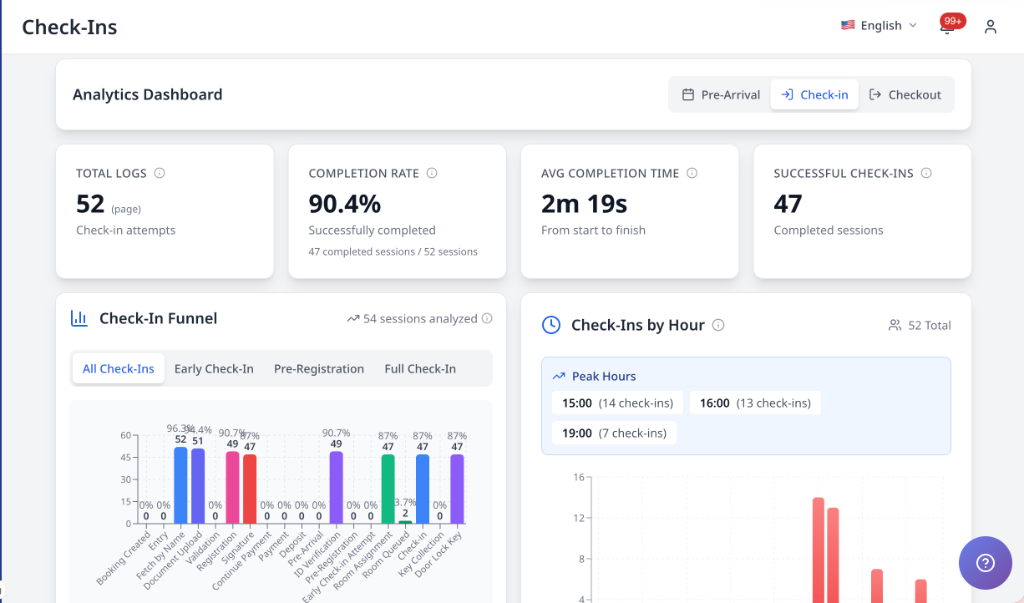
Open Analytics and choose a view
-
Go to Main Menu → Command Center.
-
Select the Analytics tab.
-
Choose Pre‑Arrival, Check‑In, or Check‑Out.
-
If you select Check‑In, use the sub‑tabs: All Check‑Ins, Early Check‑In, Pre‑Registration, or Full Check‑In.
-
Under Report view, select Overall, CCI + ACI, Self Check-In (CCI), or Assisted Check-In (ACI).
✓ All charts update to that view and date range.
Choose a Check-In report view
Use Report view below the flow tabs to choose the reservation cohort or check-in mode. The selector appears only when you select Check-In.
| Filter | What it includes |
|---|---|
| Overall | Eligible PMS arrivals, including reservations that never used AVA; excludes cancelled and no-show reservations |
| CCI + ACI | Journeys attributed to CCI or ACI; excludes PRE-only attempts and unknown-mode completions |
| Self Check-In (CCI) | Check-ins attributed to the self-service CCI flow |
| Assisted Check-In (ACI) | Check-ins attributed to the staff-assisted ACI flow |
-
Select Check-In in Command Center → Analytics.
-
Select Overall, CCI + ACI, Self Check-In (CCI), or Assisted Check-In (ACI).
-
Review the updated cards, funnel, timing, issues, and device results.
✓ The selected mode stays active while you change the date range or check-in sub-tab.
AVA attributes a journey using the mode recorded on its successful CHECKIN event. For incomplete journeys, AVA uses the last explicit check-in mode. If one journey uses both modes, the successful CHECKIN event takes priority. Explicit CCI + ACI is the union of journeys attributed to CCI and ACI. Unknown-mode completions do not appear in explicit CCI + ACI. The Overall view can include unclassified check-in activity. This keeps filtered totals tied to modes AVA actually recorded.
Pre‑Arrival and Check‑Out remain combined views. They do not use the Check-In mode filter. Explicit CCI + ACI should reconcile with the sum of CCI and ACI journeys. The Overall result can differ because it includes PMS arrivals and unclassified activity. Mixed-mode journeys count once, using their attributed mode.
For usage reporting, use Check-in Result → Successful Check-Ins. The funnel's Completed count measures journey conversion instead. These counts can differ, even when you use the same mode and date range.
Mode-filtered results use recorded event timelines for the selected date window. When mode rollup slices are available, wide ranges load from those slices first. Older dates may load more slowly until their daily rollups are refreshed. Mode-filtered views do not show combined PMS reservation coverage figures.
Review PMS reservation totals in Overall
Select Overall when you need the full arriving reservation population for usage KPIs. This view uses PMS arrival dates instead of only AVA activity dates.
| What you need | Select | What to expect |
|---|---|---|
| Total eligible arrivals | Overall | Includes reservations that never used AVA |
| AVA usage by attributed flow | CCI + ACI | Includes only CCI and ACI-attributed journeys |
| Self-service usage | Self Check-In (CCI) | Includes CCI-attributed journeys |
| Staff-assisted usage | Assisted Check-In (ACI) | Includes ACI-attributed journeys |
Overall excludes cancelled and no-show reservations. Its reservation totals use the selected PMS arrival dates. Its check-in activity metrics use activity dates. The view can show unclassified activity without a recorded CCI or ACI mode.
Use Overall for PMS reservation totals and coverage. Use CCI + ACI for attributed AVA usage. Do not compare these views as if they used the same denominator.
Review property-wide check-in metrics
The explicit CCI + ACI view includes metrics calculated across attributed CCI and ACI journeys. These metrics are not split between Self Check-In (CCI) and Assisted Check-In (ACI).
| Metric | What it includes | Where it appears |
|---|---|---|
| Payment analytics | Payment activity for the property and selected date range | CCI + ACI view |
| STB EVA submissions | EVA submission attempts for the property and selected date range | CCI + ACI view when EVA is enabled |
| Lost-key activity | Lost-key activity for the property and selected date range | CCI + ACI view |
Select CCI + ACI when you need these attributed property-wide metrics. Select Self Check-In (CCI) or Assisted Check-In (ACI) for an attributed journey slice.
The CCI + ACI funnel counts journeys attributed to CCI or ACI. Property-wide panels can also include activity outside those attributed journeys. For example, payment activity may include pre-arrival payments. These totals may not reconcile, and that is expected.
Review guest nationality reports
The optional Guest Nationality section shows guest cohorts by nationality. It can appear in live Analytics and rollup-backed Analytics responses.
| Flow | Guests included | Completion rule |
|---|---|---|
| Pre-Arrival | Guests completing Pre-Arrival activity | Successful PRE_ARRIVAL activity |
| Check-In | Guests completing the selected Check-In view | Successful PMS CHECKIN activity |
| Check-Out | Guests attached to completed AVA checkout reservations | Successful AVA checkout completion |
-
Select Pre-Arrival, Check-In, or Check-Out.
-
Choose the date range in the hotel's local timezone.
-
Select All, Completed, or In Progress when the filters appear.
-
Review nationality counts and percentages in Guest Nationality.
✓ Each identified guest counts once per stay and flow.
Filter completed and unfinished guests
Use the filters inside Guest Nationality to change the guest cohort.
| Filter | What it shows |
|---|---|
| All | Guests in both completed and unfinished cohorts |
| Completed | Guests who completed the selected flow |
| In Progress | Guests with recorded flow activity who had not completed it by the report end |
The filters apply only to Guest Nationality. They keep the selected flow, date range, and Check-In report view. They do not reload the Analytics dashboard or change other cards.
When unfinished CCI data is available, All is selected by default. Older responses without unfinished data keep the completed-only behavior. In those responses, Completed remains the available cohort.
✓ Switch filters to compare recorded nationality before and after flow completion.
Understand unfinished nationality activity
In Progress includes identified guests with recorded registration, document, or signature activity. The guest does not need to finish every step in the selected flow. The guest must have no successful completion by the report's end date.
AVA evaluates unfinished activity at the report end date. Later completion or guest-detail updates do not remove that historical activity. This keeps past reports stable when you compare different operating periods.
All combines the completed and In Progress cohorts without counting a guest twice. The main Analytics totals remain completion-based. Only the Guest Nationality section adds unfinished guests.
An unfinished guest can appear under Unknown when AVA has no usable nationality. AVA can enrich some Unknown values later when same-stay evidence is unambiguous. Ambiguous guest matches remain excluded from nationality attribution.
The full-width chart shows the five largest named nationalities. It groups remaining named nationalities as Other nationalities. It keeps guests without usable nationality in a separate Unknown row. Chart bars use all counted guests as the 100% scale.
If more than five named nationalities exist, select Show all below the chart. The expanded chart lists every named nationality and removes Other nationalities. Select Show less to return to the five-nationality summary. Changing the report or completion-status filter resets the expansion.
Long nationality names wrap when needed, while each count and percentage stay together.
Pre-Arrival remains separate from later CCI or ACI activity. Direct CCI or ACI activity does not add a guest to the Pre-Arrival cohort. Check-In results follow the selected Overall, CCI + ACI, Self Check-In (CCI), or Assisted Check-In (ACI) view. Repeat stays remain separate when their stay dates or confirmation records differ. Related room records are combined when they belong to the same stay.
AVA prefers the nationality saved in the completion snapshot or guest record. It normalizes supported nationality codes before grouping results. AVA does not infer nationality from the document issuing country. Guests without a usable nationality appear under Unknown. Ambiguous legacy multi-guest completions appear in a separate ambiguous-participation count.
When a checkout refresh omits nationality, AVA preserves the recorded value for a uniquely matched guest. For checkout analytics, AVA first checks the latest preceding matching completion snapshot. It then checks unique nationality evidence from the current record. The match uses the hotel, room, parent confirmation, arrival date, and departure date. Reservation IDs alone cannot assign nationality to a companion guest. Names, emails, roster positions, and ambiguous evidence cannot assign nationality either.
Checkout results can initially show Unknown while the daily rollup is reconciled. AVA can fill the nationality later when matching same-stay evidence is unambiguous. Conflicting, unrelated, or future evidence remains Unknown. Refresh Analytics after the rollup refresh finishes to see the updated count.
PDF downloads include every named nationality, even when the live chart is collapsed. They omit the Other nationalities aggregate to prevent duplicate country counts. Analytics summary and MCP responses retain the complete nationality breakdown.
An unavailable section means the nationality query failed or exceeded its safe limits. It is not the same as a report with zero guests. The report covers completed AVA activity, not the full PMS occupancy population.
Guest nationality counts look lower than expected
What you see: The nationality report has fewer guests than your PMS occupancy report.
Fix:
- Confirm the selected flow and date range.
- Check that guests completed the required AVA activity.
- Review the Unknown and unattributed counts.
- Remember that AVA counts completed participants, not every PMS occupant.
- Contact support if completed guests remain missing.
Guest nationality report is unavailable
What you see: The Guest Nationality section shows Unavailable.
Fix:
-
Refresh Command Center → Analytics once.
-
Narrow the date range if it covers many sessions.
-
Confirm the selected flow has completed AVA activity.
-
Try again after rollup refresh finishes.
-
Contact support if the section stays unavailable.
✓ Do not treat an unavailable report as a zero result.
Use the hotel's local date window
Analytics uses your hotel's configured timezone when it reads the selected date range. It filters sessions by check-in and check-out activity timestamps, not reservation update times. Only steps inside that local window contribute to the selected day's charts and completion results. A later reservation update cannot add older or future completion steps to that day's analytics. The Successful Check‑Outs card is the exception: it uses the terminal event's completion date.
Select dates using the hotel's calendar day, even when you review Analytics from another timezone.
How AVA builds a session
- A session is one reservation check-in record (not each guest).
- A session is included when at least one step from that view is logged.
- Demo-tagged sessions are excluded from these Analytics charts.
- Failed steps still count in totals so you can see drop-offs and issues.
Sessions that only reach Pre‑Arrival are not included in All Check‑Ins. Use the Pre‑Arrival view for those sessions. If a guest completes pre-arrival, then completes check-in on a device, AVA includes that session in both views. An abandoned Pre‑Arrival attempt still appears in the Pre‑Arrival view after the guest starts the flow.
When a guest continues after pre-arrival
The Pre‑Arrival view is a membership cohort, not an exclusive category. A session can belong to Pre‑Arrival and a Check‑In cohort. A session qualifies after Pre‑Arrival activity begins, even if the guest abandons the flow. Reaching PRE_ARRIVAL marks the session as complete. Opening a pre-arrival link without recorded flow activity does not qualify the session. An observed full check-in milestone still keeps that session in the correct Check‑In totals.
| Guest activity | Analytics view |
|---|---|
| Guest opens the link without recorded flow activity | Not included in Pre‑Arrival |
| Guest starts Pre‑Arrival but abandons it | Pre‑Arrival, incomplete |
| Guest completes pre-arrival only | Pre‑Arrival, complete |
| Guest completes pre-arrival, then completes device check-in | Pre‑Arrival and Check‑In |
This keeps mixed journeys visible in both relevant cohorts. Pure pre-arrival journeys remain excluded from All Check‑Ins.
For Pre‑Arrival, Total Logs counts every session with recorded activity. Completion Rate counts sessions that reach PRE_ARRIVAL. For example, three attempts with two completions show a 66.7% completion rate. An abandoned attempt therefore lowers the rate and reveals flow drop-off.
When a guest completes Pre‑Arrival, then starts an incomplete CCI or ACI journey, that check-in attempt remains in the attributed check-in totals. An unfinished PRE-only attempt remains in Pre‑Arrival, but stays out of All Check‑Ins. This keeps Check-In usage totals focused on guests who started a check-in journey.
If a reservation later has checkout activity without Check-In activity, AVA keeps its Pre‑Arrival history in Pre‑Arrival and reports the checkout activity in Check‑Out. It does not create a Check-In attempt from checkout history alone.
Genuine non-PRE activity without a recorded CCI or ACI mode can still appear in Overall. CCI + ACI only includes journeys with a recorded CCI or ACI attribution.
Previously saved daily rollups can retain completion-based Pre‑Arrival counts until AVA recomputes them. Newly computed rollups include abandoned attempts in the denominator.
When key encoding is the final recorded step
AVA treats KEY_ENCODED as a Full Check-In classification signal. This applies even when the session has no KEY_COLLECTION or KEY_RETRIEVED step. The session appears in Full Check-In and All Check-Ins.
KEY_ENCODED does not count as a completion milestone for Completion Rate. The session can therefore increase the Full Check-In total without increasing completed sessions.
Properties using keycard encoding may see a slightly lower Full Check-In completion rate. This happens when sessions end at KEY_ENCODED without another completion milestone.
Summary cards (top of the tab)
On Check-In, AVA aligns AVA Reservation Coverage, Check-in Result, and Room Access Delivered. These cards answer different operational questions.
On Pre-Arrival, AVA shows one Pre-Arrival Result card above the funnel. It reports activity recorded during the selected period.
| Card | What it tells you | How it is calculated |
|---|---|---|
| AVA Reservation Coverage | How many eligible arriving reservations started check-in with AVA | AVA-processed arriving units ÷ eligible arriving units |
| Check-in Result | Whether the hotel system confirmed the guest's check-in | Successful PMS CHECKIN ÷ AVA check-in attempts |
| Pre-Arrival Result | Whether guests completed Pre-Arrival after starting it | Completed Pre-Arrival reservations ÷ Pre-Arrival attempts |
| Room Access Delivered | Whether AVA recorded room access delivery after check-in | Recorded access deliveries ÷ eligible check-in attempts |
The cards make coverage, hotel check-in, and room access visible as separate outcomes. A successful Check-in Result does not confirm room access delivery.
The Check-in Result card asks, “Did AVA record that the guest completed hotel check-in?” The Room Access Delivered card asks, “Did AVA record room access being delivered?” For example, a keycard encoding event can provide room access evidence.
Select the information button beside a metric to open its detailed explanation.
You can focus and open these explanations with a keyboard.
The explanation stays visible when the coverage card clips its contents.
On narrow screens, AVA keeps the explanation within the screen edges.
It repositions while you scroll or resize the window.
Press Escape to close an open explanation.
Use AVA Reservation Coverage to measure AVA adoption among arrivals. Use Check-in Result to confirm the PMS check-in outcome. Use Room Access Delivered to find access deliveries needing follow-up.
Read the Pre-Arrival Result card
The card combines the completion rate, completed reservations, attempts, and average completion time.
| Metric | What it shows | How to read it |
|---|---|---|
| Completion Rate | Pre-Arrival completion percentage | Completed reservations ÷ Pre-Arrival attempts |
| Completed | Reservations reaching the PRE_ARRIVAL step | Successful Pre-Arrival completions in the selected activity period |
| Avg Completion Time | Average time from the first successful step to PRE_ARRIVAL | How long completed Pre-Arrival journeys took |
Pre-Arrival uses AVA attempts and completions from the selected activity period. It does not use PMS arrival or departure coverage totals. Arrival dates may fall outside the selected period. A guest who later completes CCI or ACI remains in the Pre-Arrival cohort.
Use Pre-Arrival Result to measure guest preparation activity. Use AVA Reservation Coverage for PMS arrival coverage in the Check-In view. Use AVA Departure Coverage for PMS departure coverage in the Check-Out view.
| Card | How it is calculated |
|---|---|
| Total Logs | Number of non-demo sessions in the selected view |
| Completion Rate | Completed sessions ÷ total non-demo logs, using the selected view's completion rule |
| Avg Completion Time | Time from the first successful step (usually Entry) to the configured completion signal |
| Successful Check‑Ins | Distinct sessions with a successful PMS CHECKIN milestone. This supports the Check-in Result outcome. |
| Room Access Delivery Rate | Successful room-access deliveries after PMS CHECKIN ÷ all eligible check-in attempts. This supports Room Access Delivered. |
| Successful Check‑Outs | Distinct checkout sessions with a successful terminal event, attributed to the completion date |
Room Access Delivered appears when AVA has room-access delivery data for the selected check-in view. The card appears when your hotel uses AVA-managed room-access delivery. This includes smart locks, lockers, and configured non-manual keycards. The card only counts delivery events recorded by AVA after successful PMS CHECKIN. Manual or external delivery remains excluded from this metric.
AVA uses the Room Access configuration to decide whether delivery applies. Analytics does not require you to classify each lock, locker, or keycard method. If delivery is unavailable or manual, AVA hides the optional card.
For Check-In views, Completion Rate uses successful PMS CHECKIN as the primary completion stage. The Completion rule column also controls Avg Completion Time. It does not define Successful Check‑Ins or Room Access Delivery Rate.
Use this table to confirm which sessions count as complete before you compare periods.
Successful Check-Outs use completion dates
The Successful Check‑Outs card counts each unique checkout that reaches a successful terminal event. AVA attributes the count to the hotel's local calendar date when checkout succeeds. Checkout attempts, funnel stages, Completion Rate, and Avg Completion Time keep their start-date attribution.
For example, a checkout that starts Monday and succeeds Tuesday appears in Tuesday's Successful Check‑Outs. Its attempt and funnel activity remains in Monday's checkout analytics.
This keeps successful departures aligned with the day they completed.
If Total Logs is 40 and 28 sessions reach the configured completion signal, the completion rate is 70%. Successful Check‑Ins may show a different number because it counts successful PMS check-in milestones.
Separate PMS check-ins from journey completion
Successful Check‑Ins confirms that AVA completed the PMS CHECKIN request. For OPERA, this is when AVA sends the SCI code to the PMS. AVA counts the milestone only when recorded Check-In evidence is SUCCESS or PARTIAL. Pending or failed legacy milestone data does not count as a successful PMS check-in. AVA excludes checkout-only journeys when event evidence shows no Check-In activity. This prevents a legacy CHECKIN marker on a completed checkout from inflating the count. If a guest completed Check-In before Checkout, AVA keeps that successful Check-In count.
For Check-In views, Completion Rate uses successful PMS CHECKIN as the primary completion stage. This keeps check-in completion aligned with the PMS outcome. Room Access Delivery Rate measures room access separately from check-in completion.
| What happened | Successful Check‑Ins | Completion metrics |
|---|---|---|
| PMS CHECKIN succeeds, then keycard encoding fails | Counts the PMS check-in | Counts as completed; room access delivery may remain unsuccessful |
| Only a pending or failed legacy CHECKIN marker remains | Does not count | Follows the selected view's existing completion rule |
| Room assignment enters a queue without successful PMS CHECKIN | Does not count | Follows the selected view's existing completion rule |
| PMS CHECKIN and room access both succeed | Counts the PMS check-in | Counts as completed when the terminal signal succeeds |
The card no longer combines queued, early, and key-collection categories into Successful Check‑Ins.
Room Access Delivery Rate uses post-check-in events
Room Access Delivery Rate counts room access only after a successful PMS CHECKIN. Eligible delivery events are successful KEY_COLLECTION, GET_DOOR_LOCK_KEY, KEY_ENCODED, or KEY_RETRIEVED events. The eligible attempt set uses the room-access service's delivery capability. It includes smart locks, lockers, and configured non-manual keycard delivery. It excludes manual delivery and unavailable room-access configurations. An event from an earlier or failed attempt cannot count toward a later successful check-in.
The denominator includes all eligible check-in attempts. Manual or external room-access work does not count unless AVA records an eligible event. Live Analytics and daily rollups use the same calculation.
Room access delivery looks lower than expected
What you see: Room Access Delivery Rate is lower than the number of guests who checked in.
Fix:
-
Confirm the guest has a successful PMS CHECKIN event.
-
Check for a successful room-access event after that check-in.
-
Remember that manual or external encoding is not included.
-
Refresh Command Center → Analytics after the event is recorded.
✓ Earlier, failed, or pending access events do not increase this rate.
Room Access Delivered is missing
What you see: The Room Access Delivered card does not appear.
Fix:
-
Open Settings → Room Access.
-
Confirm that an AVA-managed method is configured.
-
Use smart locks, lockers, or configured non-manual keycard delivery.
-
Refresh Command Center → Analytics.
✓ Manual or unavailable delivery does not display this optional card.
Check-in coverage cards
When AVA receives coverage data from your PMS, you may see two extra cards after Completion Rate. This works for AVA PMS, Cloudbeds, Opera, Mews, and eZee.
| Card | What it shows | Why it matters |
|---|---|---|
| Eligible Check-In Units | Distinct confirmation or sub-reservation units in the selected period | This is the coverage denominator |
| AVA Check-In Share | Percentage of eligible units with durable AVA check-in activity | This shows AVA adoption for arrivals in that period |
Coverage uses each reservation's arrival date in your hotel's timezone. Guests who finish pre-arrival check-in early still count when they arrive in range. The funnel uses activity dates, so these measures answer different questions.
These cards count units, not whole reservations. A multi-room booking can add more than one eligible unit.
AVA counts only reservations with AVA activity, a valid merchant-local arrival date, and an eligible status. For AVA activity, eligible statuses are RESERVED, CHECKED_IN, CHECKED_OUT, and DUE_OUT. DUE_OUT counts because the reservation already reached check-in before departure. For OPERA, AVA also folds DueOut into the CHECKED_IN PMS coverage bucket. This keeps departure-day and day-use arrivals in the coverage denominator. If AVA cannot verify the required fields, it hides the coverage cards instead of showing a misleading percentage.
If your PMS is OPERA, AVA ignores PM, PF, and PX pseudo rooms in the eligible unit count. It also uses top-level room type fields when room rows are sparse, so real guest rooms still count correctly.
AVA also dedupes linked OPERA reservation families by parent confirmation. That keeps terminal sibling rows from inflating Eligible Check-In Units.
If your selected date range includes today before night audit, future-arrival Checked Out legs count as zero. AVA uses the property's business date for that short-circuit, so the coverage read stays fast and consistent.
AVA first uses a narrow coverage result for arrivals in your selected date range. If that result is unavailable, incomplete, or still rolling out, AVA uses arrival-filtered logs. If those logs are unavailable, AVA may use an activity-based session map. That fallback can understate coverage for narrow date ranges. An empty result is a valid zero, not missing data. If no source is available, the coverage cards stay hidden.
AVA counts each processed reservation once. It uses the arrival-keyed cohort for normal coverage results. The selected range uses your hotel timezone for arrival-date comparisons. Search-only reservation lookups and PMS or front-desk sync steps do not credit the AVA numerator. If the numerator would exceed the denominator, AVA withholds the share card instead of clamping it. This keeps AVA Check-In Share aligned with reservation coverage.
If you refresh the same date range again, AVA may reuse the last coverage result for a short time. This keeps the Analytics tab fast during repeated checks.
After a coverage rule update, AVA refreshes older saved coverage results before reusing them. Short date ranges can show corrected cards first. Longer ranges may use live coverage until the scheduled refresh finishes.
Check-In Share Looks Wrong
What you see: AVA Check-In Share is missing, or it looks higher than expected.
Fix:
- Refresh the Analytics tab.
- Confirm the date range matches your PMS report.
- Check that the range uses your hotel timezone.
- Confirm your PMS is sending arrival dates and reservation statuses.
- If it still looks wrong, contact support with a screenshot.
If you do not see these cards, your PMS data may be missing the fields AVA needs. Unsupported PMS providers do not show these cards.
Check-out coverage cards
AVA shows checkout coverage only when your PMS provides a complete departure-scoped cohort. You may see two cards in the Check-Out view. These cards measure AVA checkout activity separately from check-in activity.
| Card | What it shows | Why it matters |
|---|---|---|
| Eligible Check-Out Units | Distinct confirmation or sub-reservation units departing in the selected period | This is the checkout coverage denominator |
| AVA Check-Out Share | Percentage of eligible units with durable AVA checkout activity | This shows AVA adoption for departures in that period |
Checkout coverage uses each reservation's departure date in your hotel's timezone. Check-in coverage uses arrival dates, so the two cards can cover different units. The checkout numerator credits durable AVA checkout activity only. Search-only lookups and PMS or front-desk sync steps do not count.
Check-out coverage by PMS
Cloudbeds, Mews, and OPERA provide native departure cohorts for checkout coverage. AVA does not relabel arrival coverage as checkout coverage. Unsupported PMS adapters may show Unavailable instead of a percentage. For OPERA, incomplete reservation pagination also shows Unavailable. AVA does not calculate a percentage from partial departure data.
Check-out coverage is unavailable
What you see: The checkout coverage card shows Unavailable instead of a percentage.
Why this happens: AVA cannot verify complete, departure-scoped coverage data. The PMS may not support departure cohorts, or an OPERA reservation page may be incomplete. It hides the rate rather than showing a misleading result.
Fix:
-
Confirm you selected Check-Out and the correct date range.
-
Refresh the Analytics tab after PMS sync finishes.
-
Try the same range again after a few minutes.
-
Contact support if the card remains unavailable.
✓ An unavailable card means the result cannot be trusted yet. It is not a zero.
Export STB EVA submissions CSV
This takes under 1 minute. The export appears only on Check-In when EVA is enabled.
Use the small download icon on the STB EVA submissions panel to export the selected date range.
| Item | What it shows | What you can do |
|---|---|---|
| STB EVA submissions | Attempted, successful, and failed EVA submissions for the selected period | Click the download icon to download the CSV |
| CSV contents | Summary counts plus one row per EVA API attempt from eva_submission_logs | Use it for STB reporting or audit review |
-
Select the Analytics tab.
-
Keep the Check-In view selected.
-
Scroll to STB EVA submissions.
-
Click the download icon.
-
Save the downloaded
stb-eva-submissions.csvfile.✓ The file includes transaction IDs, result codes, reservation and check-in IDs, error metadata, and sanitized request details. ✓ Passport and document numbers are masked. ✓ MRZ and base64 fields are omitted. ✓ The export no longer includes legacy reservation rows from older EVA reports. ✓ If the download fails, AVA shows a local error message in the panel.
Funnel chart (drop‑offs and step timing)
The funnel shows the percentage of sessions that reached each step.
- Drop‑off compares each step to the step before it.
- Avg Stage Duration measures time spent inside the stage, from stage start to stage success.
- Avg Time to Next Step measures time from one successful step to the next.
- The Slowest Step card uses stage duration first.
- If AVA does not have stage timing, it falls back to the next-step duration.
- If a later step happens earlier than the prior step, the duration is shown as 0.
Use the Biggest Drop‑Off card to pick the step that needs coaching first.
If Document Upload has 60 sessions and the prior step has 100, drop‑off is 40%. If Document Upload itself takes 20 seconds, Avg Stage Duration is 20 seconds. If Document Upload completes at 10:05 and Validation at 10:07, Avg Time to Next Step is 2 minutes.
Checkout conversion uses required milestones
In Check‑Out, AVA calculates conversion from the required checkout milestones.
| Stage | How AVA treats it |
|---|---|
| Checkout Started | Required starting milestone from FETCH_CHECKOUT |
| Bill Reviewed | Optional activity when a guest views the bill |
| Charges Confirmed | Optional activity when a guest confirms charges |
| Checkout Payment | Optional activity when payment is collected |
| Checkout Complete | Required final milestone from CHECKOUT |
A guest can move directly from Checkout Started to Checkout Complete. AVA counts that path as completed instead of showing a false drop‑off.
Observed optional stages appear in Optional checkout activity. They do not lower conversion or create a red loss transition. The dashboard and downloadable analytics report use the same stage rules.
AVA shows Checkout Payment when it observes checkout payment activity. It keeps payment outside the required funnel, even when a saved setting is stale. It does not label missing payment as not required or treat it as a failure.
Direct PMS checkouts look like drop-offs
What you see: A guest completed checkout in the PMS, but skipped bill or payment stages.
Fix:
-
Select Check‑Out in Command Center → Analytics.
-
Find Checkout Complete as the final required stage.
-
Review Optional checkout activity for bill, charge, or payment events.
-
Compare the dashboard with the downloadable report if you need a saved copy.
✓ Direct PMS checkouts count toward final conversion.
View reservations from required-step drop-offs
Required checkout drop-offs can include a View list action. Use it to find reservations that reached one required stage but missed the next.
- Select Check‑Out in Command Center → Analytics.
- Find a required-stage transition with a drop-off count.
- Click View list.
- Review the confirmation number, guest name, room, and latest failure details.
- Click Download CSV to save the displayed reservations.
AVA shows View list only when every matched session equals the displayed drop-off count. If the reservation mapping is incomplete, AVA hides the action for that transition.
Review failed checkout payments
Payment appears under Optional checkout activity when AVA observes checkout payment activity. It can appear even when a saved payment setting is stale. Payment activity never changes checkout completion or required-stage conversion.
- Select Check‑Out in Command Center → Analytics.
- Find Payment under Optional checkout activity.
- Click View failed reservations when failed payments are listed.
- Review the reservation details and failure message.
- Click Download CSV to save the displayed failures.
The CSV includes Confirmation number, Guest name, Room, Failure step, and Failure message. AVA shows View failed reservations only when every failed payment maps to a session.
Successful Check-Outs appears on another day
What you see: A checkout started on one day, but Successful Check‑Outs increases on another day.
Fix:
-
Check when the terminal checkout event succeeded.
-
Compare that timestamp with your hotel's local calendar date.
-
Review the checkout start date when comparing attempts or funnel stages.
-
Refresh the Analytics tab if the checkout completed recently.
✓ This is expected when checkout crosses midnight or completes after a delay.
Time Analysis (hourly volume)
Time Analysis shows journey attempts by hour in the selected flow. Each reservation contributes its first successful activity in that flow.
- Hour buckets use your hotel's configured timezone.
- The analytics response labels this with
timeAnalysis.timezone. - The selected date's timezone offset applies, including daylight-saving changes.
- Recorded unfinished Pre‑Arrival attempts contribute to hourly attempt counts.
- The chart title, peak hours, and tooltips label these as attempts.
- Checkout attempts use checkout activity when that flow has its own activity.
- Pre‑Arrival completion metrics still require a successful PRE_ARRIVAL step.
- Shows Peak Hours and Rush Periods to help with staffing.
Use Peak Hours to plan coverage for your busiest time blocks.
A session recorded at 7:10 in your hotel's local time counts in the 07:00 hour.
Issues (recent failures)
Issues list sessions with the most recent failed steps.
- AVA checks the last 10 events for failures.
- If no recent failures exist, it uses the most recent failure on record.
Use View Details to see full step history.
If a payment failed at 3:12 after earlier success, the issue shows Payment at 3:12. If the last 10 events are successful, AVA shows the most recent failure on record.
Recent Activity
Recent Activity shows key steps that were successful or failed, such as:
- Check‑In, Check‑Out
- Room Assignment
- Pre‑Registration
- Identity Verification
- Payment
This list is capped to the latest 30 items.
Use this list to confirm which steps were completed most recently. Dates and clock times use the same hotel timezone as the selected date labels.
You may see “Check‑In completed successfully” or a failure message for Identity Verification.
Final Step Distribution (where sessions end)
This chart groups the last step of each session into categories:
- Success — Full completion steps
- Timing — Early check‑in steps (including Room Queued)
- Partial — Pre‑registration
- Room — Room assignment steps (Room Assignment)
- Documentation — Document or ID verification
- Payment — Payment steps
- Early — Entry / Fetch steps
If a failure happens after the last success, the failure step becomes the final step.
Use this chart to see the most common stopping points.
Out of 50 sessions, 20 end at Check‑In (success), 10 at Early Check‑In (timing), 8 at Document Upload (documentation), and 12 at Payment (payment).
Open sessions from the Final Step Distribution
-
Select a bar segment in Final Step Distribution.
-
Review the session list that opens.
✓ The list shows confirmation number, guest, room, and the latest failure.
-
Select Open details on any session.
✓ The Reservation Details panel opens for that session.
The list shows sessions, not grouped reservations. Use it to spot repeat failures fast.
Device Analytics (optional)
Device Analytics uses the device details from the check‑in/out session.
If a kiosk session has no physical kiosk ID, AVA shows it as Unidentified kiosk. This keeps the session separate from Guest device activity.
The Unidentified kiosk label means the session source is known, but its device metadata is missing. It does not identify a guest-owned phone or tablet.
Live analytics and rollup analytics use the same kiosk classification.
Recognize assisted check-in staff sources
Virtual assisted check-in sessions appear with the current staff alias in the source list. This helps you identify which staff member handled each assisted check-in. New sessions from Streamliner virtual staff kiosks count as Kiosk journeys. They no longer appear as front-desk or desktop sources.
If a staff member changes their name, Analytics uses the updated alias when you refresh the view. Older journeys keep their original source identity and do not need to be rewritten.
AVA keeps the raw virtual-master ID when the alias service is unavailable. An older staff master without an alias also shows its raw ID.
Recognize archived kiosk sources
Removed manual or managed kiosks no longer appear in the active CCI device list. Their historical Analytics rows can still show the archived kiosk alias.
The raw kiosk ID appears below the alias for reliable device matching. If a kiosk ID appears in both lists, AVA uses the active device alias. An archived alias identifies historical activity only; it does not restore the kiosk. The archive is display-only, so active kiosk settings cannot edit historical aliases.
Read source journey totals
Device Analytics groups sessions into Kiosk journeys and Guest device journeys. Each source shows total journeys, successful journeys, and its completion rate.
The reconciliation message compares these sources with the dashboard's unique reservation journeys. Counts are deduplicated by reservation, so repeated sessions do not inflate the totals.
For check-in, only a successful PMS CHECKIN event counts as successful. Room assignment, key retrieval, and key encoding show progress, not completed check-in.
| What you see | Meaning |
|---|---|
| Successful journeys out of total journeys | Source completion and its denominator |
| Unidentified kiosk | Kiosk-origin journey without physical kiosk metadata |
| Source totals match the dashboard | Both views use the same reservation journey cohort |
Use this view to compare kiosk vs mobile usage by OS.
If most sessions are iOS, you may want to optimize the mobile check‑in flow.
Limits & data freshness
- Analytics covers up to 92 inclusive calendar days per date-only query.
- Full quarters are supported, including July 1–September 30.
- AVA validates date-only ranges by hotel-local calendar days, independent of daylight-saving changes.
- When daily rollups are available, wide ranges load from rollup data first.
- CCI and ACI filters use their matching daily rollup slices when available.
- Saved rollups retain the event evidence used by the dashboard, not only summary totals.
- Today's results always use live data.
- Missing, incompatible, or unavailable saved data uses live data for the affected period.
- Older mode-filtered ranges can temporarily use live calculation while slices refresh.
- The unfiltered Overall view can use older rollups without mode slices.
- Very busy properties may need a smaller range if the result set is too large.
- If AVA asks you to narrow the date range, shorten the period and try again.
- Oversized requests return an error without a partial report or bulk-data fallback.
- Session lists are capped for performance (about 200 per step and 2,000 total).
Choose a valid analytics date range
The Date control shows the Analytics limit before AVA loads data. Select no more than 92 calendar days, counting both the start and end dates. This allows complete calendar quarters, including July 1–September 30.
| What you see | What it means | Fix |
|---|---|---|
| Analytics: up to 92 days, including full quarters | Your range is valid. | Continue reviewing the report. |
| Select up to 92 calendar days... | Your range is longer than the Analytics limit. | Shorten the range or review one quarter at a time. |
When the range is invalid, AVA does not send Analytics or missing-reservation requests. The selected dates stay unchanged, so you can correct the range yourself. Analytics resumes after the range becomes valid. Other Status filters keep their existing date-range behavior.
Troubleshooting
All charts show zero
What you see: Summary cards show 0 and charts are empty.
Fix:
- Expand the date range.
- Confirm there are logs in Status.
- Check if your plan includes Analytics.
Completion rate looks lower than expected
What you see: Completion rate is low even though many guests checked in.
Check:
- Demo check-ins are excluded, so test sessions do not raise Total Logs.
- Unfinished PRE-only attempts do not count toward All Check‑Ins.
- A session that completes pre-arrival and later completes check-in appears in both relevant views.
- A reservation with PRE history and later checkout activity remains visible in Pre‑Arrival and Check‑Out.
- A session that starts Pre‑Arrival but abandons it qualifies for Pre‑Arrival and lowers its completion rate.
- A session that only opens a pre-arrival link does not qualify without recorded flow activity.
- Check-In completion uses successful PMS CHECKIN.
- KEY_ENCODED places a session in Full Check‑In, but does not complete it.
- Early Check‑In and Pre‑Registration are tracked in their own sub‑tabs.
- Successful Check‑Ins counts successful PMS CHECKIN milestones.
- Checkout-only records with a legacy CHECKIN marker do not count without Check-In activity evidence.
- Room Access Delivery Rate can be lower when AVA does not record a post-check-in access event.
Source totals look different from older reports
What you see: Device Analytics totals or completion rates changed after deployment.
Fix:
-
Compare the same date range in Command Center → Analytics.
-
Read the reconciliation message below the source summary.
-
Treat CHECKIN as the only successful check-in event.
-
Allow time for older cached analytics to refresh after deployment.
✓ Current source rows reconcile with the dashboard's canonical reservation journeys.
Coverage cards are missing
What you see: You only see the standard summary cards.
Fix:
-
Stay on Check-In.
-
Confirm your PMS connection is active.
-
Refresh the page after sync finishes.
-
If the date range is busy, refresh again after a few minutes.
✓ If your PMS supports reservation coverage, Eligible Check-In Units and AVA Check-In Share appear after Completion Rate.
Coverage cards still look unchanged
What you see: Eligible Check-In Units or AVA Check-In Share still looks the same after a refresh.
Fix:
- Wait a minute.
- Refresh the Analytics tab again.
- Confirm the date range matches the PMS update you expect.
- If it still looks wrong, check that PMS sync has finished.
Time Analysis uses the wrong local hour
What you see: Peak hours do not match your hotel's local time.
Fix:
-
Check the analytics response's
timeAnalysis.timezonevalue. -
Compare the buckets with your hotel's configured timezone.
-
Verify your hotel timezone at Settings → Essentials → Hotel Basic Details.
-
Refresh the Analytics tab after changing the timezone.
✓ The chart title and hourly buckets should show the hotel's timezone.
Analytics keeps loading or asks you to narrow the range
What you see: The Analytics tab spins for a long time, shows a timeout, or asks you to narrow the date range.
Why this happens: The selected range may contain more than 20,000 sessions. AVA rejects oversized requests before showing a report.
Fix:
-
Select a smaller date range.
-
Refresh the Analytics tab and retry.
-
Split long periods into separate reports.
-
If small date ranges still fail, contact support with the selected dates.
✓ Smaller ranges should finish faster and help you confirm whether the issue is range size or data availability.
If only a mode-filtered view loads slowly, its historical rollup slices may still be refreshing. Try the unfiltered Overall view, or retry the mode view later.
Analytics date range shows an error
What you see: The Date control is marked invalid and shows a 92-day message.
Fix:
-
Keep the start date if it is correct.
-
Move the end date until the range includes 92 days or fewer.
-
For longer reporting, split the period into separate quarter-sized ranges.
✓ AVA keeps your selected dates until you correct the range. ✓ Analytics loads automatically after the range becomes valid.
Analytics shows a step from another day
What you see: A selected day appears to include a completion from another calendar day.
Fix:
- Confirm the hotel's timezone at Settings → Essentials → Hotel Basic Details.
- Re-select the date range using the hotel's local calendar day.
- Refresh the Analytics tab.
- If the result still looks wrong, contact support with the selected dates and reservation number.
MCP config copy fails
What you see: The button shows an error after you click Copy Codex MCP Config or Copy Claude MCP Config.
Fix:
- Stay on the Analytics tab.
- Try the copy button again.
- Refresh the page and retry if the token request timed out.
- If the error stays, contact support with the exact message.
Config copied, but the client cannot connect
What you see: The modal opens, but Codex or Claude does not load the Streamliner server.
Fix:
- Check that you pasted the config into the correct file.
- Confirm the
STREAMLINER_MCP_TOKENvalue is still present. - Restart the client completely.
- Copy a fresh config if setup took too long.
Settings tools are missing
What you see: Your client connects, but settings actions do not appear.
Fix:
- Copy a fresh config from Analytics.
- Restart the client completely.
- Confirm the pasted
STREAMLINER_MCP_TOKENis the latest one. - Remove any older Streamliner config block if it is still present.
Settings writes time out
What you see: A settings save looks stuck, then returns a timeout or cancel message.
Fix:
-
Copy a fresh config from Analytics.
-
Restart the client completely.
-
Try the settings change again.
-
If it fails again, check whether your token or session expired.
✓ Valid settings updates should finish instead of hanging.
Authentication failed on a settings write
What you see: You get an authentication error when saving merchant settings.
Fix:
-
Copy a fresh config from Analytics.
-
Restart the client completely.
-
Retry the settings change in the same hotel.
-
If you switched hotels, refresh the config after the switch.
✓ The new error should tell you to generate a fresh MCP config/token.
PDF download does not start
What you see: You click Download report, but no PDF downloads.
Fix:
- Wait until the Analytics summary finishes loading.
- Retry Download report.
- Narrow the date range if the report remains slow.
- Check that your browser allows downloads.
- Contact support if the PDF still does not download.
STB EVA export is missing
What you see: You do not see the download icon under STB EVA submissions.
Fix:
- Switch to Check-In.
- Confirm EVA is enabled for Singapore in Settings → Check-in → Government Integration.
- Refresh the page after the analytics data loads.
- If the panel is still hidden, the selected date range may not include EVA submissions.
CSV export fails
What you see: You click the download icon, but no file downloads.
Fix:
- Retry after the analytics summary finishes loading.
- Narrow the date range.
- Check that your browser allows downloads.
- Try again once the local error clears.
- Contact support if the export still fails.
Funnel reservation list is missing
What you see: A required drop-off or failed payment has no list action.
Fix:
- Confirm you selected Check‑Out and the correct date range.
- Check that the transition has a non-zero drop-off or failed-payment count.
- Refresh the Analytics tab after the data finishes loading.
- If mapping remains incomplete, use Status to search for the reservation.
AVA hides list actions when it cannot safely match every displayed count.
Mode totals do not add up
What you see: The Overall total is higher than the explicit CCI + ACI total.
Fix:
-
Confirm you selected the same date range and measure in each view.
-
Use Check-in Result → Successful Check-Ins for usage reporting.
-
Check whether you are comparing Overall with CCI + ACI.
-
Remember that mixed-mode journeys count once under their attributed mode.
-
Use Funnel → Completed only when measuring journey conversion.
✓ Explicit CCI + ACI reconciles with attributed CCI and ACI journeys.
Property-wide panels are missing
What you see: Payment, EVA, or lost-key metrics are missing from Check-In → Analytics.
Fix:
-
Select the CCI + ACI report view.
-
Confirm the selected date range includes the activity.
-
Refresh the Analytics tab after the data finishes loading.
-
For EVA metrics, confirm EVA is enabled for your property.
✓ CCI and ACI mode slices intentionally omit property-wide panels.
Still Stuck?
Contact success@vouch-technologies.com if:
- ❌ Analytics shows data in Status but Analytics is empty
- ❌ Charts never update after changing the date range
- ❌ Issues list shows incorrect timestamps
Helpful to include:
- Date range you selected
- Screenshot of the Analytics tab
- Confirmation number of a sample reservation