View Reservation Details
Use the search box to find guests by full name with spaces, last name, room number, reservation number, or OTA number.
Separate several searches with commas, semicolons, tabs, or line breaks.
You can also use the full-width separators ,, ;, and 、.
Typing filters the current tab only. To search other dates, enter one term and click All dates.
In Calendar, the dropdown opens as you type.
View reservation details, guest contact info, and room assignments from the Operations View.
Go to: Operations View
The reservation modal uses the same status labels as the reservations page. That includes translated labels like No Show in the edit flow.
| Tab | Shows | When to Use |
|---|---|---|
| Check-outs | Guests departing today | Morning departures |
| Stay-overs | Guests continuing stay | Mid-day room checks |
| Check-ins | Guests arriving today | Afternoon arrivals |
| Calendar | Room timeline across dates from the shared reservation cache | Room planning and occupancy checks |
| Fresh data window | Reuses current data while you work, then refreshes at normal refresh triggers | Makes tab switching feel instant |
| Payments | Balance due, deposit, room payment, and folio summary | Review charges before checkout |
| Modal header | Confirmation number badge when available | Verify the booking fast |
| Do Not Move lock | Lock badge on reserved rooms | Avoid moving a reservation that must stay put |
| ACI device-flow badge | Shows whether Assisted Check-In uses one or two devices in table rows | Prepare the correct staff and guest devices |
| Mobile tabs | Full-width tab row on phones and small tablets | Keep Check-outs, Stay-overs, and Check-ins visible |
| Active-tab search | One or several name, room, reservation, or OTA searches filter the selected business date | Narrow the current list |
| Reservation dropdown | All dates searches reservations across dates | Open a booking from another date |
If your selected PMS does not have usable credentials, Streamliner shows a recovery state. Use Settings to finish PMS setup, then retry the page.
The Auto-assign Room/Lockers wand is hidden when Settings → Room Access is Keycard Encoding. It only generates smart-lock PINs and locker codes.
Access the Operations View
- From the main dashboard, click Operations View
- Choose a tab: Check-outs, Stay-overs, or Check-ins
- Click any reservation to open full details
✓ Each reservations tab runs one background refresh the first time you open it. This applies to Check-ins, Stay-overs, and Check-outs. If the page is still fresh, you keep the cached rows on screen. If it is stale, Streamliner keeps the current rows visible and refreshes them in the background. You can keep working while the update finishes.
The selected day stays pinned to your hotel's timezone. Your browser timezone does not change the day you are viewing. Stay-overs use this selected property day when they load. This remains true when your selected day differs from UTC today.
The action buttons move to their own row above the tabs. The tabs keep their full labels, so you still see Check-outs, Stay-overs, and Check-ins.
In the reservation details modal, footer actions may show icons only to save space. Use the X icon to close the modal.
View Options
Switch between two display modes using the toolbar:
- Card View: Visual cards with guest photos and key info at a glance
- Table View: Compact list with sortable columns for handling many reservations
Read the check-out total
In Check-outs, the total chip includes occupied room cards across every page. That includes guests marked Checked In and Due Out. Due-out guests remain in house until checkout completes.
One multi-room reservation can contribute more than one room card. Use the total to understand all pending departures, not only visible cards. Use the page controls to review the individual reservations.
One reservation can expand into multiple room cards. Each occupied room card contributes to the pending checkout total. This keeps due-out rooms available for checkout until they leave.
Open Calendar View
Use Calendar when you need a room timeline view instead of the list.
- Open the left sidebar.
- Click Calendar.
- Review stays by room and date.
✓ Calendar appears in production for users with reservation read permission. When you move to the previous or next period, Streamliner keeps your room scroll position.
The calendar uses the shared reservation cache. It usually opens faster than a direct PMS lookup. If you just changed reservations in PMS, click Refresh after a short wait.
If the range is already cached, Refresh returns the current calendar right away. Streamliner rebuilds the PMS data and search index in the background. Your current calendar stays visible until the new snapshot is ready. If the range is incomplete, refresh still waits for the missing dates.
Streamliner keeps the room column, date headers, row backgrounds, and scroll container visible. Only the reservation bars and occupancy cells show loading placeholders.
Streamliner does not repeatedly refresh reservation data while you actively use one screen. It refreshes after navigation, window focus, reservation actions, or Refresh. It also refreshes when you return after more than 30 minutes away or asleep.
If you click Refresh while Cloudbeds is busy, Streamliner keeps the current list visible. The newest data appears after the background refresh finishes.
In Agenda mode, the list now scrolls fully inside the card. If you cannot reach the last items, refresh once.
The toolbar wraps on phones and small tablets. The search box drops to its own full-width line, so it stays inside the calendar card.
Filter the active tab
Use the search box to narrow reservations in the tab and date you selected.
- Open Operations View.
- Choose Check-ins, Stay-overs, or Check-outs.
- Select the business date you need.
- Type a guest name, room number, reservation number, or OTA number.
The search filters the current tab only.
Separate several searches with commas, semicolons, tabs, or line breaks.
You can also use the full-width separators ,, ;, and 、.
Each search becomes a removable chip.
After three characters, All dates appears for one search.
Search by a former guest name
If an ACI name-mismatch override changes the booking name, AVA keeps the replaced name searchable.
- Open Operations View.
- Choose Check-ins, Stay-overs, or Check-outs.
- Type at least three characters from the former booking name.
- Click All dates if the reservation is not in the selected date.
✓ AVA can find the reservation using the former guest name.
✓ Search matches the former name by word-start prefixes, such as suman in Rajeev Suman.
✓ The dropdown labels the match with Former guest name: [name].
✓ The reservation details keep the current PMS guest name.
The former name is stored when the ACI override updates the PMS booking. Search may need a short moment to refresh after the override. If the name is missing, refresh Operations View and try again.
Search for several reservations
Use search chips when you need several reservations at once.
-
Click the search box.
-
Enter a reservation number, guest name, room number, or OTA number.
-
Type a comma, semicolon, tab, or line break.
-
Add another search, or paste a list from a spreadsheet.
✓ AVA searches for any matching term. ✓ Each term appears as a removable chip. ✓ The results line shows the number of searches.
When results finish loading, AVA shows Not found for terms without a matching reservation. AVA does not show this message while results are loading or incomplete.
Press Enter to commit the current term immediately.
Press Backspace in an empty box to remove the last chip.
Select × on a chip to remove only that term.
Press Esc or select the clear button to remove every term.
AVA trims extra spaces and removes duplicate terms without considering letter case. You can add up to 20 unique terms. AVA stops accepting text after the limit and keeps existing terms visible.
Every separator creates a separate search term.
For example, 101,102,103 searches for three separate reservation or room values.
Entering only separators, such as ,, keeps the existing literal search behavior.
It does not remove the current filter.
All dates is hidden when two or more terms are entered. Use All dates separately for a single cross-date search.
OTA numbers are also called third-party booking numbers. They include booking references from channels such as Booking.com, Expedia, and Agoda.
✓ The cards or rows stay within the selected business date. They do not include matching reservations from other dates.
To open another date, click All dates, then choose a result from the dropdown.
Keep rows visible while results refresh
AVA keeps the current rows visible while new search or filter results load. This also applies when you change the sort order or page.
- Change the search text, a filter, the sort order, or the page.
- Watch for the Refreshing indicator near the reservation summary.
- Wait for the new results to finish loading.
✓ The previous rows remain visible during the refresh. ✓ The Refreshing indicator shows that those rows use the previous search or filter. ✓ The new search, filters, sort order, or page apply after the refresh finishes.
Wait for the refresh to finish before acting on a row that appeared before your change.
Card View
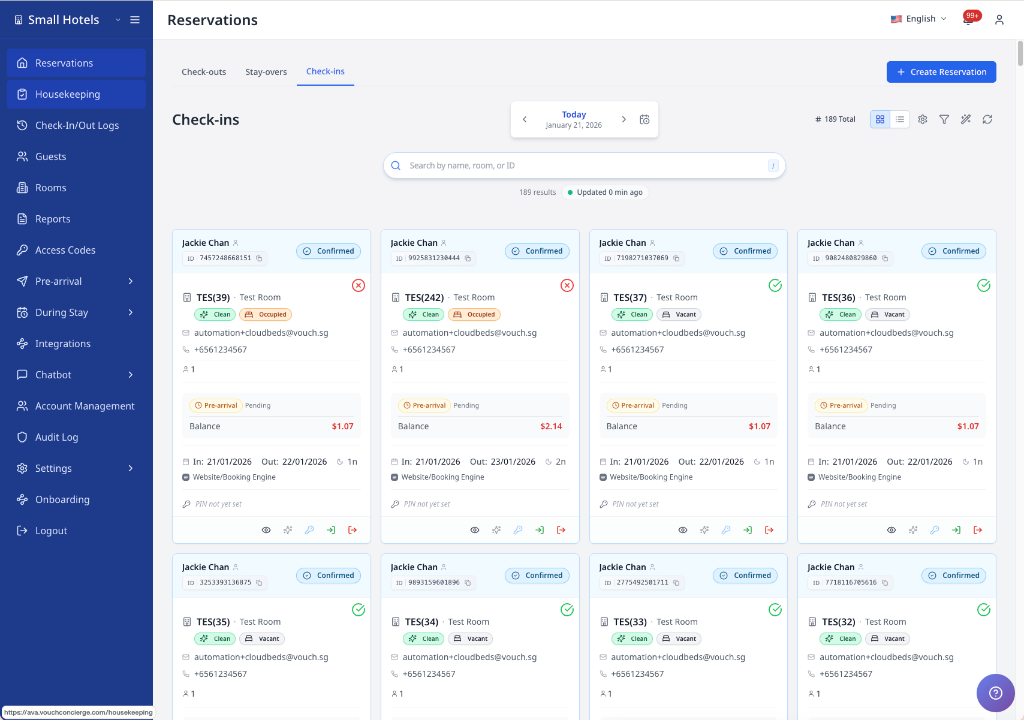
The card view displays reservation cards with:
- Guest name and confirmation status
- Info icon next to status (shows why some check-ins are from yesterday)
- Room number and type
- Do Not Move lock badge when the reservation cannot move
- Room readiness icon with a hover tooltip when readiness checks are enabled
- Check-in/out dates and number of nights
- Payment balance and pre-arrival status
- Guest contact information
- Booking source or PMS source name
The Balance Due on a card is the current amount still owed. AVA subtracts captured payments from the PMS total, including eligible extras. A fully paid reservation shows a zero balance in grey.
Some PMS connectors now show the property or company name instead of a generic booking source label. If a reservation source is missing a name, AVA may fall back to linked PMS source metadata.
Hover the room readiness icon to see whether the room is ready. Each reservation card uses its own tooltip.
Table View
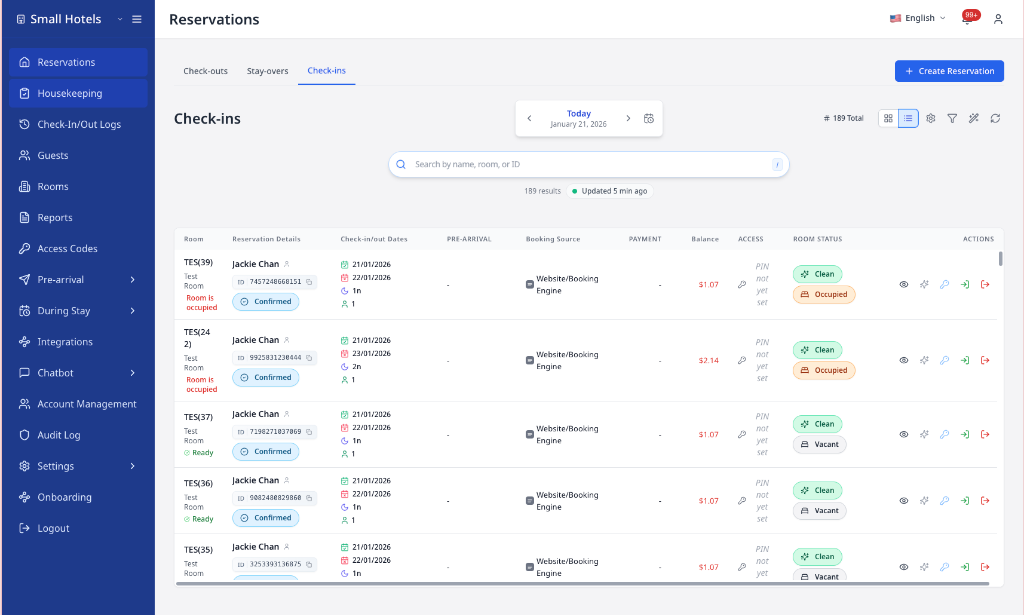
The table view provides a compact, sortable list with columns for:
- Room number and reservation details
- Check-in/out dates
- Pre-arrival status
- Do Not Move lock badge when the reservation cannot move
- ACI device-flow badge for Assisted Check-In reservations
- Booking source or PMS source name
- Payment information
- Balance and room status
- Quick action buttons
Rows highlight when you hover. This makes it easier to follow one reservation across columns.
The highlight color matches the tab:
- Check-ins: Blue highlight
- Stay-overs: Green highlight
- Check-outs: Orange highlight
If no reservations match, the table shows an empty state icon and message. If PMS setup is missing, you may also see Settings and Retry buttons instead of a refresh loop.
Understand reservation payment amounts
Reservation lists and reservation details show different payment values.
| Value | Meaning | Where to review it |
|---|---|---|
| Balance Due | Amount the guest still owes | Reservation details and payment summary |
| Stay Total | Full PMS invoice total, including tax | Reservation details after invoice data loads |
| Unavailable total | The list has not loaded the full invoice total | Open View Details |
For Cloudbeds, a prepaid reservation can have a zero Balance Due but a non-zero Stay Total. Do not treat a missing list total as a free stay. Open View Details before reviewing revenue or explaining charges to a guest.
For eZee, the reservation card uses the same paid and balance values as the detailed folio. Open View Details when you need to review the payment and charge lines.
Cloudbeds reservation lists may show the stay total after invoice data loads. Reservation details use the PMS invoice grand total, including tax. The Balance Due value remains the amount still owing.
Read ACI Device-Flow Badges
ACI device-flow badges appear on reservation table rows in Check-ins. They help you prepare the correct devices before the guest arrives.
| Badge | Meaning | Prepare |
|---|---|---|
| ACI · 1 device | Staff and guest steps use one device | Keep the verified staff device ready |
| ACI · 2 devices | Staff steps and guest steps use separate devices | Keep the verified staff device and paired tablet ready |
The badge reflects the recorded Assisted Check-In flow for that reservation. The badge does not appear on Check-ins reservation cards. It does not appear on Stay-overs or Check-outs. It also does not appear for self-service, pre-arrival, or unavailable flow data.
Read kiosk and staff tags
ACI table rows can show extra tags beside the device-flow badge.
| Tag | Meaning |
|---|---|
| Kiosk: Front Desk A | Shows the kiosk alias recorded for the assisted check-in |
| Performed by Ain Rohan | Shows a staff member who performed an attributed ACI action |
AVA shows one tag for each distinct matching kiosk alias and staff account. For multi-room bookings, every room row shows all kiosk aliases used by that booking. Each row still keeps its own matched room and check-in metadata. This keeps related room rows together without mixing other reservations.
For example, rows using Counter 1 and Counter 2 show both kiosk tags. Duplicate kiosk aliases appear only once on each row.
Hover over Performed by to see the account ID in the tooltip. Kiosk tooltips show the full kiosk alias when the tag text is shortened.
Kiosk or staff tags are missing
What you see: The ACI badge appears, but a kiosk or staff tag does not.
Fix:
- Confirm the row is in the Check-ins tab.
- Refresh the reservation list.
- Check the matching assisted check-in record for a kiosk alias or attributed staff action.
Tags do not appear when the matching record has no alias or staff attribution.
ACI device-flow badge is missing or unexpected
What you see: A Check-in reservation has no ACI badge, or the device count looks wrong.
Fix:
- Confirm the reservation uses Assisted Check-In.
- Refresh the Check-ins list.
- Compare the badge with your current ACI device setup.
- Prepare devices using the flow shown after the list refreshes.
If the badge remains incorrect, contact support with the reservation ID and a screenshot.
If you see Display Preferences (gear icon)
You can change row spacing in the table.
-
In the toolbar, click Display Preferences.
-
Choose Comfortable, Cozy, or Compact.
✓ Rows update right away.
Search Across Dates
Use All dates when the guest is not in the current tab list. Use it with one search term only. Typing alone does not open the cross-date dropdown in reservation tabs.
- Open Operations View.
- Choose Check-outs, Stay-overs, or Check-ins.
- Type at least three characters in the search box.
- Click All dates inside the search box.
- Pick the reservation from the dropdown list.
✓ You can open reservations that belong to another date. ✓ The same search flow works in all three tabs. ✓ You can search by the OTA or third-party booking number.
Understand the result order
AVA ranks All dates results around the selected hotel business date. This helps you find today's arrivals, in-house guests, and departures first.
| Order | Reservations shown |
|---|---|
| 1 | Stays covering the selected business date, with the latest arrival first |
| 2 | Upcoming stays, with the soonest arrival first |
| 3 | Past stays, with the latest departure first |
| 4 | Reservations without arrival or departure dates |
The ranking changes only the dropdown order. It does not change which reservations match your search. If AVA cannot use the selected business date, it uses check-in date order instead.
The dropdown groups matches under Selected date and Other dates. On narrow screens, All dates shows as a calendar-search icon. In Calendar, the dropdown opens automatically after three characters. Calendar search uses the dropdown because no reservation list is shown there.
The selected-date list can update before All dates search catches up. If a recent reservation change is missing, wait briefly and search again.
Action Buttons
Each reservation displays action buttons based on the tab and current status. Buttons appear in both Card View (bottom of card) and Table View (rightmost column).
Common Actions (All Tabs)
View Details
- Icon: Eye
- What it does: Opens the reservation details modal with the full guest list, payment summary, folio details, and notes
- When displayed: Always available
- When disabled: Never disabled
Click to access:
- Guest contact information (with copy-to-clipboard)
- Full reservation details and status
- Room assignment and housekeeping status
- Payment capture controls
- Room change options (Cloudbeds and Opera)
- Edit reservation details (AVA PMS or Mews)
- Update reservation status (AVA PMS only, from Edit Reservation Details)
Copy a pre-arrival link
Use the reservation modal to share a guest's live pre-arrival link outside email. The link opens the same Pre-arrival journey sent by the automated email.
The button is available for Reserved, Unconfirmed, and Due in reservations. Your hotel plan must include reservation and email automation access. The button stays hidden while billing access is still loading. You do not need to configure automated emails before copying a link.
- Open a Reserved, Unconfirmed, or Due in reservation.
- Click View Details.
- Click Pre-arrival link beside the confirmation number.
- Paste the copied link into WhatsApp, SMS, or another approved guest channel.
✓ The link includes the reservation's confirmation number. ✓ The guest can open the link and start Pre-arrival without typing the number.
AVA creates the live link when you click Pre-arrival link. Treat the copied link as private because it gives access to that reservation's guest journey. AVA does not request the link when you open the modal.
Send a reviewed pre-arrival email
Use the reservation details modal to send a reviewed pre-arrival email for one reservation. This shortcut selects the reservation before you choose the guest and recipient.
- Open a Reserved, Unconfirmed, or Due in reservation.
- Click View Details.
- Click Send pre-arrival email beside the confirmation number.
- Select the guest and Saved guest email or Alternate address.
- Choose a configured template, then click Preview email.
- Check the recipient, subject, stay dates, and rendered message.
- Click Send email only after the preview matches your request.
✓ The send appears in Recent sends and manual email history. ✓ Stored guest contacts and scheduled recipients stay unchanged.
The pre-arrival link gives access to the reservation. Check alternate addresses carefully before sending.
Clean Room
- Icon: Sparkles
- What it does: Marks the room as clean in your PMS system
- When displayed:
- Check-ins: When room is assigned
- Check-outs: When room is assigned and guest not checked out
- Stay-overs: When room is assigned and marked dirty
- When disabled: Room is already marked as clean
- Tooltip when disabled: "Room already clean"
After the update succeeds, AVA refreshes the reservation's housekeeping status in the background. If the changed room is the one you are viewing, the open reservation modal updates right away. You should still see the new condition when you reopen the reservation.
If the room's reservation is due out today, AVA may show the same-day checkout prompt used by Housekeeping. Choose Check out reservation to check out first, or Update status without checkout to change only the condition. Closing the prompt cancels the condition update.
Check-Ins Tab Actions
Manage Pin / Encode Keycard
- Icon: Key
- What it does:
- Smart Locks: Generates and assigns a door PIN code
- Keycard (Automatic): Encodes a physical keycard
- Keycard (PMS): Triggers PMS keycard encoding
- Locker Codes: Generates a locker access code
- Variant: Primary (blue button)
- When displayed: Always shown
- When disabled:
- No room assigned
- Smart lock not connected to room
- PMS keycard encoder not configured
- Loading state: Button stays visible and disabled while AVA prepares or generates room access
For rooms with active manual keycards, AVA asks how the new cards should work:
- Choose Encode DUPLICATE keycards to keep existing cards active.
- Choose Encode NEW keycards to replace the active set.
AVA uses the selected room and active keycard set when it creates the cards. If AVA cannot identify the set, use Try again or Access Codes to select it. Choose Start a new set only when replacing earlier cards is intended.
Guests marked Due Out remain in house until checkout. AVA keeps this room-access action available for eligible due-out rooms. The same New/Duplicate choice applies from reservation tabs and activity views.
If the reservation row has no usable room value, AVA confirms the room through your PMS before encoding. Valid long or internal-looking PMS room identifiers remain valid. You do not need to edit or shorten the room identity.
Button behavior changes based on your Settings → Room Access configuration.
Check In Guest
- Icon: Log In
- What it does: Marks the guest as checked in and updates status in your PMS
- Variant: Success (green button)
- When displayed: Only before guest is checked in
- When disabled:
- Guest already checked in
- No room assigned
- Tooltip when disabled:
- Already checked in: "Already checked in"
- No room: "Room must be assigned"
Guests must have an assigned room before checking in. Assign rooms in your PMS first.
Check Out Previous Guest
- Icon: Log Out (Red)
- What it does: Checks out the active guest reservation still occupying the room
- Variant: Danger (red button)
- When displayed: Room is assigned and current reservation is not checked in yet
- When disabled: Current guest is already checked in
Use this when an arriving reservation is blocked because the room is still occupied. AVA checks out the in-house reservation attached to that room.
After a successful checkout, Streamliner refreshes the reservation again. If the room still looks occupied, click Refresh once more. The updated room status should appear after the PMS confirms the checkout.
Check-Outs Tab Actions
Check Out
- Icon: Log Out
- What it does: Processes guest checkout and updates status in your PMS
- Variant: Primary (blue button)
- When displayed: Always shown in Check-outs tab
- When disabled:
- Guest already checked out
- No room assigned
Use this for the reservation row you selected in Check-outs. It keeps the direct reservation checkout behavior for departing guests.
If the row is stale, AVA verifies the reservation status before sending checkout. Cloudbeds reservations show "The reservation is already checked out." when another checkout already completed. Click Refresh before continuing with the next departure.
Stay-Overs Tab Actions
Stay-overs includes View Details, Clean Room (when dirty), and Manage Pin / Encode Keycard buttons.
The Manage Pin / Encode Keycard button on this tab works like the Check-Ins version. Choose duplicate cards for extra keys during a guest's stay. Choose new cards only when earlier cards must stop working.
Reservation Details
| Section | Information Shown |
|---|---|
| Guest Information | Guest count, main guest first, guest badges, names, email, phone, date of birth, additional guests |
| Reservation Details | Check-in/out dates, nights, status, confirmation number, OTA number (when available) |
| Room Information | Room number, type, housekeeping status |
| Payments | Balance due, deposit and room payment details, folio summary, capture status |
| Notes | Guest requests, internal staff notes, PMS notes |
| Activity | Date-grouped reservation changes with before/after values, including room locks, coverage messaging, refresh states, and room-access generation |
All guests in the reservation now appear in the modal. The main guest appears first. Badges identify the main guest and additional guests. Only the main guest row shows date of birth in this section. If a guest name is missing, Streamliner fills it from the guest profile when available.
AVA displays booking-level adult and child totals separately from room-level counts. For multi-room bookings, each room uses its own PMS counts when available. AVA does not copy full booking totals into every room when room counts are missing. For a single-room booking with missing room counts, AVA uses the booking totals.
Keep actions on the selected room
When a booking has multiple rooms, open the room row or card you want to process. The reservation modal keeps that room selected, even after fresh booking details load.
-
Find the multi-room booking in Operations View.
-
Open the room row or card for the room you need.
-
Confirm the modal shows the selected room number.
-
Use Edit, Check Out, or Manage Pin / Encode Keycard.
✓ AVA sends the action for the selected room only. ✓ Guests explicitly linked to another room stay outside this action. ✓ The booking's confirmation number and shared booking identity remain unchanged.
AVA keeps the current room selection instead of silently switching to another room. Refresh the reservation, then select an available room before continuing.
Furama multi-room stays show each room with its own room number and reservation details. Open the room's row or card before changing rooms, checking in, checking out, or updating guests. AVA applies the action to the selected room.
When you add another guest in eZee, Streamliner requires Email and Document Number. See Add Additional Guests in eZee.
A lock badge means the reservation should stay in its current room. You will see the same badge in Card View, Table View, and the reservation modal. For Cloudbeds, the badge can come from a room lock set in Cloudbeds. That lock prevents AVA from automatically reassigning the room. Clear the lock in Cloudbeds before staff approve a manual room change.
For Cloudbeds reservations, Streamliner keeps the real main guest first. Even if Cloudbeds shows a different guest on the room record. That keeps the table and modal aligned with the reservation owner.
Email, phone, and date of birth now use stacked labels in the modal. This keeps long contact details readable inside narrow cards.
Review reservation activity
Use Activity to see the latest successful reservation changes inside the modal, including room-access events.
- Open the reservation details modal.
- Scroll to Activity.
- Review the entries grouped by date.
- Expand an entry to compare the before and after values.
- Click Refresh if you expect newer changes.
✓ You can review reservation, room assignment, room lock, note, guest, status, payment, and room-access changes in one place.
AVA displays every Activity timestamp in your hotel's configured timezone. It also groups entries and date headings using that same timezone. Your browser locale still controls the date and time format. This keeps Activity dates consistent when staff work from another timezone.
Smart lock PINs, keycard encodes, and locker code updates appear here too. You see the access method, room or lock, validity window, and key count. The PIN or locker code value is not shown.
Identify keycard issuance activity
Successful keycard activity now explains why and how a card was issued.
| Activity detail | What you see |
|---|---|
| Initial issuance | A normal keycard encoding summary |
| Replacement issuance | A replacement-specific summary |
| Guest self-service | Guest actor and Guest self-service source |
| Staff encoding | Staff provenance and the staff member when available |
Use these details to distinguish a first issue from a lost-keycard replacement. Legacy activity without issuance details keeps its existing generic summary.
Read staff names in Activity
New staff changes can show the signed-in staff member's profile name in Activity. This includes reservation changes, room actions, notes, and supported access actions. AVA never displays an email address as the staff name.
Older activity remains unchanged and is not backfilled. If AVA cannot read the profile, the entry can show a generic staff label.
The activity panel tells you which change types are covered. If your PMS supports native activity, Streamliner merges those entries into the same view.
For Opera, AVA includes native reservation activity from the last 90 days. The window ends tomorrow in UTC, so recent activity remains visible across timezones. Opera activity is partial and depends on what Opera records. It is not a complete history of every AVA or PMS change. Opera timestamps without an offset use your property's configured timezone. AVA converts them to the correct instant before grouping and showing them in the Activity panel. Timestamps that already include an offset keep that offset's meaning.
If there are no tracked changes yet, you see an empty state. If loading fails, refresh the modal and open the reservation again.
Copy Guest Contact Info
- Open reservation details
- Hover over the email or phone number
- Click the copy icon
- A confirmation appears when copied
Email and phone values stay readable instead of stretching the card. You can still copy the full address.
On reservation cards, click the phone number directly to copy it.
Edit Reservation Details (AVA PMS, Mews, or Furama)
Use this to update dates, guest counts, or the OTA number.
- Open the reservation details modal.
- In Reservation Details, click the pencil icon.
- Update Check-in, Check-out, Adults, Children, or OTA Number.
- Click Save.
✓ The reservation updates, the modal closes, and the status chips stay in sync.
Furama supports stay dates, adults, children, room type, and room number changes. Furama does not apply OTA numbers or custom fields. The edit response identifies fields that were not applied.
Reservation edits are supported for AVA PMS, Mews, and Furama when the reservation has a confirmation number.
Cancel or Reinstate a Reservation
Streamliner routes cancellation through the connected PMS capability. When native cancellation is supported, your PMS performs the provider-specific cancellation. If your PMS does not support native cancellation, Streamliner updates the reservation status instead. Availability depends on the cancellation support reported by your connected PMS. Reinstatement remains available for AVA PMS only.
- Open the reservation details modal.
- In Reservation Details, click the pencil icon (Edit Reservation Details).
- In Status, select:
- Cancelled (to cancel), or
- Reserved (to reinstate)
- No Show when your reservation uses that status
- Click Save.
✓ The reservation status updates in AVA, and the status chips stay current.
Cancelling a reservation removes its room assignment. Reinstate keeps the room unassigned.
Your PMS can refuse cancellation for checked-in, due-out, or checked-out stays. AVA keeps the PMS reason instead of showing a generic server error. For an in-house stay, complete check-out in your PMS before cancelling. For a completed stay, follow your PMS process, then refresh AVA. See PMS refusal shows as a conflict.
Payment Summary and Folio Details
Review deposit, room payments, and PMS folio data from the reservation details modal. When folio access is available, Balance Due uses the PMS folio summary. Matched hide policies mask accommodation and associated tax. Mews v2 waive policies can clear the full invoice's charge rows. Opera waive policies reduce room-package charges and identified room-package components. Pre-arrival projected Opera room charges and their rate-info tax are waived together. Separately posted Opera extras and their taxes can remain payable. Projected or incomplete billing rows can affect the displayed amount.
Streamliner uses the reservation snapshot when the live folio is empty. It also keeps the stored snapshot when AVA cannot verify the PMS policy response. That includes a previously waived snapshot. A verified policy result can replace a stale snapshot. If the live balance differs from the PMS folio, compare the invoice rows before collecting payment. Refresh after the provider finishes syncing.
If Cloudbeds v3 marks a channel-collect reservation as waived, Streamliner shows the PMS invoice as waived. The payable room-payment totals can drop to zero for that stay.
For Cloudbeds multi-room stays, Streamliner loads billing for each room using that room's own sub-reservation. That lets room 2+ open folio details and payment totals normally.
Furama stores each room as a separate PMS order. AVA combines every room's charges and payments for the stay-wide balance. Select the room's row or card before posting a payment or folio charge. AVA stops the operation if the room cannot be identified.
View Payment Summary
- Open the reservation details modal.
- Find the Payments section.
- Review Balance Due, Deposit Payment, and Room Payment details.
✓ The top-level balance updates when the folio summary finishes loading.
ℹ️ If folio details are unavailable, Streamliner keeps the snapshot balance.
When Stripe is connected, select the View payment in Stripe external-link icon. The icon appears beside payment amounts or the Transaction ID. It opens the matching payment in a new Stripe tab. The link uses the connected Stripe Live or Test environment. No link appears for non-Stripe, incomplete, or ambiguous payment summaries.
Expand Folio Details
- In Payments, expand Folio Details.
- Review the section totals for:
- Room Charges
- Extras
- Taxes
- Deposits
- Payments
- Check the Fidelity badge, Last synced, and Source fields.
✓ Repeated room charge lines stay distinct with secondary labels.
In detailed billing, hidden rows show as ✅, but Balance Due stays numeric.
Some properties use a simplified billing summary view instead.
You then see hidden room and tax rows.
You also see an Extras separator.
Extra items group by code.
The Room Charges, Tax, and total remain visible.
If the PMS does not support folio details, Streamliner disables the folio toggle. It also shows the provider reason.
Refresh Folio Data
- Click Refresh in the folio panel.
- Wait for the updated summary to load.
- Retry if the panel still shows an error.
✓ The folio summary updates without closing the reservation.
Capture a Deposit Payment
- In Deposit Payment, click Capture Payment
- Review the confirmation message
- Click Capture Payment to confirm
✓ The modal shows Payment captured once the capture completes.
If capture is still processing, the status updates after a short wait.
Room Changes (Cloudbeds, Opera, Mews, AVA, or Furama)
For hotels using Cloudbeds, Opera, Mews, AVA, or Furama, you can change room assignments before checkout. Supported PMS integrations can also move an in-house guest after check-in. Staff can find PMS in-house stays even when their CCI journey is incomplete or missing.
- Open the reservation details
- Click Change room
- Search or filter to find a room
- Use Move room to filter:
- Allow move room shows rooms that can be moved
- Do not move room shows rooms you should avoid
- All shows every room
- If a room has alerts, hover the Alert triangle icon to read details
- Select the new room
- Click Confirm room change
Furama room candidates use current PMS room status and reservations overlapping the stay. AVA also verifies the requested room type before it sends the assignment.
Read Opera room-swap details
When you review an Opera room swap, AVA shows the facts that affect the held booking.
| Detail | What it means | What you should do |
|---|---|---|
| RTC | The Room Type to Charge from Opera's nightly rates | Confirm the guest keeps the booked paid type after an upgrade |
| Assigned room type | The physical room type currently held | Compare it with RTC before confirming the swap |
| Do Not Move | At least one holder has a locked room assignment | Do not move that holder unless the lock is cleared in Opera |
| Alert | The holder has Opera alerts | Hover the alert icon and review the alert text |
| Membership | The holder's primary loyalty programme and tier | Review the membership pill and hover for all memberships |
These details are display-only. AVA does not change the paid room type or override Opera's room lock.
For rooms with several holders, AVA shows Do Not Move when any holder is locked. It may omit RTC and alert count when the room has multiple holders. Review each reservation in Opera before approving a complex swap. When the PMS provides loyalty data, the holder card shows a starred primary membership. The +N count and hover text reveal additional memberships. The card shows No loyalty membership when the holder has none.
AVA checks your PMS capability before releasing or assigning rooms. This applies when changing an assigned room or taking an assigned destination room. If unsupported, AVA shows the PMS reason and makes no room changes.
AVA asks the PMS to confirm the room and room type before completing a move. If the PMS refuses because availability changed, AVA keeps the current assignment.
Use AVA PMS ready-room options
For AVA PMS, the room list can find ready rooms, same-type swaps, and higher room types. AVA checks the full stay before it shows a room option. Room-type upgrades keep the reservation's booked rate.
When a selected room belongs to another booking, AVA can plan the required room moves together. AVA PMS executes that plan as one atomic operation. If any required move fails, AVA keeps the affected bookings in their original rooms.
If you enter only a room number, AVA first resolves that room against the current PMS data. This prevents a stale or ambiguous room number from changing the wrong booking.
If the browser closes or the result is unclear, reopen the reservation and retry the pending room operation. AVA uses the operation receipt to recover the latest confirmed assignment.
AVA uses the PMS-supported room-move action when the reservation is already checked in. The old room is released as part of the move when the PMS supports that flow. For AVA PMS, a normal move replaces the room assignment in one update. If AVA PMS rejects the destination because it is unavailable, AVA keeps the guest in the current room. The guest does not become unassigned when this move fails. For Mews, a Started reservation can move only into an Inspected room. Check the destination room's housekeeping status before confirming the move.
Complete a post-check-in room change
Use this workflow when the guest is already checked in. Use the dedicated staff recovery flow when a guest rejects the assigned room.
You can move the guest without repeating check-in. Keep the guest in the origin room until the PMS confirms the destination.
- Open the staff Room Change entry point.
- Search for the PMS-confirmed, in-house reservation.
- Select the guest and review the current room.
- Select an available destination room.
- Review the source and destination room numbers.
- Click Confirm room change.
- Wait for AVA to confirm the destination from the PMS.
AVA does not report the move locally until the PMS confirms it. The origin-room access stays active while the move is pending. If the browser closes, reopen Room Change to recover the pending operation.
Room Change can find a PMS in-house stay without a completed local CCI journey. AVA keeps any existing CCI record and recovery history. It does not create a completed CCI journey when the guest checked in directly through the PMS.
Due-in reservations use the normal pre-check-in room reassignment flow. They do not receive the in-house recovery exemption until the requested room is PMS-confirmed in-house. Cancelled and checked-out stays remain unavailable for post-check-in operations.
Complete optional recovery actions
After the PMS confirms the destination, review the optional recovery actions. You can complete staff recovery without waiting for every optional action.
| Optional action | What to do |
|---|---|
| Guest documents | Re-upload documents for each checked-in guest using the normal progress flow. |
| Guest information | Correct guest details, then let AVA sync the changes to the PMS. |
| Registration card | Regenerate an existing card using the PMS-confirmed destination room. |
| Replacement keycard | Start replacement encoding and wait for the encoder to confirm the physical card. |
Use Complete when the room move is confirmed and staff actions are finished. An unfinished optional action remains visible for follow-up.
Then follow the room-access instruction shown by AVA:
- Issue a new keycard or configured room access for the new room.
- Retire the old keycard or room access.
- Give the guest the new access before they leave the desk.
The room move does not replace physical access automatically in every setup. Retire old access after issuing the new access to prevent access to the previous room.
Post-check-in follow-up results
AVA shows a warning when the PMS move succeeds but a follow-up step needs attention. Review the check-in record before issuing a new key.
| What you see | What it means | What to do |
|---|---|---|
| Room changed successfully | PMS confirmation and selected follow-up steps completed | Issue new access and retire old access |
| Room changed, follow-up needs attention | The PMS move succeeded, but an optional action needs review | Open the recovery flow and finish the displayed action |
| Room change pending | AVA is waiting for PMS or encoder confirmation | Keep origin access active and reopen the recovery flow if needed |
| Room change failed | AVA could not complete the PMS move | Keep the guest in the current room and retry after resolving the displayed error |
Do not issue access for the new room until AVA confirms the move or tells you to take manual action.
The modal shows Moving... and disables Confirm room change, Cancel, and room selection. Duplicate taps are ignored until the move finishes.
A lock icon next to the room number means "Do not move room." Check the lock in your PMS before moving or swapping the reservation. For Cloudbeds, the lock protects automated reassignment. Clear the lock in Cloudbeds when staff approve a manual room change.
Selecting an occupied room swaps the two guests only when your PMS supports assigned-reservation swaps. Furama supports moving a reservation to a vacant room, but does not support swapping two assigned reservations. This also blocks taking an assigned destination room when the source reservation is unassigned. Review the warning before confirming.
Availability refusal during a room change
What you see: The room-change modal says the room or room type is unavailable.
Why this happens: Another reservation, an out-of-service block, or another booking may use the room. The requested dates may also have no rooms left in that room type.
Fix:
-
Check the reservation dates and room assignment in your PMS.
-
Choose another available room or room type.
-
Click Confirm room change again.
-
Refresh Streamliner after the PMS accepts the move.
✓ A refused move keeps the guest in the original room.
For AVA PMS, a two-booking swap runs as one atomic operation. For providers without atomic execution, AVA uses guarded provider moves and verifies each result. Follow the provider-specific warning before retrying a failed swap.
An amber triangle means the assigned reservation has alerts. Hover to see the alert code, area, and description. If the alert code is configured to block room swaps, AVA keeps that holder in place.
When you move a guest to another room, their uploaded passport, selfie, signature, and registration card stay with them. Use the new room's reservation details to review those files after the change.
Edit Reservation Details (AVA PMS, Mews, or Furama)
Use this when you need to correct dates or guest counts for an AVA, Mews, or Furama reservation. You can also use the same modal to turn Do Not Move on or off.
-
Open the reservation details modal.
-
In Reservation Details, click the pencil icon (Edit Reservation Details).
-
Update the fields:
- Check-in
- Check-out
- Adults and Children
- OTA Number (optional)
-
Click Save.
✓ The updated details show in the modal.
Cancel or Reinstate a Reservation
Streamliner routes cancellation through the connected PMS capability. When native cancellation is supported, your PMS performs the provider-specific cancellation. If your PMS does not support native cancellation, Streamliner updates the reservation status instead. Availability depends on the cancellation support reported by your connected PMS. Reinstatement remains available for AVA PMS only. Cancellation removes the room assignment. Reinstatement brings the reservation back without assigning a room.
-
Open the reservation details modal.
-
In Reservation Details, click the pencil icon (Edit Reservation Details).
-
In Status, select Cancelled (to cancel) or Reserved (to reinstate).
-
Click Save.
✓ Status updates in the modal.
If the room shows Unassigned, assign a room in your PMS and then click Refresh in Streamliner.
Your PMS can refuse cancellation for checked-in, due-out, or checked-out stays. AVA keeps the PMS reason instead of showing a generic server error. For an in-house stay, complete check-out in your PMS before cancelling. For a completed stay, follow your PMS process, then refresh AVA. See PMS refusal shows as a conflict.
Stale Data Warning
If data is older than 30 minutes, a yellow banner appears:
"Data may be out of date. Last updated [time ago]."
Click Refresh in the toolbar to fetch the latest reservations.
If Cloudbeds returns an access error, wait a few seconds before clicking Refresh again. AVA pauses repeated retries briefly so the same failure does not keep repeating. The page keeps your current list visible while it waits.
If you click Refresh again within 5 seconds, Streamliner may show the previous list for a few seconds. Wait 5 seconds, then click Refresh again.
An active search or filter can validly show no reservations. AVA keeps that empty result without forcing a data refresh. An unfiltered empty tab can still refresh when needed.
Troubleshooting
Reservation not showing
What you see: Expected guest is missing from the list.
Fix:
- Check the selected business date and tab.
- Clear the search text and active filters.
- Type at least three characters, then click All dates for cross-date matches.
- Wait a moment for the automatic page-load refresh to complete.
- Click Refresh if the unfiltered list remains empty.
Pre-arrival link is missing
What you see: You cannot find Pre-arrival link beside the confirmation number.
Fix:
- Confirm the reservation status is Reserved, Unconfirmed, or Due in.
- Confirm you are viewing the reservation details modal.
- Wait for billing information to finish loading.
- Ask an administrator to confirm your plan includes reservation and email automation access.
- Refresh the reservation list, then open the reservation again.
Automated pre-arrival email setup is not required for this button.
Pre-arrival link cannot be copied
What you see: The link does not copy, or AVA says it is unavailable.
Fix:
- Confirm the reservation has a confirmation number.
- Close and reopen the reservation details modal.
- Click Pre-arrival link again.
- Check your internet connection and retry.
If the problem continues, contact support with the confirmation number and error message.
Stay-overs show a different day
What you see: Stay-overs show reservations from the wrong date.
Why this happens: The selected property date may differ from UTC today.
Fix:
- Confirm the hotel's Timezone in Settings → Essentials → Hotel Basic Details.
- Return to Operations View → Stay-overs.
- Select the required business date.
- Click Refresh and wait for the update to finish.
✓ The list should show in-house guests for the selected property date.
Search shows no rows
What you see: Your search or filter is active, but the selected tab has no rows.
Fix:
- Confirm the selected business date.
- Check that the guest belongs to the active tab.
- Clear the search chips or filters to show the full date-scoped list.
- Use one search term, then click All dates to open another date.
Calendar data looks stale
What you see: The calendar still shows an older room timeline after a PMS change.
Why this happens: Calendar data comes from the shared reservation cache. Fresh PMS updates can take a moment to appear.
Fix:
-
Click Refresh on the calendar.
-
Wait a minute if you just saved the PMS change.
-
Reopen Calendar after the refresh finishes.
✓ The timeline should match the latest cached reservation data.
Reservation shows in Check-ins but check-in date is yesterday
What you see: A reservation appears in Check-ins, but its check-in date is yesterday.
Why this happens: The guest may arrive after midnight. Streamliner keeps the reservation in today's list.
Check:
- You see a blue info icon next to the status badge
Fix:
- Hover the info icon to read the note
- Continue the check-in normally when the guest arrives
- If the reservation looks wrong, click Refresh and confirm dates in your PMS
Full name search not matching
What you see: A full name search returns no results.
Fix:
- Type the name as
First Lastwith a space - Remove extra words like middle names or titles
- Try a single name to match first or last name
- If an ACI override replaced the booking name, search the former name instead
- Use All dates when the reservation is outside the selected business date
PMS setup required
What you see: The page shows a Settings button, a Retry button, or a setup-required message. For Opera properties, the message may say "Opera is not configured for this operation."
Why this happens: Your selected PMS is active, but it does not have usable credentials yet.
Fix:
-
Open Settings → Essentials → PMS Integration.
-
Confirm the selected PMS is correct.
-
Add the missing credentials or reactivate the PMS.
-
Save your changes.
-
Return to Operations View and click Retry or Refresh.
✓ The reservation list should load normally once PMS setup is complete.
Checkout says the reservation is already checked out
What you see: You click Check Out, but AVA shows "The reservation is already checked out."
Why this happens: The reservation completed earlier, or the row was briefly out of date.
Fix:
-
Do not click Check Out again.
-
Click Refresh in Operations View.
-
Confirm the reservation status in Cloudbeds if needed.
-
Continue with the next departure.
✓ AVA does not send a second checkout request.
Activity is empty
What you see: The Activity panel shows no entries or a limited coverage message.
Fix:
- Refresh the reservation details modal.
- Confirm the reservation has had a tracked change.
- Wait for PMS sync if the change was made recently.
- Check whether your PMS supports native activity for that reservation.
An action targets the wrong room
What you see: An edit, checkout, or room-access action appears to target another room.
Fix:
- Stop before saving, paying, or encoding access.
- Close the reservation modal.
- Open the exact room row or card again.
- Confirm the room number in the modal.
- Retry the action once.
AVA keeps the selected room when fresh booking details arrive. Contact support if the action still targets another room after these steps.
Activity date or time looks wrong
What you see: An Activity entry appears under the wrong date or several hours early or late.
Fix:
- Go to Settings → Essentials → Hotel Basic Details.
- Confirm Timezone matches the property's local timezone.
- Save the setting if you changed it.
- Refresh the reservation details modal.
AVA uses the hotel timezone for Activity timestamps and date groups. The browser locale only changes how the timestamp is formatted. After you save a timezone change, refresh the reservation modal to use the latest property timezone. For Opera, timestamps without an offset are read as local property time. If the time still looks wrong, contact support with the confirmation number and Opera audit time.
Calendar not visible in the sidebar
What you see: The Calendar item is missing.
Fix:
- Confirm your account has reservation read permission.
- Refresh the page after role updates.
- Ask your admin to verify access if it stays hidden.
Agenda list cuts off on mobile
What you see: In Calendar → Agenda, the bottom items are not reachable on iOS or Android.
Fix:
- Pull down to refresh or reload the page once.
- Scroll inside the white calendar card, not the full browser page.
- If you still cannot reach the bottom, close and reopen Calendar.
Check In button disabled
What you see: Check In Guest button is grayed out.
Check:
- Guest has an assigned room
- Guest is not already checked in
- Reservation shows correct status
Fix:
- Verify room assignment in your PMS
- Wait for sync (typically 2-5 minutes)
- Click Refresh in toolbar
Manage Pin / Encode Keycard button disabled
What you see: Key button is grayed out or says "Room must be assigned."
Fix:
- Confirm room is assigned in PMS
- For Smart Locks: Verify lock is paired in Settings → Room Access
- For Keycard: Check encoder is configured in Settings → Room Access
- Click Refresh to sync latest reservation and room access data
Reservation room cannot be determined
What you see: AVA cannot determine the room when you select Manage Pin / Encode Keycard.
Fix:
- Click Refresh in the Operations View.
- Confirm the room is assigned in your PMS.
- Select Manage Pin / Encode Keycard again.
- Contact support if the room remains assigned but the message returns.
AVA accepts valid long or internal-looking PMS room identifiers. Do not change the room identity manually.
Manage Pin / Encode Keycard shows loading too long
What you see: The key button stays visible but disabled with a loading spinner.
Fix:
- Wait a few seconds. AVA may be preparing room access actions.
- Click Refresh in the toolbar to fetch a fresh room access snapshot.
- Retry Manage Pin / Encode Keycard on the same reservation row.
Clean Room button disabled
What you see: Sparkles button is grayed out or tooltip says "Room already clean."
Fix:
- Room is already marked clean in your PMS
- No action needed unless PMS status is incorrect
- Update room status in PMS if needed, then Refresh
Check Out Previous Guest button not showing
What you see: Expected red Check Out Previous button missing.
Check:
- You're in the Check-ins tab
- Current guest is not already checked in
- Room is assigned
Why it's hidden: This button only appears when a previous guest still occupies a room needed for a new arrival.
No room number displayed
What you see: Room shows as "Unassigned."
Fix:
- Room is not yet assigned in PMS
- Assign room in your PMS and wait for sync
Room change button unavailable
What you see: "Room changes are not supported for your PMS."
Check:
- Your PMS is Cloudbeds, Opera, or Furama
- Guest is not already checked out
- Reservation has an assigned room
PMS in-house reservation is not found for Room Change
What you see: Room Change says the reservation has not completed check-in.
Why this happens: AVA may show an old lookup result, or the PMS has not confirmed the requested room as in-house.
Fix:
-
Confirm the requested room is INHOUSE, CHECKED_IN, or DUE_OUT in your PMS.
-
Open the staff Room Change entry point again.
-
Search by the reservation number or guest details.
-
Select the exact in-house room when the reservation has multiple rooms.
-
Confirm the current room and destination before continuing.
✓ You can continue without completing a new CCI journey.
If the stay is Due In, use the normal check-in and room-assignment flow. If the stay is cancelled or checked out, AVA does not enable post-check-in recovery.
Room change blocked by Do Not Move
What you see: The room shows a lock badge, or the move action is blocked.
Fix:
- Open the reservation details modal.
- Turn off Do Not Move if the guest can move.
- Save the change and refresh the page.
- If the lock came from your PMS, clear it there first.
Post-check-in room move needs follow-up
What you see: AVA says the room changed, but a follow-up step needs attention.
Fix:
- Open the staff Room Change entry point.
- Reopen the guest's pending recovery operation.
- Confirm the PMS shows the new room.
- Finish any document, guest-information, or registration-card action shown.
- Issue new room access only after the destination is confirmed.
- Retire the old keycard or access method.
Contact support if the PMS shows the new room but the check-in record or registration card remains incorrect.
Room change remains pending
What you see: The move shows as pending, or the origin-room access remains active.
Fix:
- Wait for the PMS to confirm the destination room.
- Do not retire origin-room access during this wait.
- Reopen Room Change to recover the operation.
- Check the PMS and encoder status if confirmation does not arrive.
Contact support if the PMS confirms the destination but AVA remains pending after refreshing.
AVA destination room is unavailable
What you see: AVA rejects the room change because the selected destination is unavailable.
Fix:
-
Keep the guest in the current room.
-
Check the destination room's status and reservations in AVA PMS.
-
Select another available room, or resolve the conflict in AVA PMS.
-
Refresh Streamliner.
-
Retry Change room once.
✓ The failed move does not release the guest's current room.
New room access is not ready
What you see: The room changed, but AVA cannot start the new-key workflow.
Fix:
- Confirm the new room appears in the PMS.
- Refresh Operations View.
- Open the reservation from Stay-overs.
- Start Manage Pin / Encode Keycard for the new room.
- Choose Encode NEW keycards when replacing an active keycard set.
- Retire the old access after the new access succeeds.
Do not choose duplicate cards when the guest moved rooms. Duplicate cards keep access to the old room active.
Cloudbeds room remains protected from automatic reassignment
What you see: AVA keeps the current Cloudbeds room during automatic assignment.
Why this happens: Cloudbeds marks the room as locked. AVA treats that vendor lock as Do Not Move.
Fix:
-
Open the reservation in Cloudbeds.
-
Confirm the room assignment and lock are intentional.
-
Clear the room lock in Cloudbeds if the room can move.
-
Refresh Streamliner.
-
Retry automatic assignment once.
✓ AVA can use the room after Cloudbeds reports it as unlocked.
Alert icon not showing
What you see: A room should have alerts, but no alert triangle appears.
Fix:
- Click Refresh in the toolbar.
- Confirm the reservation has alerts in your PMS.
- Reopen Change room and check again.
Edit Reservation Details is disabled (AVA PMS, Mews, or Furama)
What you see: The pencil icon in Reservation Details is grayed out.
Check:
- Your PMS is AVA, Mews, or Furama
- The reservation has a confirmation number
- The reservation has room information
Fix:
- Refresh the reservation details modal.
- If the edit icon stays disabled, make the change in your PMS and refresh again.
Status dropdown missing or cancellation unavailable
What you see: You do not see the Status dropdown in Edit Reservation Details.
Why this happens:
- Cancellation depends on the capability reported by your connected PMS.
- Streamliner sends supported cancellations through your PMS, then updates the reservation status otherwise.
- Reinstatement and other status changes remain available for AVA PMS only.
- Some statuses do not allow in-app status changes (for example, Unconfirmed, Due In, or Due Out).
Fix:
- Refresh the reservation details modal.
- Confirm the reservation has a confirmation number and room information.
- Retry the cancellation using the status option shown for your reservation.
- If cancellation remains unavailable, cancel the reservation in your PMS and click Refresh in Streamliner.
Capture Payment button missing
What you see: No Capture Payment button in Deposit Payment.
Fix:
- Confirm the reservation has a deposit payment
- Check the deposit status is not already captured
- Refresh the reservation details modal
Missing payment reference
What you see: "Missing payment reference."
Fix:
- Refresh the reservation details modal
- Ask a manager to confirm the deposit in your payment gateway
- Contact support if the reference is still missing
Payment amount shows unexpected currency
What you see: Payment totals show a fallback currency.
Fix:
- Confirm reservation-level currency from your PMS
- Check Settings → Essentials → Hotel Basic Details → Property Currency
- Click Save and refresh Operations View
Folio details are unavailable
What you see: The folio toggle is disabled, or the folio panel shows an error.
Fix:
- Confirm your PMS supports folio details.
- Click Refresh in the folio panel.
- Keep using the snapshot balance if the provider still reports unsupported access.
- Contact support if the provider reason looks wrong.
Capture status not updating
What you see: "Waiting for capture result..." stays on screen.
Fix:
- Wait 1-2 minutes for the payment gateway to respond
- Close the modal and reopen the reservation
- Contact support if the status does not update after 5 minutes
High Volume Tips
Use these workflows to handle groups and busy check-in periods efficiently.
Efficient Check-In Workflow
- Open Operations View → Check-ins early
- Switch to Table View for a compact overview
- Sort by arrival time or room number
- Note VIP guests and special requests
Processing tips:
- Search first: Type guest name or room number instead of scrolling
- Pre-assigned rooms: Handle these first (faster)
- Problems separately: Flag issues and return to them after the rush
Handling Group Bookings
Before the group arrives:
- Set up the group block in your PMS
- Pre-assign rooms in PMS
- Print or download a rooming list
- Wait for sync to Streamliner
During group check-in:
- Set up a dedicated check-in area
- Check in the group leader first
- Work through the rooming list room-by-room
- Hand out keys in order
Group reservations are managed in your PMS. Changes sync automatically to Streamliner.
Use Block group check-in
Open Group Check-In from the primary sidebar when processing a PMS Block. It appears directly below Command Center for eligible pilot hotels. This workflow keeps reservations, passports, rooms, check-in, and keys together.
Prepare the PMS Block Code and passport images before guests arrive. The workflow can stage up to 50 images per upload, with a 10 MB limit per image.
Before you start
Confirm these requirements:
- Your connected PMS advertises Block lookup support.
- You have reservation read permission to open the Block.
- You have check-in write permission for passport work and check-in actions.
- You have room assignment permission to assign rooms.
- You have keycard encode permission if guests need physical keycards.
- The Block contains the reservations and guests arriving together.
The Group Check-In sidebar item stays hidden when the pilot, billing, permission, or PMS capability checks fail.
Open the Block
-
Open Group Check-In from the primary sidebar, directly below Command Center.
-
Select a Block from the suggested list, or enter the PMS Block Code.
-
If you only have a booking reference, select Reservation ID and enter it.
-
Click Open Block.
✓ Streamliner shows only reservations linked to that Block.
When you use a reservation ID, Streamliner first resolves its owning Block. The Block search list appears only when your PMS advertises Block search support.
Review the read-only snapshot before starting passport or room work.
If the Block has no active reservations, Streamliner shows a not-found error. It does not open an empty Group Check-In workspace.
Stage and assign passports
-
Open the Passports step.
-
Select multiple JPEG or PNG passport images, or drag them into the upload area.
-
Review the extracted name, document number, and date of birth.
-
Correct any extracted value before submission.
-
Assign each passport to a Block guest with the dropdown.
-
Drag a passport onto a guest to swap assignments.
-
Click Assign unassigned by order for remaining items.
-
Click Submit details & passports.
✓ Submitted passport rows become locked and show their PMS status.
Upload order is preserved for ordered assignment. Streamliner rejects duplicate assignments and does not return raw passport images. Rooming lists are not used for passport matching. Upload an XLSX or CSV rooming list from the open Group Check-In session to stage room suggestions.
Streamliner checks each file before upload:
- JPEG or PNG format only
- 10 MB or smaller per image
- 100 MB or smaller per batch
- Up to 50 images per batch
- Non-empty files only
Streamliner reads selected files before sending them. This prevents failures when a local file changes during upload. The same protection applies to Re-upload for one passport row.
To remove an image that is still staged, select Remove on its row and confirm. The action cannot be undone and removes only the staged image from this Group Check-In. Remove stays disabled while submission is processing or after the PMS accepts the passport. Wait for processing to finish before trying again.
Streamliner encrypts passport image drafts and deletes them after 24 hours. Only extracted details and status appear in the workspace.
If the PMS roster has fewer guest rows than its pax count, Streamliner adds review rows and shows an Over capacity warning. Staff-added rows remain available for review but are excluded from PMS passport commits. Read the submission result for the affected rows.
Assign rooms
-
Open the Rooms step.
-
Review the available room candidates for each reservation.
-
Select a room manually, or click Auto-assign rooms.
-
Confirm the picker starts with the reservation's room type.
-
Select Prefer same floor when nearby rooms help your group.
-
Select Require one floor when every room must share one floor.
✓ Existing PMS room assignments remain locked.
Streamliner sends manual and automatic room assignments through your PMS. It follows the shared room-condition policy, preserves reservation room rates, and retries another eligible room when a PMS candidate is stale. Unavailable or occupied rooms cannot be selected.
Check in rooms and encode keys
-
Open the Check-in & keys step.
-
Click Check in all assigned rooms, or use Check in room on one row.
-
Click Retry check-in for a failed row.
-
After a room succeeds, click Encode keycard for that room.
-
Select an encoder, then complete the keycard dialog.
✓ Successful room check-ins are not repeated during later retries.
Keycard encoding remains one room at a time. Bulk keycard encoding is not part of this workflow.
Group Check-In problems
Group Check-In is missing
What you see: You cannot find Group Check-In below Command Center.
Fix:
- Confirm you are signed into the correct hotel.
- Confirm the hotel is included in the pilot and has billing access.
- Confirm your PMS credentials are current in Settings → Essentials → PMS Connection.
- Ask an admin to confirm reservation read permission and Block lookup support.
The sidebar item remains hidden when the pilot, billing, permission, or capability checks fail.
Passport upload or submission fails
What you see: An image is rejected, extraction fails, or submission shows failed rows.
Fix:
- Use a clear JPEG or PNG image.
- Keep each image under 10 MB.
- Keep the combined upload under 100 MB.
- Review the extracted fields and guest assignment.
- Click Submit details & passports again after correcting failed rows.
If the upload was interrupted before Streamliner received a server response, select the file again. Retry after checking that the file was not moved, edited, or deleted. For a server or PMS validation message, follow that message instead.
Use Re-upload on the affected passport row when replacing one image. Streamliner validates the replacement with the same file type, size, and read checks.
Do not reassign a passport after its OPERA submission succeeds.
If a staged image is no longer needed, remove it from the Passport images list before submission. Submitted images remain locked because they have already been sent to the PMS.
Room check-in fails
What you see: A room shows Check-in failed or Needs room.
Fix:
- Assign an available room in the Rooms step.
- Confirm the reservation dates and room type.
- Return to Check-in & keys.
- Click Retry check-in for the failed room.
Successful rooms remain complete while you retry the failed room.
Common Scenarios
| Scenario | Approach |
|---|---|
| Conference (50+ guests) | Pre-assign rooms, print rooming list, process alphabetically |
| Wedding party (20 rooms) | Group rooms together, check in organizer first |
| Tour bus (30 guests) | Get manifest from tour leader, pre-stage key cards by room number |
What the System Does NOT Support
- ❌ Group Check-In for PMS connections without Block lookup support
- ❌ Room assignment when your PMS does not support unassigned-room assignment
- ❌ Bulk keycard encoding
- ❌ Bulk message sending
Workaround: Use the standard reservation workflow and process each room individually.
Still Stuck?
Contact success@vouch-technologies.com if:
- ❌ Issue persists after refreshing
- ❌ Data shows incorrectly after multiple syncs
- ❌ Room changes fail repeatedly
- ❌ A room move still shows an availability refusal after the PMS confirms availability
Helpful to include:
- Screenshot of the issue
- Guest name or reservation ID
- Steps you've already tried