Manage Chatbot Documents (Upload + Library)
Upload a PDF and manage the library in about 5 minutes. Keep the page open until the upload finishes.
This guide helps you upload PDFs, import website sources, and manage the document library. AVA checks the file first, then your browser sends it directly to S3. This guide also helps you review Agent Wiki conflicts and retry failed updates when the answer engine is Agent (Pi). If the answer engine is Agent (Pi), you also see an Agent Wiki status column and a Conflicts tab. AVA refreshes the list automatically while documents, ingests, or conflict updates are processing. When a terminal update finishes, AVA keeps refreshing document rows until the final status appears. If Streamliner's local polling window ends first, the document stays Processing until AVA reads the remote result.
If the chatbot answer engine is RAG, you only see the document library. The Agent Wiki column, Conflicts tab, warning banner, and resolution workspace stay hidden. Switch to Agent (Pi) to review wiki updates.
Go to: Communication Hub → Chatbot → Documents
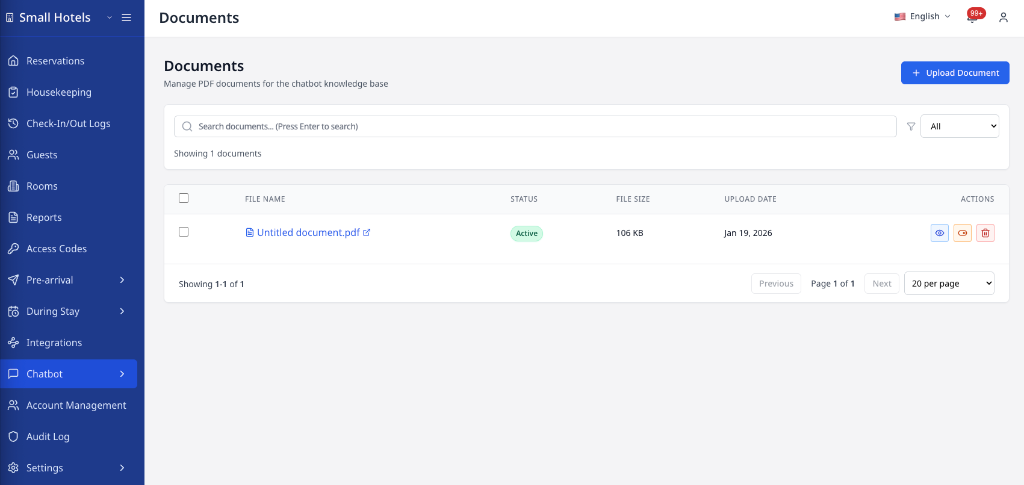
Quick Reference
| Task | Where to click | Result |
|---|---|---|
| Start an upload | Upload Document | The upload flow opens |
| Choose a file | File picker | Streamliner checks the PDF first |
| Send the file | Browser upload step | The PDF goes directly to S3 |
| Add a purpose (optional) | Purpose step | Staff can see why the document exists |
| Finish upload | Finish | Document is created and queued |
| Keep the page open | Same browser tab | Upload and finalize do not interrupt |
| Wait for processing | Auto-refresh in the list | Status updates without manual refresh |
| Handle a slow Agent Wiki job | Keep the document in Processing | AVA reconciles the original job later |
| Track wiki updates | Top progress panel | Visible only in Agent (Pi) mode |
| Review Agent Wiki sync | Agent Wiki column | Visible only in Agent (Pi) mode |
| Review conflicts | Conflicts tab or warning banner | Visible only in Agent (Pi) mode |
| Apply conflict resolutions | Staged conflict actions | Visible only in Agent (Pi) mode |
| Retry a failed update | Retry ingestion or Retry wiki update | Visible only in Agent (Pi) mode |
| Restart a stalled update | Restart update | Available after 10 minutes without progress |
| Review ingest errors | Status badge or row message | See why a document did not finish |
| Search documents | Search bar + press Enter | List filters by keyword |
| Filter by status | Status dropdown | Show Active or Inactive only |
| Enable or disable | Enable / Disable action | Status updates after AVA finishes the ingest job |
| Delete documents | Delete or Delete (n) | File(s) removed after confirmation |
Regenerate Document Knowledge
Agent Wiki initially uses one shared knowledge layout for existing properties. Regeneration changes active sources into separate document bundles.
Your current knowledge stays active until regeneration finishes successfully. Keep the page open while AVA processes the sources.
-
In the Sources tab, click Regenerate knowledge.
✓ AVA shows an Agent Wiki progress panel.
-
Wait until the panel says Agent Wiki is up to date.
✓ The AI Usage tab appears after successful regeneration.
Properties that have not regenerated keep their existing shared-source behavior. Normal uploads and source updates keep the separate-bundle layout after migration.
Regeneration is still running
What you see: The progress panel shows a phase or percentage.
Fix:
- Keep the Communication Hub → Chatbot → Documents page open.
- Wait for the panel to reach a completed state.
- Do not start another regeneration while one is active.
Regeneration needs recovery
What you see: The page says Document knowledge needs recovery.
Fix:
- Review the progress panel and any source error.
- Click Retry knowledge generation.
- Wait until the panel completes.
- Open AI Usage after it becomes available.
Import a Website Source
You can add one public website sitemap as an Agent Wiki source.
Use an HTTPS sitemap URL ending in .xml, such as https://example.com/sitemap_index.xml.
-
Click Upload Document.
-
Select Import website sitemap for Agent Wiki.
-
Enter the public sitemap URL.
-
Click Continue.
-
Add an optional purpose, then click Continue.
-
Review the sitemap and click Finish.
✓ The website source appears in Sources and enters processing.
AVA labels website entries Website sitemap source. You can refresh an existing website source from its row with Refresh Website Content.
Set AI Feature Access
Use AI Usage to choose which AI features may use each active source. Each source keeps its own selections.
| Feature | Uses the source for |
|---|---|
| AI Chatbot | Guest chat answers |
| AI Phone | Phone conversations |
| GEP AI Voice | GEP voice conversations |
| AI Video | Video-call assistance |
| Staff Assist | Team support |
| Email Autodraft | Draft replies |
-
Open the AI Usage tab.
-
Find the PDF or website source.
-
Select or clear the allowed AI features.
-
Keep at least one feature selected.
-
Click Save changes.
✓ The row shows All changes saved.
Disabling a source in Sources removes its access from every AI feature. Re-enable the source before assigning feature access again. After saving changes, wait for knowledge processing before testing replies.
Plan Access
- Chatbot document tools require a paid plan.
- Opening Documents requires
chatbot_document:read. - Uploading documents requires
chatbot_document:write. - Without the matching permission, AVA hides the link and blocks direct access.
- Free-tier accounts see an upgrade prompt instead of the document library.
To upgrade, go to Settings → Billing & Subscription.
Before You Start
Confirm these requirements:
- You have
chatbot_document:readto open the document library - You have
chatbot_document:writeif you need to upload documents - Your file is a PDF between 1 KB and 6 MB
- You are signed in to Streamliner
- You keep the tab open until upload and finalize finish
Upload a Document
-
Click Upload Document
✓ The upload flow opens.
-
Select a PDF.
✓ Streamliner checks the file and prepares the upload.
-
Complete the browser upload step.
✓ The PDF uploads directly to S3.
-
(Optional) Add a short purpose, then click Continue
✓ The purpose is saved with the document.
-
Review the summary and click Finish
✓ You return to the document library.
Do not close, refresh, or navigate away while upload or finalize is running. If the tab closes, start a new upload from Communication Hub → Chatbot → Documents.
What happens next
The document enters processing. The list keeps checking for updates until the file finishes indexing.
Understand Document Status Badges
| Status | What It Means |
|---|---|
| Processing | The document is being indexed and is not ready yet |
| Failed | The background processing job could not start or finish |
| Deleting | The document is queued for removal |
| Active | The chatbot can reference this document when its scope allows it |
| Inactive | The document stays in the library but is not used |
New uploads may stay in Processing for a short time. The page updates the list automatically until the status changes. If the remote Agent Wiki job runs longer than local polling, Processing is expected. Do not re-upload the document or start another job while the original job remains active. If processing fails, the latest error stays visible until you retry with a new upload.
Understand Agent Wiki Status
| Status | What It Means |
|---|---|
| Queued | AVA has sent the document to Agent Wiki and is waiting to start |
| Processing | Agent Wiki is indexing the document now |
| Ready | Agent Wiki can use this document when its consumer scope allows it |
| Failed | The ingest did not complete |
| Deactivating | Agent Wiki is turning off this document |
| Inactive | Agent Wiki is not using this document |
| Not synced | Agent Wiki ingest has not started yet |
You only see this column when the answer engine is Agent (Pi). When you disable a document, you may see Deactivating before Inactive. The page keeps refreshing while this status is Queued, Processing, or Deactivating. When the run reaches a terminal state, AVA refreshes document rows until their final status is visible. If local polling ends before the remote job reaches a terminal state, the document remains Processing. AVA later reads the original job and applies its final document result. If the update fails and Retry ingestion appears, use it to restart the job. If an active update reports no progress for 10 minutes, AVA shows a stalled-progress message and Restart update. Click Restart update to continue the same update. Inactive appears only after AVA finishes the Agent Wiki update. If retries run out, the row can show Failed instead.
Restart a stalled update
What you see: The progress panel says no progress was reported for 10 minutes.
Fix:
-
Open Communication Hub → Chatbot → Documents.
-
Confirm the active Agent Wiki update shows the stalled-progress explanation.
-
Click Restart update.
✓ AVA restarts the existing update and resumes progress tracking.
Do not use Regenerate document knowledge for this case. That action is for failed document-knowledge generation.
Understand AI Document Scopes
Some properties use AI document scopes to control which documents each AI feature can use. Scopes can limit documents for Chatbot Agent, Phone AI, GEP AI Voice, Video Call, Staff Assist, and Email Autodraft.
GEP AI Voice uses only documents explicitly scoped to GEP AI Voice. Older documents without a GEP scope remain available to their existing consumers. Those older documents are not eligible for GEP AI Voice retrieval.
An Active or Ready status confirms document processing. It does not confirm access for every AI feature.
Properties without regenerated scopes keep the previous unscoped behavior. After changing allowed documents, save the source and wait for processing before testing replies.
Review Agent Wiki Conflicts
Use this when the page shows a conflict count or the Conflicts tab appears. The queue stays live while Agent Wiki works.
-
Open Conflicts.
✓ The knowledge review queue opens.
If a warning banner appears on Sources, you can click it instead.
-
Select a conflict from the list.
-
Compare Current wiki information and New document information.
-
Choose one resolution:
- Keep current wiki information
- Use information from the new document
- Provide authoritative information
- Ignore this conflict
-
If you choose Provide authoritative information, enter the exact replacement text.
-
Stage more conflicts if needed.
-
Click Apply.
✓ AVA shows the batch summary at the bottom. ✓ Ignored conflicts do not change the wiki.
-
Click Confirm and update wiki.
✓ AVA starts one wiki update for the whole batch. ✓ The progress panel appears above the tabs.
-
Wait for the progress panel to finish.
✓ Resolved conflicts move to Resolved, Ignored, or Superseded.
One submission can cover several conflicts. AVA still starts only one wiki update for that batch.
Search and Filter Documents
-
Type a keyword in the Search bar
-
Press
Enterto apply the search -
Use the Status dropdown to filter Active or Inactive
-
Click the X in the search bar to clear the search
✓ The full list returns.
Enable or Disable a Document
-
Find the document in the list
-
Click Enable or Disable
-
Confirm the action
✓ The status updates in the table. AVA keeps polling the ingest job until it finishes. You may see Deactivating for a short time before Inactive appears.
AVA now waits for the final ingest result before it updates the document status. If the background job cannot start, AVA marks the document Failed.
Delete Documents
Delete a Single Document
-
Click Delete on the document row
-
Confirm the action
✓ The document is removed from the list.
Delete Multiple Documents
-
Select documents using the left-side checkboxes
-
Click Delete (n) in the summary bar
-
Confirm the action
✓ The list refreshes after the delete job completes.
Troubleshooting
Only PDF files are allowed
What you see: Upload fails with a PDF-only error.
Fix:
- Convert the file to PDF
- Retry the upload
File size must not exceed 6MB
What you see: Upload stops and shows a size warning.
Fix:
- Compress the PDF or split it into smaller files
- Upload one file at a time
Finish button stays disabled
What you see: You cannot complete Step 3.
Fix:
- Wait for the browser upload step to finish
- If the file link is missing, reselect the PDF and upload again
- Try Finish again
The tab closed during upload
What you see: The upload does not appear in the library after you close or refresh the page.
Fix:
- Go back to Communication Hub → Chatbot → Documents
- Start a new upload
- Keep the tab open until Finish completes
Search returns no results
What you see: The table is empty after you search.
Fix:
- Clear the search with the X
- Press
Enterafter typing a shorter keyword - Remove the Status filter to show all documents
A document stays in Processing
What you see: The status stays Processing for a long time.
Fix:
- Wait a few minutes for the automatic refresh to run
- Refresh the page once
- Do not re-upload the document or start another ingestion while it remains Processing
- If it still does not change after 30 minutes, contact support
The remote Agent Wiki job can finish after Streamliner's local polling window. AVA keeps the original job authoritative and applies its terminal result later.
A document shows an ingest error
What you see: The row shows an error message or Agent Wiki shows Failed.
Fix:
- Read the error message on the document row
- Confirm the file is still a valid PDF and under 6 MB
- Upload a corrected copy of the document
- If the same error returns, contact support
An Agent Wiki update is stalled
What you see: An active update shows no progress for 10 minutes.
Fix:
- Click Restart update in the progress panel.
- Keep Communication Hub → Chatbot → Documents open while the update runs.
- Wait for progress to resume and the final status to appear.
- Contact support if the update stalls again.
A conflict update failed
What you see: The selected conflict shows Failed or the batch stops updating.
Fix:
- Click Retry wiki update
- Wait for the progress panel to restart
- Open the conflict again and confirm the final text
- If the same error returns, contact support
Document rows look stale after a conflict update
What you see: The conflict is resolved, but a source row still looks pending.
Fix:
- Keep the page open until the progress panel reaches a terminal state
- Wait for the list to refresh
- Refresh the page once if the row still looks stale
- If it still does not settle after 30 minutes, contact support
Agent Wiki controls are missing
What you see: You cannot see the Agent Wiki column, Conflicts tab, or review banner.
Fix:
- Check the chatbot Answer Engine
- If it is RAG, the Agent Wiki UI is hidden by design
- Switch to Agent (Pi) to manage wiki updates
- If Agent (Pi) is already selected, refresh the page and try again
An AI feature cannot find an active document
What you see: One AI feature does not use a document marked Active or Ready.
Fix:
- Confirm the document shows Active and Ready.
- Check that the document is allowed for the affected AI feature.
- Save the source changes in AI Usage.
- Test the AI feature again after processing finishes.
- Contact support if the document remains unavailable.
GEP AI Voice cannot find a document
What you see: GEP AI Voice does not use a document marked Active or Ready.
Fix:
- Open Communication Hub → Chatbot → Documents → AI Usage.
- Select GEP AI Voice for the document.
- Click Save changes.
- Wait for document processing to finish before testing a GEP call.
- Upload or update the source with GEP AI Voice selected if it predates GEP scoping.
GEP AI Voice does not search older unscoped documents. This prevents unrelated or outdated hotel information from reaching GEP calls.
The AI Usage tab is missing
What you see: You cannot find AI Usage beside Sources.
Fix:
- Check that the chatbot uses Agent (Pi).
- If the property has not migrated, click Regenerate knowledge.
- Wait for Agent Wiki is up to date.
- If regeneration failed, click Retry knowledge generation.
I cannot clear every AI feature
What you see: The last selected feature cannot be cleared.
Fix:
- Leave at least one feature selected for the source.
- Click Save changes.
- To remove access everywhere, open Sources.
- Click Disable for that source.
A website source does not refresh
What you see: Website content stays older after Refresh Website Content.
Fix:
- Confirm the sitemap URL is public and uses HTTPS.
- Confirm the URL ends in
.xmland containssitemap. - Start Refresh Website Content again.
- Wait for the source and Agent Wiki statuses to finish.
- Contact support if the source still shows an error.
Delete fails or does nothing
What you see: The document remains after confirming delete.
Fix:
- Refresh the page and check the status badge
- Try the delete again
- If it persists, contact support
Documents page is unavailable
What you see: Documents is missing, or its direct link does not open.
Fix:
-
Ask an administrator to open Superadmin → Permissions → Roles.
-
Confirm your role includes
chatbot_document:read. -
Sign out and sign in again after the role changes.
-
Open Communication Hub → Chatbot → Documents.
✓ The Documents page and sidebar link appear when your role has access.
Upload page is unavailable
What you see: You can open Documents, but the upload page does not open.
Fix:
-
Ask an administrator to open Superadmin → Permissions → Roles.
-
Confirm your role includes
chatbot_document:write. -
Sign out and sign in again after the role changes.
-
Open Upload Document from Communication Hub → Chatbot → Documents.
✓ The upload flow opens when your role has upload access.
Still Stuck?
Contact success@vouch-technologies.com if:
- ❌ Uploads fail after multiple attempts
- ❌ Documents stay in Processing for more than 30 minutes
- ❌ Documents show the same ingest error after you re-upload them
- ❌ Deletes do not complete after refresh
Helpful to include:
- File name(s) and status
- Screenshot of the document table
- Time the issue started